Steps in AutoCAD with BREPLACE
- Open one drawing.
- Enter BREPLACE and select the block you want to replace.
- Choose the block to replace it with, for example from the similar blocks shown as candidates.
- Save and close the drawing, then repeat steps 1 to 3 in the next drawing.
Ask AI to do it in one step
Ask an AI that has Folder Block Updater for AutoCAD installed (such as Claude Desktop). For DWG files, keep AutoCAD running.
"Show me what would change if SYM-OLD in the drawings in C:\Drawings\ProjectA is replaced with SYM-NEW from C:\Standards\blocks.dwg"
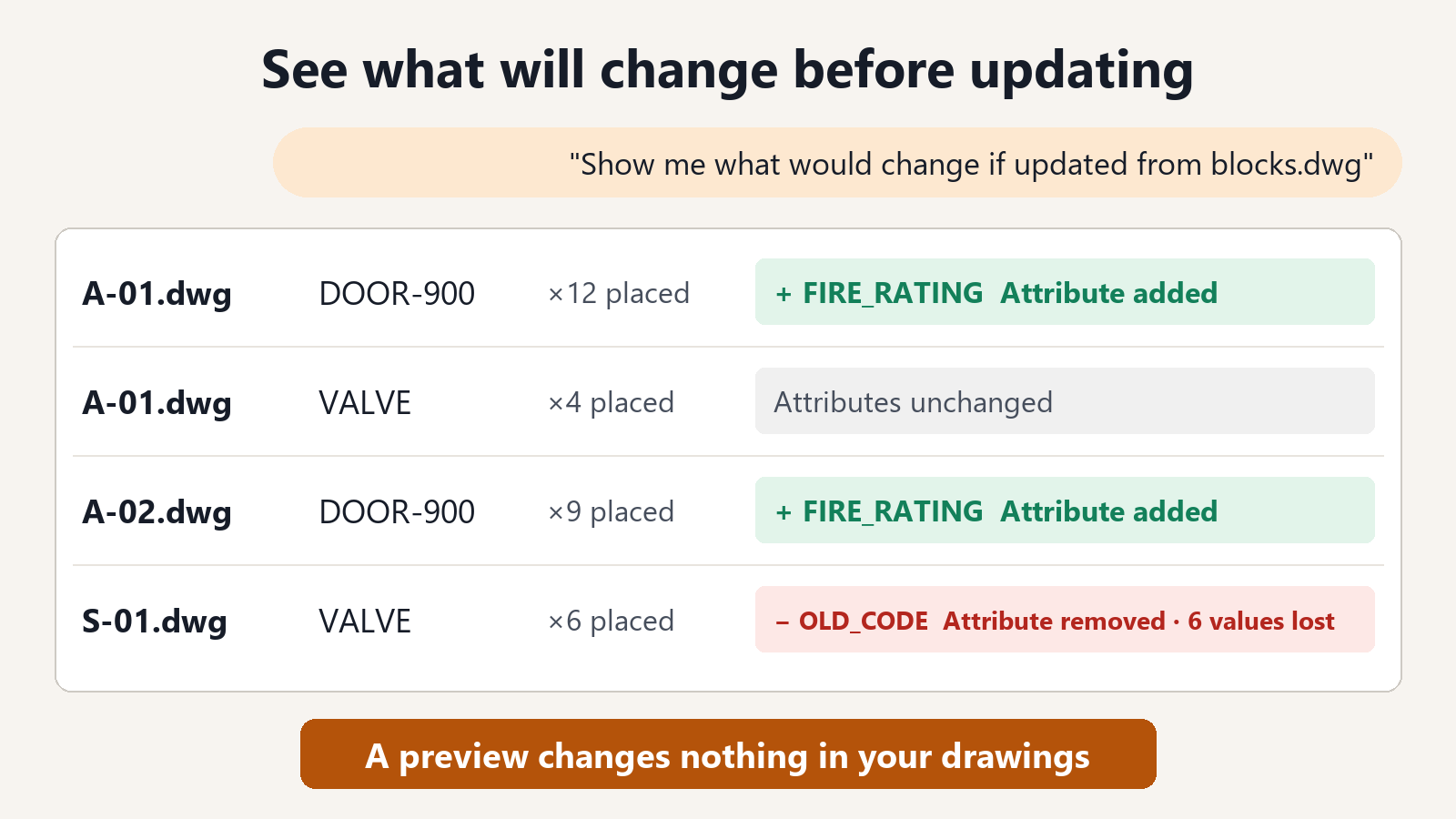
For each drawing, the AI lists the number of blocks that would be replaced. It also lists the attributes that would be lost because the new block does not have them, with the number of those attributes that hold a value. If this is what you expected, go ahead and replace.
"Replace them and save the drawings in a folder named Replaced"
Built so you can leave it to the AI
- Your original files are not changed. Replaced drawings are saved to a separate folder. If a file with the same name already exists there, it is not overwritten.
- Position, scale, rotation and layer stay the same. The new block goes in at the same place, with the same size and direction.
- Values of attributes with the same name are carried over. You do not need to retype numbers or symbols.
- You are told which values will be lost before you save. For attributes that the new block does not have, you can see how many values will be lost before saving.
- Saved drawings are read back and checked.
Listing the blocks and checking what would change are free. Saving the replaced drawings is a subscription feature.
FAQ
What is the difference between BREPLACE and asking AI?
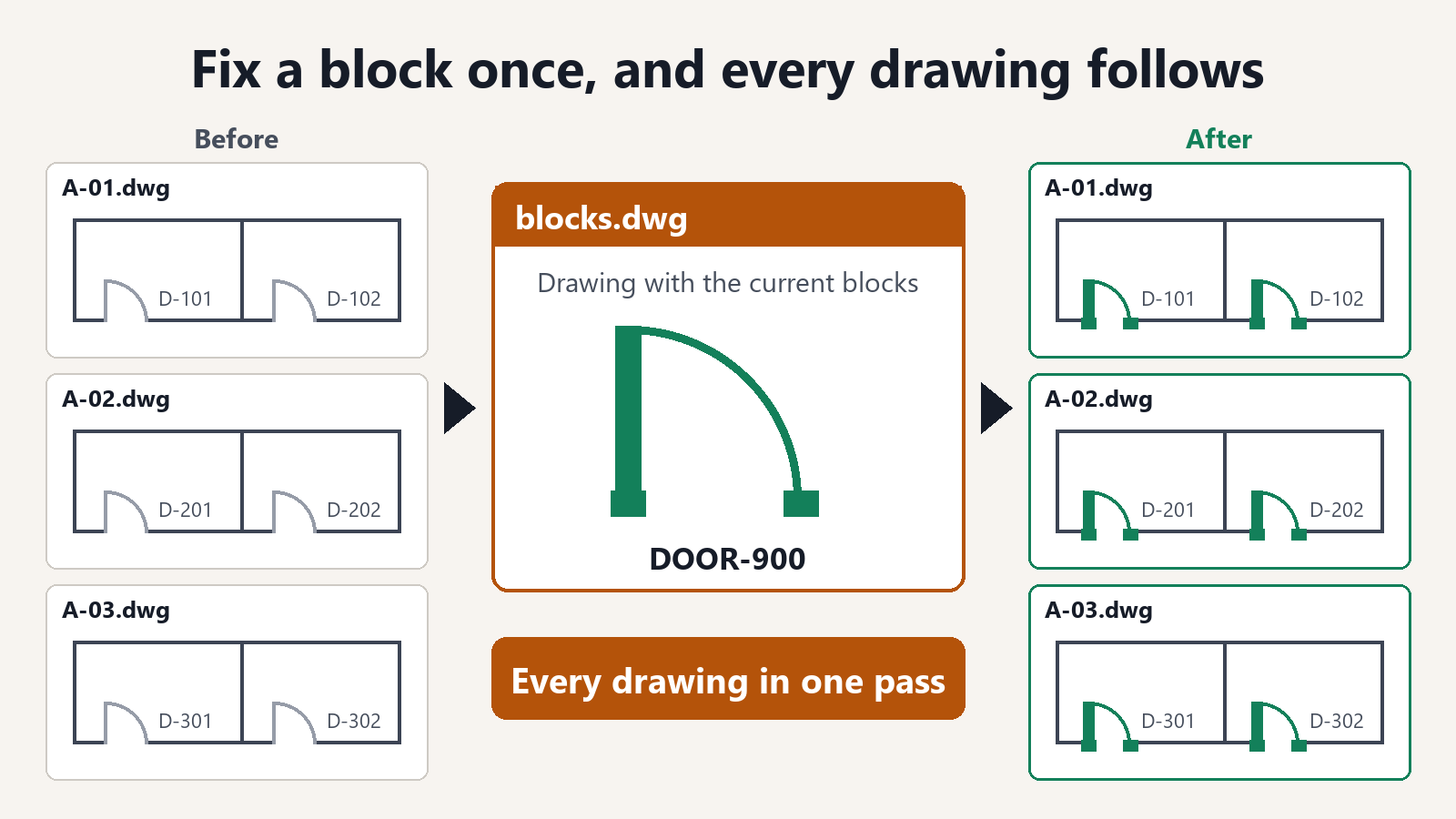
BREPLACE replaces the block you select in the drawing you have open. Asking AI replaces blocks with the same name in all the drawings in a folder at once.
Can I replace a block if the new block is not in the drawing?
Yes. Specify the drawing that contains the new block along with the folder. The block is brought into each drawing from there and then replaced. Nested blocks and layers come in with it.
What if I do not know which drawings contain the old block?
First ask "List the blocks used by the drawings in C:\Drawings\ProjectA". For each drawing, you get the block names and the number of placed instances of each. Drawings that do not contain the old block have nothing to change, so they are not saved.