Check whether the company name is an attribute or text inside the block
Double-click the title block. If the Enhanced Attribute Editor opens and lists the company name, it is an attribute. If the company name is not listed, or if the Edit Block Definition dialog box opens, the name is text inside the block definition. If the Reference Edit dialog box opens, the title block is an external reference. Fix the source drawing once, and the change applies to all drawings.
Do it with standard AutoCAD
When the company name is an attribute:
- Open one drawing and double-click the title block to open the Enhanced Attribute Editor.
- Retype the company name value and click OK.
- If the drawing has several layouts, switch to each layout and retype the company name in each title block.
- Save and close the drawing, then go to the next one.
When the company name is text inside the block:
- Prepare the title block with the corrected company name in one drawing.
- Open a drawing you want to fix. Enter ADCENTER to open DesignCenter, and show the blocks of the drawing that contains the corrected block.
- Right-click the title block and choose "Redefine only".
- Save and close the drawing, then repeat steps 2 and 3 in the next drawing.
Ask AI to do it in one step
Start AutoCAD, then ask an AI client such as Claude Desktop.
When the company name is an attribute
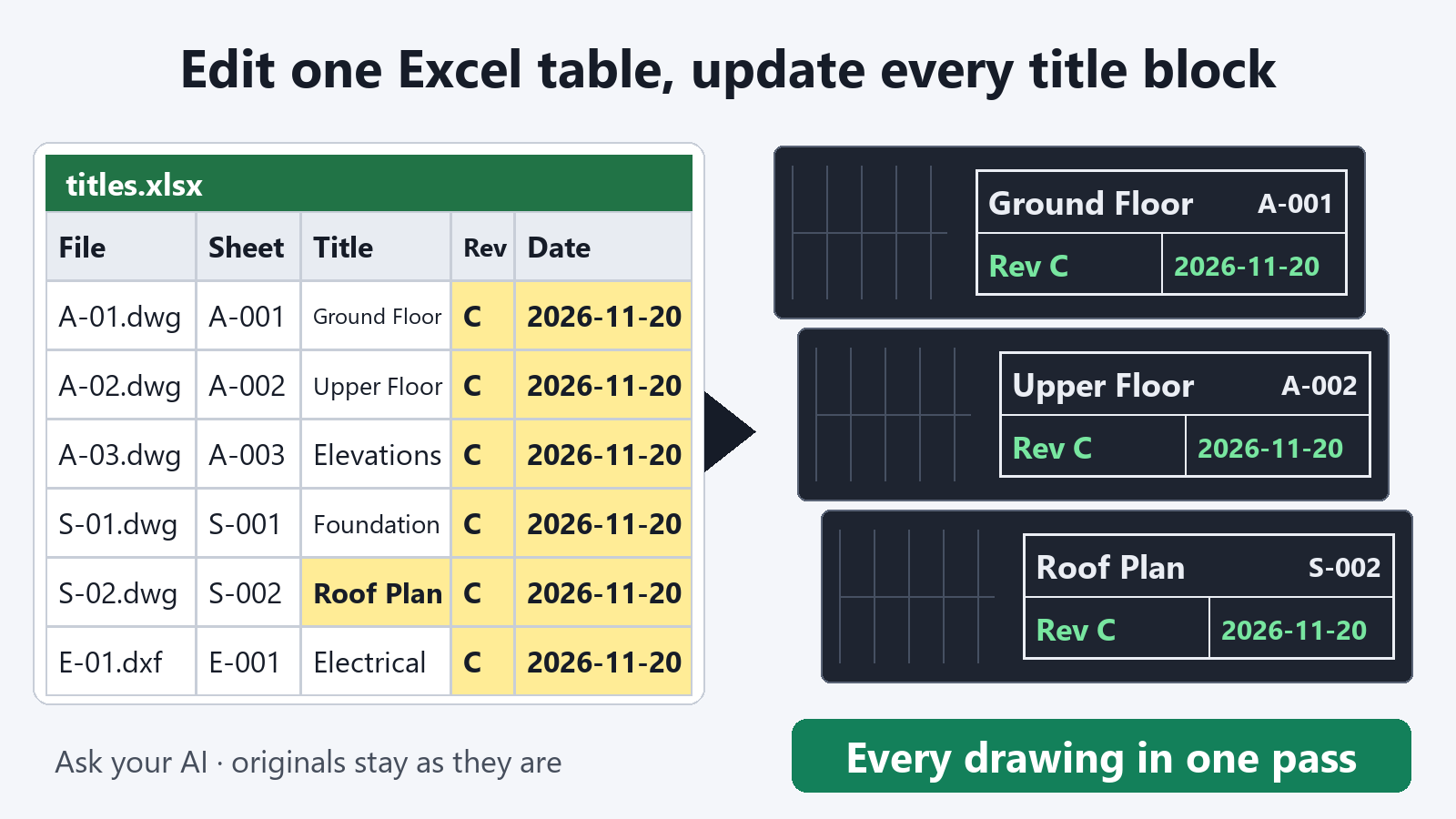
Install Excel to Title Blocks for AutoCAD and ask:
"Export the title blocks of the drawings in C:\Drawings\ProjectA to C:\Drawings\titles.xlsx"
Open the table in Excel. In the company name column (for example COMPANY, the tag name in your title block), use Find and Replace to enter the new company name. Leave the first four columns (file, layout, block, no) as they are. They identify which title block each row belongs to.
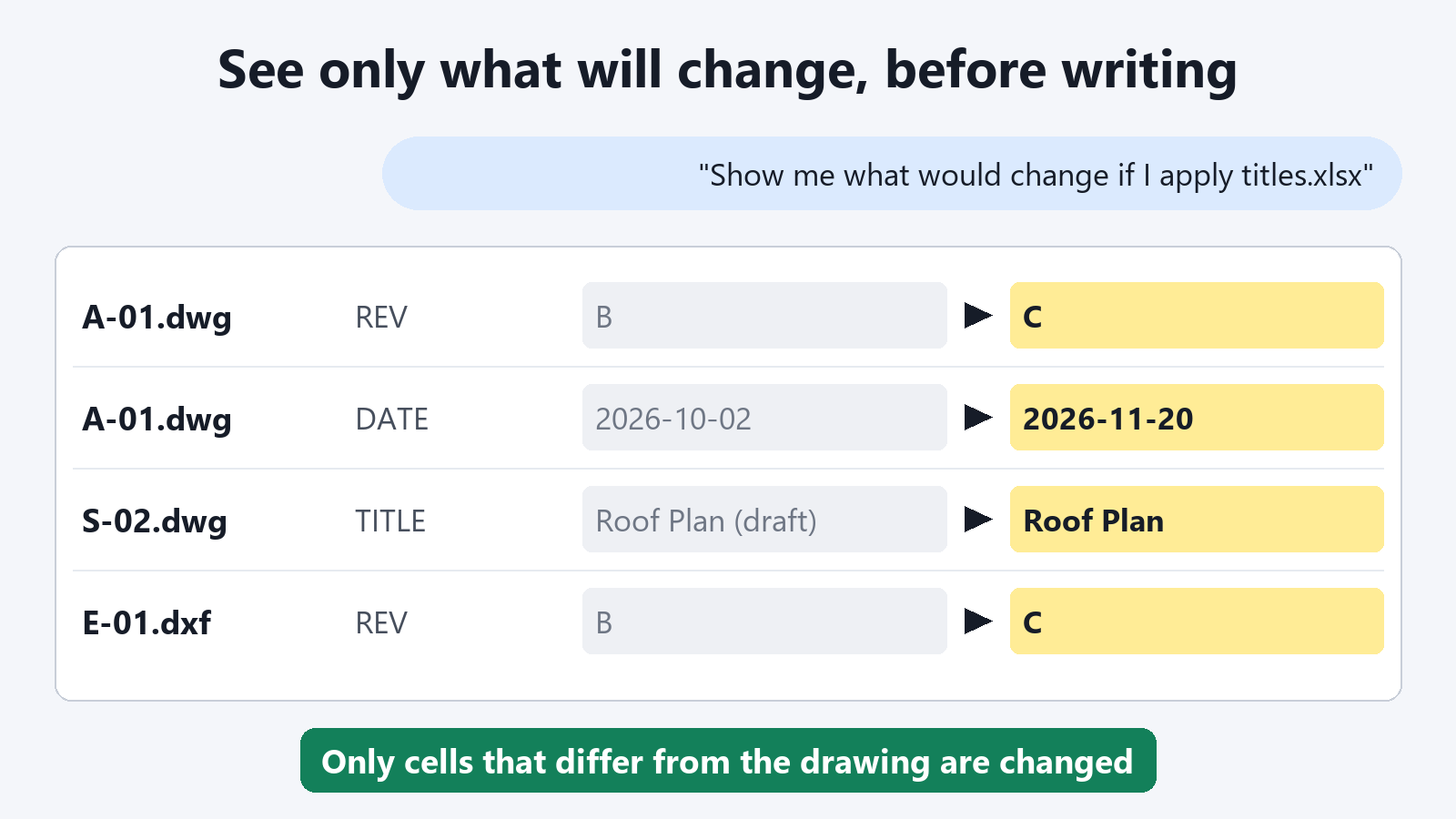
"Show me what would change if C:\Drawings\titles.xlsx is applied to the drawings in C:\Drawings\ProjectA"
Only the changes are listed, drawing by drawing. If they are what you expect, write them back.
"Write it back and save the drawings in a folder named Updated"
If the new company name is longer than the old one, add this to your request:
"Narrow the width of values that became longer"
The width of the text is then narrowed so it fits the frame.
When the company name is text inside the block
Install Folder Block Updater for AutoCAD. Put the title block with the corrected company name in C:\Standards\blocks.dwg, then ask:
"Show me what would change if the blocks in C:\Drawings\ProjectA are updated from C:\Standards\blocks.dwg"
To update only the title block, give its name:
"Update only the block TB-A1"
If the changes are what you expect, ask for the save:
"Update them and save the drawings in a folder named Updated"
Title blocks with fields in their attributes, and dynamic block title blocks, are left as they are so they are not broken. You are told which ones were left.
What keeps this safe
- Your original files are not changed. The corrected drawings are saved to a different folder, so the state before the change stays as it is.
- You can see the changes first. You can check which drawings change and what changes before anything is saved.
- Other values, such as the drawing number and date, stay as they are. When you use the table, only cells that differ from the drawing are written. When you update blocks, the values of attributes with the same name, and the placement, scale and rotation, are kept.
- Fields are kept. When you fix values through the table, attributes that contain fields, such as a plot date that changes automatically, are left as they are.
- Saved drawings are read back and checked.
Exporting title blocks, listing blocks and previewing what would change are free. Writing back into the drawings and saving the updated drawings need a subscription.
FAQ
What if the company name is both an attribute and text inside the block?
Use the two methods in order. First update the blocks. Then export the title blocks of the drawings in the Updated folder, fix the company name attribute in the table, and save to a folder with another name, such as Renamed. Drawings whose attributes did not change are not saved the second time, so the drawings in the Updated folder are the final version for those.
Can I fix the address and phone number at the same time?
Yes. For attributes, fix other columns in the same table. For text inside the block, fix the same block definition. Both are then changed in one run.
What if the company name is entered with a sheet set field?
Fix the property in Sheet Set Manager, then open each drawing and save it. The field value becomes the new company name. Drawings where the value was typed directly into an attribute, and drawings where the name is text inside the block, are fixed with the methods above.
What if I do not know which drawing uses which title block?
First ask: "List the blocks used by the drawings in C:\Drawings\ProjectA" The block names and the number of placed instances are listed for each drawing.