Steps in AutoCAD with ATTSYNC
- Open one drawing and redefine the block to its new form.
- Enter ATTSYNC, then specify the block name or select a block in the drawing.
- If other blocks need to be synchronized, repeat step 2.
- Save and close the drawing, then repeat steps 1 to 3 in the next drawing.
With ATTSYNC, the values of attributes with the same tag (name) are kept. The values of attributes you removed from the definition are deleted. Note down the values you need beforehand.
Ask AI to do it in one step
Ask an AI that has Folder Block Updater for AutoCAD installed (such as Claude Desktop) like this. For DWG files, keep AutoCAD running.
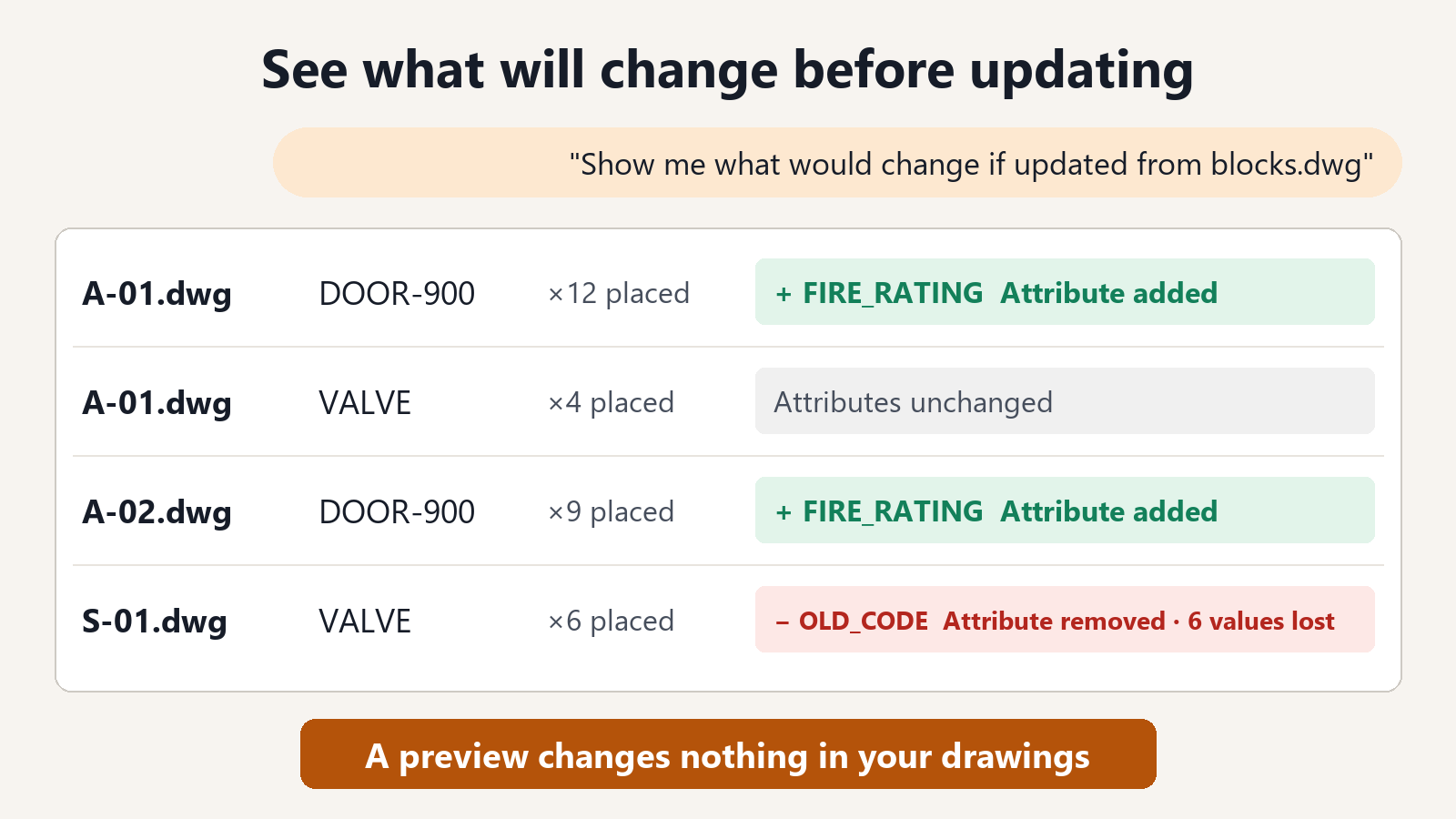
"Show me what would change if the blocks in C:\Drawings\ProjectA are updated from C:\Standards\blocks.dwg"
For each drawing, the AI lists the number of placed instances, the attributes that will be added, and the attributes that will be removed (with the number of instances that hold a value). If you want to update only some blocks, give their names.
"Update only the blocks DOOR-900 and VALVE"
If the result is what you expect, ask the AI to save.
"Update them and save the drawings in a folder named Updated"
Why you can rely on it
- Values of attributes with the same tag (name) are kept. You do not need to retype equipment numbers or symbols.
- Added attributes get their default values. The values set in the block appear as they are.
- You can see the values that will be removed, as a count, before saving. If values you did not expect to lose would be deleted, you can review the block instead of updating.
- The original files are not changed. Updated drawings are saved in a separate folder.
- Saved drawings are read back to check that the values remain.
Listing the blocks and previewing what would change are free. Saving the updated drawings is a subscription feature.
FAQ
What is the difference between ATTSYNC and asking the AI?
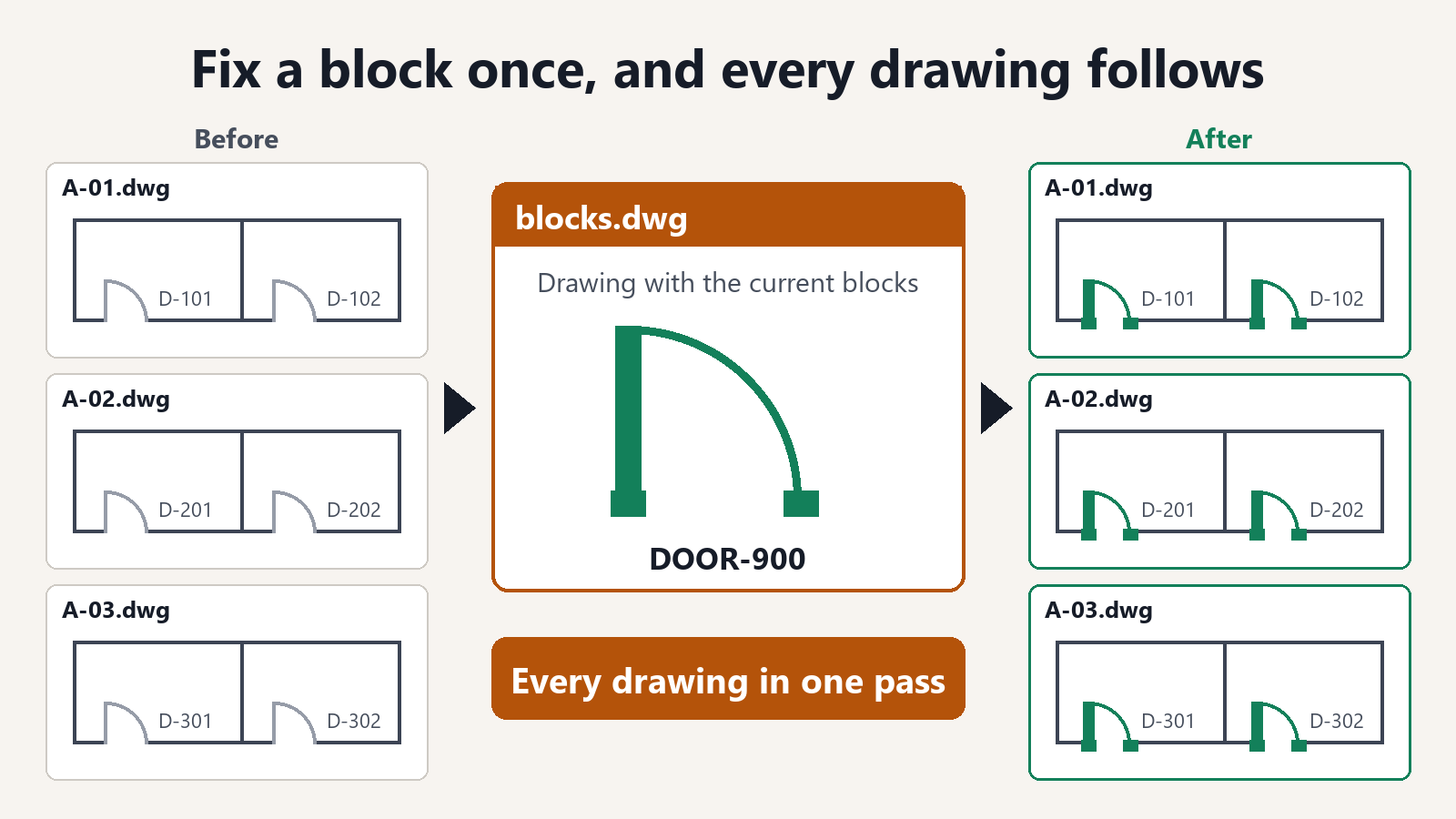
In the open drawing, ATTSYNC matches the attributes of the blocks you specify to the block definition. Asking the AI updates the blocks with the new blocks and aligns the attributes, for all drawings in the folder at once.
What happens if an attribute contains a field (an automatically updating value)?
To avoid breaking the field, the AI leaves that block as it is and tells you which block in which drawing it left.
What if I do not know which drawings contain the block?
First ask "List the blocks used by the drawings in C:\Drawings\ProjectA". The AI lists the block names and the number of placed instances for each drawing.
Are blocks in layouts synchronized too?
Yes. Blocks placed in model space, in layouts, and inside other blocks are updated in the same way, and their values are kept.