How to Merge Vertices at the Center in Blender
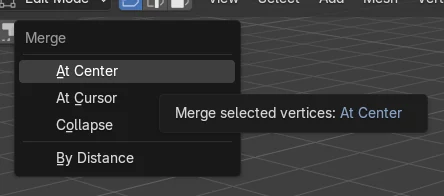
In Edit Mode, select the vertices you want to join, press M and choose the center option from the Merge menu. Blender replaces the selection with a single vertex placed at the middle of the selected vertices.
- Mode
- Edit Mode (3D Viewport)
- Menu
- Mesh › Merge
- Shortcut
- M
Press M
Opens the Merge menu in Edit Mode. Pick the center option from the list.
Mesh > Merge
The same list is in the Mesh menu. Right-click menu: Merge Vertices.
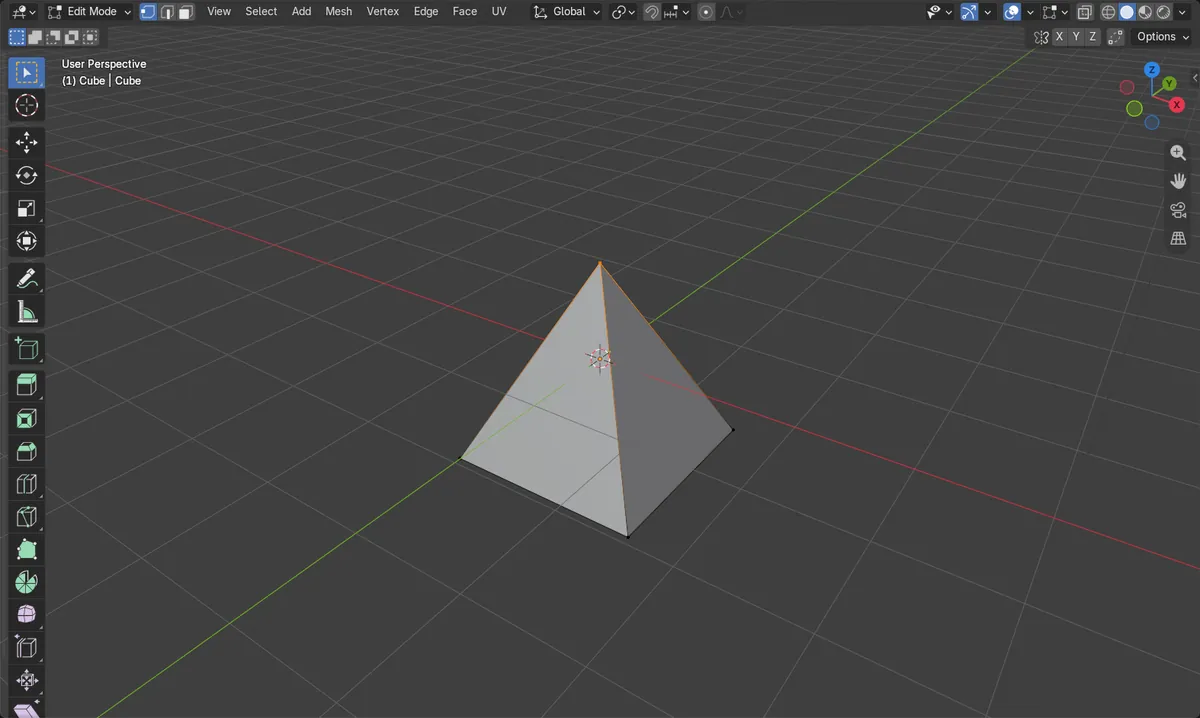
One vertex remains
The merged vertex sits at the middle of the vertices you selected.
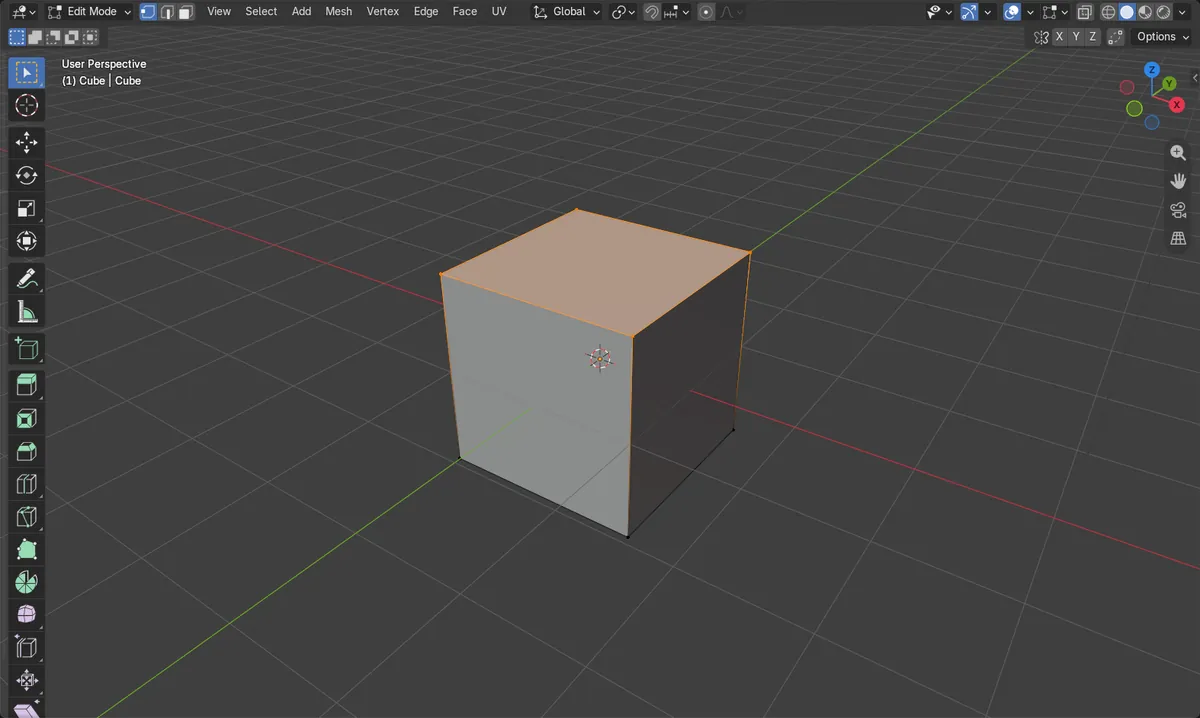
Before and after

AI Scene Builder is a Blender add-on. You type what you want, and it builds it in your scene: buildings, neon signs, wet pavement, fog and lights. Nothing in this picture was modeled by hand.
On a phone now? The add-on runs in Blender on a computer. Send yourself the link and open it there.
Step by step (Blender 5.x)
- Click the object, then press Tab to enter Edit Mode.
- Select the vertices to join (in vertex select mode). For example, select the four top vertices of a cube.
- With the mouse over the 3D Viewport, press M to open the Merge menu.
- Choose the center entry (the one that places the result at the center of the selection). You can also use Mesh › Merge.
- The selection collapses into one vertex at the average position of the selected ones.
Other ways to do it
- Mesh › Merge, then the center entry
- Right-click in the viewport › Merge Vertices, then the center entry
Common snags
Merge menu does not appear
You are probably in Object Mode or the mouse is over another editor. Press Tab to enter Edit Mode and hover over the 3D Viewport before pressing M.
Nothing happens
Check that the vertices you want to merge are highlighted and that you are in vertex select mode.
Wrong spot
The result is the average of the selected vertices, so any extra selected vertex shifts it. Deselect everything and reselect carefully.
Or type one line in AI Scene Builder
AI Scene Builder is a Blender add-on that carries out the steps for you from one typed request. For this task, type a request like this one, using your own object names:
Select the vertices, edges or faces in Edit Mode first.
Merge the selected vertices into one vertex at their center A log cabin room built with the add-on from 9 typed requests. See every request →
Questions
How do I merge vertices at the center in Blender?
In Edit Mode, select the vertices, press M and choose the center option. They become one vertex at their average position.
What is the difference from Merge by Distance?
Merge by Distance joins only vertices that are close to each other. Merge at center joins every selected vertex into one point regardless of distance.
What the pictures show
- Before: the cube had 8 vertices, 4 of them selected (the top face at height 1 m).
- After the merge: 5 vertices remain, with 1 selected.
- The merged vertex is at (0, 0, 1) m, the center of the old top face.
- Results were identical in Blender 4.2 LTS and Blender 5.x.