Quick, tested answers to everyday Blender questions
 AI Scene Builder · An AI add-on for BlenderTry it free: 15 credits, no card ›
Each answer shows the exact menu path and keys, a before and after picture from Blender 5.x, what changes in Blender 4.2 LTS, and the snags people hit most. New in Blender 5.3 pages show what the new tools do and what Blender 5.2 LTS lacks, and New in Blender 5.4 pages do the same for the Blender 5.4 Alpha and Blender 5.3.
AI add-on for Blender › New in Blender 5.4 Alpha › New in Blender 5.3 ›
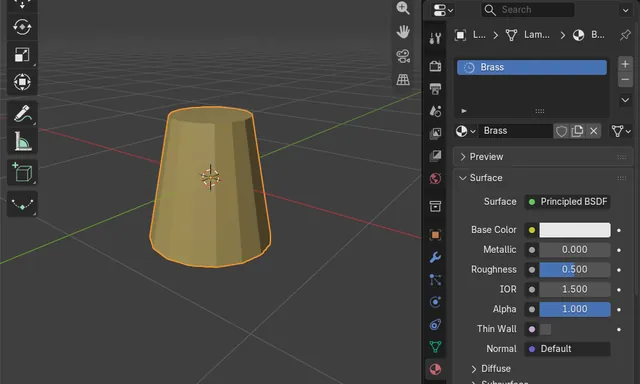
How to Append in Blender Without Keeping Linked Materials (Make Linked Local)
When you use File › Append, keep Make Linked Local turned on in the options of the file browser.
Read the answer ›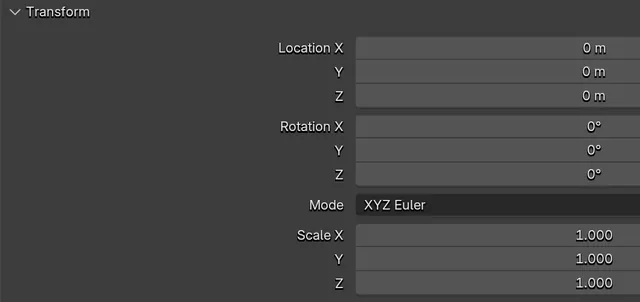
How to Change the UI Text Shadow in Blender 5.4 (None, Small, Large or Outline)
Open Edit › Preferences › Themes, expand User Interface › Editor & Widgets and pick an option in the Text Shadow menu: None, Small, Large or Outline.
Read the answer ›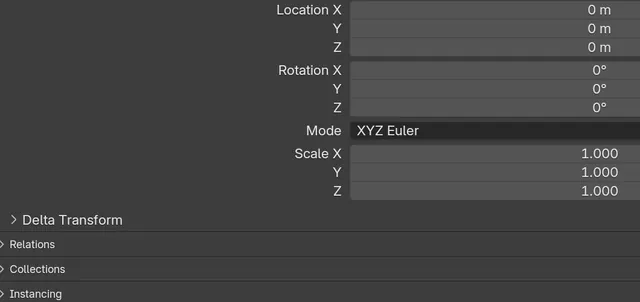
How to Change the Font Size in Blender (5.4 Alpha and 5.3)
In Blender 5.4 Alpha, open Edit › Preferences, go to Interface, expand Text Rendering › Font Style and raise Widget Size; Panel Title Size and Tooltip Size are right next to it.
Read the answer ›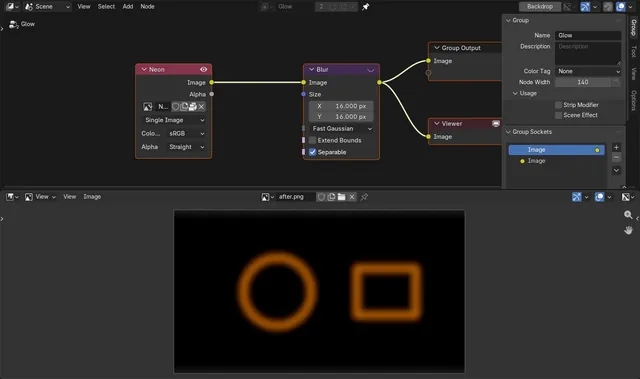
How to Make Compositor Blur Match at a Lower Render Resolution in Blender 5.4
In Blender 5.4, open the compositor in the Node Editor, press N to show the Sidebar, open the Options tab and turn on Adapt To Render Scale in the Performance panel.
Read the answer ›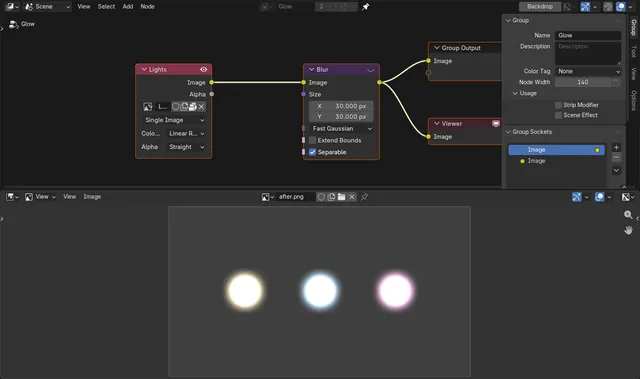
Why Fast Gaussian Blur Makes Dark Rings in the Blender Compositor
In Blender 5.3, the Fast Gaussian type of the compositor Blur node can leave a thin ring that is darker than the background around very bright spots, such as lamps or highlights far above 1.0.
Read the answer ›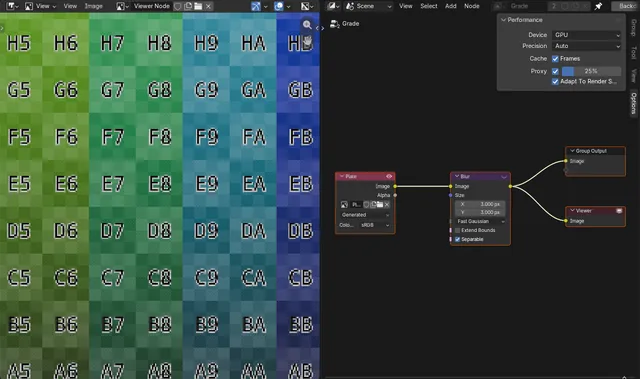
How to Speed Up the Compositor Preview with Proxy in Blender 5.4
In Blender 5.4, open the Compositor, press N for the sidebar, go to the Options tab and, under Performance, tick Proxy and set its percentage (for example 25%).
Read the answer ›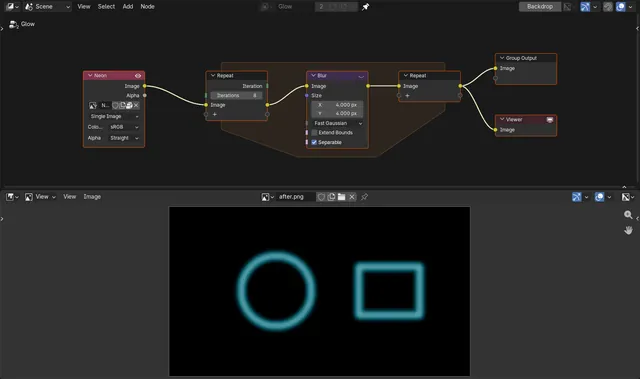
How to Use a Repeat Zone in the Blender 5.4 Compositor
In Blender 5.4, open the compositor node tree, press Shift A and choose Utilities › Repeat.
Read the answer ›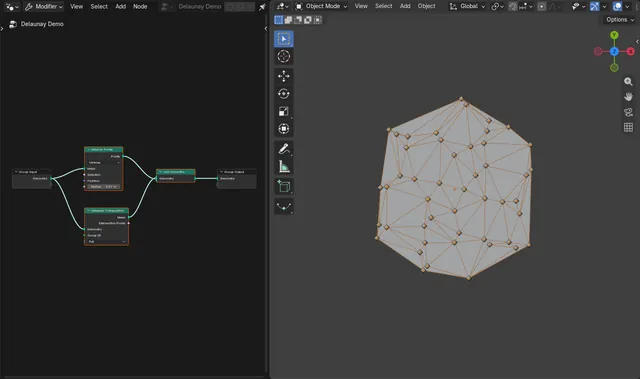
How to Use the Delaunay Triangulation Node in Blender 5.4
In Blender 5.4, open the Geometry Node Editor, press Shift + A and choose Geometry › Operations › Delaunay Triangulation, then connect your points to its Geometry input and its Mesh output to the Group Output.
Read the answer ›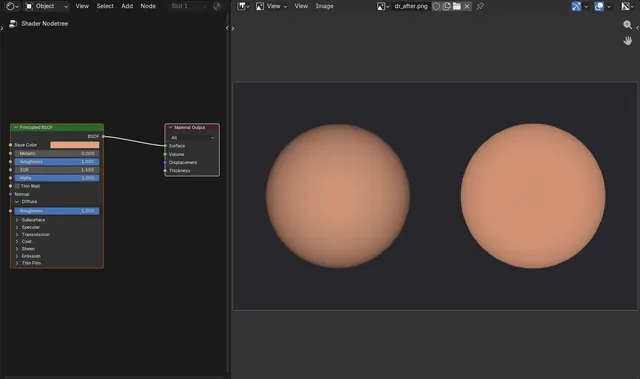
How to Use Diffuse Roughness in EEVEE in Blender 5.4
In Blender 5.4, select the material, open the Principled BSDF node, expand its Diffuse panel and raise Roughness there (the Diffuse Roughness input) from 0 towards 1.
Read the answer ›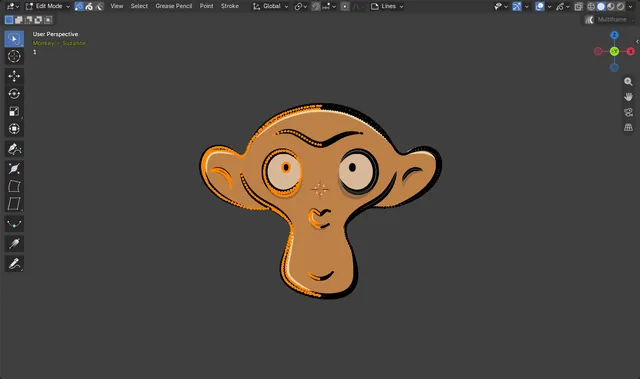
How to Lasso Select in Grease Pencil Edit Mode in Blender 5.4
In Blender 5.4, select a Grease Pencil object and press Tab to enter Edit Mode.
Read the answer ›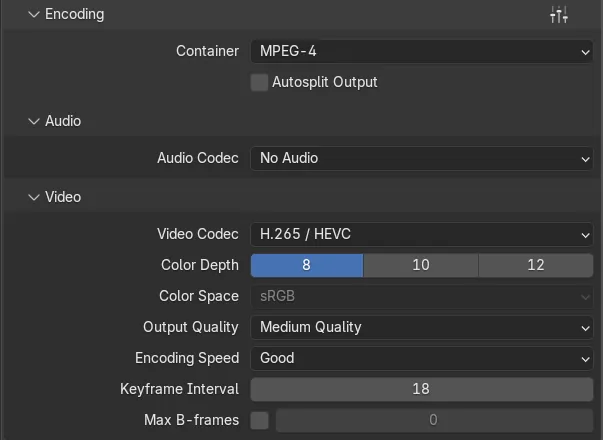
Why Is My H.265 Video Low Quality in Blender? (Output Quality in Blender 5.4)
Up to Blender 5.3, H.265 at a given Output Quality gave a softer picture than H.264 at the same setting, so Medium Quality H.265 videos looked worse than expected.
Read the answer ›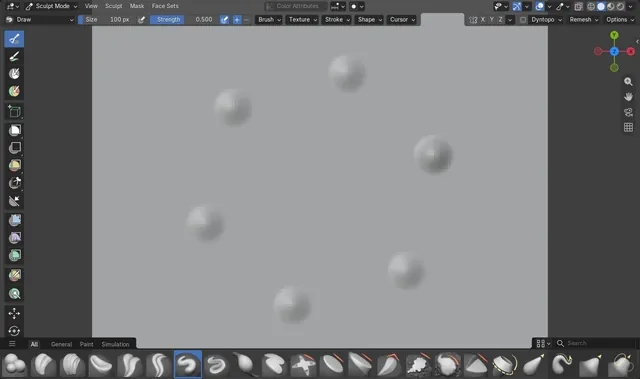
How to Turn Radial Symmetry On in Blender 5.4 Sculpt Mode
In Blender 5.4 Sculpt Mode, open the Symmetry settings (the arrow next to the X Y Z buttons in the tool header, or the Symmetry panel in the Tool tab of the Sidebar (N)), tick Radial Symmetry, then open it and set Count, for example Z = 6.
Read the answer ›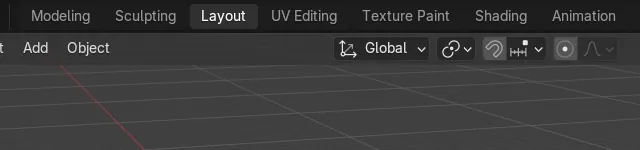
How to Reorder Workspace Tabs in Blender 5.4 (Left / Right)
In Blender 5.4, right-click a workspace tab at the top of the window and choose Reorder to Left or Reorder to Right.
Read the answer ›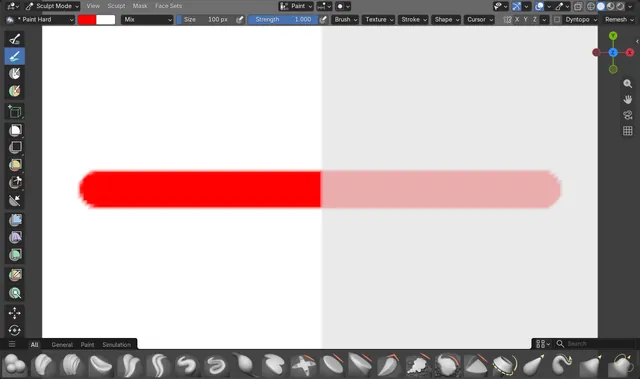
How the Sculpt Paint Brush Respects the Mask in Blender 5.4
In Sculpt Mode, mask the area you want to protect (with the Mask brush or Box Mask), then paint with the Paint brush.
Read the answer ›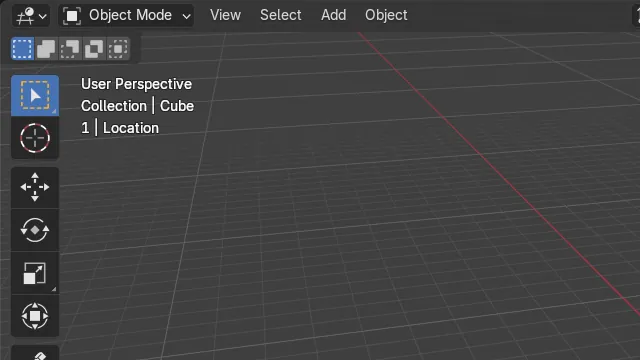
How to See the Active Keying Set in the Blender 5.4 Viewport
In Blender 5.4 the active Keying Set appears in the top-left Text Info of the 3D Viewport, on its own row after the frame number, for example "1 | Location".
Read the answer ›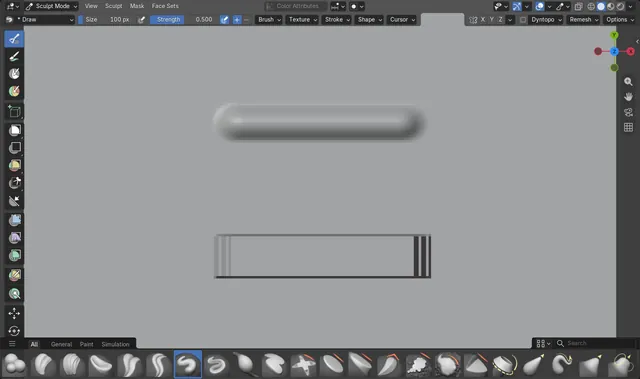
How to Make a Square Sculpt Brush in Blender 5.4 (Tip Roundness)
In Blender 5.4 Sculpt Mode, pick the Draw brush, open Shape in the tool header (or Brush Settings › Shape in the Sidebar's Tool tab) and set Tip Roundness to 0.
Read the answer ›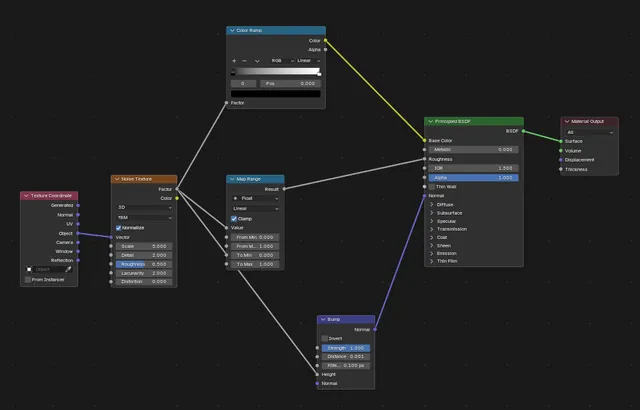
How to Make Node Links Straight in Blender 5.4 (Noodle Curving)
In Blender 5.4, open Edit › Preferences, click Editing, open the Node Editor panel and set Noodle Curving to 0.
Read the answer ›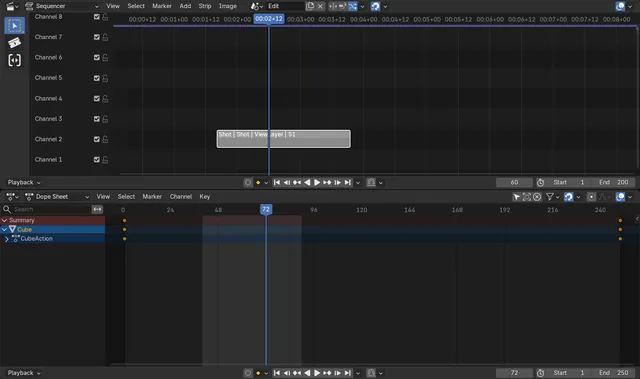
How to Play Only the Scene Strip Range in Blender 5.4
In Blender 5.4, open the Playback menu of the Timeline and tick Use Scene Strip Range in its Sequencer section.
Read the answer ›
How to Export a glTF or GLB File from Blender
Choose File › Export, then glTF 2.0 (.glb/.gltf).
Read the answer ›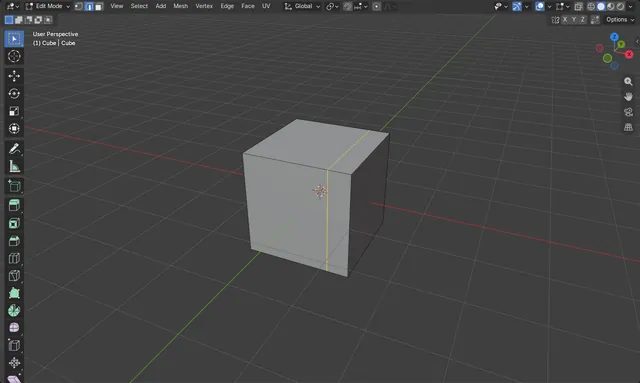
How to Slide an Edge Along the Mesh in Blender
In Edit Mode press 2 for Edge select and select the edges, for example a loop around the mesh.
Read the answer ›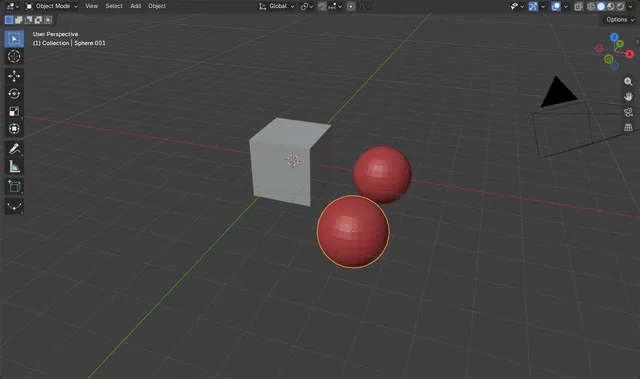
How to Copy and Paste Objects in Blender (Ctrl+C, Ctrl+V)
Select the objects in Object Mode, hover the 3D Viewport and press Ctrl + C (Object › Copy Objects).
Read the answer ›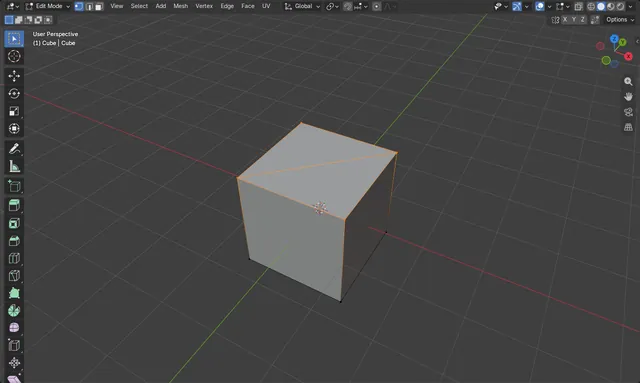
How to Connect Two Vertices With an Edge in Blender (J)
Press Tab for Edit Mode and 1 for Vertex select.
Read the answer ›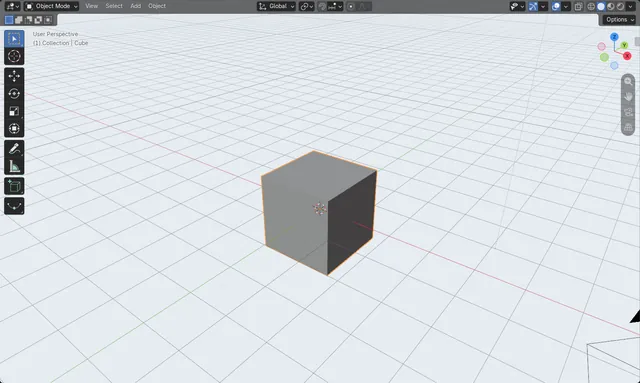
How to Change the Viewport Background Color in Blender
In Solid shading, click the small arrow at the right of the shading buttons in the 3D Viewport header to open the Viewport Shading dropdown.
Read the answer ›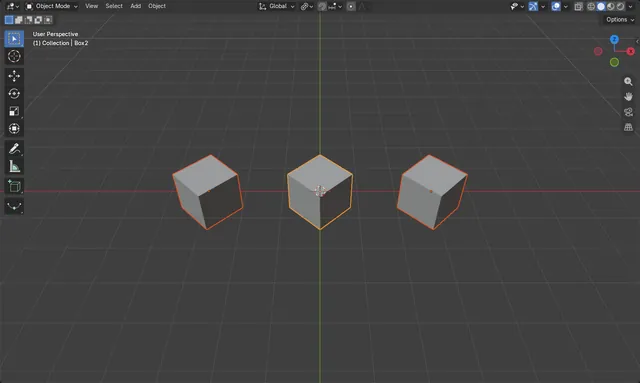
How to Change the Pivot Point in Blender
Hover the 3D Viewport and press the period key (.) on the main keyboard to open the Pivot Point pie, or click the pivot dropdown in the 3D Viewport header.
Read the answer ›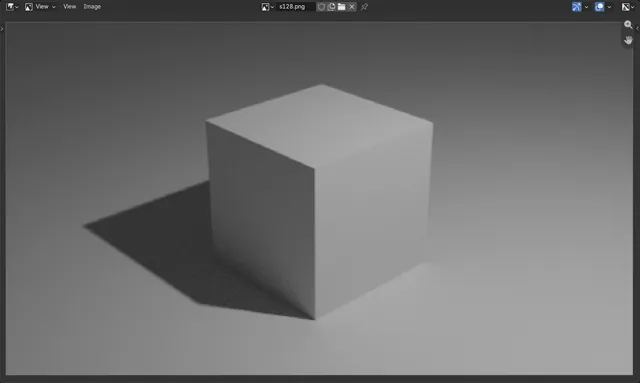
How to Change Render Samples in Blender Cycles
With Cycles as the render engine, open the Render Properties tab and expand Sampling › Render.
Read the answer ›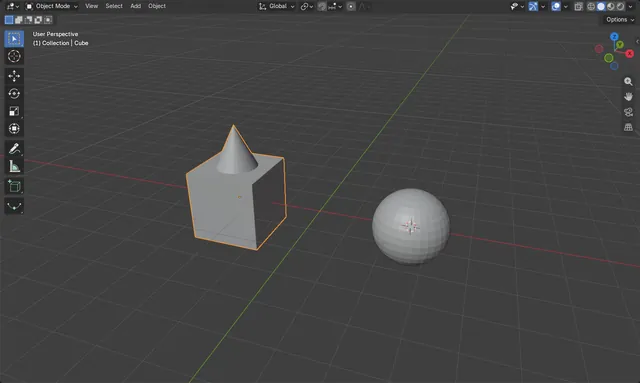
How to Add a Mesh Object in Blender (Shift+A)
In Object Mode hover the 3D Viewport, press Shift + A, choose Mesh and pick a shape such as UV Sphere or Cone.
Read the answer ›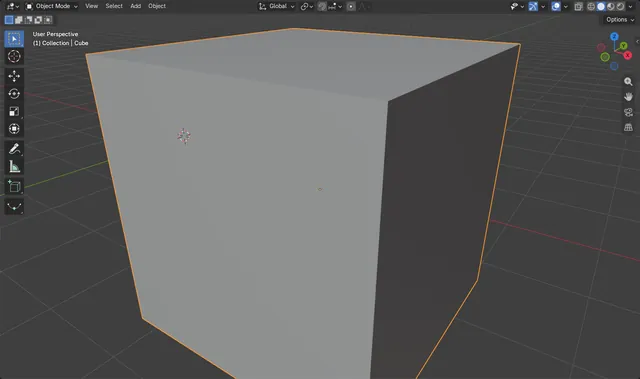
How to Focus on the Selected Object in Blender
Select the object, move the mouse over the 3D Viewport and press Numpad .
Read the answer ›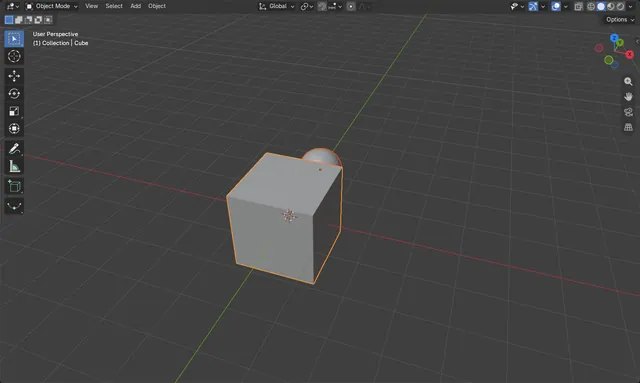
How to Parent an Object in Blender (Ctrl+P)
In Object Mode click the object that should follow (the child), then Shift + click the object that should lead (the parent) so it becomes the active object.
Read the answer ›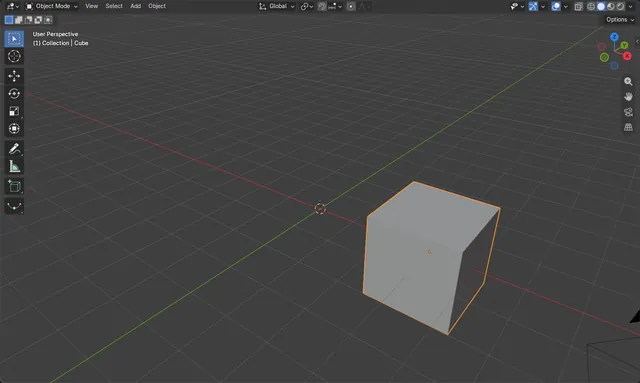
How to Move an Object in Blender (G Key)
In Object Mode select the object, hover the 3D Viewport, press G and move the mouse.
Read the answer ›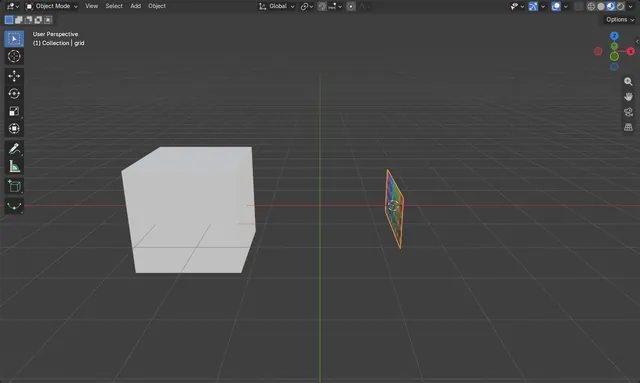
How to Import an Image as a Plane in Blender
In Object Mode hover the 3D Viewport, press Shift + A and choose Image › Mesh Plane..., then pick the picture and click Import Images as Planes.
Read the answer ›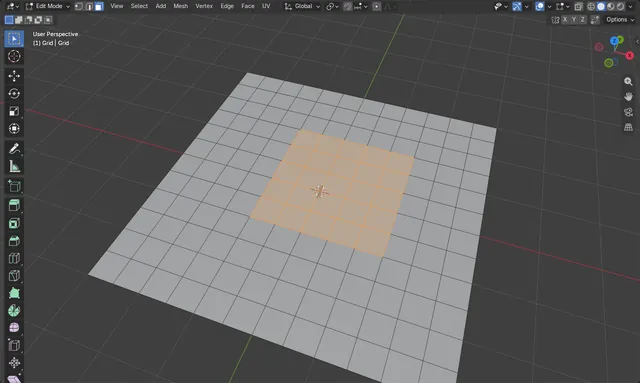
How to Grow a Selection in Blender (Select More)
In Edit Mode, with part of the mesh selected, hover the 3D Viewport and press Ctrl + numpad + (Select More).
Read the answer ›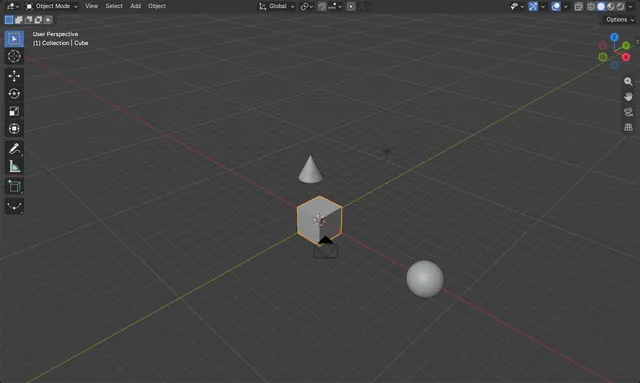
How to See All Objects in the Blender Viewport (Home)
Hover the 3D Viewport and press Home, or choose View › Frame All.
Read the answer ›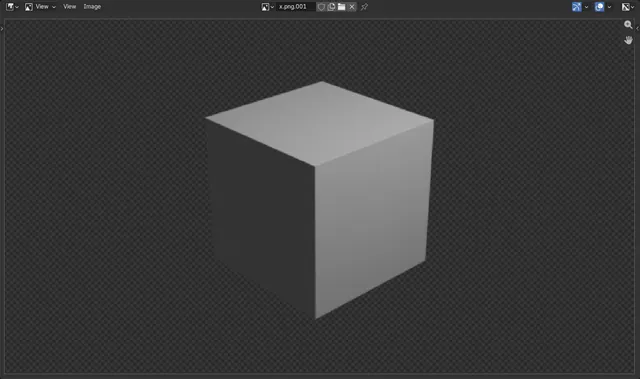
Can Blender render PNGs with a transparent background?
Yes, Blender can render PNG files with a transparent background.
Read the answer ›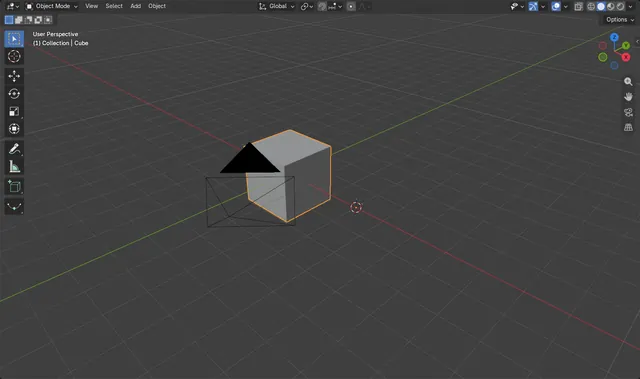
Change the Pivot or Local Origin of an Object in Blender
Place the 3D Cursor where you want the new origin, then choose Object › Set Origin in the 3D Viewport and pick the option that moves the origin to the cursor.
Read the answer ›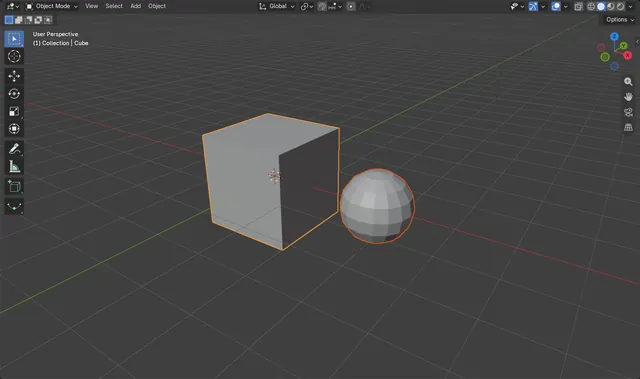
How to Separate Parts of a Mesh into a New Object in Blender
In Edit Mode, select the vertices, edges or faces you want, then press P and choose Selection.
Read the answer ›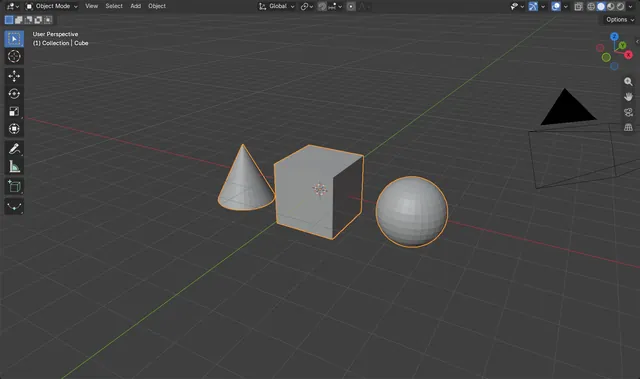
How do I make multiple Blender objects into one?
Select all the mesh objects you want to combine, with the one you want to keep selected last so it is active, then press Ctrl + J in the 3D Viewport.
Read the answer ›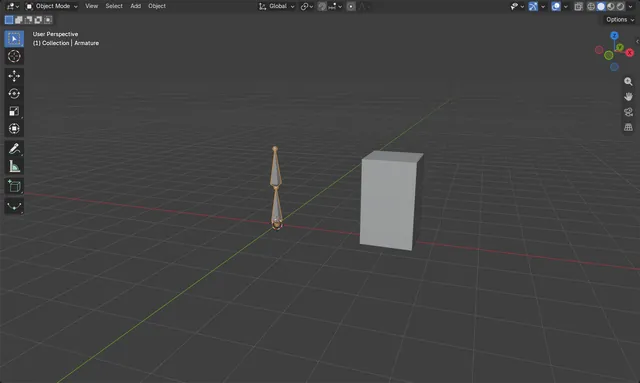
How to Add Bones (an Armature) in Blender
In Object Mode press Shift + A and choose Armature to add one bone at the 3D cursor.
Read the answer ›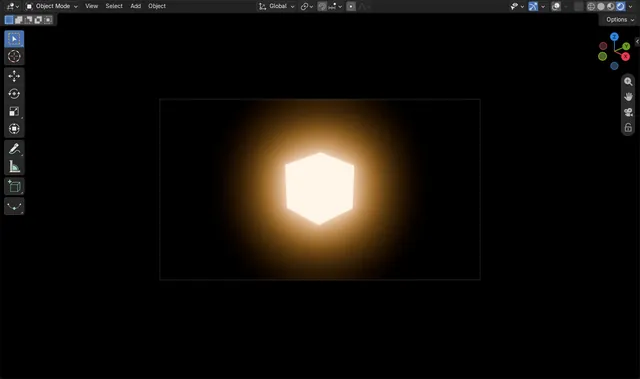
How to Add Bloom in Blender 5.3 (Scene Effects)
In Blender 5.3, open the Compositor & Effects tab of the Properties editor, click Add Scene Effect, open Camera & Lens Effects and choose Bloom.
Read the answer ›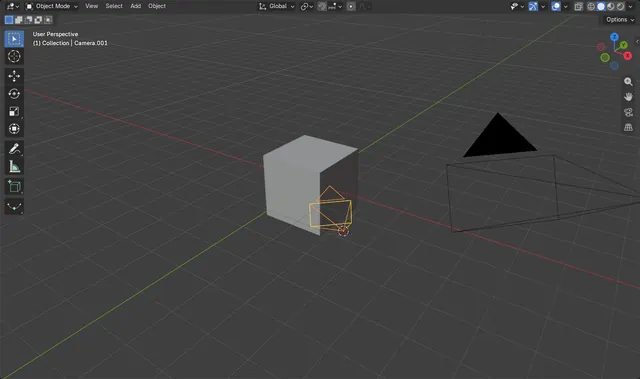
How to Add a Camera in Blender
In Object Mode, press Shift + A and choose Camera: a new camera object appears at the 3D Cursor.
Read the answer ›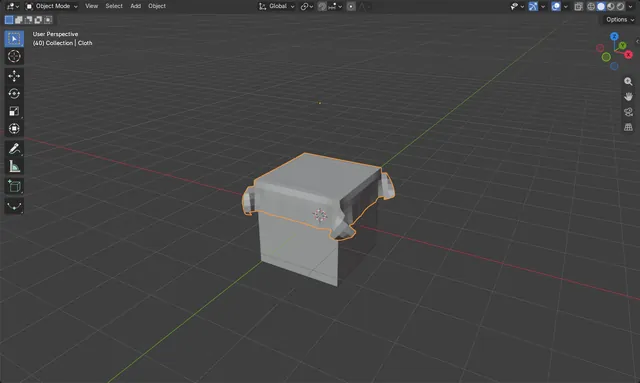
How to Add a Cloth Simulation in Blender
Select a plane that has been subdivided, open the Physics Properties tab and click Cloth.
Read the answer ›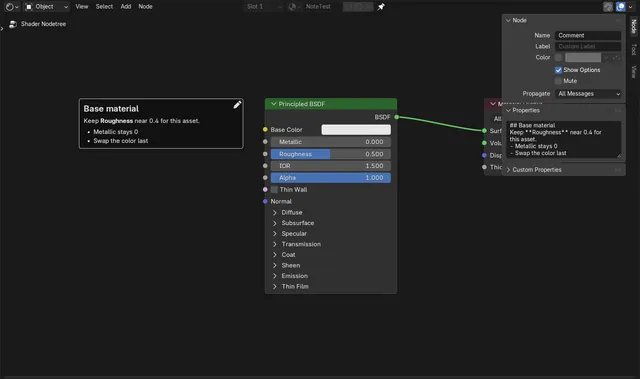
How to Add a Comment to Nodes in Blender 5.3 (Comment Node)
In Blender 5.3, hover over the node editor, press Shift + A and choose Layout › Comment.
Read the answer ›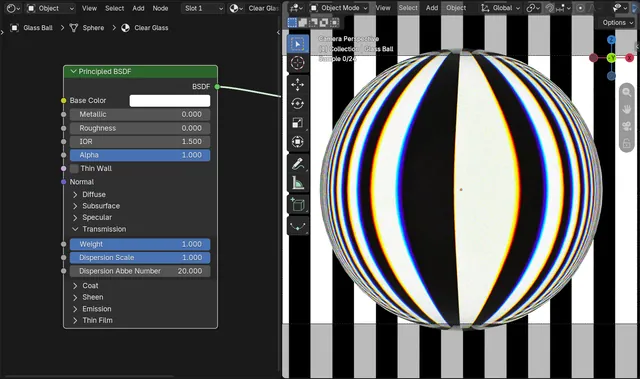
How to Add Dispersion (Rainbow Edges) to Glass in Blender 5.3
In Blender 5.3, open the Transmission panel of the Principled BSDF node and set Dispersion Scale above 0, for example 1.
Read the answer ›
How to Add an Image Texture to an Object in Blender
Open the Shader Editor with the object selected, press Shift + A and choose Texture › Image Texture, then click Open on the new node and pick your image.
Read the answer ›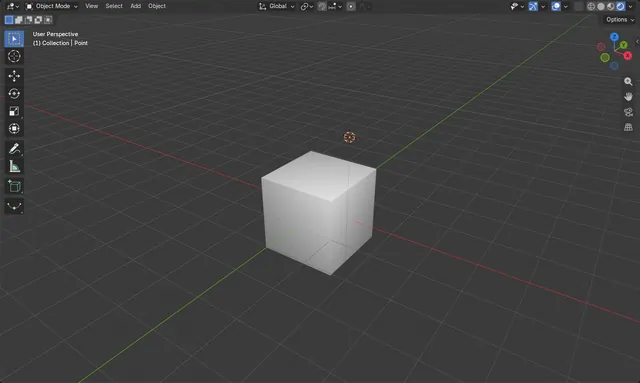
How to Add a Light in Blender
In Object Mode press Shift + A, choose Light and pick Point, Sun, Spot or Area.
Read the answer ›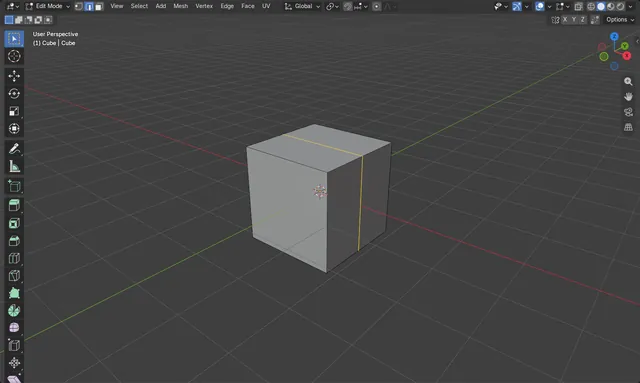
How to Add a Loop Cut in Blender
Select your mesh, press Tab to enter Edit Mode, hover the mouse over the mesh and press Ctrl + R.
Read the answer ›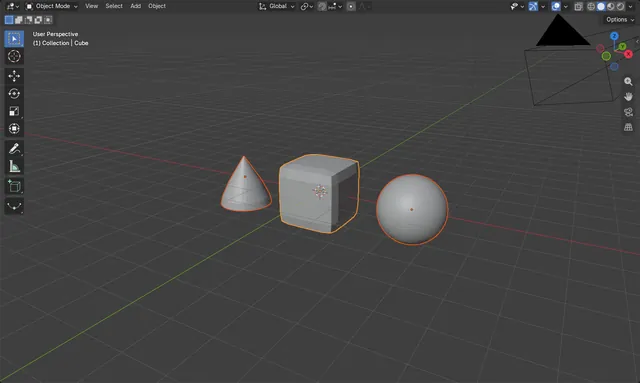
Add the Same Modifier to Multiple Objects in Blender
Add the modifiers to the active object, select the other objects too (active object last), then choose Object › Link/Transfer Data and pick the Modifiers entry.
Read the answer ›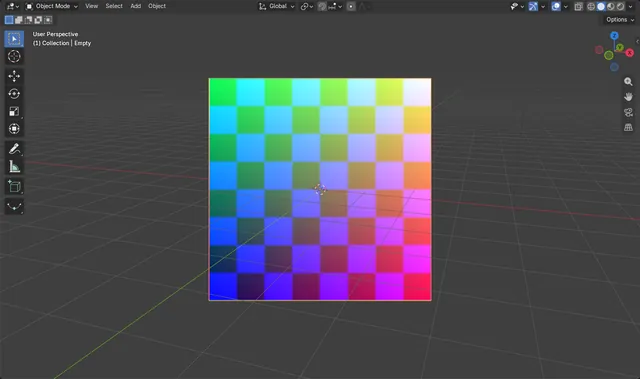
How to Add a Reference Image in Blender
In Object Mode, press Shift + A and choose Image › Reference, then pick the picture file: it is placed in the scene as an image object facing the view.
Read the answer ›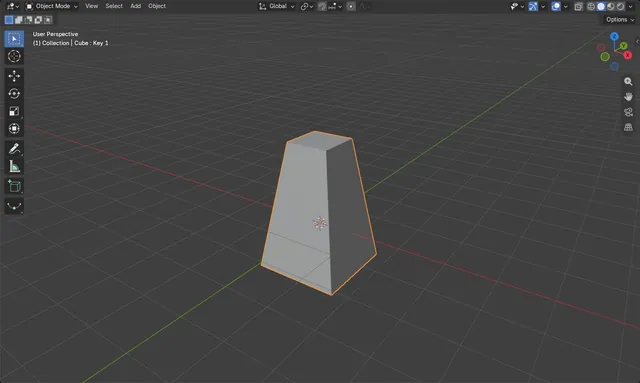
How to Add Shape Keys in Blender
Select the mesh, open the Object Data Properties tab (green triangle) and in the Shape Keys panel click + twice.
Read the answer ›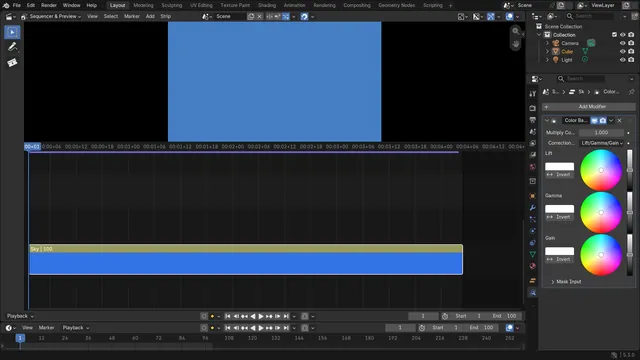
How to Add a Strip Modifier with Shift+A in Blender's Video Editor (Blender 5.3)
In Blender 5.3, select a strip, open the Strip Modifiers tab in the Properties editor, hover the mouse over it and press Shift + A.
Read the answer ›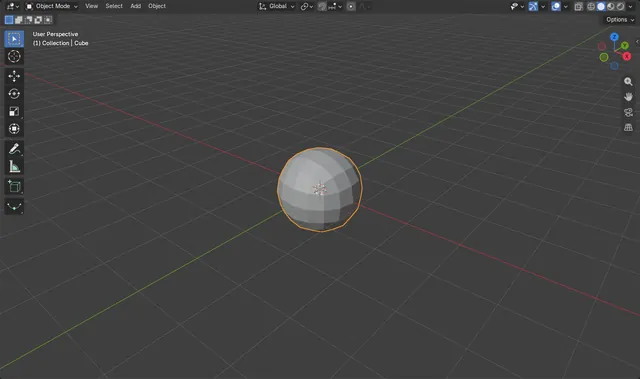
How to Add a Subdivision Surface Modifier in Blender
Select the object in Object Mode and press Ctrl + 2: Blender adds a Subdivision Surface modifier at level 2 and the mesh turns smooth and rounded.
Read the answer ›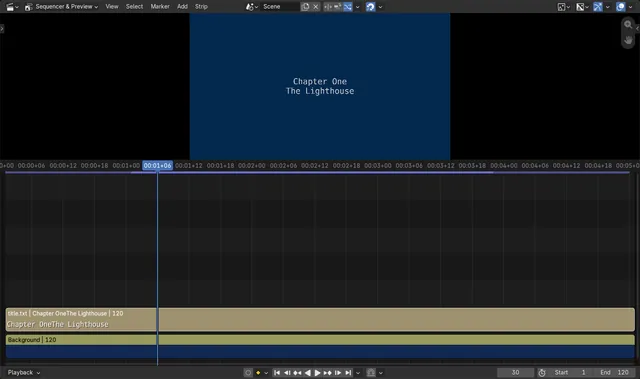
How to Add a Text File as a Text Strip in the Blender 5.3 Video Editor
In Blender 5.3, open the Video Sequencer and choose Add › Text (Shift + A).
Read the answer ›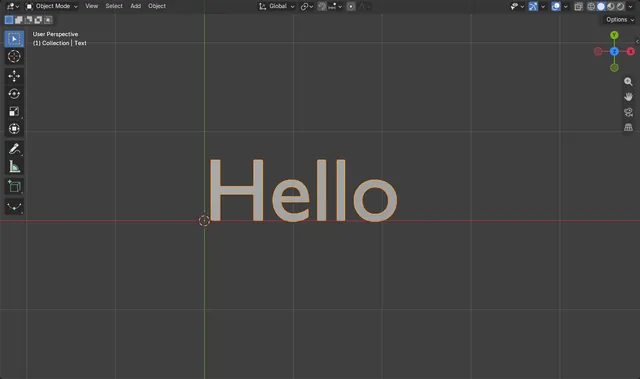
How to Add and Edit 3D Text in Blender
In Object Mode, press Shift + A and choose Text: a text object that reads "Text" appears at the 3D Cursor.
Read the answer ›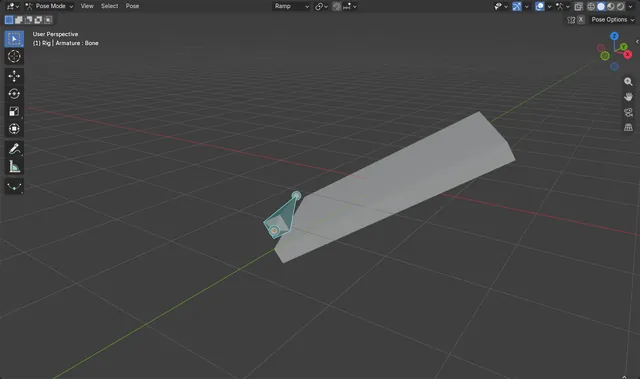
How to Align a Bone to a Custom Transform Orientation in Pose Mode (Blender 5.3)
In Blender 5.3, set the Transform Orientation in the 3D Viewport header to the orientation you want, select the bone in Pose Mode and use Pose › Transform › Align to Transform Orientation.
Read the answer ›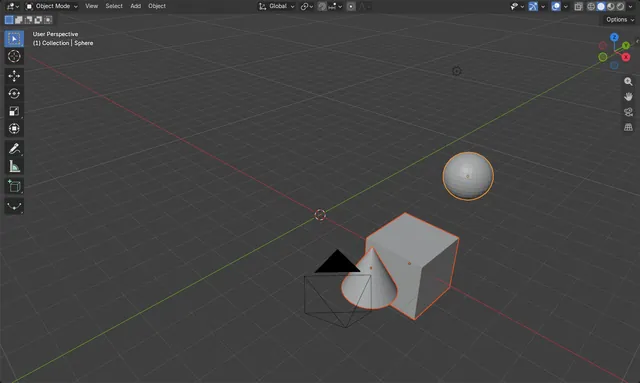
How to Align Two Objects on an Axis in Blender
Select the objects you want to move, then select the target object last so it is active.
Read the answer ›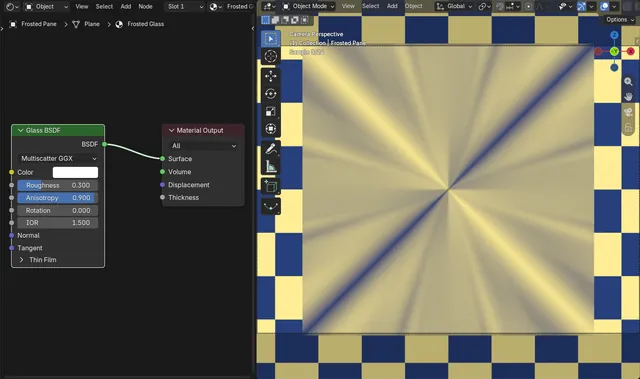
How to Make Brushed or Streaked Glass with Anisotropy (Blender 5.3)
In Blender 5.3, set Roughness above 0 on the Glass BSDF node and raise its new Anisotropy value, for example to 0.9.
Read the answer ›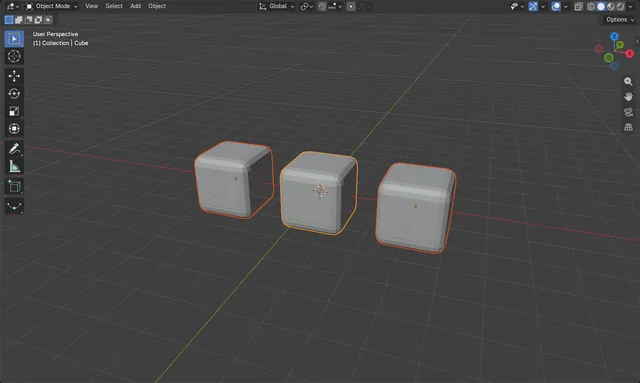
Apply Modifiers to Multiple Objects at Once in Blender
Yes.
Read the answer ›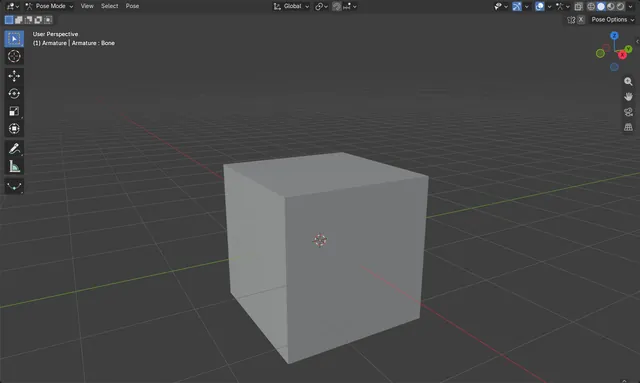
How to Apply the Current Pose as the Rest Pose in Blender
Select the armature, switch to Pose Mode, and choose Pose › Apply › Apply Pose as Rest Pose in the 3D Viewport.
Read the answer ›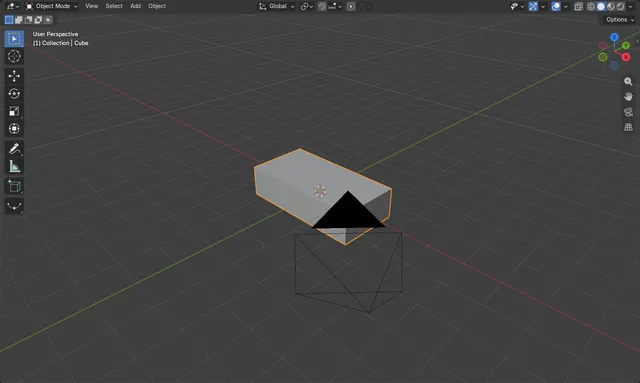
How to Apply Scale in Blender (Object > Apply > Scale)
Select the object in Object Mode, then choose Object › Apply › Scale in the 3D Viewport.
Read the answer ›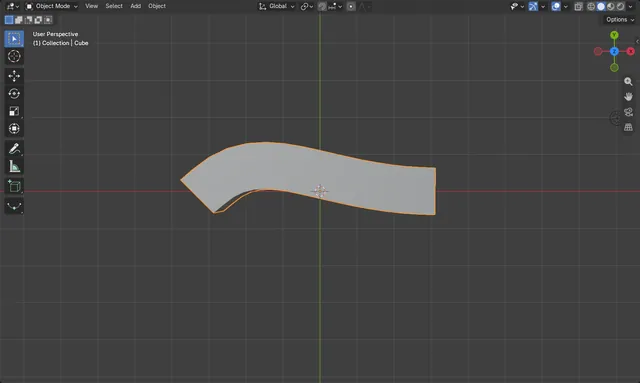
How to Array an Object Along a Curve in Blender
Select the object, add an Array modifier, set Fit Type to Fit Curve and pick your curve in the Curve field so the copies fill its length.
Read the answer ›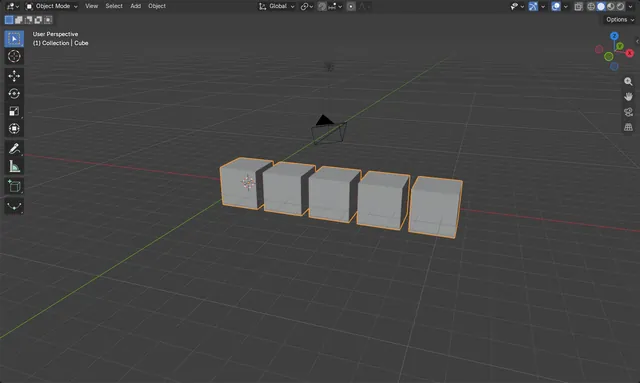
How to Make a Row of Copies with the Array Modifier in Blender
Select the object, open the Modifiers tab in the Properties editor, choose Add Modifier › Generate › Array (in Blender 5.x choose Array (Legacy) for the modifier with the settings used here), then set Count to the number of copies you want.
Read the answer ›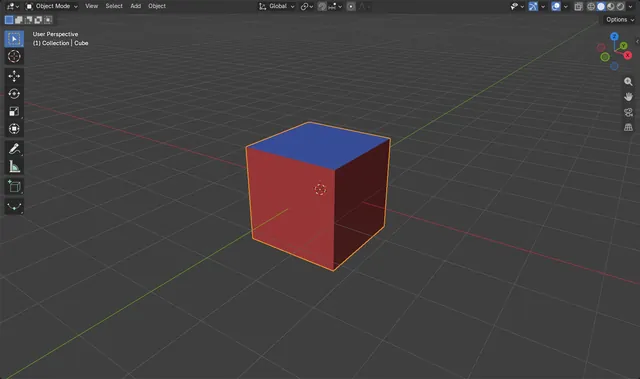
Add Different Materials to Different Parts of a Mesh in Blender
Add one material slot per material in the Material tab, then enter Edit Mode (Tab), select the faces, pick a slot in the list and click Assign.
Read the answer ›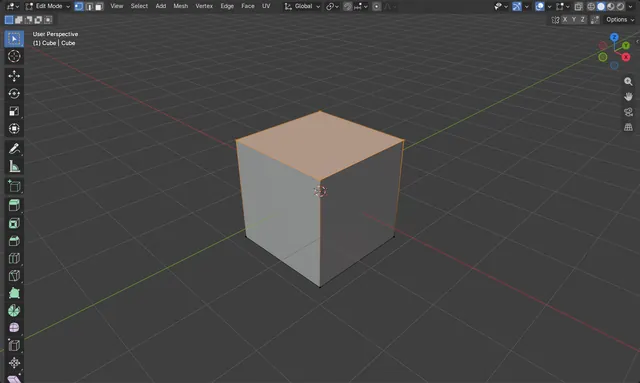
How to Assign Vertices to a Vertex Group in Blender
In Edit Mode, select the vertices, open the Data tab in the Properties editor, pick a group in the Vertex Groups panel (add one with the + button if needed) and click Assign.
Read the answer ›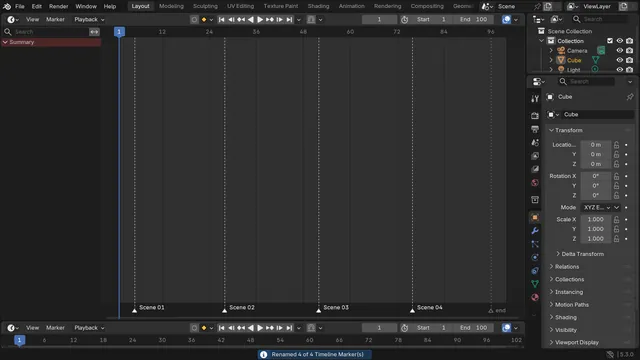
How to Batch Rename Timeline Markers in Blender (Blender 5.3)
In Blender 5.3, select the markers in the Timeline, open Edit › Batch Rename (Ctrl + F2), set Data Type to Markers and Data Source to Selected, then add a Find/Replace row.
Read the answer ›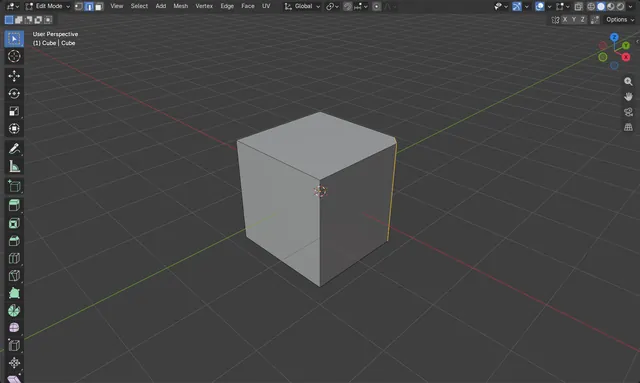
Bevel Specific Edges in Blender
Select only the edges you want in Edit Mode, then press Ctrl + B, or choose Edge › Bevel Edges.
Read the answer ›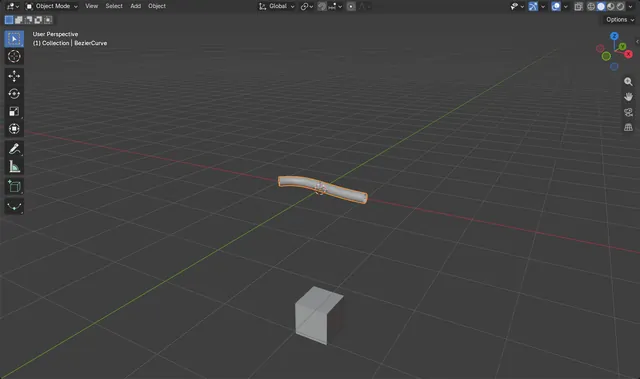
Make a 3D Tube with a Bézier Curve in Blender
Add a curve with Add › Curve › Bézier, then open the Data tab in the Properties editor and set Geometry › Bevel › Depth to a value above 0, such as 0.1.
Read the answer ›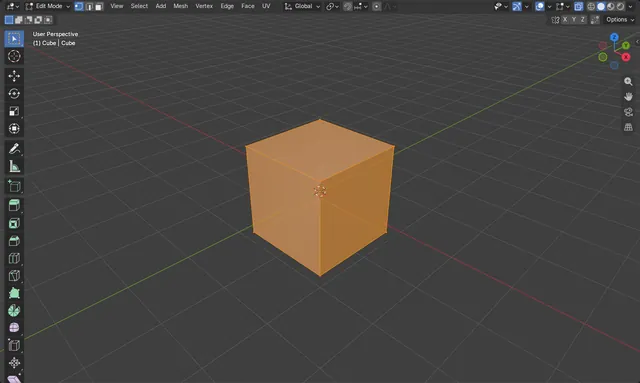
How to See Through Objects (X-Ray) in Blender
Hover the mouse over the 3D Viewport and press Alt + Z to toggle X-Ray.
Read the answer ›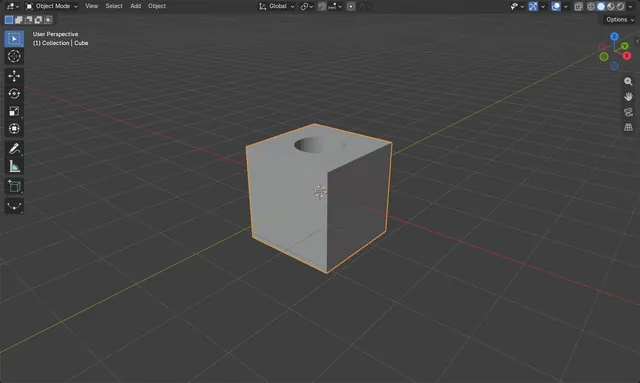
How to Cut a Shape Out of an Object in Blender
Select the object you want to cut, open the Modifiers tab, choose Add Modifier › Generate › Boolean, set Operation to Difference and pick the cutting object in the Object field.
Read the answer ›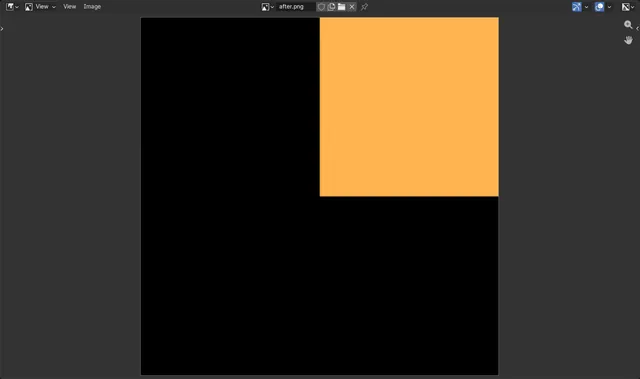
How to Use Boolean Math (And, Or, Not) in Blender Shader Nodes
In the Blender 5.3 Shader Editor, press Shift + A and choose Utilities › Math › Boolean Math, then set the operation to And, Or, Not or another logic option.
Read the answer ›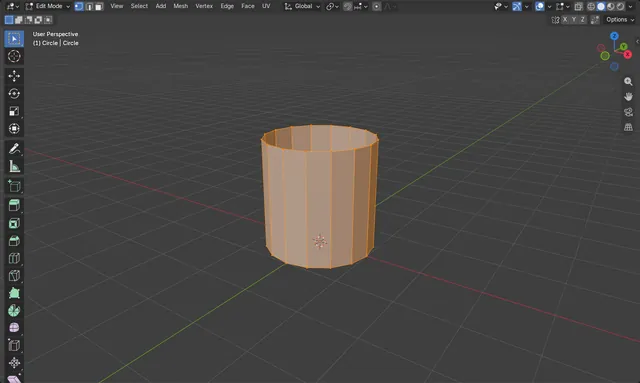
How to Bridge Edge Loops in Blender (Connect Two Loops)
Select both edge loops in Edit Mode, then choose Edge › Bridge Edge Loops.
Read the answer ›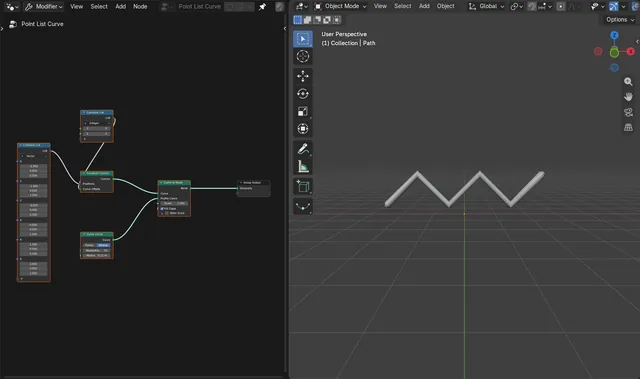
How to Build a Curve from a List of Points in Geometry Nodes (Blender 5.3)
In Blender 5.3, add a Combine List node set to Vector with one position per point, and connect it to Positions on the new Construct Curves node.
Read the answer ›
Objects disappear far from the camera in Blender: Clip End
Objects disappear when they are farther from the camera than its Clip End distance.
Read the answer ›
How to Add Depth of Field (Blur Background) in Blender
Select the camera, open the Data tab in the Properties editor, and tick the checkbox in the Depth of Field panel header.
Read the answer ›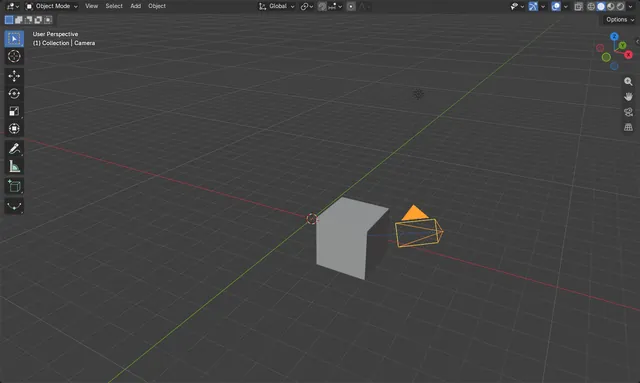
Constrain the Camera to Look at an Object in Blender
Select the camera, open the Constraints tab in the Properties editor, click Add Object Constraint and choose Track To.
Read the answer ›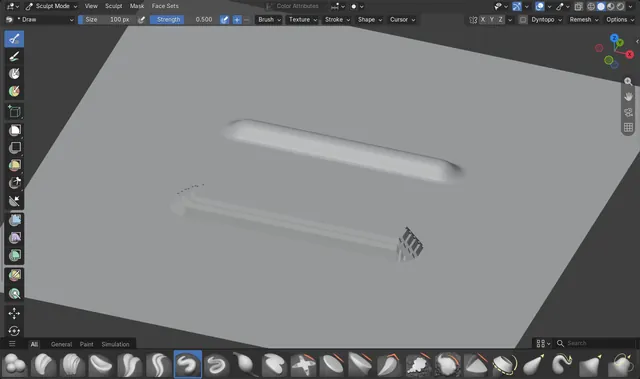
How to Change the Brush Falloff Curve in Sculpt Mode (Blender 5.3)
In Blender 5.3, click Shape in the Sculpt Mode tool header and pick a falloff preset from the list, or pick Custom to edit the curve by hand.
Read the answer ›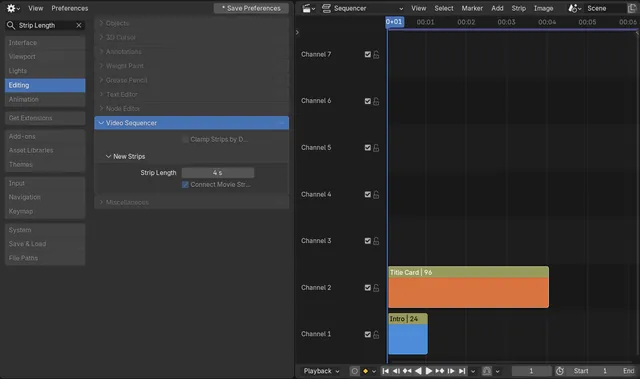
How to Change the Default Length of New Strips in the Blender Video Editor
In Blender 5.3, open Edit › Preferences › Editing › Video Sequencer › New Strips and change Strip Length.
Read the answer ›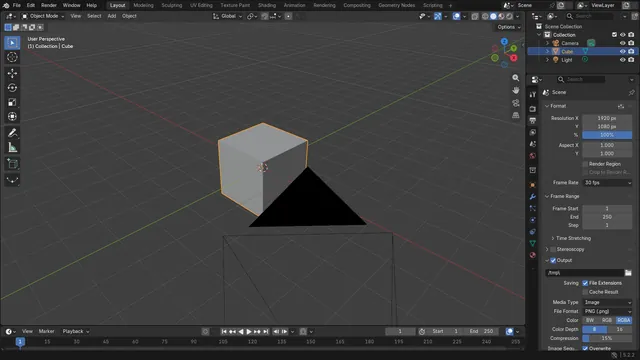
How to Change the Frame Rate in Blender
Open the Properties editor, go to the Output tab, and find the Format panel.
Read the answer ›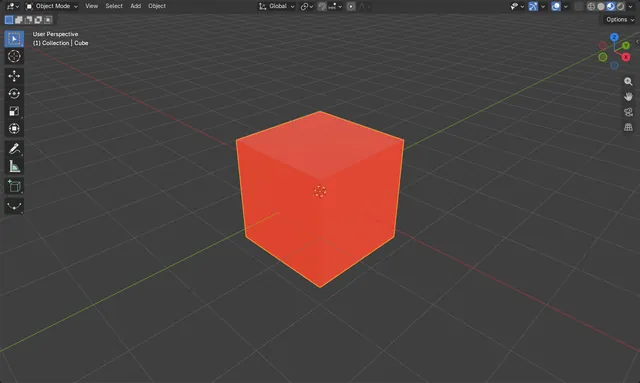
How to Change the Color of an Object in Blender
Select the object, open the Material tab in the Properties editor, and set the Base Color of the Principled BSDF in the Surface panel.
Read the answer ›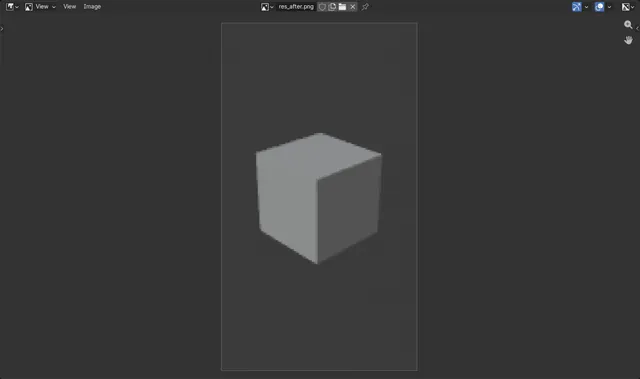
How to Change the Render Resolution in Blender
Open the Properties editor, go to the Output tab, and in the Format panel type new values into Resolution X and Y.
Read the answer ›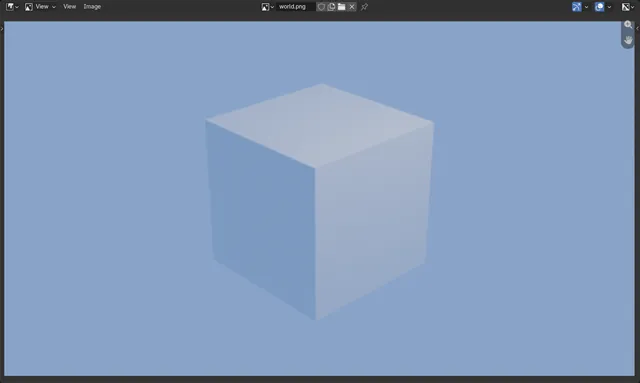
How to Change the World Background Color in Blender
Open the World tab in the Properties editor and click the Color swatch in the Surface panel, then pick a new color.
Read the answer ›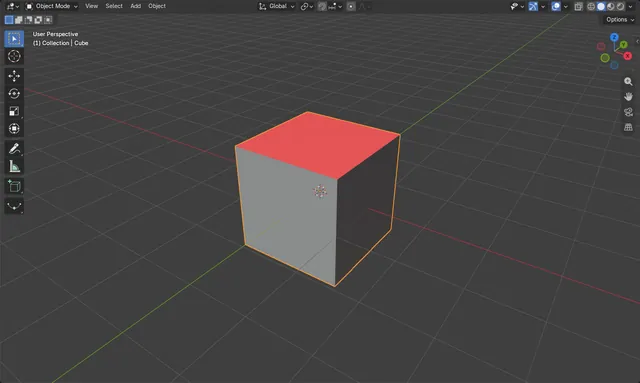
How to Check Face Orientation (Blue and Red Faces) in Blender
Open the Overlays popover in the 3D Viewport header and, in the Geometry section, tick Face Orientation.
Read the answer ›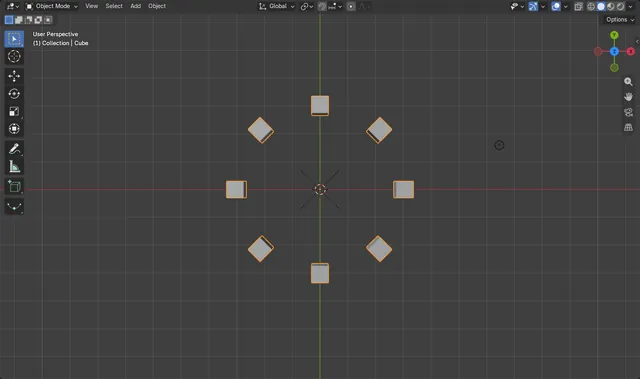
How to Make a Circular Array in Blender with an Offset Object
Add an Array modifier to your object, turn off Relative Offset, turn on Object Offset and pick an Empty placed at the ring's centre.
Read the answer ›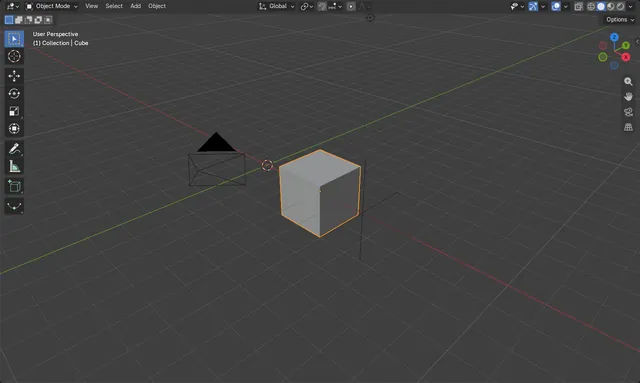
How to Clear Parent but Keep the Transform in Blender
Select the child object in the 3D Viewport, press Alt + P and choose the Clear and Keep Transformation entry.
Read the answer ›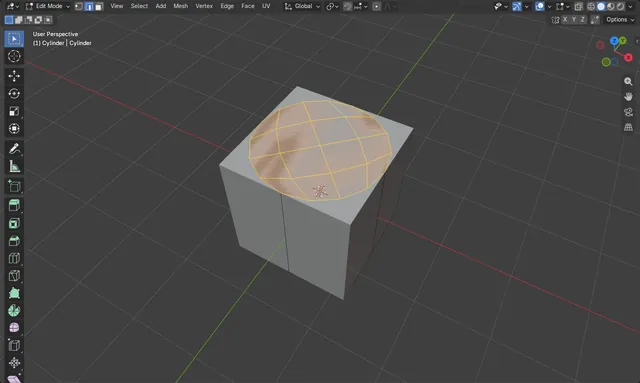
How to Close a Big Hole in a Mesh in Blender
Select the edge loop around the hole in Edit Mode, then choose Face › Grid Fill.
Read the answer ›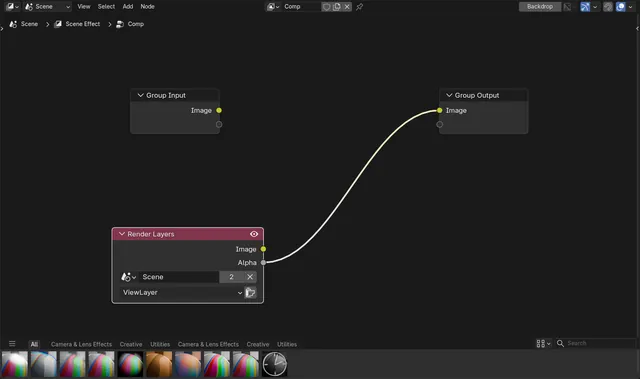
How to Add the Render Layers Node in the Blender Compositor (Blender 5.3)
In Blender 5.3 a new compositor node tree holds a Group Input linked to a Group Output, with no Render Layers node; the render reaches the tree through Group Input.
Read the answer ›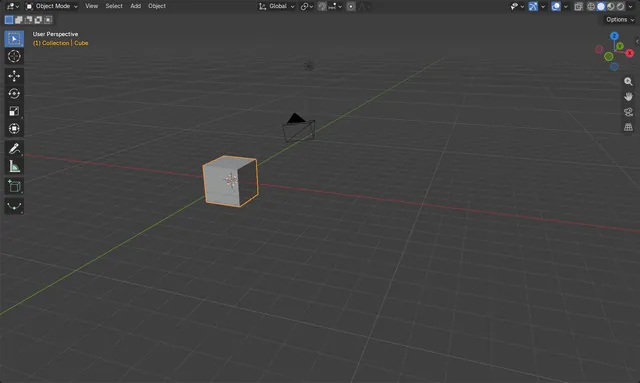
How to Make an Object Move at a Constant Speed in Blender
Select the keyframes in the Graph Editor or Dope Sheet, press T and choose Linear.
Read the answer ›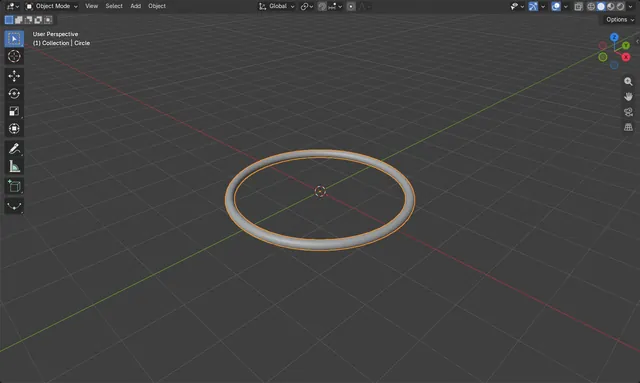
How to Convert Curves to Meshes in Blender
Select the curve in Object Mode and choose Object › Convert › Mesh in the 3D Viewport.
Read the answer ›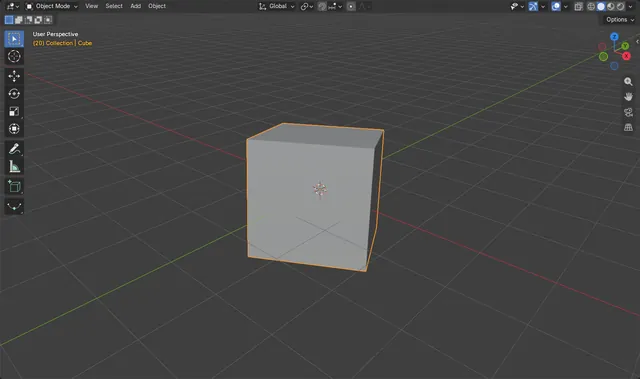
How to Convert Euler Rotation Animation to Quaternion in Blender 5.3
In Blender 5.3, select the animated object, open the small dropdown arrow next to Mode in Object Properties › Transform and choose Quaternion (WXYZ).
Read the answer ›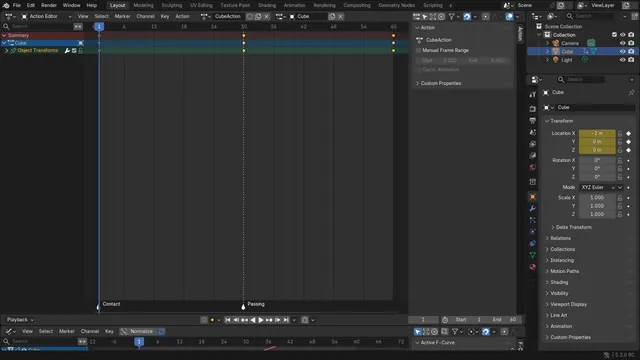
How to Convert Markers to Pose Markers (Blender 5.3)
In Blender 5.3, open the Dope Sheet in Action Editor mode, select the scene markers you want, and choose Marker › Convert to Pose Markers.
Read the answer ›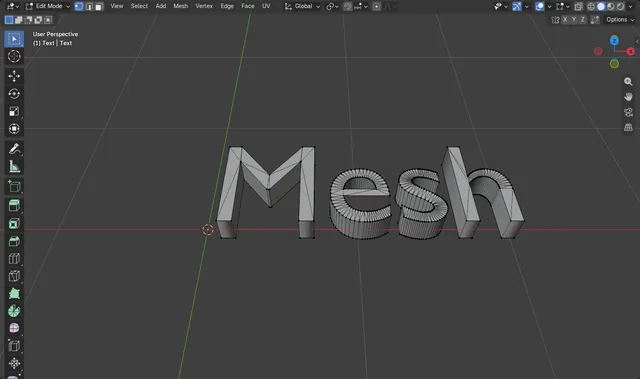
How to Convert Text to a Mesh in Blender
Select the text object in Object Mode and choose Object › Convert › Mesh: the letters become an ordinary mesh object that you can edit vertex by vertex, sculpt or export.
Read the answer ›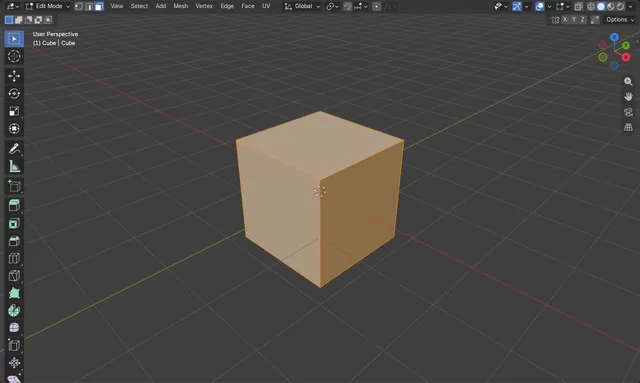
How to Convert Triangles to Quads in Blender
In Edit Mode, select the triangles and press Alt + J, or choose Face › Triangles to Quads (called Tris to Quads in Blender 4.2 LTS) in the 3D Viewport header.
Read the answer ›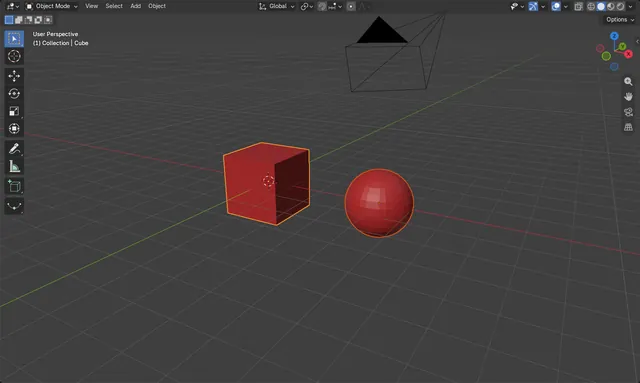
Copy Material to Another Object in Blender
Select the object that should receive the material, then select the object that has the material last so it is active.
Read the answer ›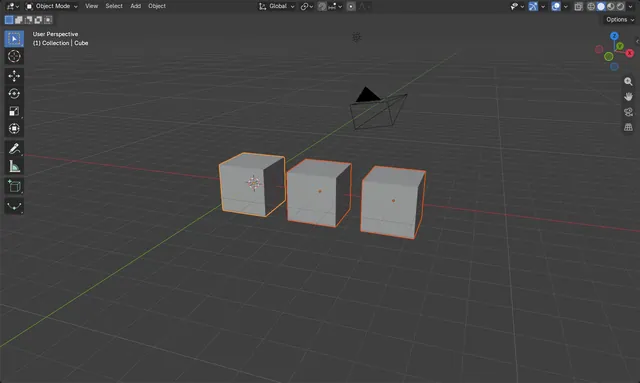
How to Copy Rigid Body Settings to Other Objects in Blender
Select the objects that should receive the settings, then select the object that already has the rigid body last so it is the active one.
Read the answer ›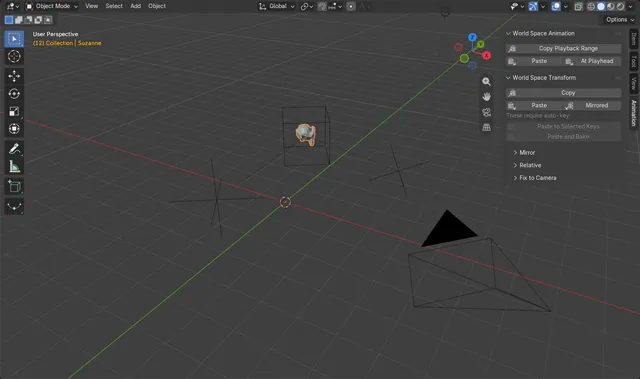
How to Copy World Space Animation to Another Object in Blender 5.3
In Blender 5.3, select the animated object or bones, press N in the 3D Viewport, open the Animation tab and click Copy Playback Range in the World Space Animation panel.
Read the answer ›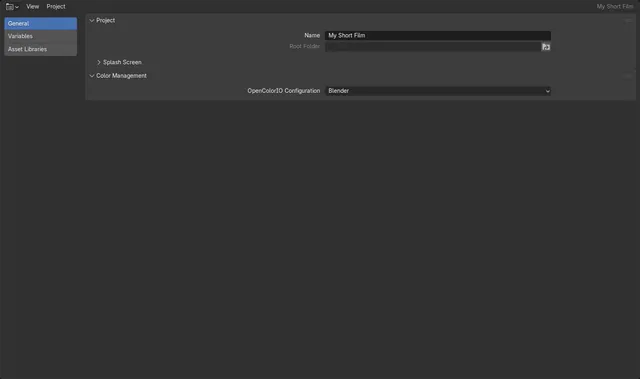
How to Create a Project in Blender 5.3 (File > Project > New)
In Blender 5.3, choose File › Project › New..., give the project a name and pick a folder.
Read the answer ›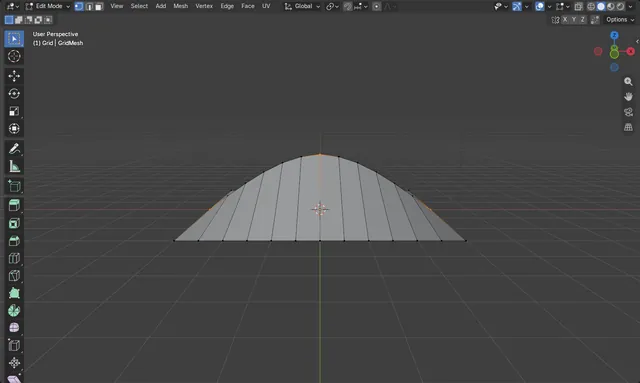
How to Use Curve Edge Loops Between Selected in Blender 5.3
In Edit Mode, select a few vertices along a row, then choose Mesh › Transform › Curve Edge Loops Between Selected.
Read the answer ›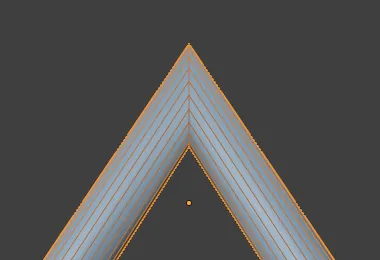
How to Keep Tubes Thick at Sharp Corners with Curve to Mesh (Blender 5.3)
In Blender 5.3, open the Curve to Mesh node in Geometry Nodes and tick Miter Scale.
Read the answer ›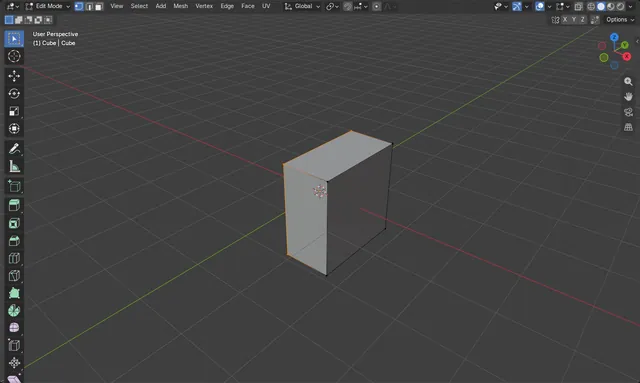
Cutting a Mesh in Half in Blender (Bisect Tool)
In Edit Mode, select the geometry, right-click in the 3D Viewport and choose Bisect, then drag a line across the mesh to define the cut plane.
Read the answer ›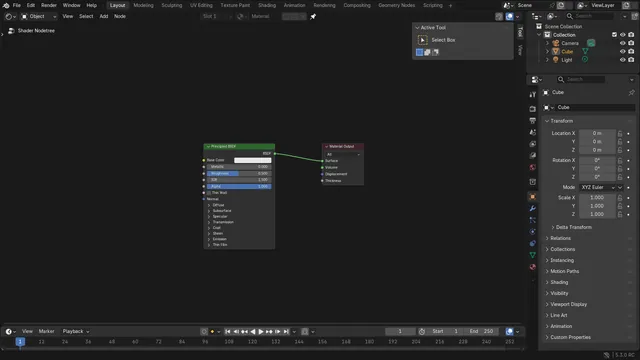
How to Cut Nodes in the Blender Node Editor
Select the nodes in the Node Editor and choose Node › Cut.
Read the answer ›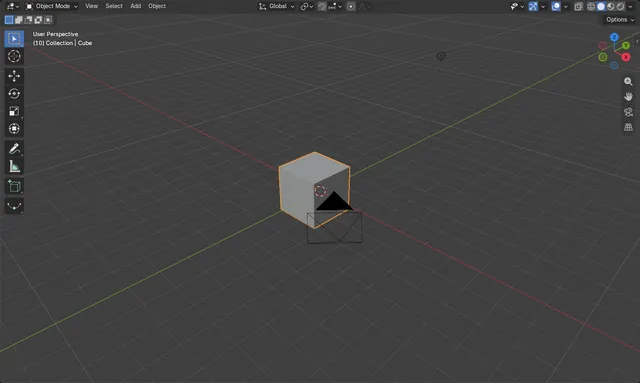
How to Delete All Keyframes of an Object in Blender
Select the object, then in the 3D Viewport choose Object › Animation › Clear Keyframes.
Read the answer ›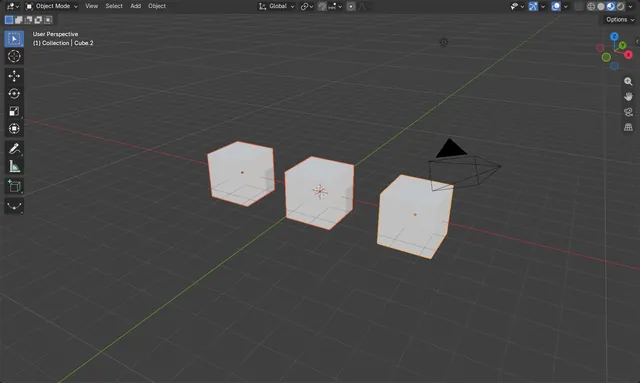
Delete All Materials From All Objects in Blender
Click an object, open the Material tab in the Properties editor, click the down-arrow (Material Specials) menu and choose Remove All Materials.
Read the answer ›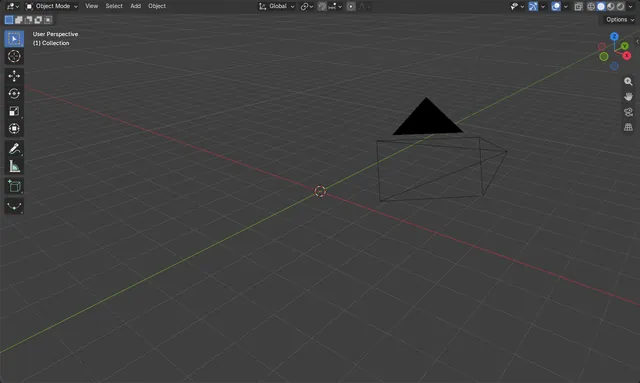
How to Delete an Object in Blender
Select the object in the 3D Viewport in Object Mode, then press X (and confirm) or press Delete to remove it right away.
Read the answer ›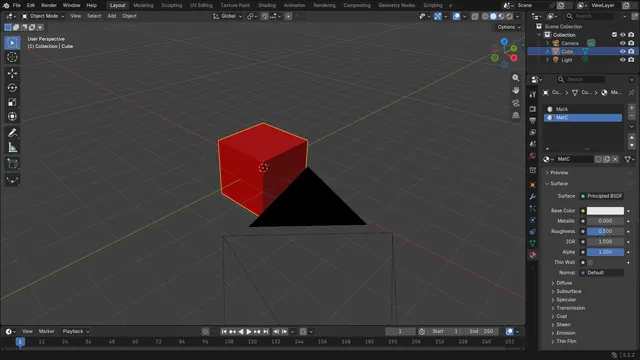
How to Delete an Unwanted Material in Blender
Select the object, open the Material tab in the Properties editor, click the unwanted material in the slot list, then click the Remove Material Slot button (the minus icon) beside the list.
Read the answer ›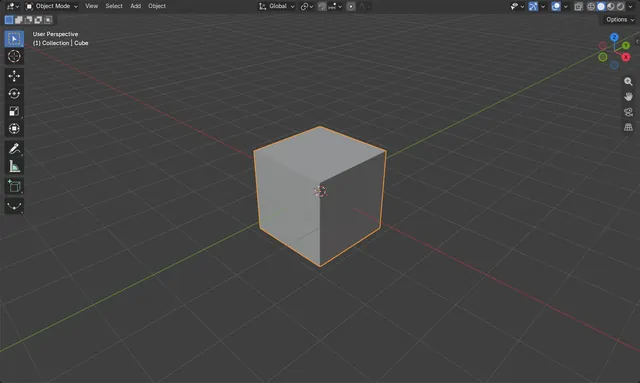
How to Delete a UV Map in Blender
Open the Properties editor's Data tab, select the UV map in the UV Maps panel, and click the minus button (Remove UV Map) beside the list.
Read the answer ›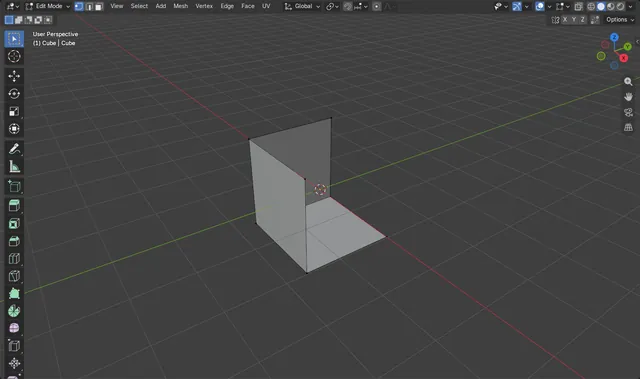
How to Delete Vertices, Edges or Faces in Blender
In Edit Mode, select what you want to remove and press X (or the Delete key) to open the Delete menu, then choose Vertices, Edges or Faces.
Read the answer ›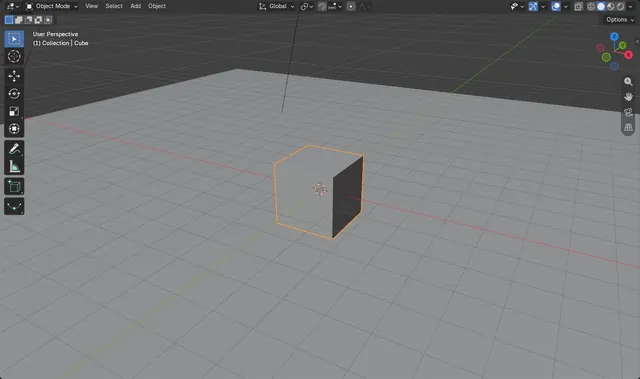
How to Stop One Object Casting a Shadow in Blender
Select the object, open the Object tab in the Properties editor, and untick Shadow in the Visibility panel.
Read the answer ›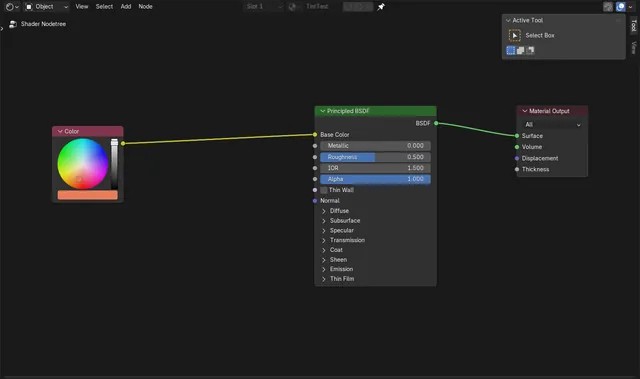
How to Dissolve a Node in Blender 5.3 (Shift + X Keeps the Links)
In Blender 5.3, select the node and press Shift + X, or right-click it and choose Dissolve.
Read the answer ›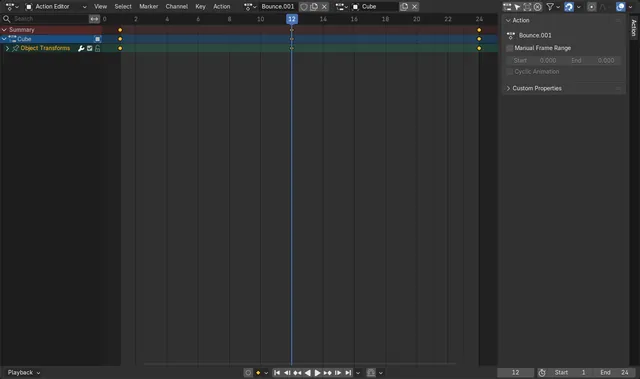
How to Duplicate an Action in Blender 5.3 Without Changing the Original
In Blender 5.3, select the object, open the Dope Sheet in the Action Editor and choose Action › Replace with Duplicate Action.
Read the answer ›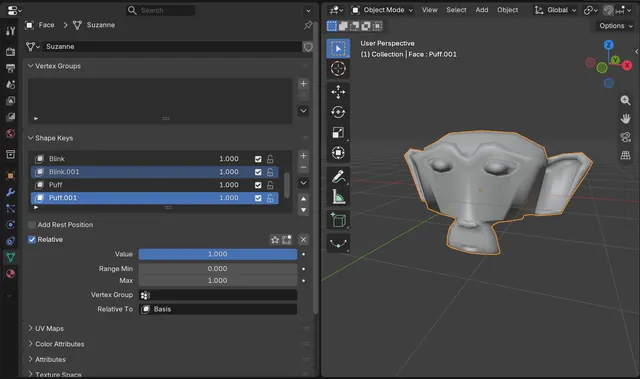
How to Duplicate Multiple Shape Keys at Once in Blender (Blender 5.3)
In Blender 5.3, select the shape keys you want in the Shape Keys list of the Object Data properties, then open the Shape Key Specials menu (the down arrow beside the list) and click Duplicate.
Read the answer ›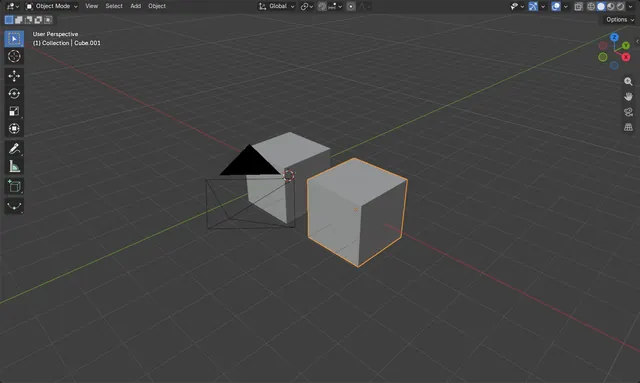
How to Duplicate an Object in Blender
Select the object in the 3D Viewport in Object Mode and press Shift + D.
Read the answer ›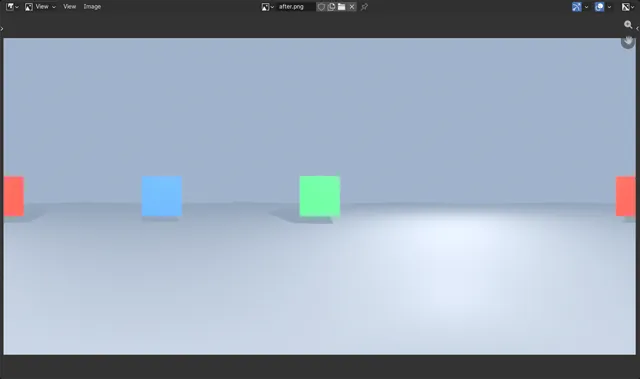
How to Render a 360 Panorama with EEVEE in Blender 5.3
In Blender 5.3, select the camera, open Camera (Object Data) Properties › Lens, set Type to Panoramic and Panorama Type to Equirectangular, then render with F12 using EEVEE.
Read the answer ›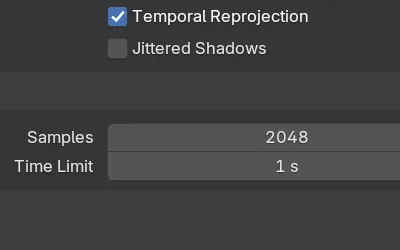
How to Set a Render Time Limit in EEVEE (Blender 5.3)
In Blender 5.3, open Render Properties › Sampling › Render and set Time Limit for EEVEE.
Read the answer ›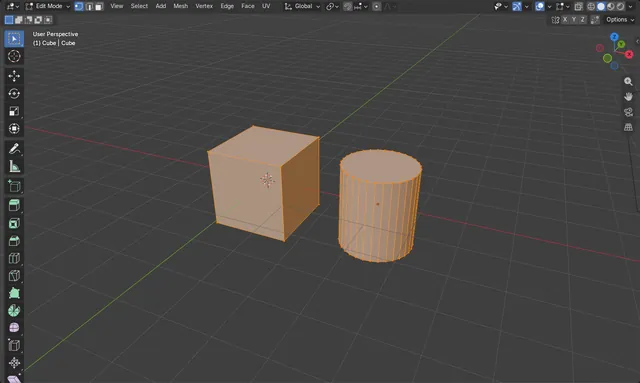
How to Enter Edit Mode in Blender
Select the mesh, move the mouse over the 3D Viewport and press Tab.
Read the answer ›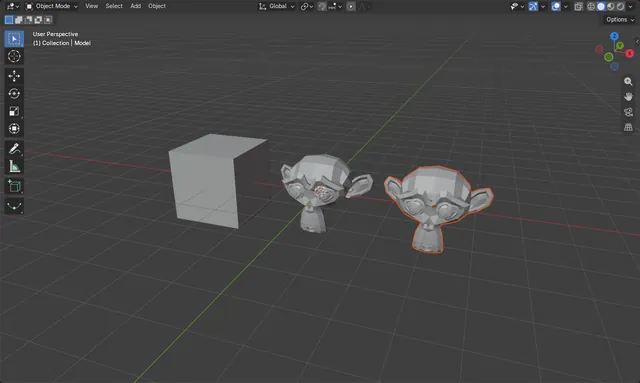
How to Export an FBX File from Blender
Select the objects you want to save, then choose File › Export › FBX (.fbx).
Read the answer ›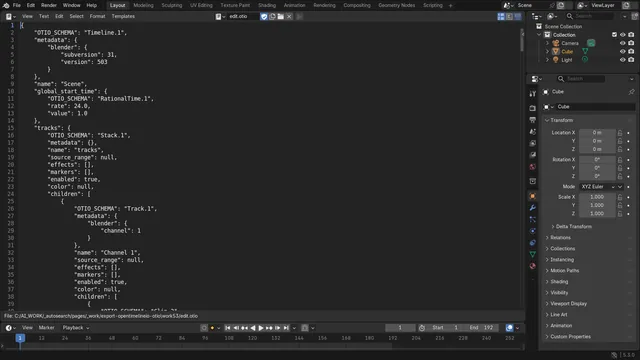
How to Export the Blender Video Editor Timeline to OpenTimelineIO
In Blender 5.3, open the edit in the Video Sequencer and choose File › Export, then OpenTimelineIO (.otio), and save the file.
Read the answer ›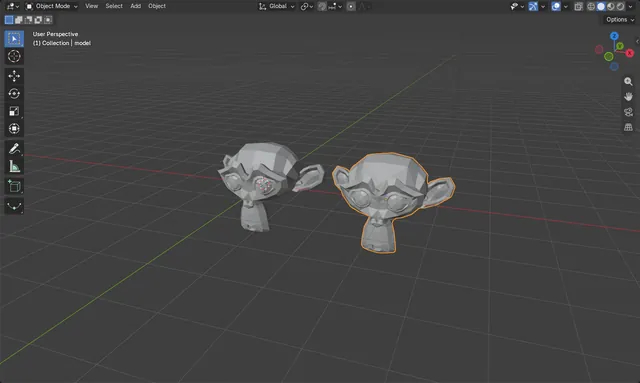
How to Export an STL File for 3D Printing in Blender
Select the model, then choose File › Export › STL (.stl).
Read the answer ›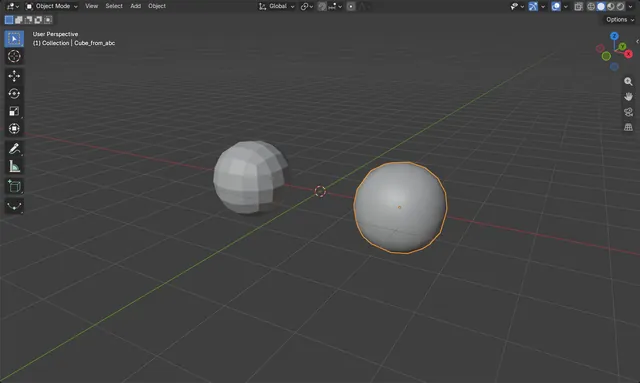
How to Export Subdivision Surface to Alembic (Blender 5.3)
In Blender 5.3, open File › Export and choose Alembic (.abc), tick Selected Objects Only, then in the Geometry panel, under Subdivisions, tick Use Schema and leave Apply off.
Read the answer ›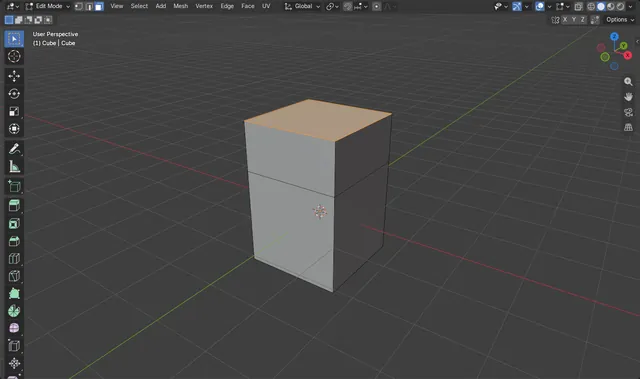
How do I extrude a face in Blender
In Edit Mode, switch to Face select, click the face, then press E and move the mouse to pull the face out.
Read the answer ›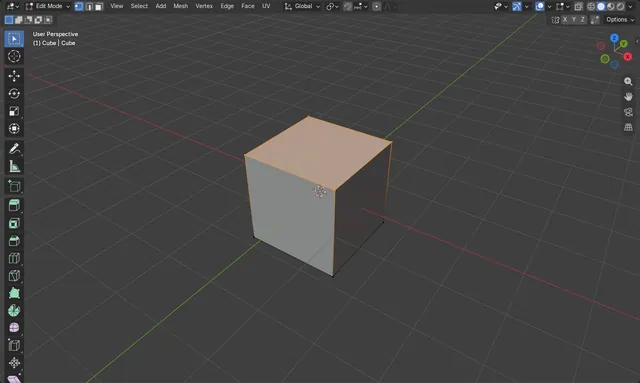
How to Fill a Hole in a Face in Blender
In Edit Mode, select the vertices or edges around the hole and press F (Make Edge/Face).
Read the answer ›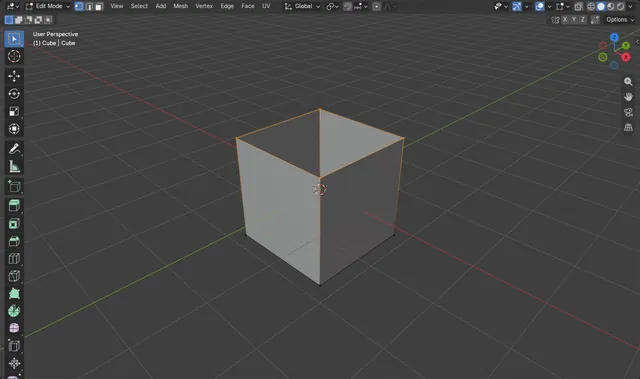
What Is Non-Manifold Geometry in Blender?
Non-manifold geometry is a mesh whose edges, vertices or faces cannot form a closed, real-world solid, for example open holes, loose edges or edges shared by more than two faces.
Read the answer ›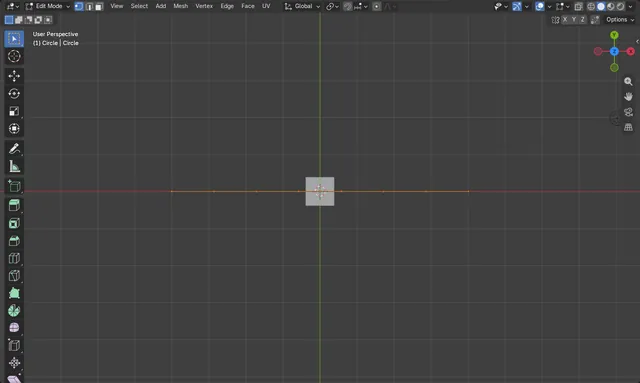
How to Use Fit Edge Loops To Annotation in Blender 5.3
In Edit Mode, select the vertices of an edge loop and choose Mesh › Transform › Fit Edge Loops To Annotation.
Read the answer ›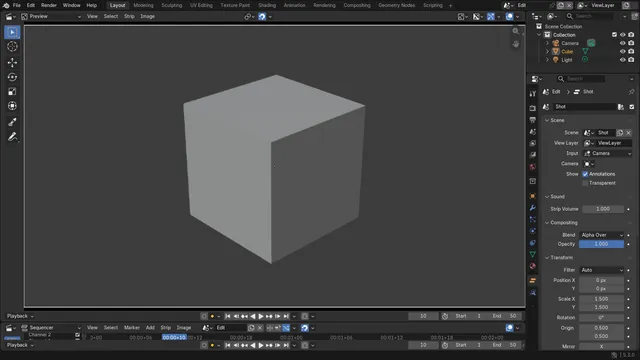
How to Fit a Scene Strip to the Frame in the Video Editor (Blender 5.3)
In Blender 5.3, select the scene strip in the Video Editor timeline and choose Image › Apply › Scale To Fit in the Preview header.
Read the answer ›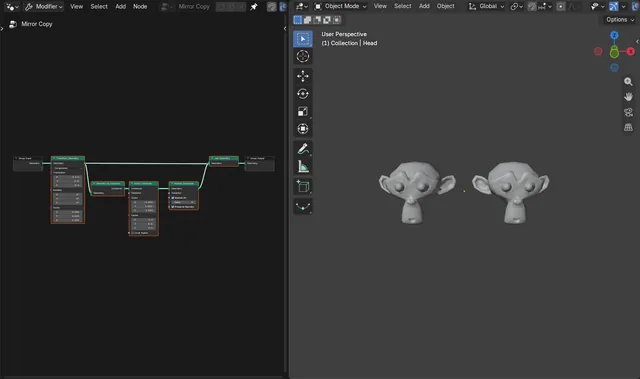
How to Fix Flipped Normals on Mirrored Instances with Realize Instances (Blender 5.3)
In Blender 5.3, tick Preserve Normals on the Realize Instances node.
Read the answer ›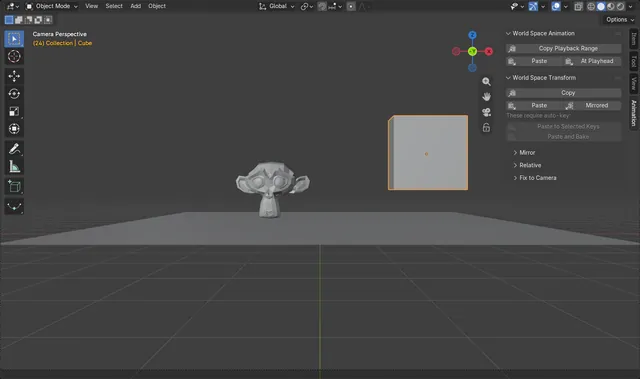
How to Keep an Object Fixed to the Camera During a Zoom in Blender (Blender 5.3)
In Blender 5.3, key the object on one frame, then click Fix to Scene Camera under World Space Transform in the sidebar's Animation tab.
Read the answer ›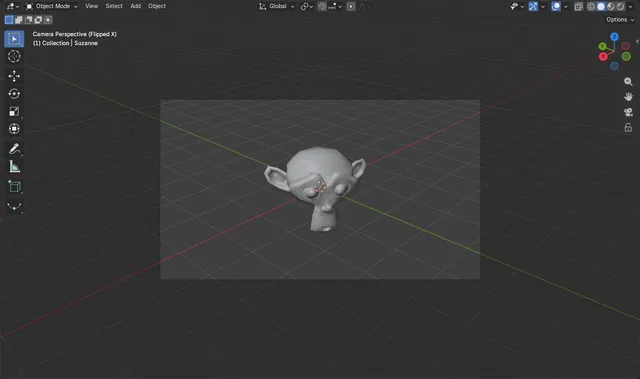
How to Flip the Camera View Horizontally in Blender 5.3 (Flip View)
In Blender 5.3, look through the camera with Numpad 0, then choose View › Navigation › Flip View in the 3D Viewport.
Read the answer ›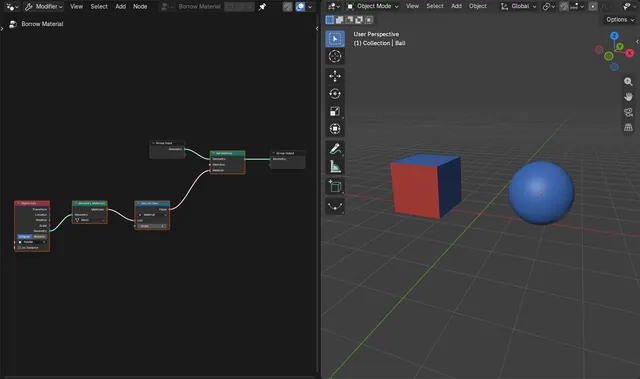
How to Use Another Object's Materials in Geometry Nodes (Blender 5.3 Geometry Materials Node)
In Blender 5.3, bring the other object in with Object Info, then add Geometry Materials (press Shift + A, then Geometry › Material).
Read the answer ›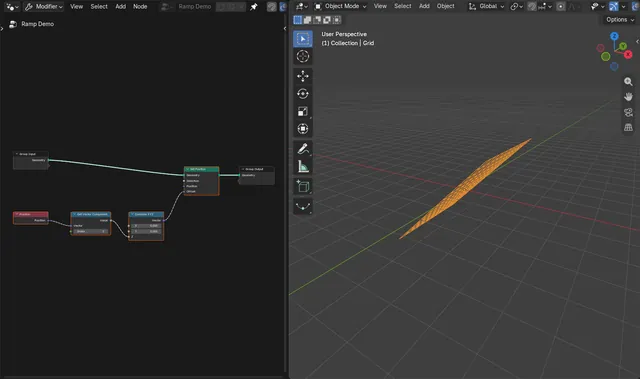
How to Get One Vector Component by Index in Blender 5.3 (Get Vector Component Node)
In Blender 5.3, add the Get Vector Component node (press Shift + A, then Utilities › Vector › Get Vector Component in Geometry Nodes).
Read the answer ›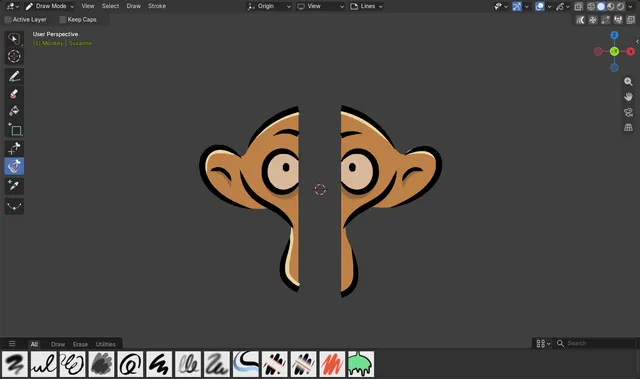
How to Cut Out Part of a Grease Pencil Drawing with a Lasso in Blender 5.3 (Carver)
In Blender 5.3, pick the Carver tool in the Draw Mode toolbar, next to Trim, and drag a lasso with the left mouse button around the part you want to remove.
Read the answer ›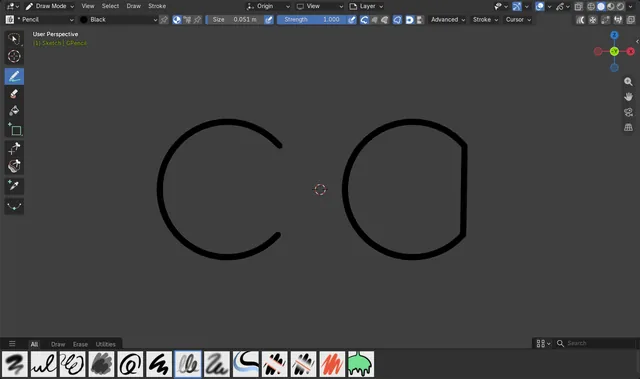
How to Draw Closed Shapes with Grease Pencil in Blender 5.3 (Cyclic)
In Blender 5.3, turn on Cyclic in the Draw tool settings in Draw Mode, and every stroke you draw comes out closed, with its last point joined back to the first.
Read the answer ›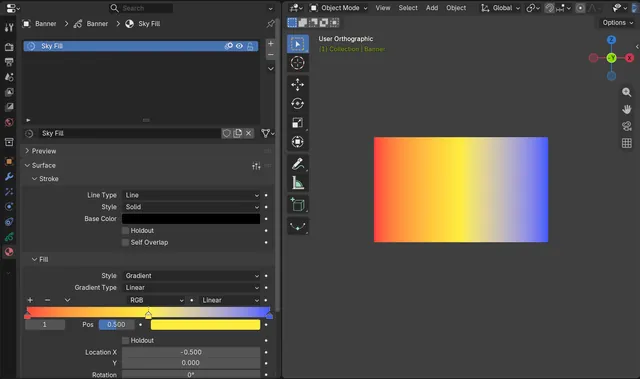
How to Make a Grease Pencil Gradient Fill with More Than Two Colors (Blender 5.3)
In Blender 5.3, open Material Properties, set Surface › Fill › Style to Gradient, and click + on the color ramp to add a color stop.
Read the answer ›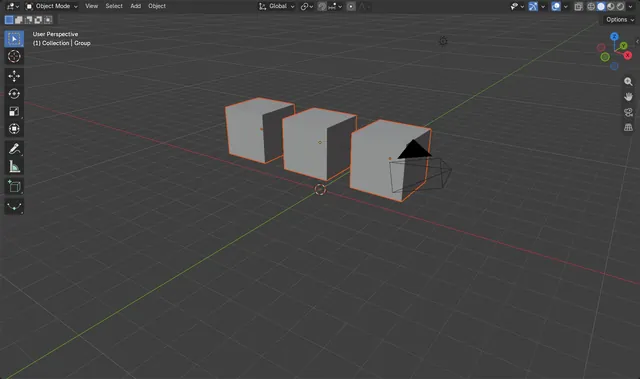
How to Group Objects in Blender (Parent to an Empty)
Select the objects you want to group, then select an Empty last so it is the active object, and press Ctrl + P and choose Object.
Read the answer ›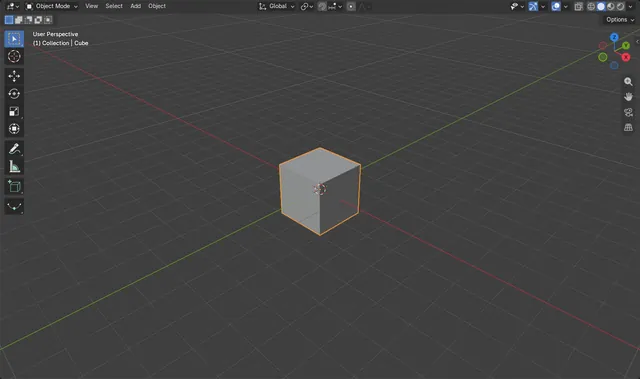
How to Hide Everything Except the Selected Object in Blender
Select the object in Object Mode, then press Shift + H with the mouse over the 3D Viewport.
Read the answer ›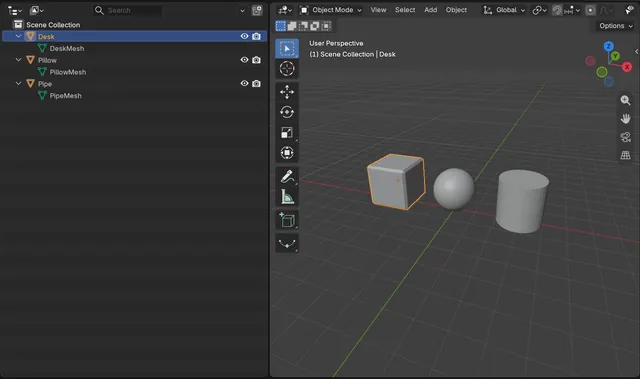
How to Hide Modifiers in the Blender Outliner
In Blender 5.3, open the Filter popover in the Outliner header, expand Object Contents under Filter and turn off Modifiers.
Read the answer ›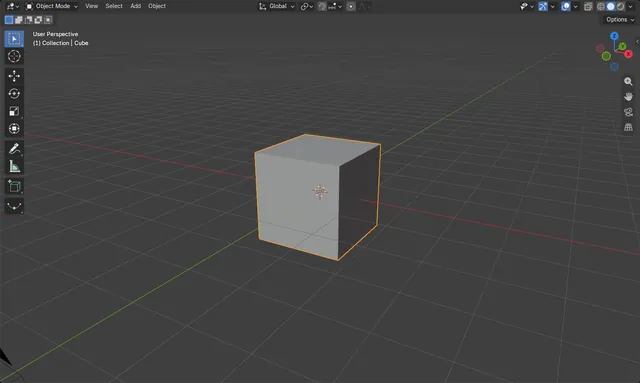
How to Hide an Object from the Render but Keep It in the Viewport in Blender
Select the object, open the Object tab in the Properties editor, and under Visibility untick Renders.
Read the answer ›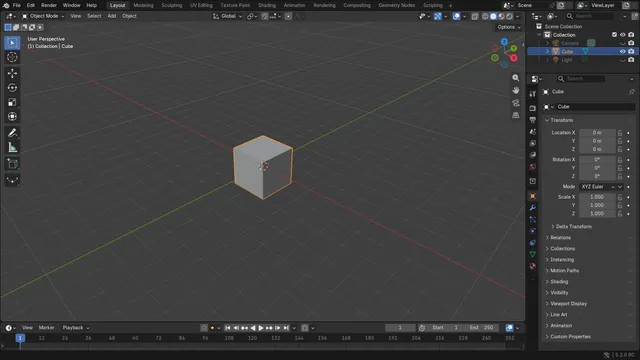
How to Hide Unselected Objects in the Blender Outliner
In Blender 5.3, select the objects you want to keep, move the mouse over the Outliner and press Shift + H.
Read the answer ›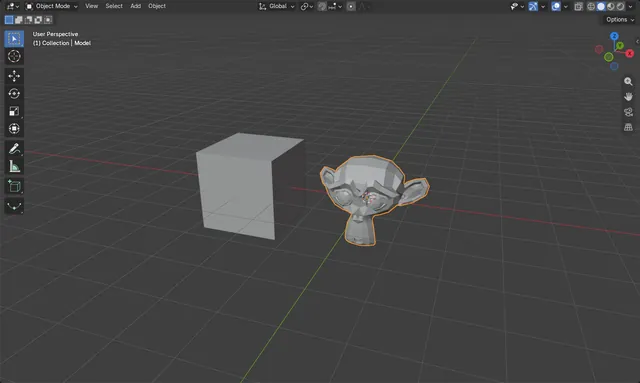
How to Import an FBX File into Blender
Choose File › Import › FBX (.fbx), pick the .fbx file and click Import FBX.
Read the answer ›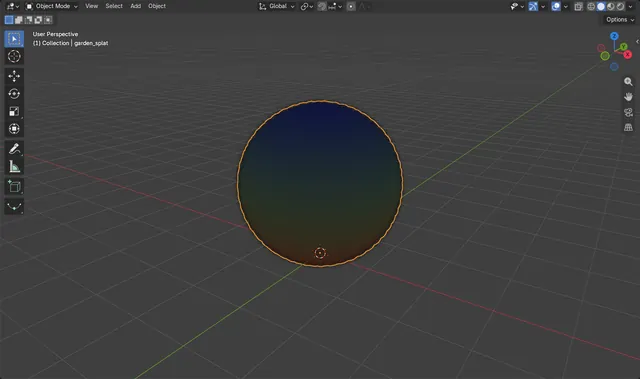
How to Import Gaussian Splats (.ply) in Blender 5.3
In Blender 5.3, choose File › Import › Stanford PLY (.ply) and pick the splat file.
Read the answer ›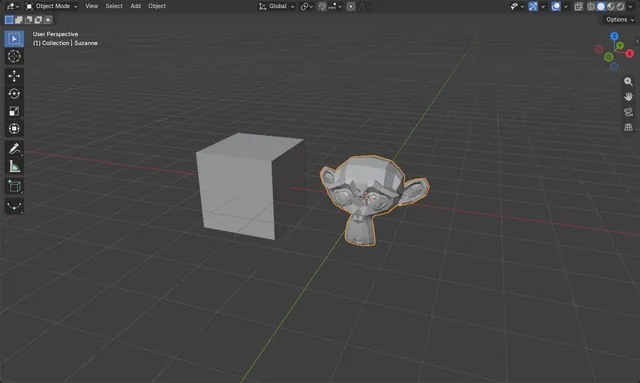
How to Import an OBJ File into Blender
Choose File › Import › Wavefront (.obj), pick the .obj file and click Import Wavefront OBJ.
Read the answer ›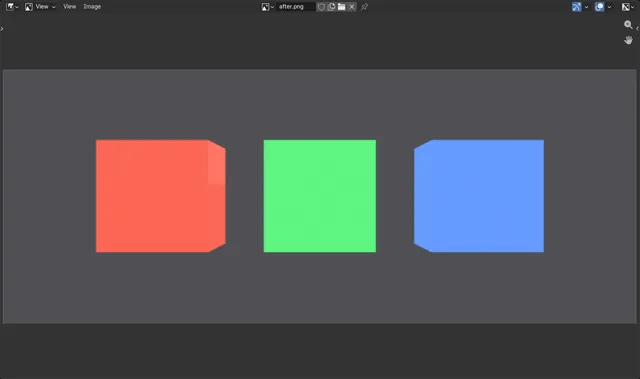
How to Use a Switch Node in Blender Shader Nodes (5.3)
In Blender 5.3, open the Shader Editor, press Shift + A, open Utilities and pick Index Switch (or Switch for a true/false choice).
Read the answer ›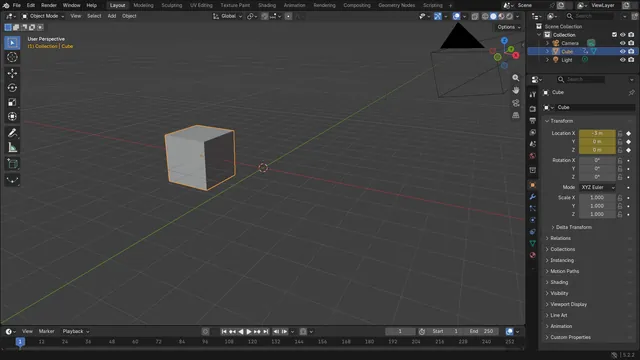
How to Insert a Keyframe in Blender
Select the object, hover the mouse over the 3D Viewport and press I.
Read the answer ›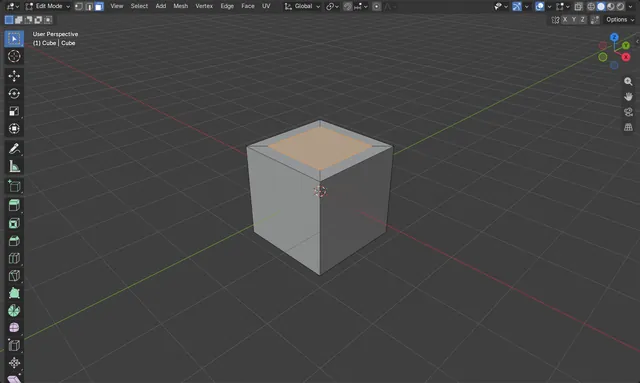
How to Inset Faces in Blender (Edit Mode, I key)
Select one or more faces in Edit Mode, then press I with the mouse over the 3D Viewport.
Read the answer ›
How to Use the Integer Math Node in Blender Shaders (Blender 5.3)
In Blender 5.3, the Integer Math node is in the Shader Editor under Add › Utilities › Math › Integer Math.
Read the answer ›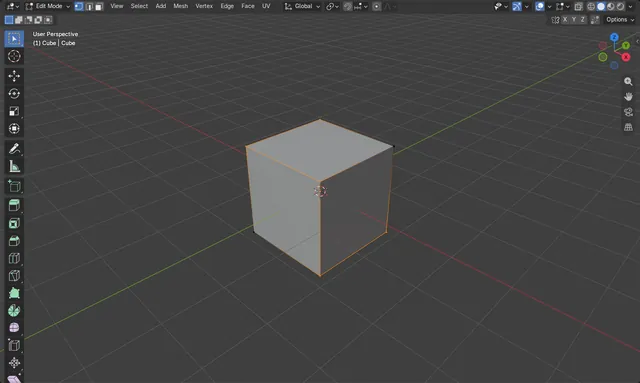
Invert Selection in Edit Mode in Blender
Yes.
Read the answer ›
How to Jump Forward One Second in the Timeline (Blender 5.3)
In Blender 5.3, click the jump forward button in the Timeline header, the button between the next keyframe button and the jump to end button, or press Ctrl+Right Arrow.
Read the answer ›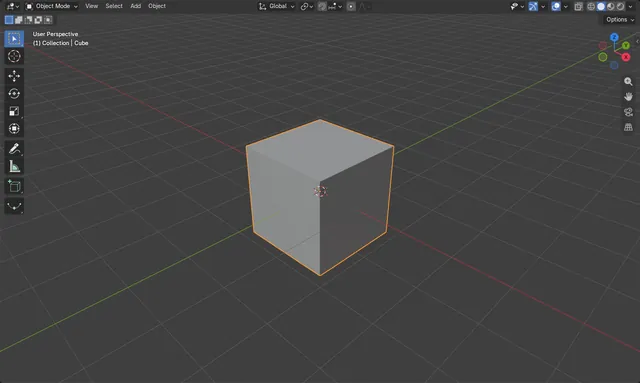
Keep Sharp Edges with Subdivision Surface in Blender
In Edit Mode, select the edges you want to keep sharp and press Shift + E, then enter 1 to set a full Edge Crease.
Read the answer ›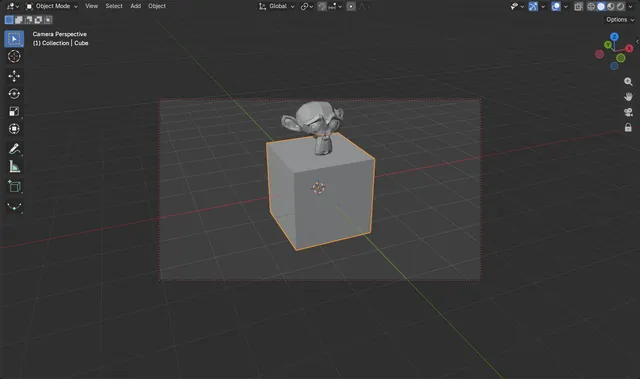
How to Lock the Camera to the View in Blender
Press Numpad 0 to look through the camera, press N to open the Sidebar, and in the View tab tick Camera to View under View Lock.
Read the answer ›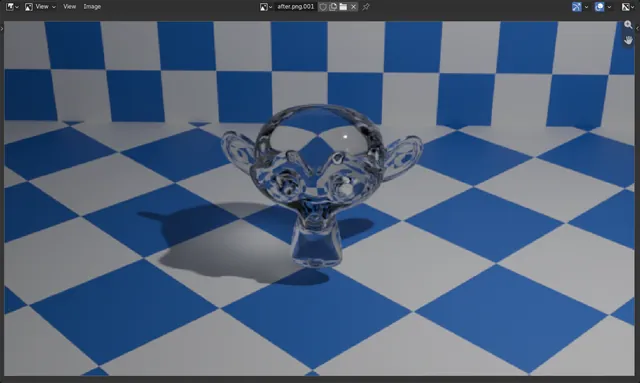
How to Make a Glass Material in Blender
Select the object, open the Material Properties tab and, in the Principled BSDF, open the Transmission panel, set Weight to 1 and set Roughness to 0.
Read the answer ›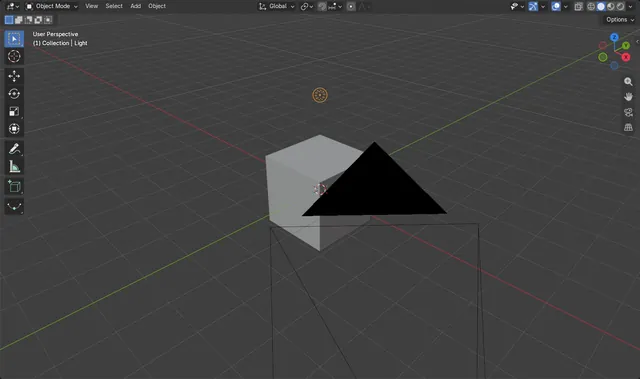
How to Make a Light Brighter in Blender
Select the light, open the Data tab in the Properties editor, and increase the Power value in the Light panel.
Read the answer ›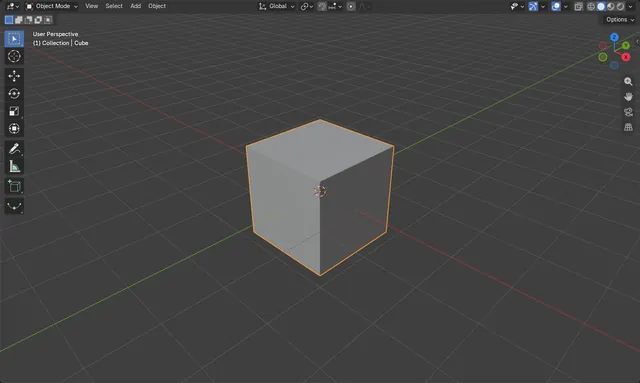
How to Make a Material Transparent in Blender
Select the object, open the Material tab, and lower the Alpha value in the Surface panel (Principled BSDF) from 1.0 to something smaller, such as 0.2.
Read the answer ›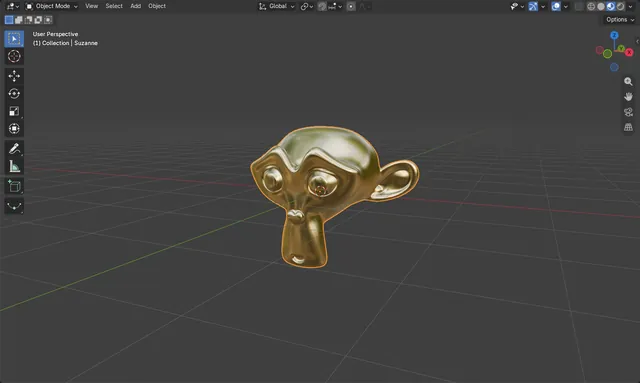
How to Make a Metal Material in Blender
Select the object, open the Material Properties tab and click New.
Read the answer ›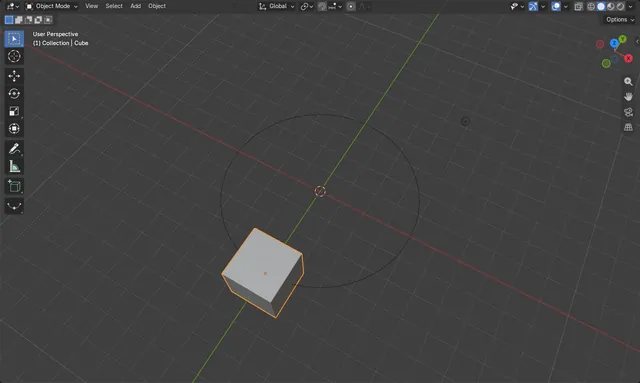
How to Make an Object Follow a Path in Blender
Select the object, open the Constraints tab in the Properties editor, choose Add Object Constraint and pick Follow Path, then set a curve (for example a Bezier Circle) as the Target.
Read the answer ›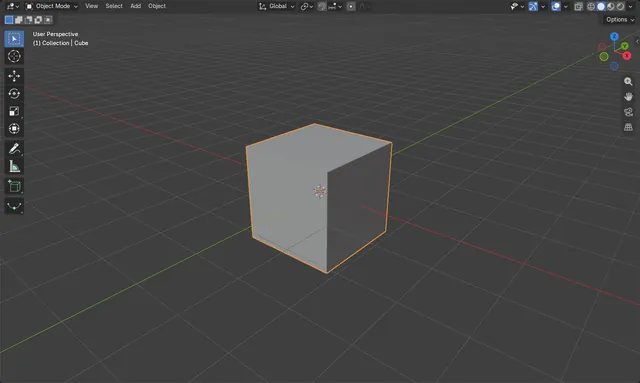
How to Make an Object Glow (Emission) in Blender
Select the object, open the Material tab in the Properties editor, and in the Surface panel set the Principled BSDF's Emission Color and raise Emission Strength above 0.
Read the answer ›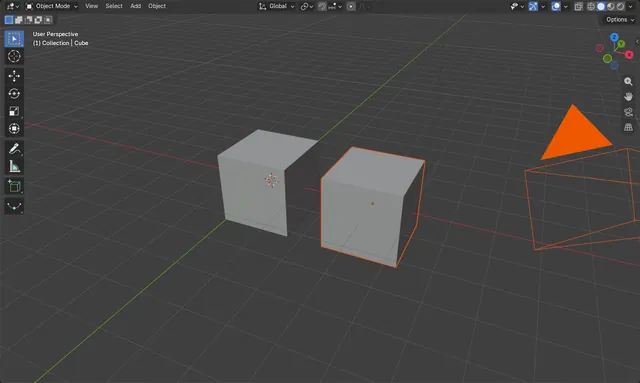
How to Make an Object Unselectable in Blender
Select the object, open the Object tab in the Properties editor, and in the Visibility panel untick Selectable.
Read the answer ›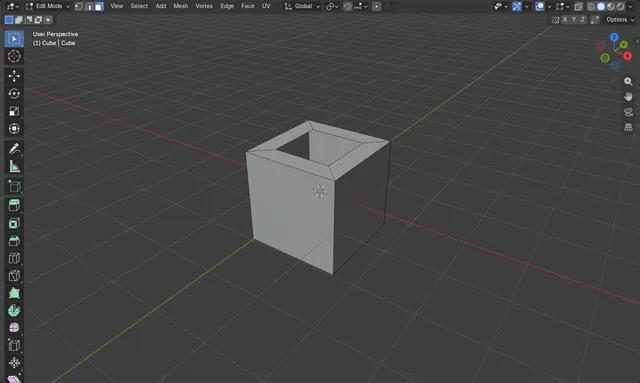
Making Holes in a Mesh in Blender
In Edit Mode, select a face, press I to inset it, then press X and choose Faces to delete the inner face.
Read the answer ›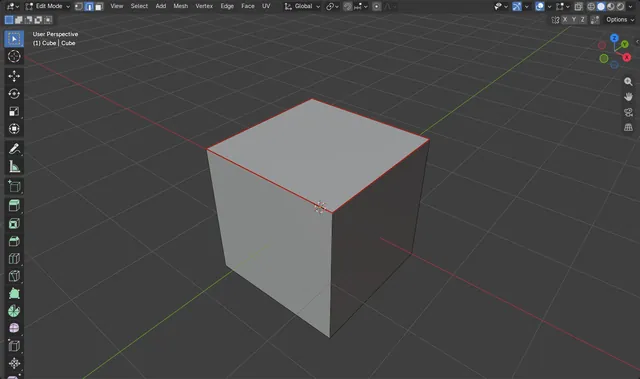
How to Mark Seams for UV Unwrapping in Blender
In Edit Mode, press 2 for edge select, select the edges where the mesh should be cut open, then choose Edge › Mark Seam: those edges turn red.
Read the answer ›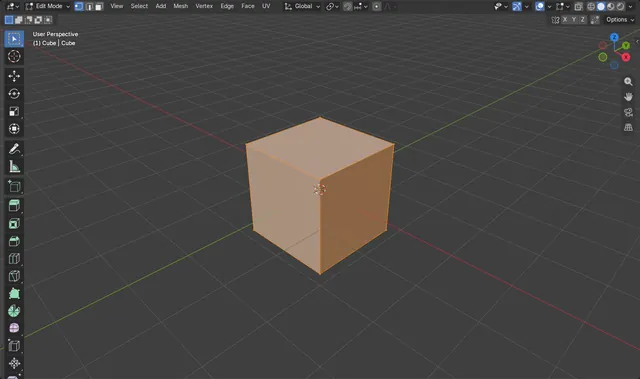
How to Remove Duplicate Vertices (Merge by Distance) in Blender
In Edit Mode, select the vertices (press A for all), then choose Mesh › Merge › By Distance.
Read the answer ›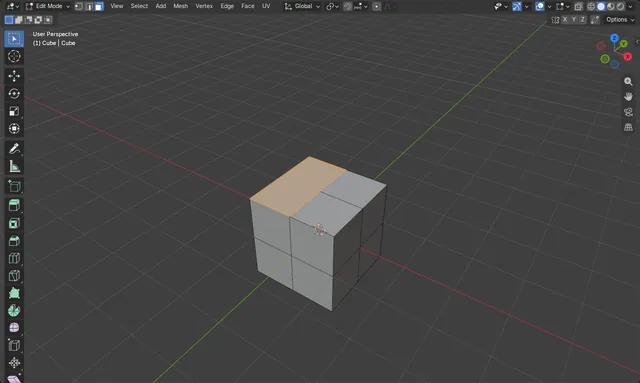
How to Merge/Dissolve Two Faces in Blender
In Edit Mode, select the two neighbouring faces, then choose Mesh › Delete › Dissolve Faces.
Read the answer ›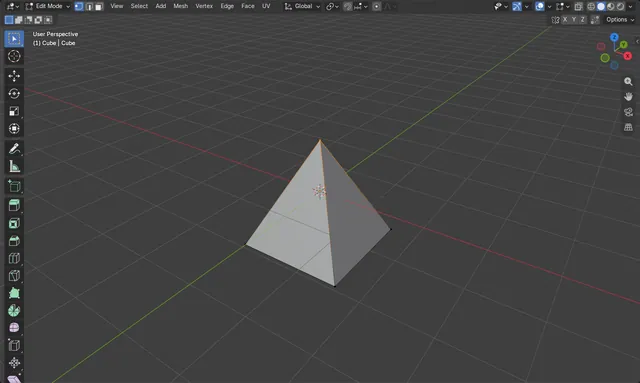
How to Merge Vertices at the Center in Blender
In Edit Mode, select the vertices you want to join, press M and choose the center option from the Merge menu.
Read the answer ›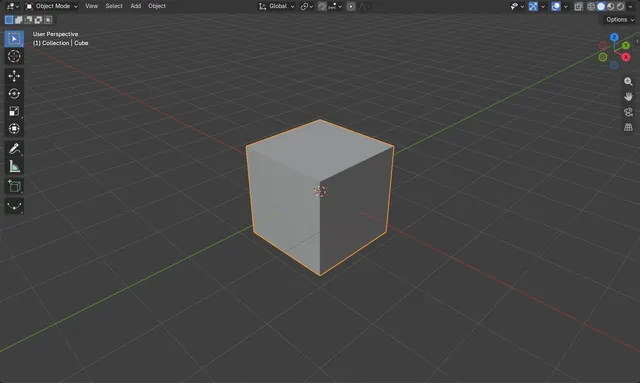
Modeling with metric units (cm) in Blender
Open the Properties editor, click the Scene tab, and in the Units panel set Unit System to Metric and Length to Centimeters.
Read the answer ›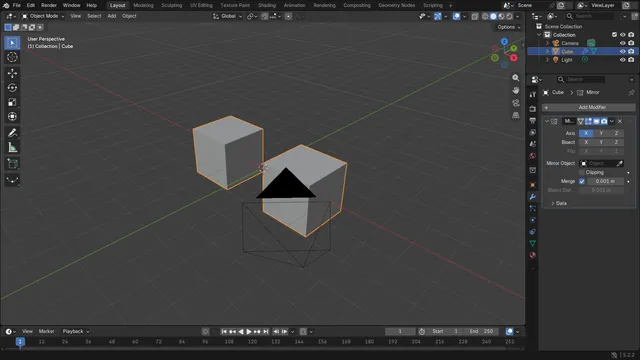
How to Model Symmetrically with the Mirror Modifier in Blender
Select your mesh, open the Modifiers tab in the Properties editor, choose Add Modifier › Generate › Mirror.
Read the answer ›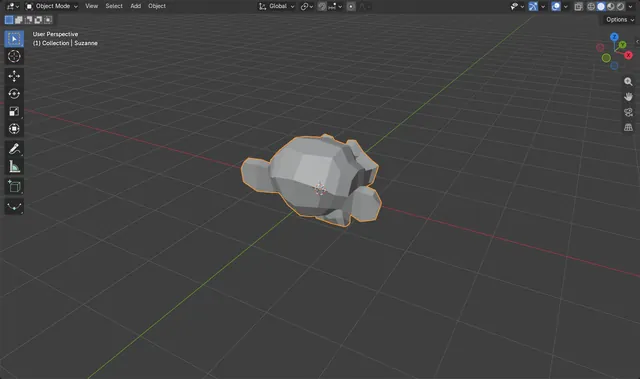
How to Mirror an Object Across an Axis in Blender
Select the object, press Ctrl + M, tap the axis key (X, Y or Z) and confirm with a left-click or the Enter key: the object is flipped across that axis.
Read the answer ›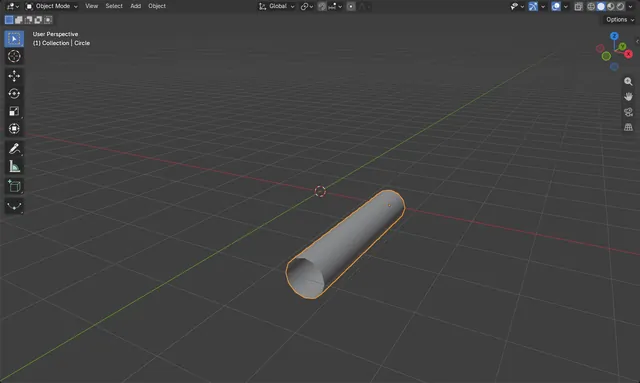
Model a Simple 3D Spiral Shape in Blender
Add a Circle with Add › Mesh › Circle, then open the Modifiers tab and add a Screw modifier from Add Modifier › Generate › Screw.
Read the answer ›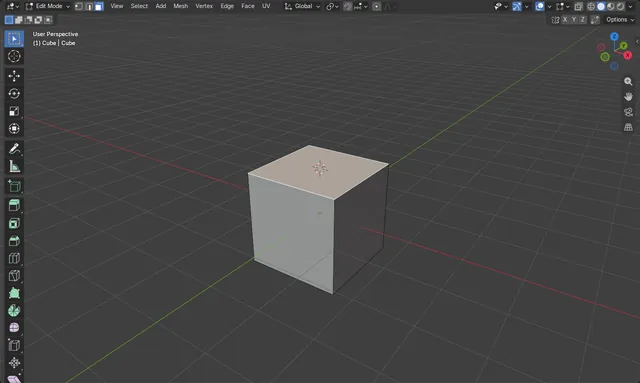
Move the 3D Cursor to Selected Faces in Blender
Select the faces in Edit Mode, then choose Mesh › Snap › Cursor to Selected.
Read the answer ›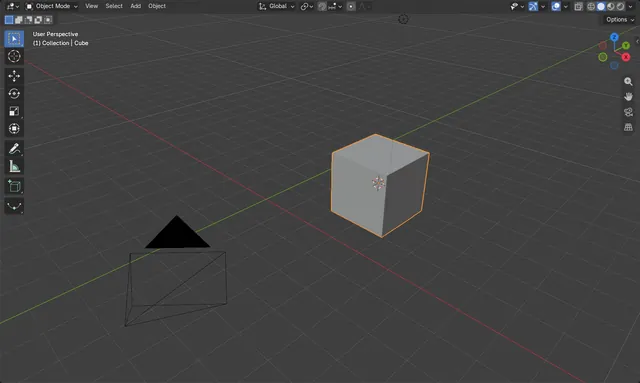
The Easiest Way to Move an Object to the 3D Cursor in Blender
Select the object in Object Mode, then choose Object › Snap › Selection to Cursor in the 3D Viewport.
Read the answer ›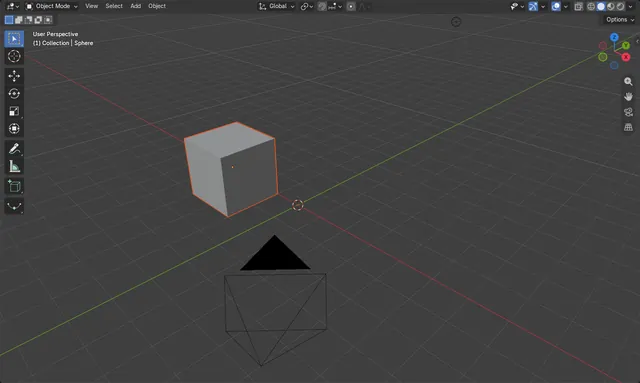
How to Move an Object to Another Object's Center in Blender
Select the object you want to move, then select the target object last so it is the active one.
Read the answer ›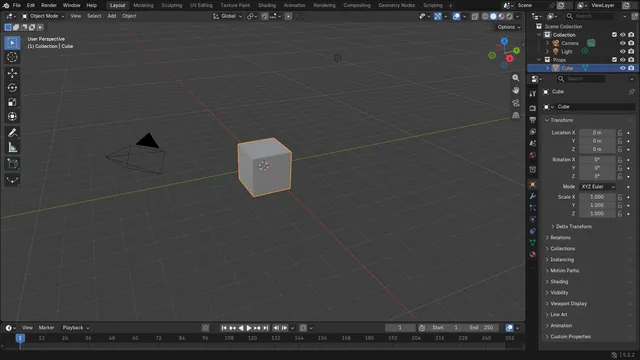
How to Move an Object to Another Collection in Blender
Select the object in Object Mode, press M and click the collection it should go to: the object is taken out of its old collection and placed in the new one.
Read the answer ›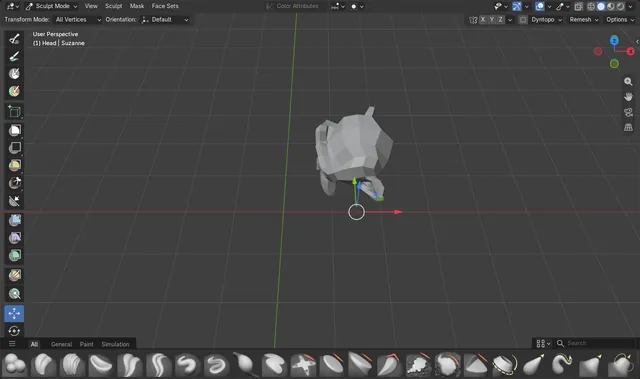
How to Move the Sculpt Pivot Without Moving the Mesh (Blender 5.3)
In Blender 5.3, open the Options popover in the Sculpt Mode tool header and tick Pivot at the top of the popover.
Read the answer ›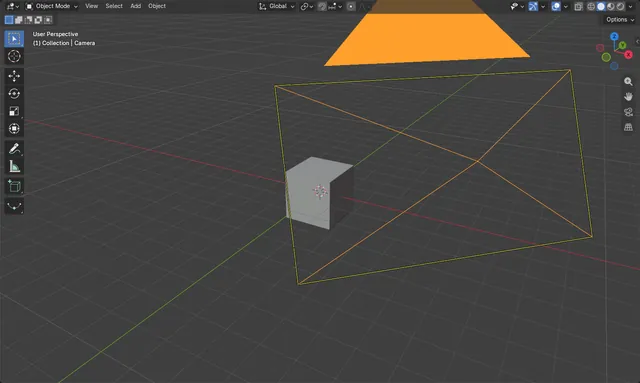
How to Make an Orthographic Camera in Blender
Select the camera, open the Data tab in the Properties editor, and set Type to Orthographic in the Lens panel.
Read the answer ›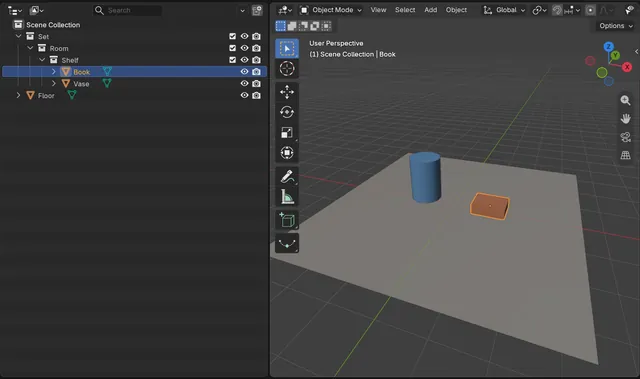
How to Make the Outliner Expand to the Object You Click (Blender 5.3)
In Blender 5.3, open the Filter menu in the Outliner header and tick Expand on Focus (it needs Sync Selection and Scroll to Active on).
Read the answer ›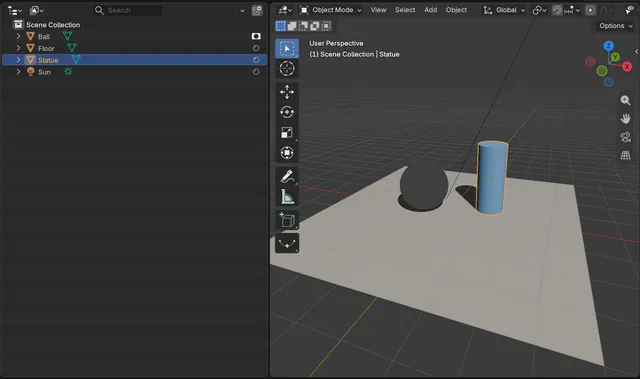
How to Toggle Holdout for One Object in the Outliner (Blender 5.3)
In Blender 5.3, open the Filter menu in the Outliner header and turn on the Holdout icon under Restriction Toggles.
Read the answer ›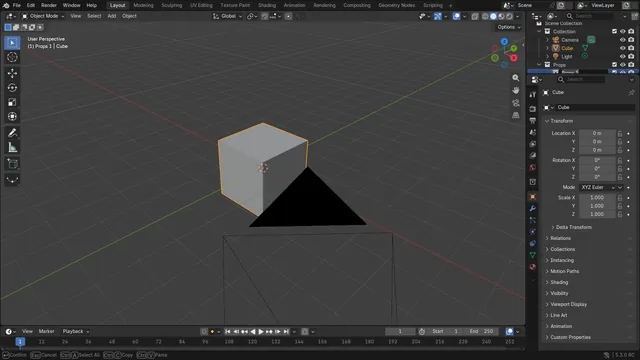
How to Add a New Collection Inside the Active Collection in Blender
In Blender 5.3, hover over the Outliner and press Shift + C to add a new collection inside the active collection.
Read the answer ›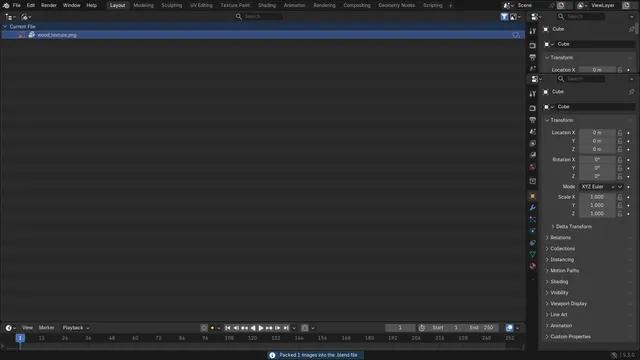
How to Pack Images into the .blend File from the Outliner (Blender 5.3)
In Blender 5.3, set the Outliner's Display Mode to Blender File, expand Images, right-click the image and choose Pack.
Read the answer ›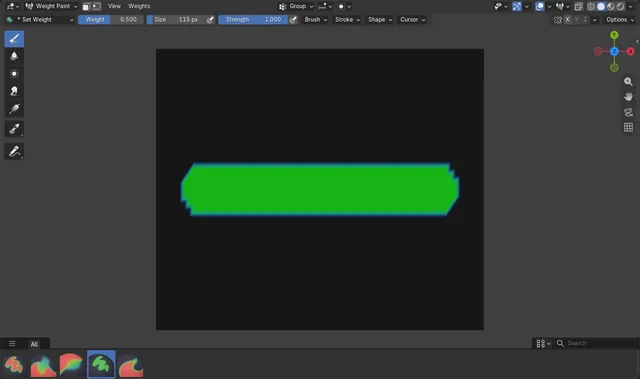
How to Paint an Exact Weight Value in Blender (Blender 5.3)
In Blender 5.3 the default Weight Paint brush is Add Weight, which adds a little weight per stroke.
Read the answer ›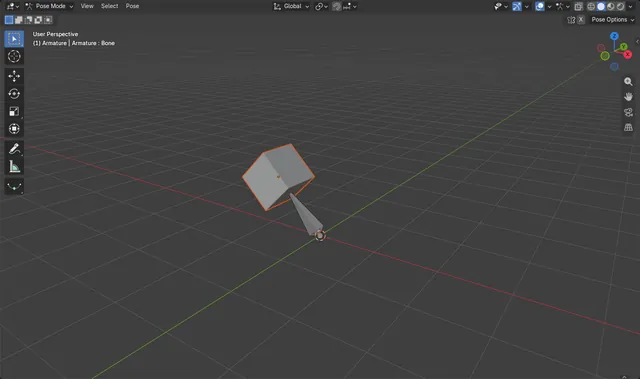
How to Parent an Object to a Bone in Blender
Click the object, Shift-click the armature, switch to Pose Mode, click the bone you want and press Ctrl + P, then choose Bone: the object now follows only that bone and stays exactly where it was.
Read the answer ›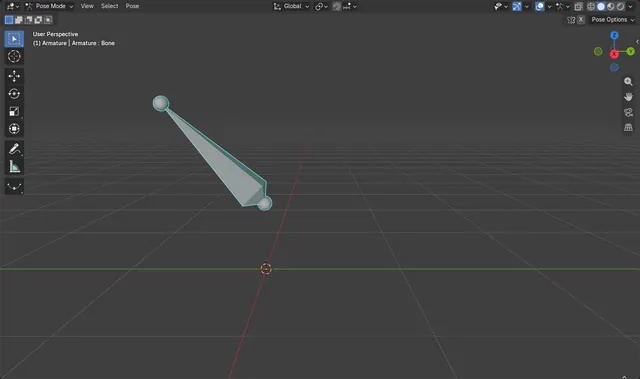
How to Paste a Pose with Influence in Blender 5.3
In Blender 5.3, copy the pose with Ctrl + C, select the bones in Pose Mode, press Ctrl + V (Pose › Paste Pose), then set Factor in the Paste Pose panel that appears in the bottom-left corner of the 3D Viewport.
Read the answer ›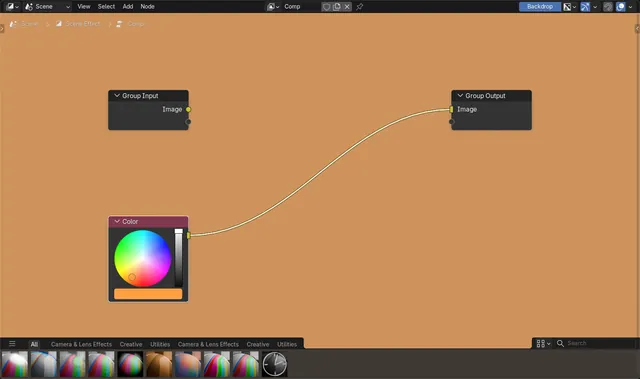
How to Preview a Compositor Node Without a Viewer Node (Blender 5.3)
In Blender 5.3, Shift+Alt+click a node in the Compositor to connect it to the Group Output, and with no Viewer node in the tree the Group Output result is shown in the backdrop.
Read the answer ›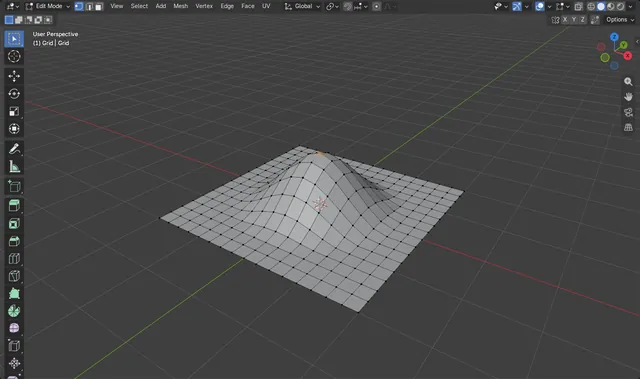
How to Use Proportional Editing in Blender
In Edit Mode, press O (or click the Proportional Editing button in the 3D Viewport header) and then move, rotate or scale a selection as usual.
Read the answer ›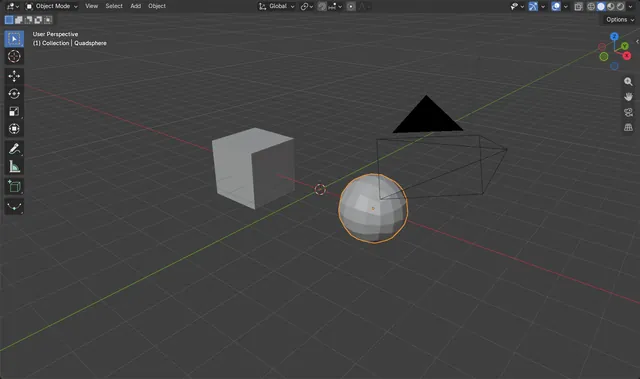
How to Use the Quad Sphere in Blender 5.3
In Blender 5.3, hover over the 3D Viewport, open Add › Mesh and choose Quad Sphere.
Read the answer ›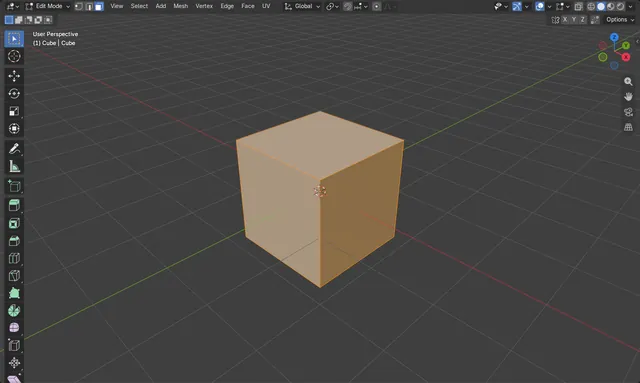
How to Make All Faces Face the Right Way in Blender
In Edit Mode, press A to select all faces, then press Shift + N.
Read the answer ›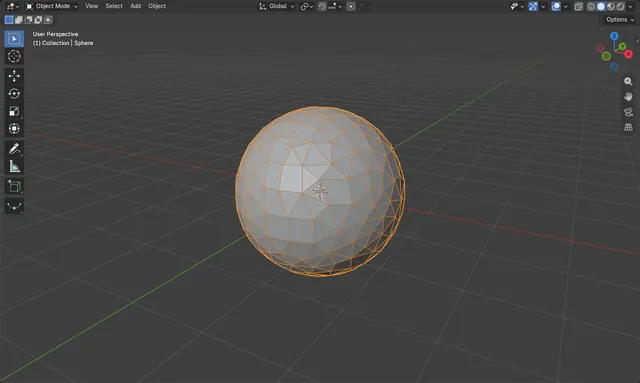
How to Reduce Vertex Count on a Mesh in Blender
Select the mesh, open the Modifiers tab in the Properties editor, add a Decimate modifier and lower its Ratio, then apply it.
Read the answer ›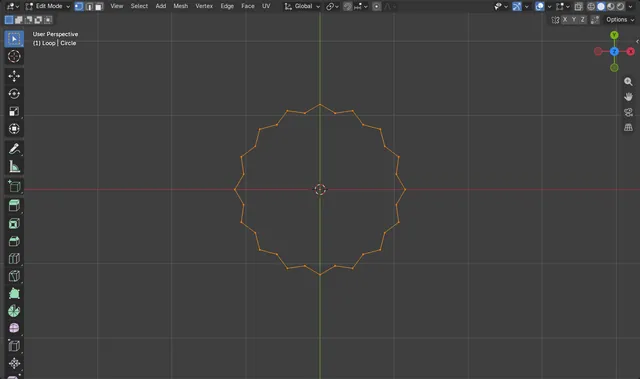
How to Use Relax Edge Loops in Blender 5.3
In Edit Mode, select an edge loop and choose Mesh › Transform › Relax Edge Loops.
Read the answer ›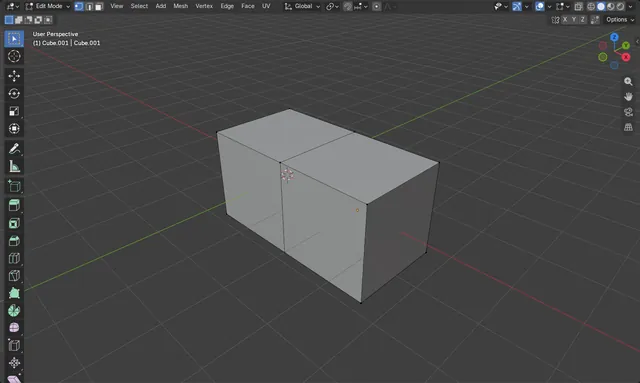
How to Remove Interior Faces in Blender, Keeping the Outside
In Edit Mode, deselect everything, choose Select › Select All by Trait › Interior Faces, then press X and pick Faces.
Read the answer ›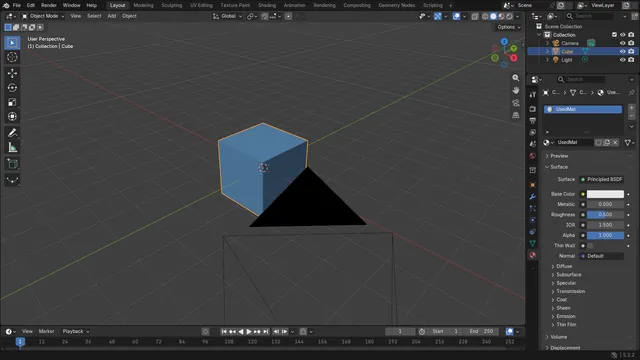
How to Remove All Unused Materials in Blender
Choose File › Clean Up › Purge Unused Data (in Blender 5.x the item reads "Purge Unused Data...").
Read the answer ›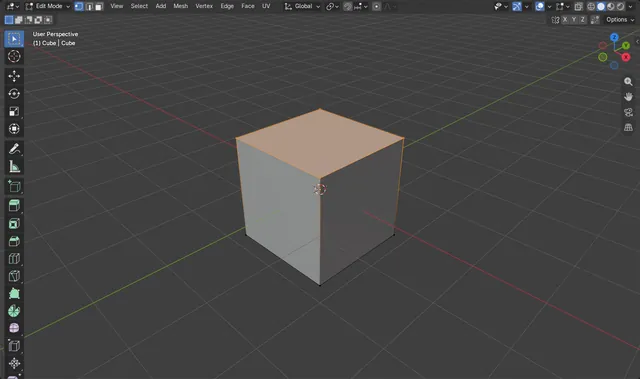
How to Remove Vertices from a Vertex Group in Blender
In Edit Mode, select the vertices you want to take out, click the vertex group in Properties › Data › Vertex Groups, then click Remove.
Read the answer ›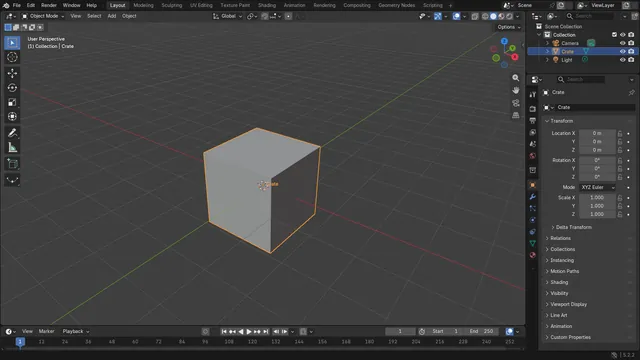
How to Rename an Object in Blender
Select the object, hover the 3D Viewport and press F2 (Edit › Rename Active Item).
Read the answer ›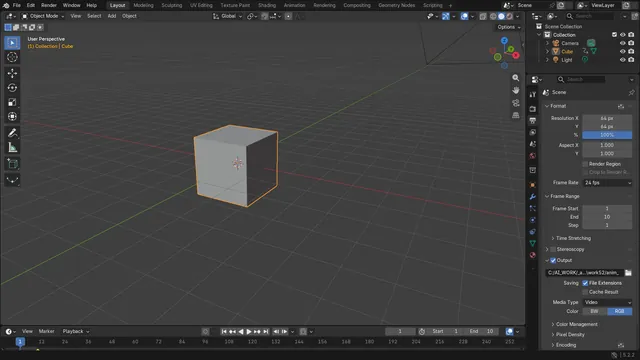
How to Render an Animation as a Video File in Blender
Open the Output tab in Properties, set File Format to FFmpeg Video, then choose Render › Render Animation (or press Ctrl + F12).
Read the answer ›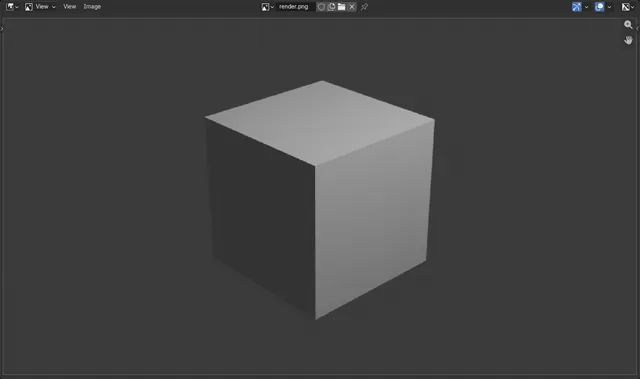
How to Render an Image and Save It as PNG in Blender
Press F12 to render the scene from the active camera.
Read the answer ›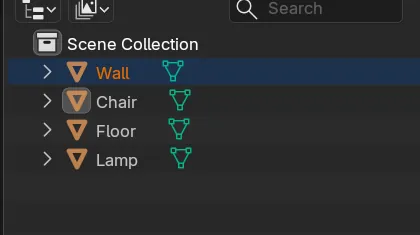
How to Reorder Objects in the Blender Outliner (Custom Sort in 5.3)
In Blender 5.3, keep the Outliner's Sort set to Custom and drag an object onto the top or bottom edge of another row.
Read the answer ›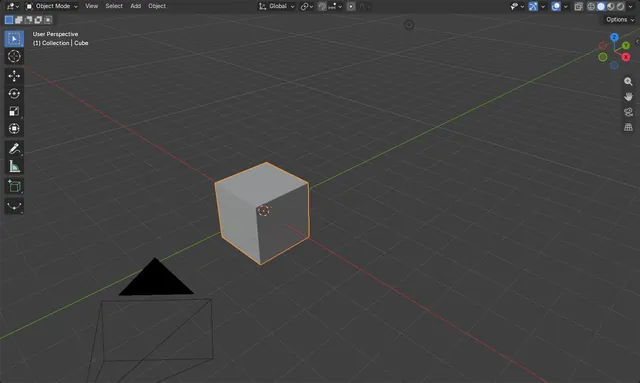
How to Reset the 3D Cursor to the World Origin in Blender
Choose Object › Snap › Cursor to World Origin in the 3D Viewport header.
Read the answer ›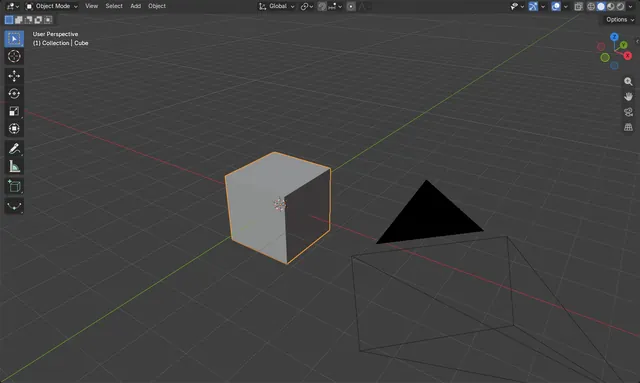
How to Reset Location, Rotation and Scale in Blender
Select the object in Object Mode, hover the 3D Viewport and press Alt + G to set its location back to 0, Alt + R to clear its rotation and Alt + S to set its scale back to 1.
Read the answer ›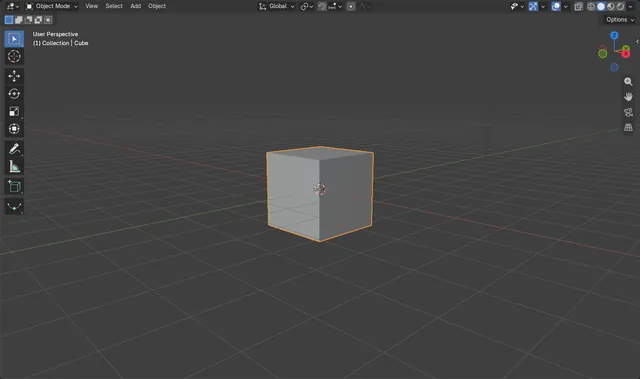
How to Reset a Tilted View in Blender 5.3 (Reset Roll)
In Blender 5.3, open View › Navigation in the 3D Viewport header and click Reset Roll.
Read the answer ›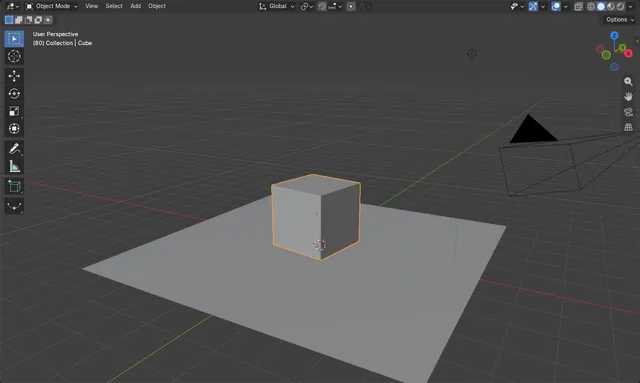
How to Make an Object Fall with Rigid Body in Blender
Select the object that should fall and choose Object › Rigid Body › Add Active.
Read the answer ›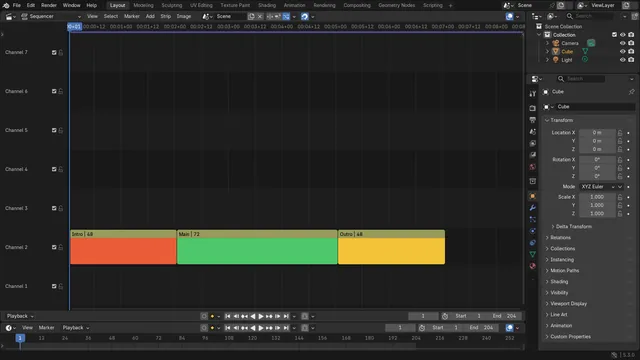
How to Ripple Delete Strips in the Blender 5.3 Video Editor
In Blender 5.3, select the strip in the Video Sequencer timeline and press Shift + X, or choose Strip › Ripple Delete.
Read the answer ›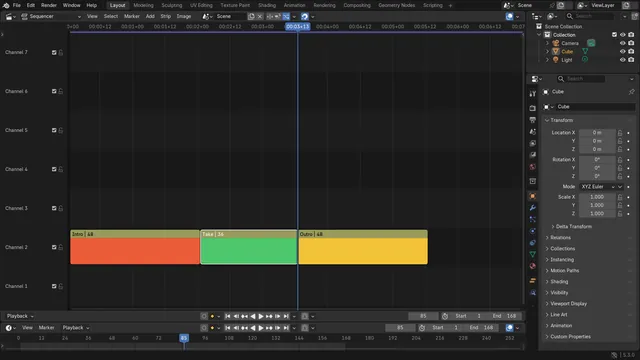
How to Ripple Trim a Strip to the Playhead in Blender 5.3
In Blender 5.3, place the playhead where the strip should end, select the strip in the Sequencer timeline and press Shift + W, or choose Strip › Transform › Ripple Trim End.
Read the answer ›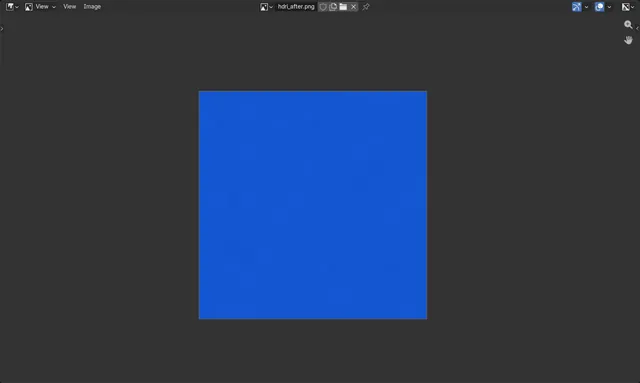
How to Rotate an HDRI World Background in Blender
Add a Texture Coordinate node and a Mapping node in the World shader, connect them to the Environment Texture's Vector input, and change the Mapping node's Z rotation.
Read the answer ›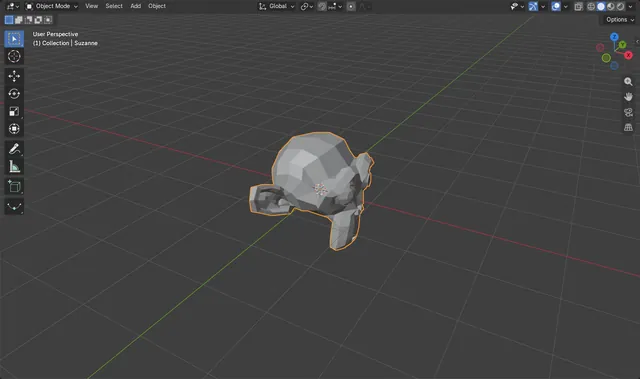
How to Rotate an Object by Exact Degrees in Blender
Select the object, press R, tap the Z key (or X or Y) and type the angle, for example 90, then confirm with the Enter key.
Read the answer ›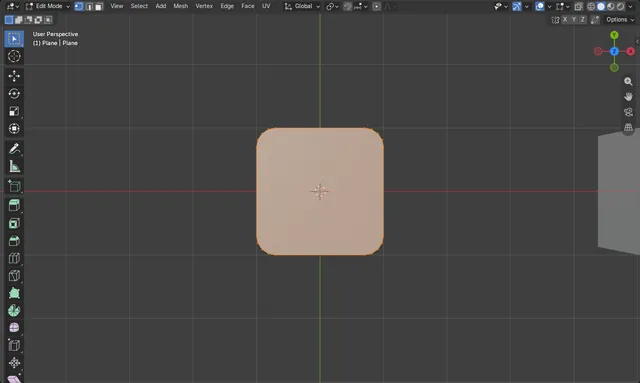
How to Round Corners of a Plane in Blender
Open the plane in Edit Mode (Tab), switch to vertex select (1), select the corners, and choose Vertex › Bevel Vertices, or press Ctrl + Shift + B.
Read the answer ›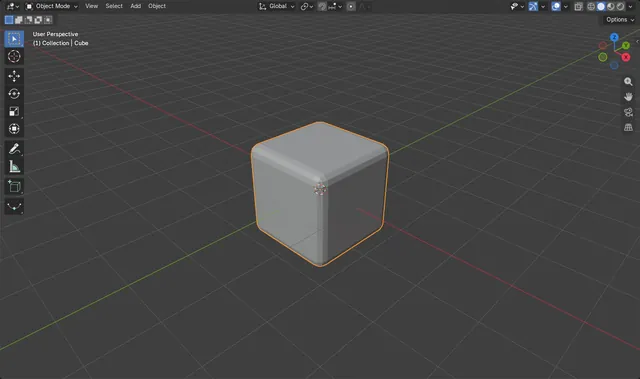
How to Round the Edges of a Mesh in Blender
Select the object, open the Modifiers tab, choose Add Modifier › Generate › Bevel, then raise Segments to get a smooth round edge.
Read the answer ›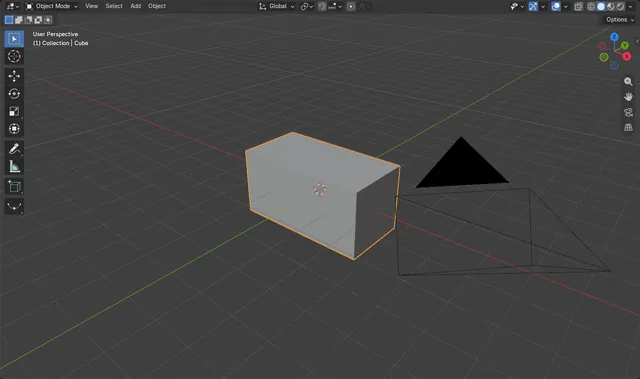
How to Scale Along One Axis in Blender
Press S to start scaling, then tap the X, Y or Z key to lock the scale to that one axis.
Read the answer ›
How to Show a Scene's New End Frames in a Scene Strip (Blender 5.3)
In Blender 5.3, a scene strip's content follows the frame range of the scene it shows; drag the strip's right edge out to show the new frames.
Read the answer ›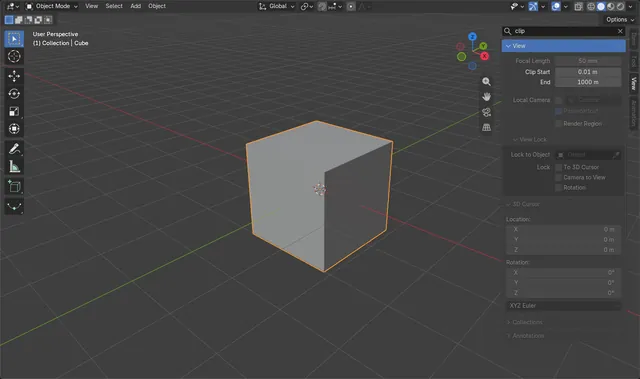
How to Search the Sidebar in Blender 5.3 (Ctrl + F in the N Panel)
In Blender 5.3, move the mouse over the sidebar (the N panel) and press Ctrl + F.
Read the answer ›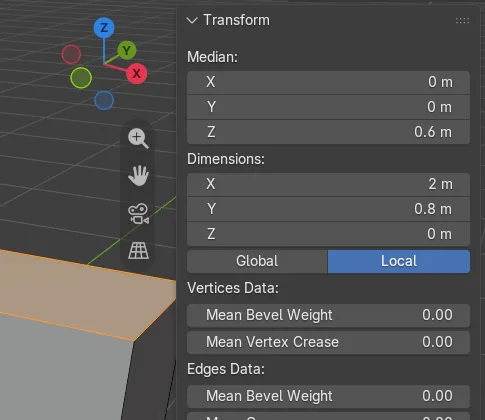
How to See the Dimensions of Selected Vertices in Edit Mode (Blender 5.3)
In Blender 5.3, select the vertices, edges or faces in Edit Mode, press N to open the Sidebar and look at the Item tab.
Read the answer ›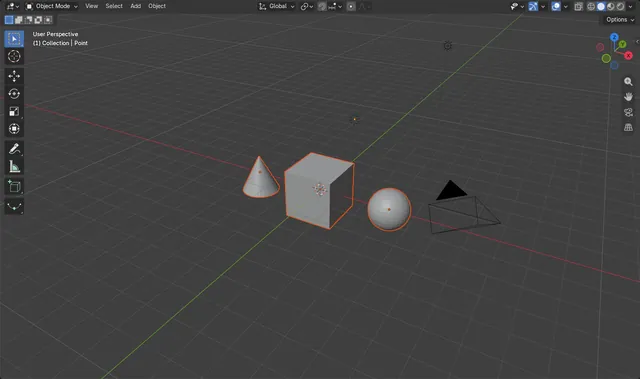
How to Select All Objects of One Type in Blender
In Object Mode, open Select › Select All by Type in the 3D Viewport header and pick the type, such as Mesh, Light or Camera: every visible object of that type is selected in one click.
Read the answer ›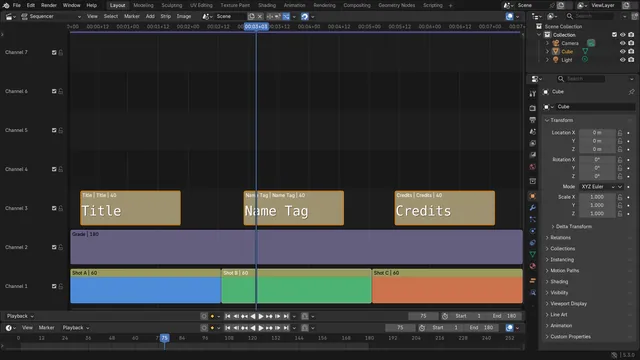
How to Select All Strips of One Type in the Blender Video Editor
In the Blender 5.3 Video Sequencer, open Select › Select All by Type and pick a type such as Text, Movie, Sound or Image.
Read the answer ›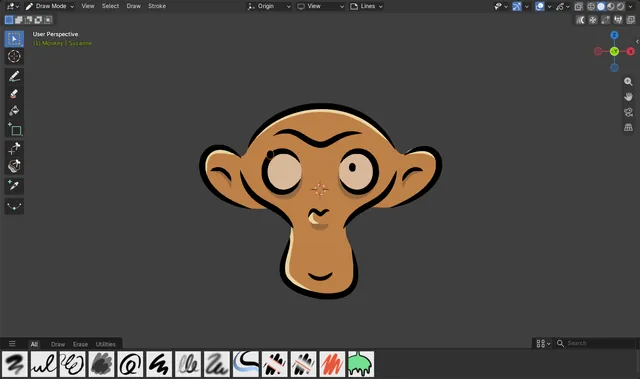
How to Select and Move Strokes in Draw Mode (Blender 5.3)
In Blender 5.3, pick Select Box at the top of the Draw Mode toolbar, drag a box around the stroke, then press G and move the mouse to move it.
Read the answer ›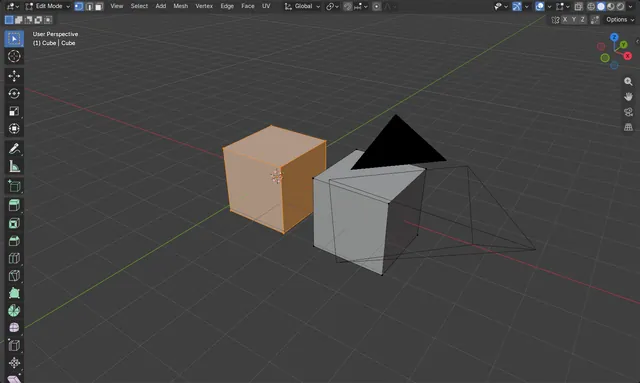
How to Select All Connected Geometry in Blender Edit Mode
In Edit Mode, select at least one vertex, edge or face of the piece you want, then press Ctrl + L.
Read the answer ›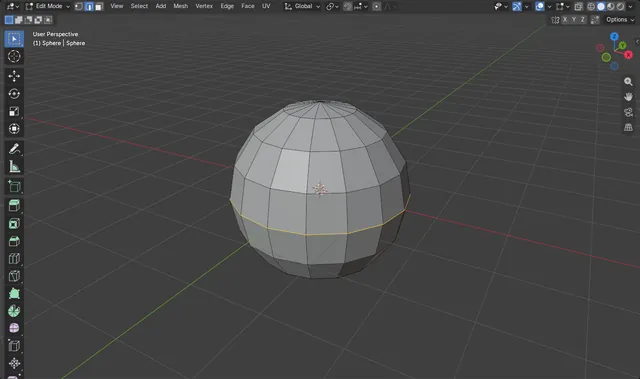
How to Select an Edge Loop in Blender
In Edit Mode, hold Alt and left-click an edge: Blender selects the whole loop that edge belongs to.
Read the answer ›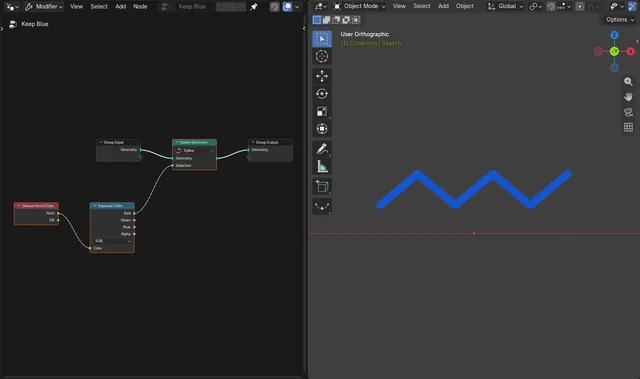
How to Select Grease Pencil Strokes by Color in Geometry Nodes (Blender 5.3)
In Blender 5.3, add a Geometry Nodes modifier to the Grease Pencil object and add Grease Pencil Color (press Shift + A, then Grease Pencil › Read).
Read the answer ›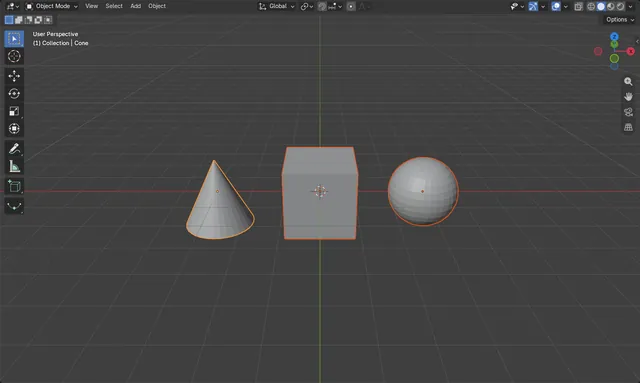
How to Select Multiple Objects in Blender
Click the first object in the 3D Viewport, then hold Shift and click each of the others to add them to the selection.
Read the answer ›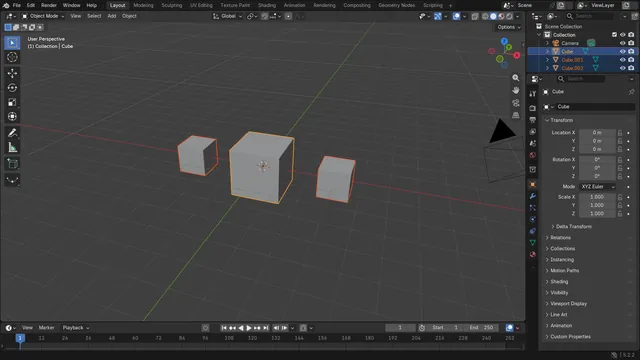
How to Separate a Mesh by Loose Parts in Blender
In Edit Mode, press A to select everything, then press P and choose By Loose Parts: every piece that is not connected to the rest becomes its own object.
Read the answer ›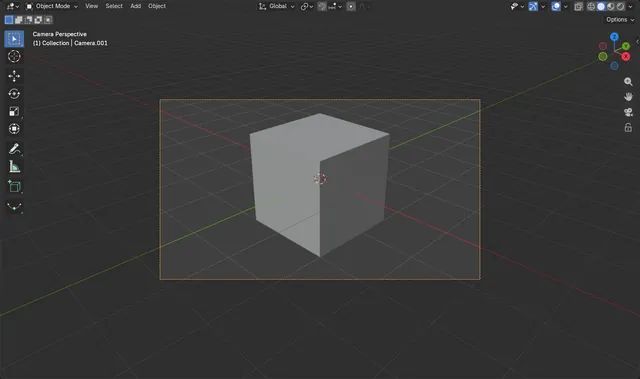
How to Set the Active Camera in Blender
Select the camera you want, hover over the 3D Viewport and press Ctrl + Numpad 0.
Read the answer ›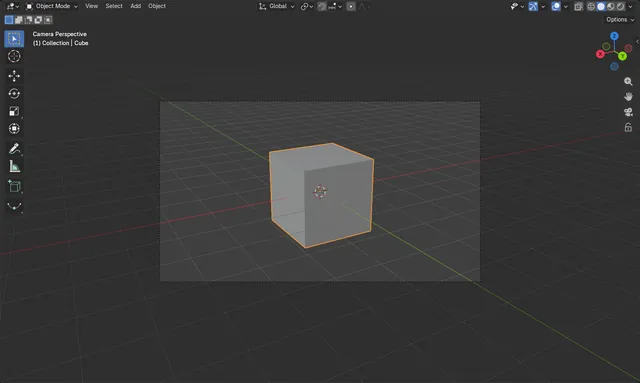
How to Set the Camera to the Current View in Blender
Hover over the 3D Viewport and press Ctrl + Alt + Numpad 0, or choose View › Align View › Align Active Camera to View.
Read the answer ›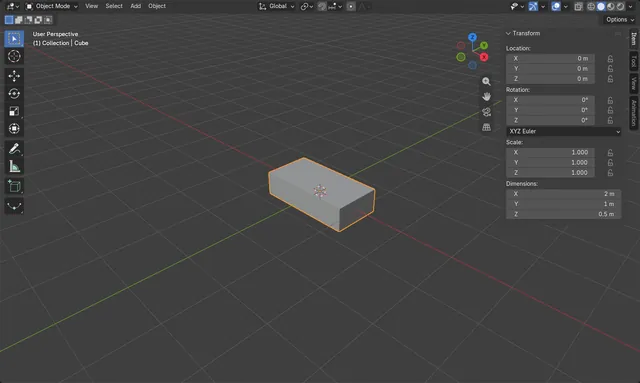
How to Set the Exact Dimensions of an Object in Blender
Select the object, press N with the mouse over the 3D Viewport to open the sidebar, and type your values into Dimensions X, Y and Z on the Item tab.
Read the answer ›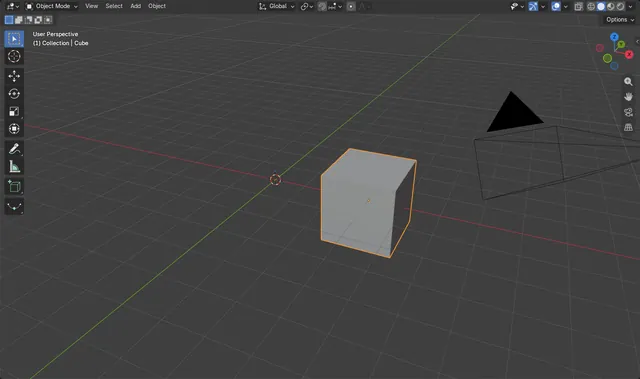
How to Set the Origin to the Center of an Object
Select the object in Object Mode and choose Object › Set Origin › Origin to Geometry.
Read the answer ›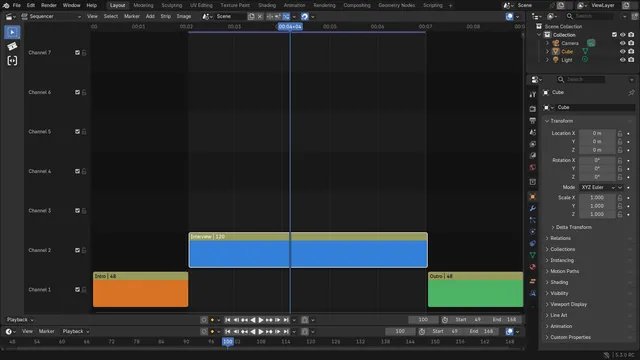
How to Set the Render Range to Selected Strips (Blender 5.3)
In Blender 5.3, select the strip in the Video Sequencer timeline, right-click and choose Set Render Range to Selected.
Read the answer ›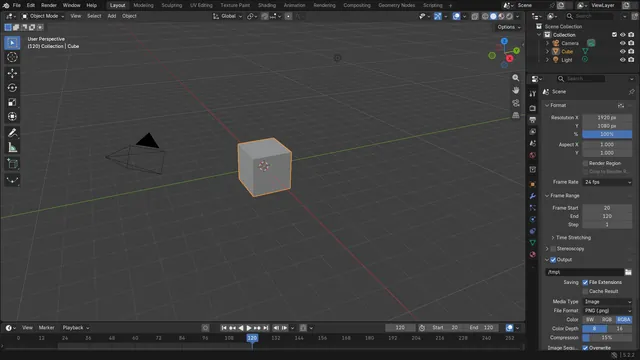
How to Set the Start and End Frame in Blender
Open the Output Properties tab and type the numbers into Frame Start and End under Frame Range: playback and rendering then use only those frames.
Read the answer ›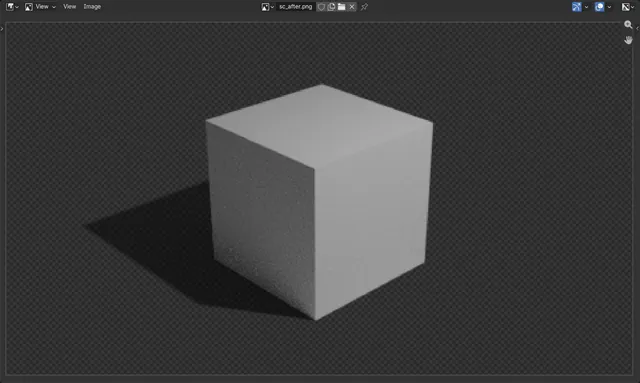
How to Use a Shadow Catcher in Blender Cycles
With Cycles as the render engine, select the ground plane and open the Object Properties tab › Visibility, then tick Shadow Catcher.
Read the answer ›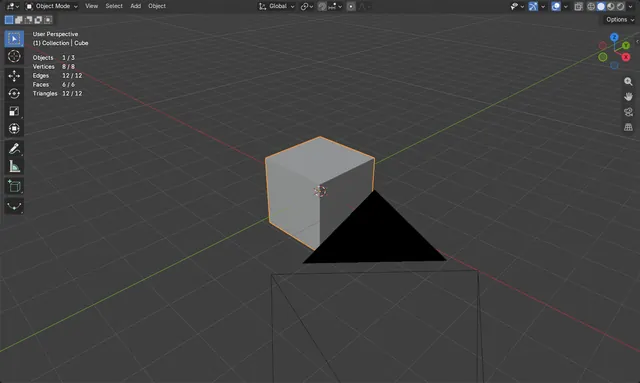
How to Show the Polygon Count in Blender
Open the Overlays drop-down in the 3D Viewport header and tick Statistics.
Read the answer ›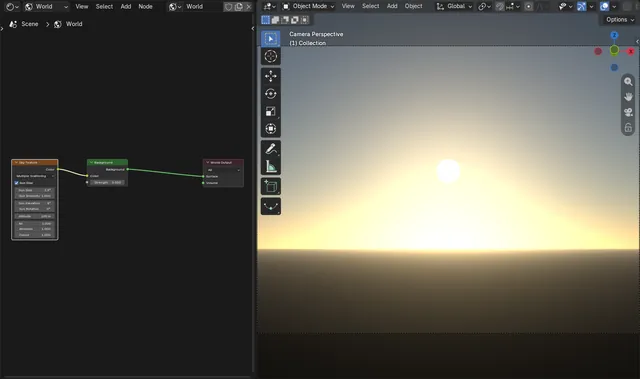
How to Show the Sun Disc of the Sky Texture in EEVEE (Blender 5.3)
In Blender 5.3, tick Sun Disc on the Sky Texture node of your World and set Sun Size.
Read the answer ›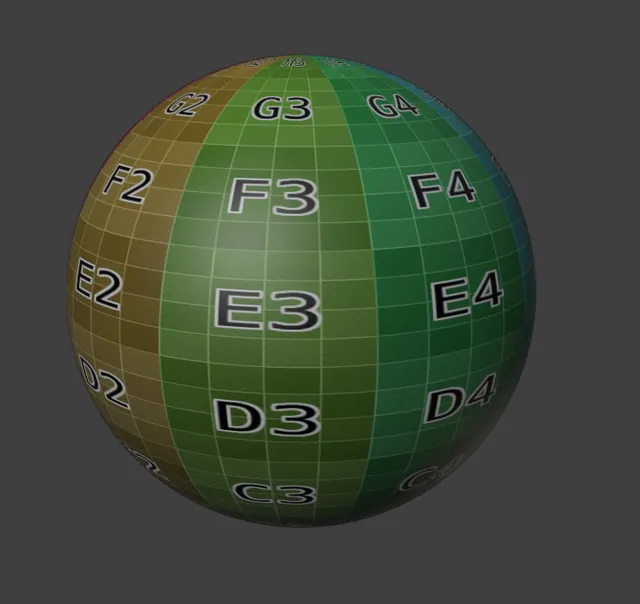
How to See Your Texture While Sculpting with Multires in Blender 5.3
In Blender 5.3, stay in Sculpt Mode with Solid shading, open the Viewport Shading popover in the 3D Viewport header and set Color to Texture.
Read the answer ›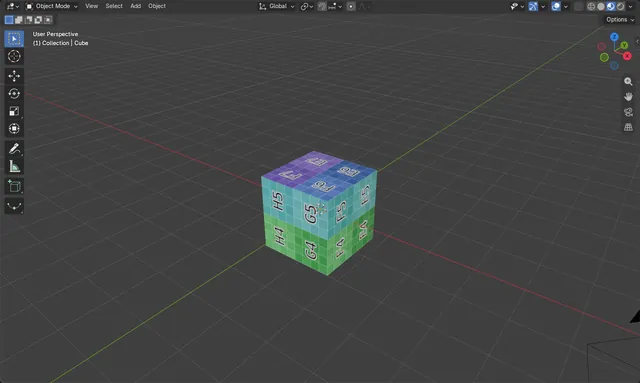
How to Show Textures in the Blender Viewport
Hover the 3D Viewport, press Z and choose Material Preview, or click the third of the four shading buttons at the top right of the 3D Viewport.
Read the answer ›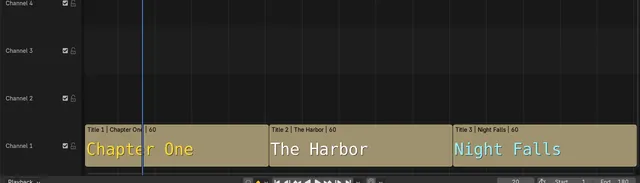
How to Show Thumbnails on Text Strips in the Video Editor (Blender 5.3)
In Blender 5.3, open the Overlays dropdown in the Video Sequencer header and tick Thumbnails.
Read the answer ›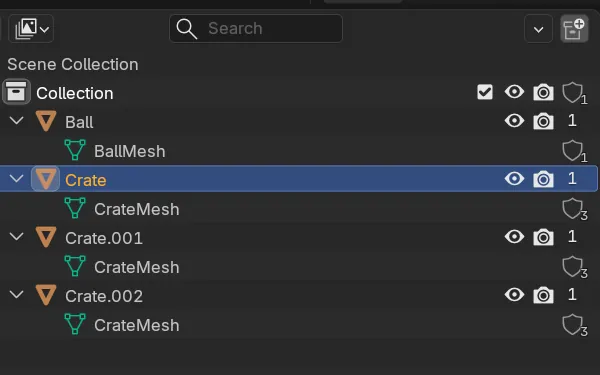
How to Show the Number of Users in the Blender Outliner
In Blender 5.3, open the Filter popover in the Outliner header and turn on Show Users Column.
Read the answer ›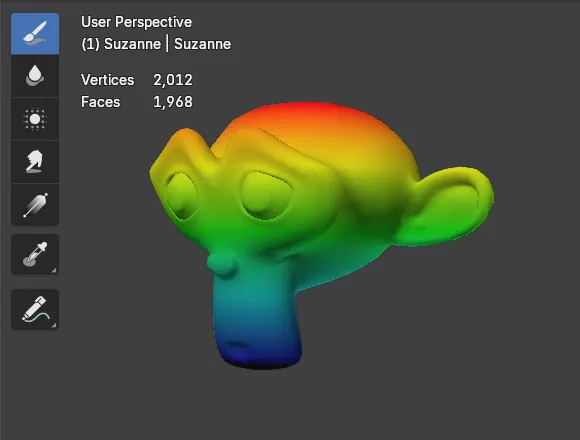
How to See the Vertex Count in Weight Paint Mode in Blender 5.3
In Blender 5.3, open the Viewport Overlays popover in the 3D Viewport header while in Weight Paint mode and tick Statistics in its Text section.
Read the answer ›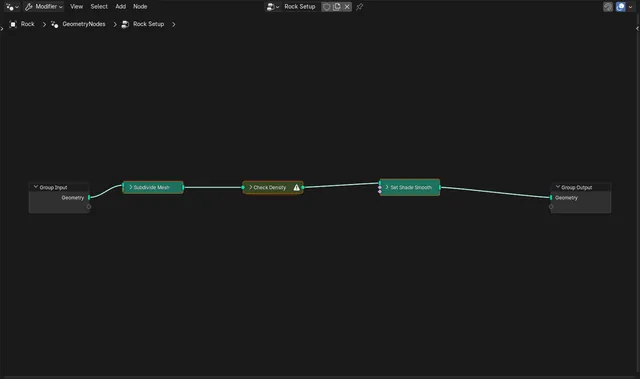
How to Keep Seeing Node Warnings When Nodes Are Collapsed (Blender 5.3)
In Blender 5.3 you do not need to change anything: a node that has a warning keeps its warning icon in the header after you collapse it with H (Collapse in the Show/Hide submenu of the Node menu).
Read the answer ›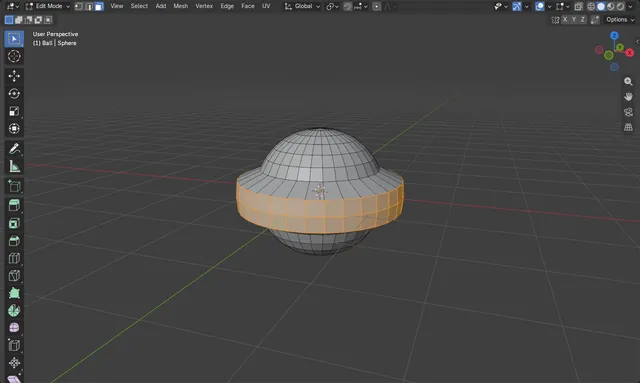
How to Use Shrink/Fatten in Blender (Alt+S)
In Edit Mode select the faces or vertices, hover the 3D Viewport and press Alt + S, then move the mouse or type a distance and confirm with Enter.
Read the answer ›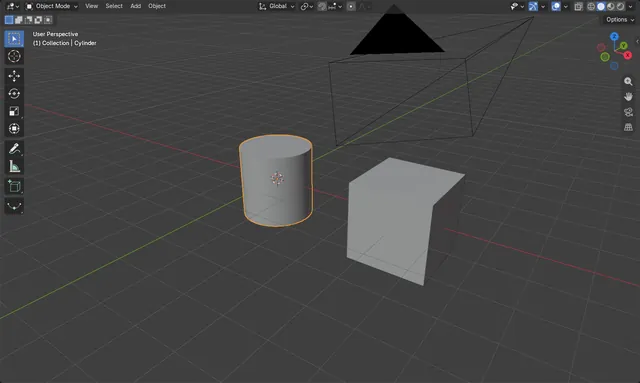
How to Smooth Shade an Object and Keep Hard Edges in Blender
In Object Mode, select the object and choose Object › Shade Auto Smooth.
Read the answer ›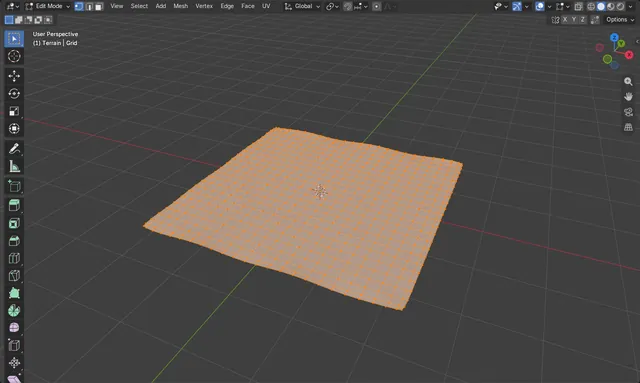
How to Smooth Vertices in Blender Edit Mode
Press Tab for Edit Mode and 1 for Vertex select, select the bumpy area, then right-click and choose Smooth Vertices (also in the header under Vertex).
Read the answer ›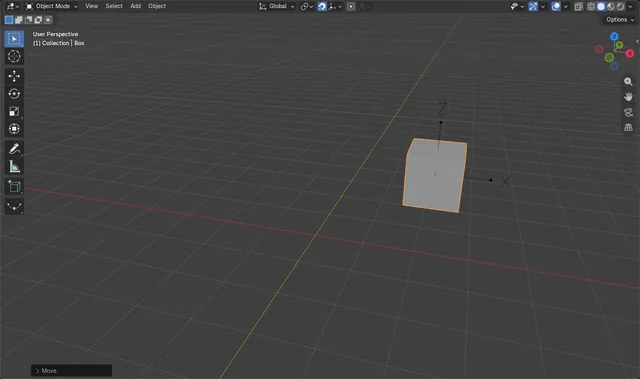
How to Snap an Object onto Another Object's Origin in Blender 5.3
In Blender 5.3, turn on snapping (the magnet in the 3D Viewport header, or Shift + Tab), open the Snapping menu and choose Origin under Snap Target, with Snap Base set to Active.
Read the answer ›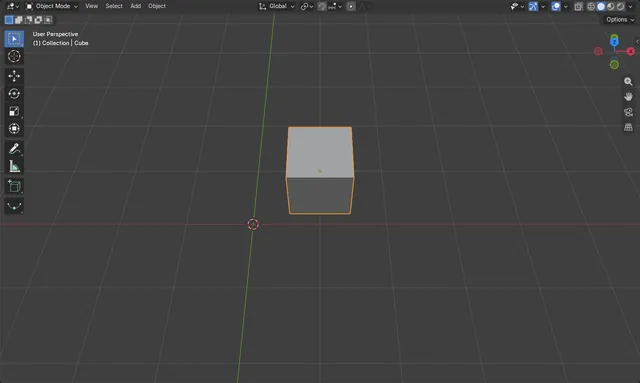
How to Snap an Object to the Grid in Blender
In Object Mode select the object and choose Object › Snap › Selection to Grid in the 3D Viewport header.
Read the answer ›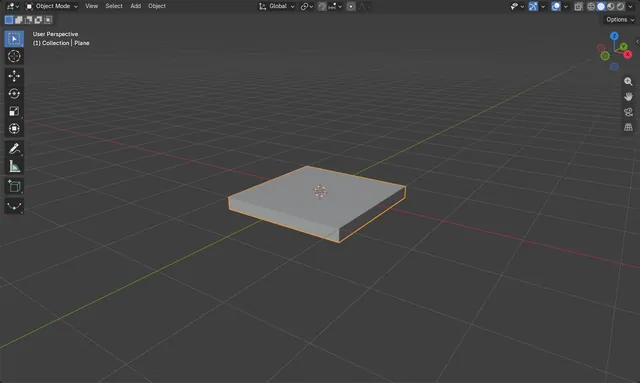
How to Give a Flat Plane Thickness in Blender (Solidify)
Select the plane, open the Modifiers tab in the Properties editor, and choose Add Modifier › Generate › Solidify.
Read the answer ›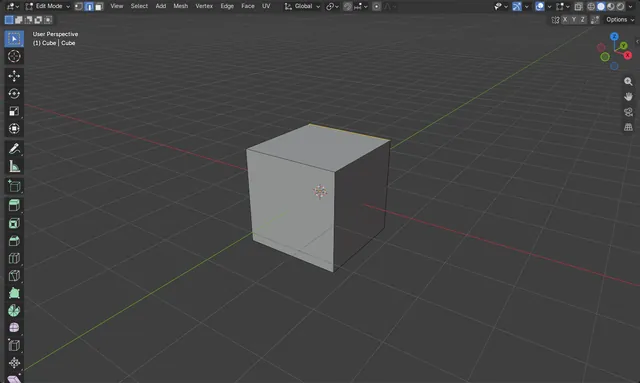
Split an Edge in Two in Blender
Select the edge in Edit Mode and choose Edge › Subdivide in the 3D Viewport header.
Read the answer ›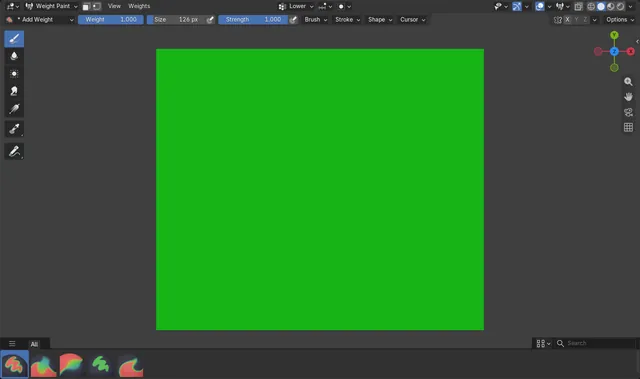
How to Stop Weight Paint Lowering Other Vertex Groups in Blender (Blender 5.3)
In Blender 5.3, Auto Normalize is on by default in Weight Paint mode, so painting one bone's vertex group lowers the other deform groups on the same vertices to keep the total at 1.0.
Read the answer ›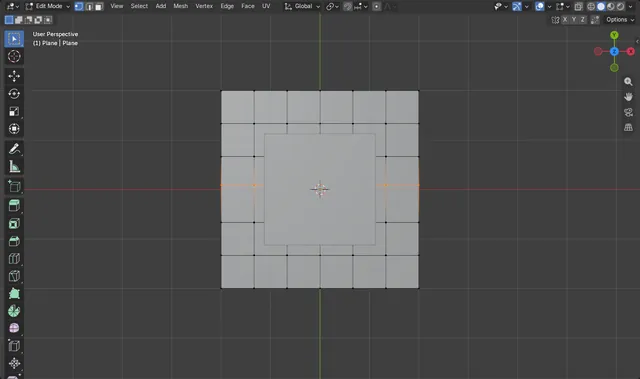
Straighten Vertices Along a Line in Blender
In Edit Mode, select the vertices and scale them to 0 along the axis that is out of line, for example Y, using the Resize operator.
Read the answer ›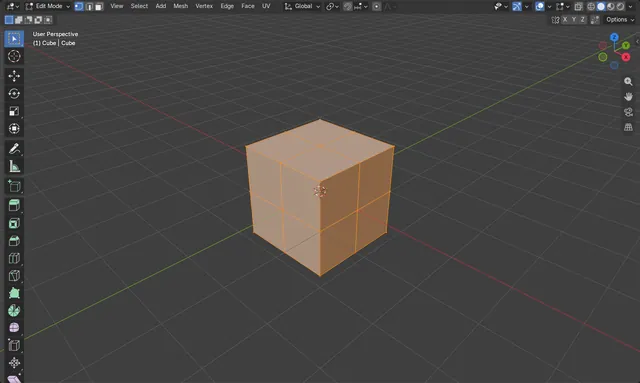
How to Subdivide a Mesh in Blender
In Edit Mode, select the vertices, edges or faces you want to split, then choose Edge › Subdivide in the 3D Viewport header.
Read the answer ›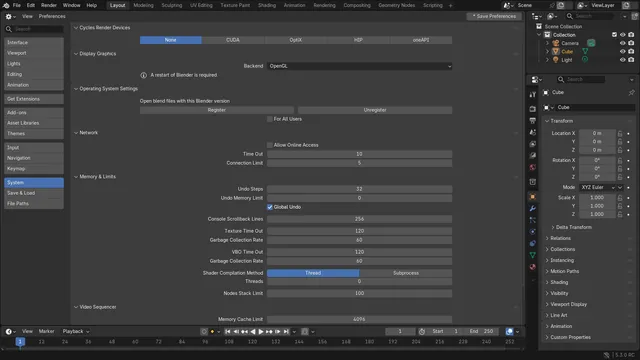
How to Switch Blender Back to OpenGL (Blender 5.3)
In Blender 5.3, open Edit › Preferences..., go to the System section and set Backend to OpenGL in the Display Graphics panel, then close Blender and start it again.
Read the answer ›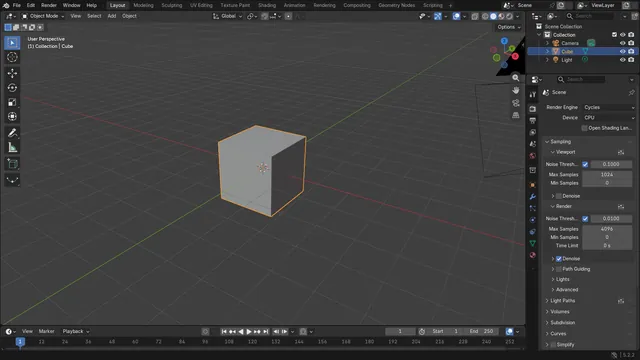
How to Switch the Render Engine to Cycles in Blender
Open the Render tab in the Properties editor and change the Render Engine dropdown to Cycles.
Read the answer ›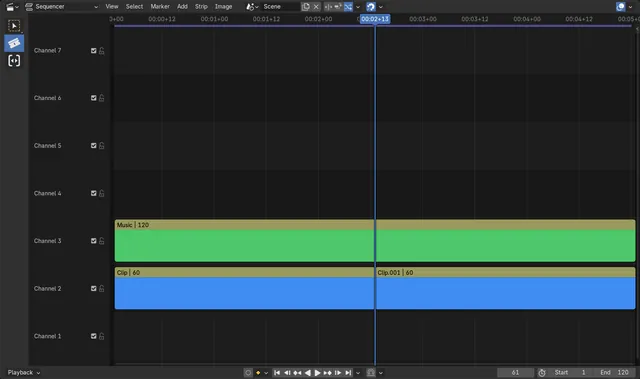
How to Use the Blade Tool by Holding C in the Blender 5.3 Video Editor
In Blender 5.3, hover over the Video Sequencer timeline and hold C.
Read the answer ›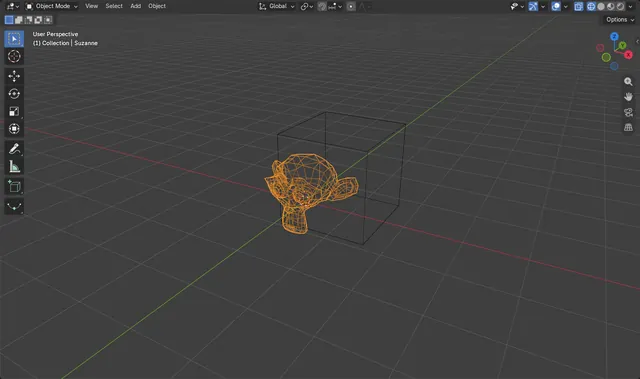
How to Switch to Wireframe View in Blender
Hover the 3D Viewport and press Shift + Z: the view switches to Wireframe shading and every object shows only its edges.
Read the answer ›
How to Make Toon Shading in Blender EEVEE (Blender 5.3)
In Blender 5.3 with EEVEE, add a Light Evaluation node, run its Factor through a Color Ramp set to Constant, multiply it by the Color of a Light Info node with a Mix node and plug the result into the Diffuse Light input of a Light Accumulation node, which goes into the Surface input of the Material Output.
Read the answer ›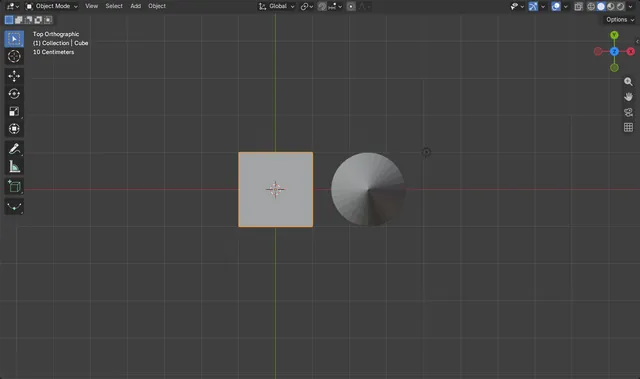
Top, Front and Side View in Blender Without a Numpad
Hover the 3D Viewport and press the ` key (backquote, usually left of the 1 key) to open the View pie, then pick Top, Front, Right, Left, Bottom or Back.
Read the answer ›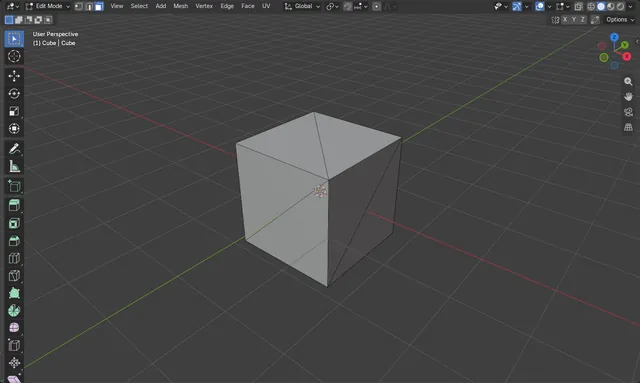
How to Triangulate a Mesh in Blender
Select the mesh, press Tab to enter Edit Mode and press A to select everything.
Read the answer ›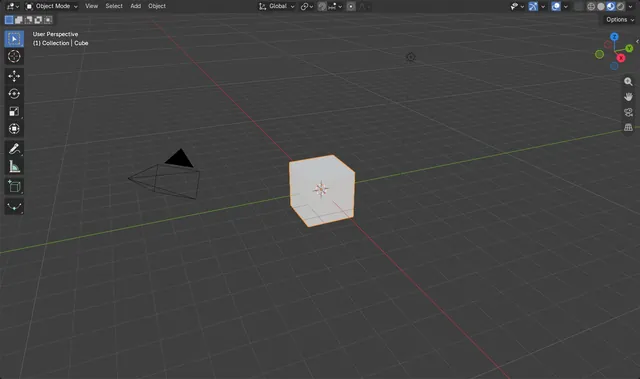
How to Turn Off the Viewport Compositor (Blender 5.3)
In Blender 5.3, open the Shading popover in the 3D Viewport header (the small arrow to the right of the shading buttons) and set Compositor to Disabled.
Read the answer ›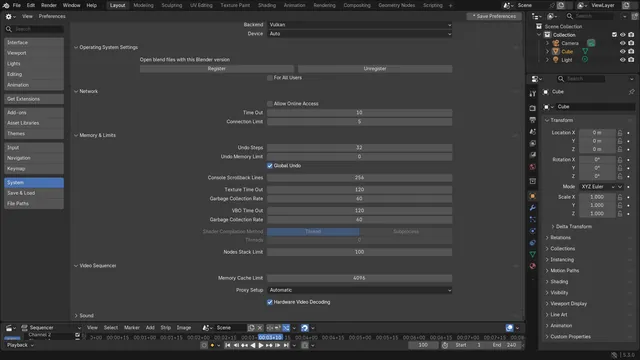
How to Turn On Hardware Video Decoding in the Video Editor (Blender 5.3)
In Blender 5.3, open Edit › Preferences..., go to System and tick Hardware Video Decoding in the Video Sequencer section.
Read the answer ›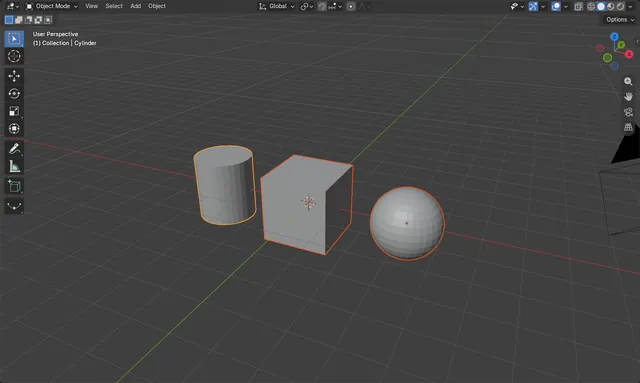
How to Unhide Objects in Blender
Hover the 3D Viewport in Object Mode and press Alt + H (Object › Show/Hide › Show Hidden Objects).
Read the answer ›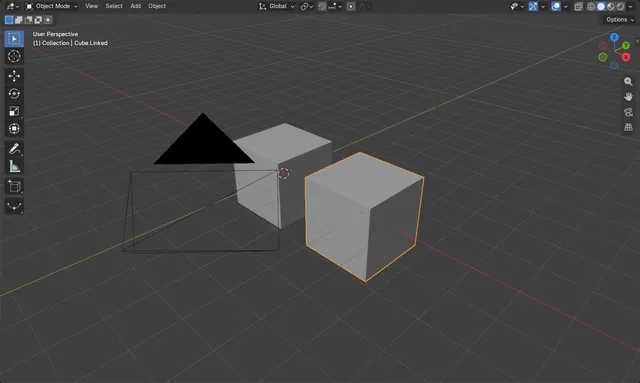
How to Unlink a Linked Duplicate in Blender
Select the linked duplicate, then choose Object › Relations › Make Single User › Object & Data in the 3D Viewport.
Read the answer ›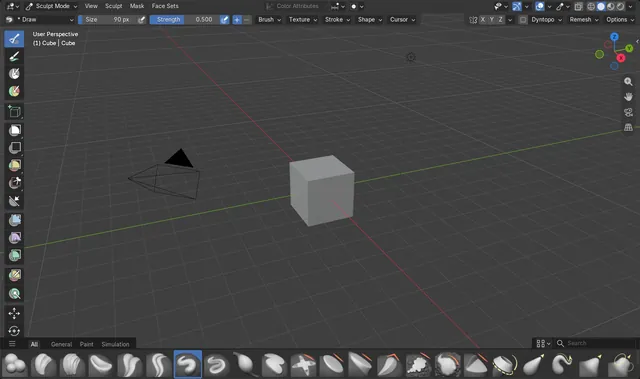
How to Use the Same Brush Size for All Sculpt Brushes (Blender 5.3)
In Blender 5.3, all sculpt brushes use one size when each of them has the shared-size button on: open Brush Settings, check that the icon to the right of Size is highlighted, and click it on any brush where it is off.
Read the answer ›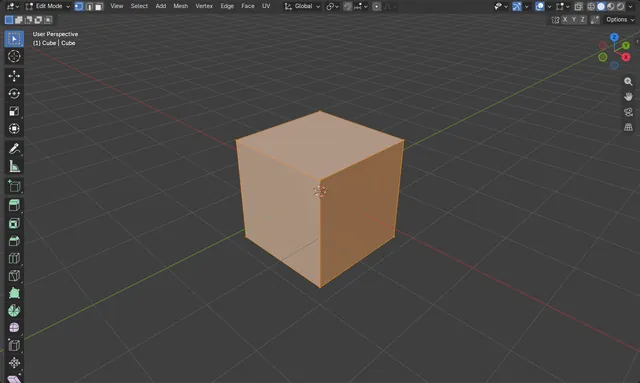
How to UV Unwrap with Smart UV Project in Blender
In Edit Mode, select the faces you want, press U in the 3D Viewport and choose Smart UV Project (Blender 4.2 LTS).
Read the answer ›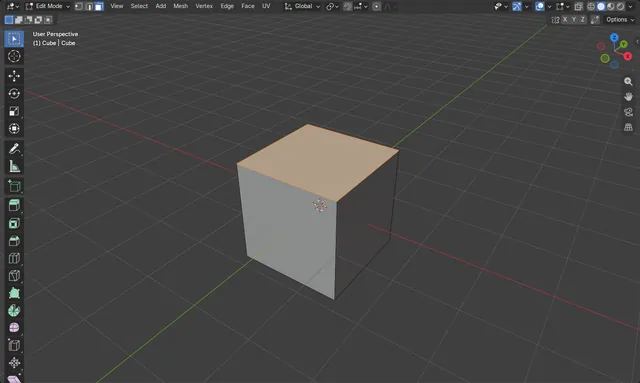
How to Switch Vertex, Edge and Face Select in Blender
Press Tab to enter Edit Mode, hover the 3D Viewport and press 1 for Vertex select, 2 for Edge select or 3 for Face select, using the number keys above the letters.
Read the answer ›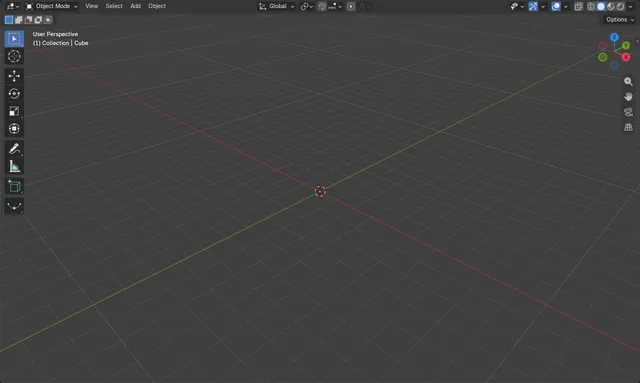
Objects Disappear When Zooming Out in Blender: Fix Clip End
Raise Clip End in the 3D Viewport sidebar: press N, open the View tab, and increase End under Clip.
Read the answer ›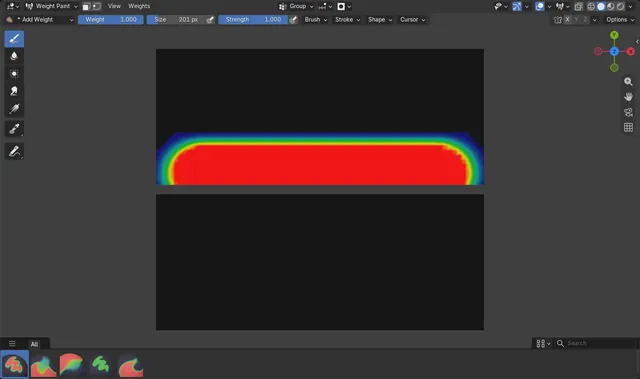
How to Stop Weight Paint Bleeding onto a Nearby Separate Part (Blender 5.3)
In Blender 5.3, open the Auto-Masking menu in the 3D Viewport header while in Weight Paint mode and tick Topology.
Read the answer ›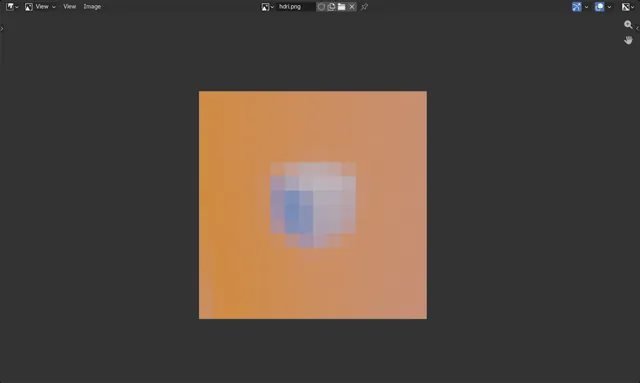
How to Add an Image as the World Background (HDRI) in Blender
Open the World tab in the Properties editor, add an Environment Texture node to the world's node tree, load your image into it, and connect its Color output to the Background node's Color input.
Read the answer ›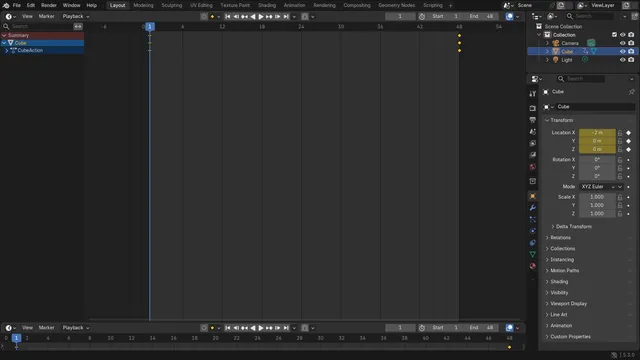
How to Make the Playhead Wrap Around in Blender 5.3
In Blender 5.3, click the Playback Options drop-down just right of the play buttons in the Timeline header and turn on Wrap Timeline Navigation.
Read the answer ›