How to Remove Interior Faces in Blender, Keeping the Outside
In Edit Mode, deselect everything, choose Select › Select All by Trait › Interior Faces, then press X and pick Faces. This deletes only the faces whose edges are all shared by more than two faces, so the outside surface stays as it was.
- Mode
- Edit Mode (3D Viewport)
- Shortcut
- X (opens the Delete menu)
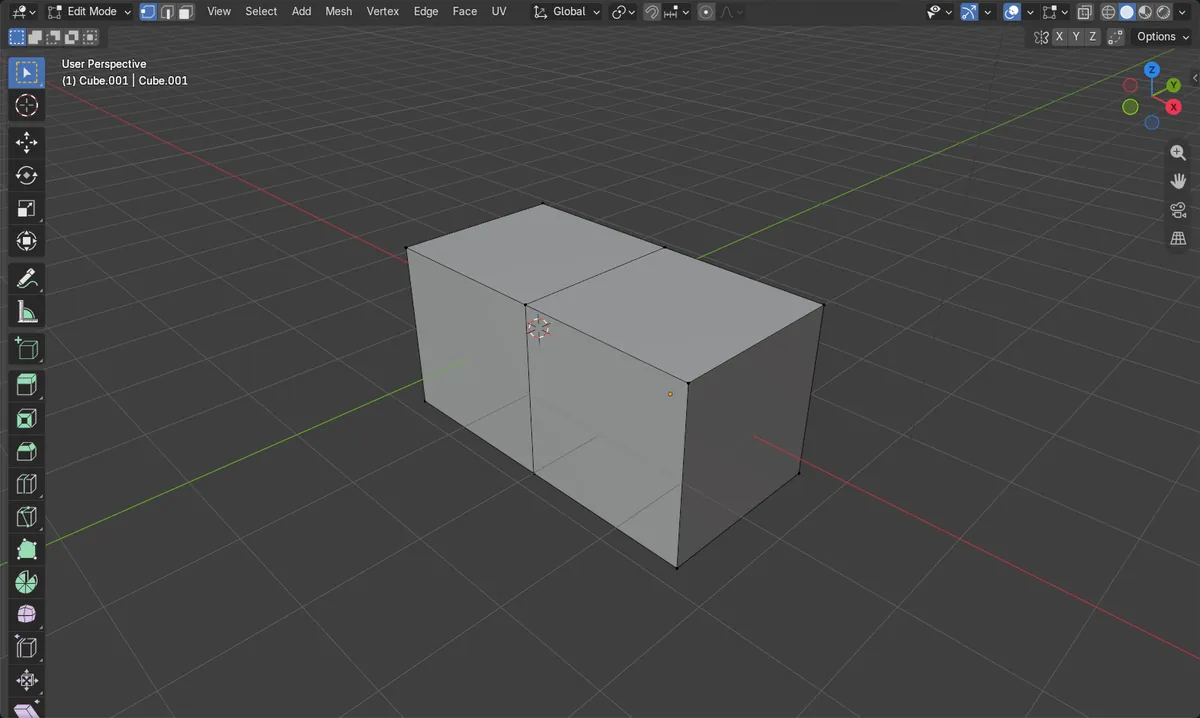
Select Interior Faces
Select › Select All by Trait › Interior Faces. Picks faces whose edges all have more than 2 face users.
Delete faces
Press X or Delete, then choose Faces. Only the selected faces are removed.
Outside stays
Vertices and outer faces are not changed. No edge keeps more than 2 faces.
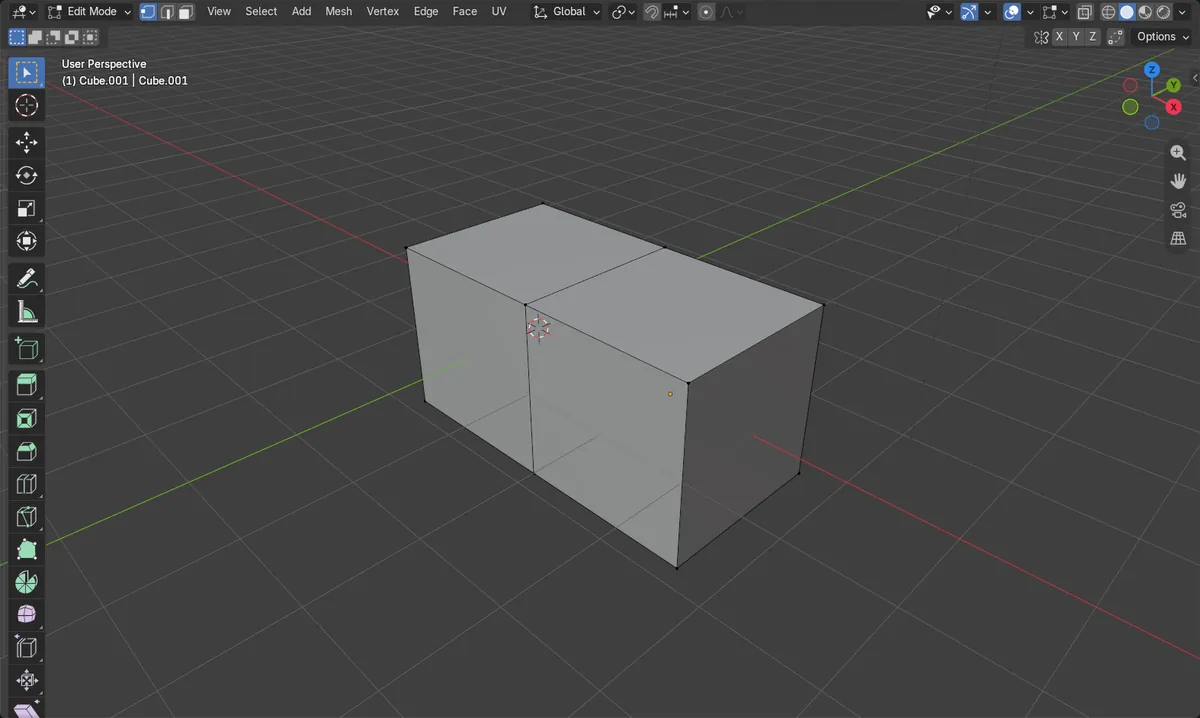
Before and after

AI Scene Builder is a Blender add-on. You type what you want, and it builds it in your scene: buildings, neon signs, wet pavement, fog and lights. Nothing in this picture was modeled by hand.
On a phone now? The add-on runs in Blender on a computer. Send yourself the link and open it there.
Step by step (Blender 5.x)
- Select the object and press Tab to enter Edit Mode, with the mouse over the 3D Viewport.
- If parts are separate or overlapping, press A to select all, then run Merge by Distance so overlapping vertices are joined.
- Press Alt + A to deselect everything (Select › None).
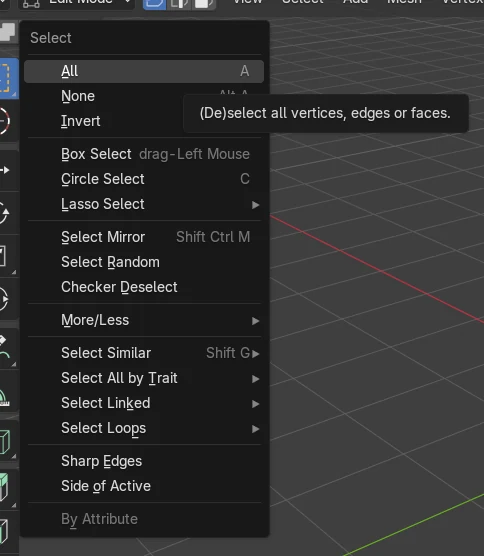
- Choose Select › Select All by Trait › Interior Faces.
- Choose Mesh › Delete › Faces. Only the selected interior faces are removed.
Other ways to do it
- Select › None (Alt + A) before selecting interior faces
- Select › Select All by Trait › Interior Faces from the Select menu in the header
Common snags
Nothing gets selected
Interior Faces only finds faces where every edge is shared by more than two faces. If the parts were not merged, run Merge by Distance first so shared vertices and edges exist.
Wrong delete type
Choosing Vertices or Edges in the Delete menu removes more than intended. Pick Faces so only the selected faces go.
Menus missing
The Select menu with these entries appears only in Edit Mode. Press Tab with the mouse over the 3D Viewport.
An AI add-on for Blender
AI Scene Builder is a Blender add-on that builds and edits your scene from one typed request, such as “a small wooden table with two chairs”. Each request can be undone in one click.
 A log cabin room built with the add-on from 9 typed requests. See every request →
Questions
What does Select Interior Faces select?
It selects faces where all edges have more than 2 face users, meaning faces buried inside the mesh.
Will deleting interior faces change the outside?
No. Only the selected interior faces are deleted, and the vertices stay in place.
What the pictures show
- Two joined cubes sharing a face and merged: 11 faces before, 10 after.
- Edges shared by more than two faces: 4 before, 0 after.
- Vertices stayed at 12 and edges at 20.
- Same result in Blender 4.2 LTS and Blender 5.2 LTS.