How to Lock the Camera to the View in Blender
Press Numpad 0 to look through the camera, press N to open the Sidebar, and in the View tab tick Camera to View under View Lock. Now orbiting, panning and zooming the viewport move the camera itself, so you can frame the shot by eye. Untick it again to stop the camera from following.
- Mode
- Any mode, 3D Viewport
- Shortcut
- Numpad 0
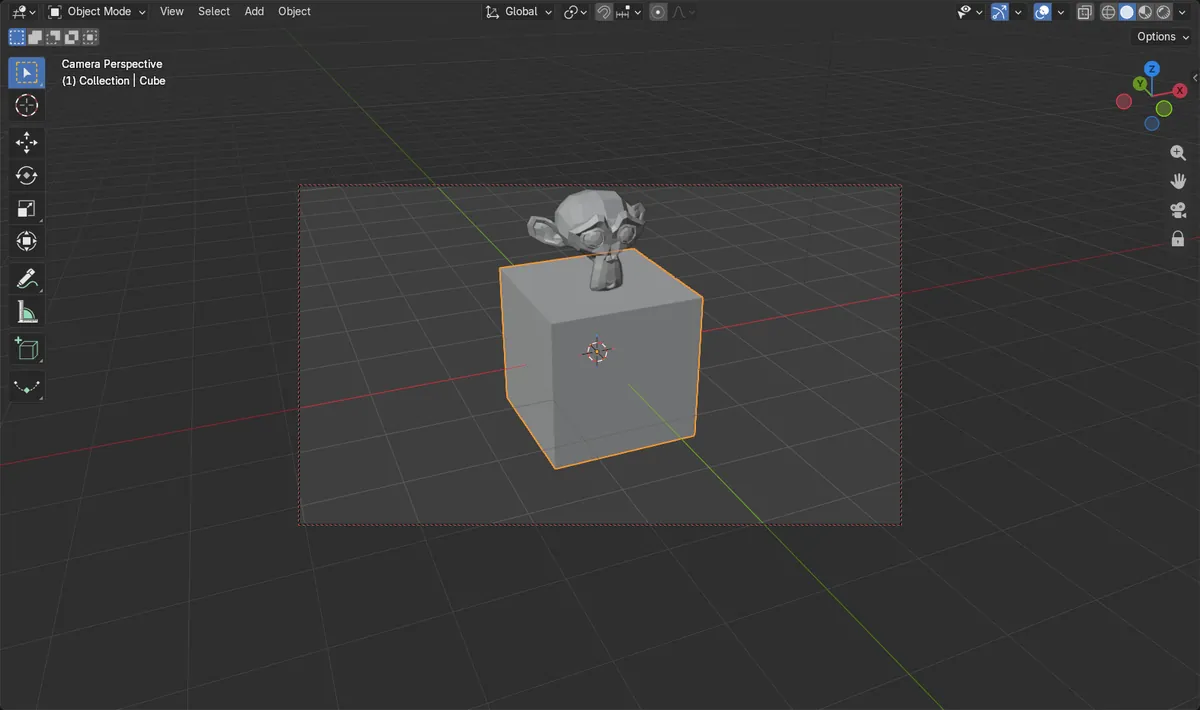
Numpad 0
Switches the viewport to the active camera's view.
View Lock panel
Camera to View lives in the Sidebar's View tab.
Ctrl + Alt + Numpad 0
Snaps the camera to the current view in one go.
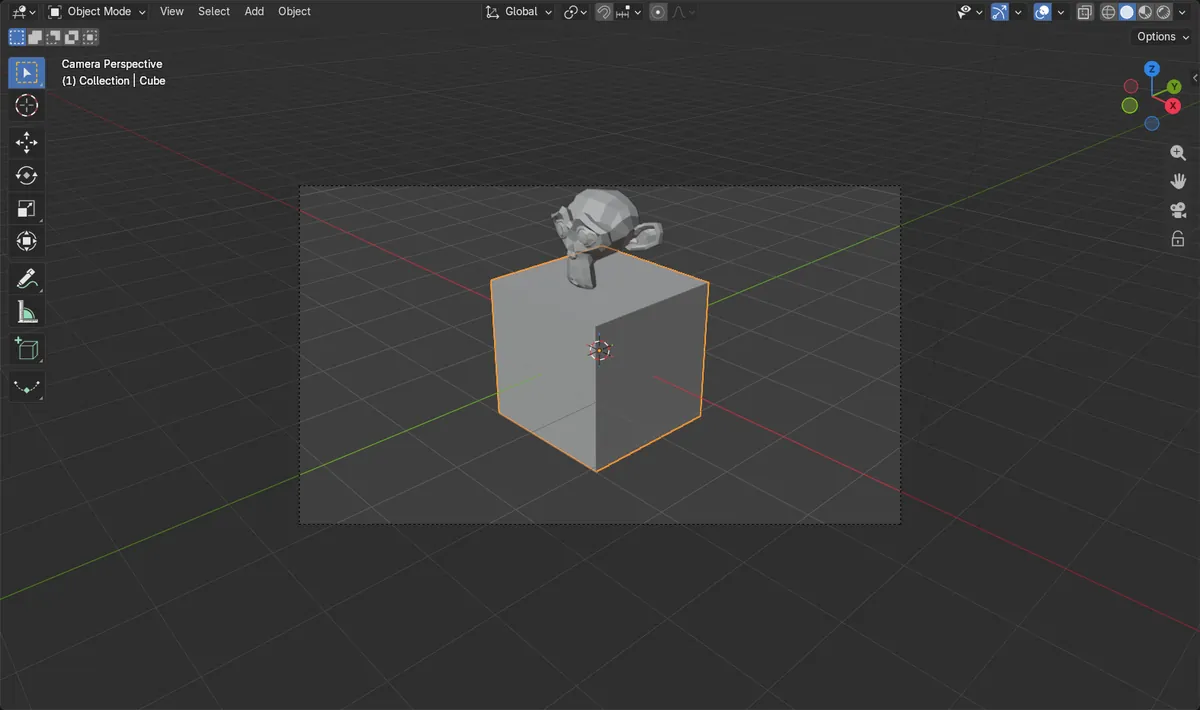
Before and after

AI Scene Builder is a Blender add-on. You type what you want, and it builds it in your scene: buildings, neon signs, wet pavement, fog and lights. Nothing in this picture was modeled by hand.
On a phone now? The add-on runs in Blender on a computer. Send yourself the link and open it there.
Step by step (Blender 5.x)
- Hover the mouse over the 3D Viewport and press Numpad 0 to look through the active camera.
- Press N to open the Sidebar on the right side of the viewport.
- Click the View tab in the Sidebar and find the View Lock panel.
- Tick Camera to View. A dotted red frame appears around the camera border.
- Orbit, pan and zoom as usual. The camera follows every move; untick Camera to View when the shot looks right.
Other ways to do it
- Ctrl + Alt + Numpad 0 (Align Camera to View) moves the camera to match the current viewport angle once, without locking
- View › Cameras › Active Camera switches to the camera view from the header
Common snags
Orbiting in camera view moves the camera
With Camera to View ticked, orbiting while in camera view drags the camera along. If the shot keeps changing by accident, untick it as soon as the framing is done.
There is no Numpad
On a laptop keyboard, use View › Cameras › Active Camera from the header menu instead of Numpad 0.
The camera does not follow
The lock only works while you are looking through the camera. Press Numpad 0 first, then move the view.
An AI add-on for Blender
AI Scene Builder is a Blender add-on that builds and edits your scene from one typed request, such as “a small wooden table with two chairs”. Each request can be undone in one click.
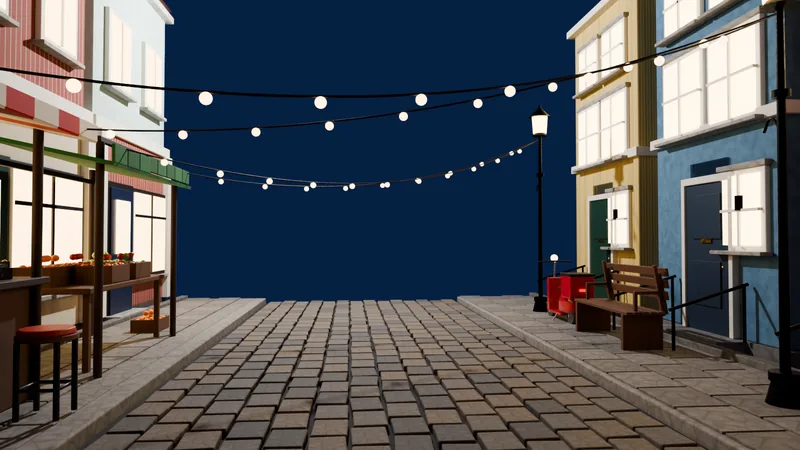 An evening market street built with the add-on from 11 typed requests. See every request →
Questions
How do I move the camera with the view in Blender?
Look through the camera with Numpad 0, then tick Camera to View in the Sidebar's View tab under View Lock. Moving the view now moves the camera.
How do I set the camera to my current view?
Press Ctrl + Alt + Numpad 0. The active camera jumps to the current viewport angle.
How do I stop the camera from moving with the view?
Untick Camera to View in the View Lock panel of the Sidebar.
What the pictures show
- Before: camera at x 7.36, y -6.93, z 4.96 m with Camera to View off.
- After ticking Camera to View and orbiting the view in camera view: the camera moved to about x -4.0, y -9.3, z 4.96 m.
- Camera to View stayed ticked and the viewport stayed in camera view the whole time.
- Results matched in Blender 4.2 LTS and Blender 5.x (within 0.01 m).