How to Add a Subdivision Surface Modifier in Blender
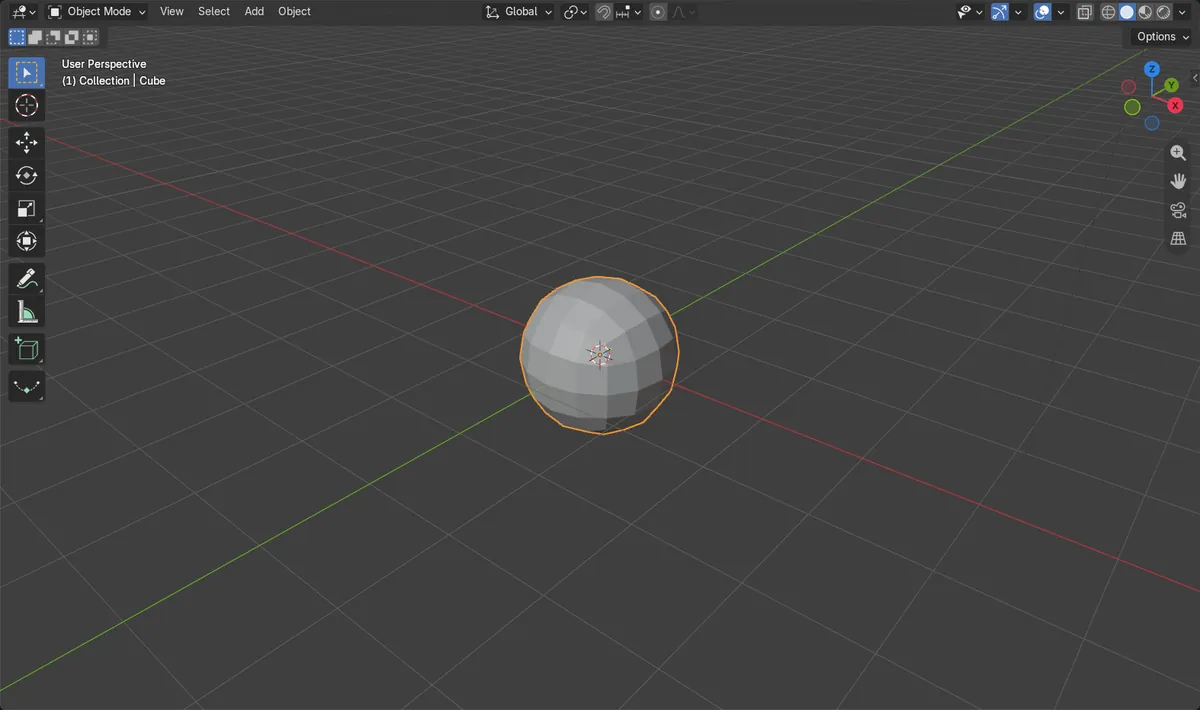
Select the object in Object Mode and press Ctrl + 2: Blender adds a Subdivision Surface modifier at level 2 and the mesh turns smooth and rounded. You can also add it from the Modifiers tab with Add Modifier › Generate › Subdivision Surface. The original mesh is not changed until you apply the modifier.
- Mode
- Object Mode, 3D Viewport and Properties Editor
- Menu
- Add Modifier › Generate › Subdivision Surface
- Shortcut
- Ctrl + 2
Ctrl + 1 to Ctrl + 5
Adds the modifier, or changes its level, in one key press.
Add Modifier menu
Generate › Subdivision Surface in the Modifiers tab.
Shade Smooth
Shade Smooth in the right-click menu hides the remaining facets.
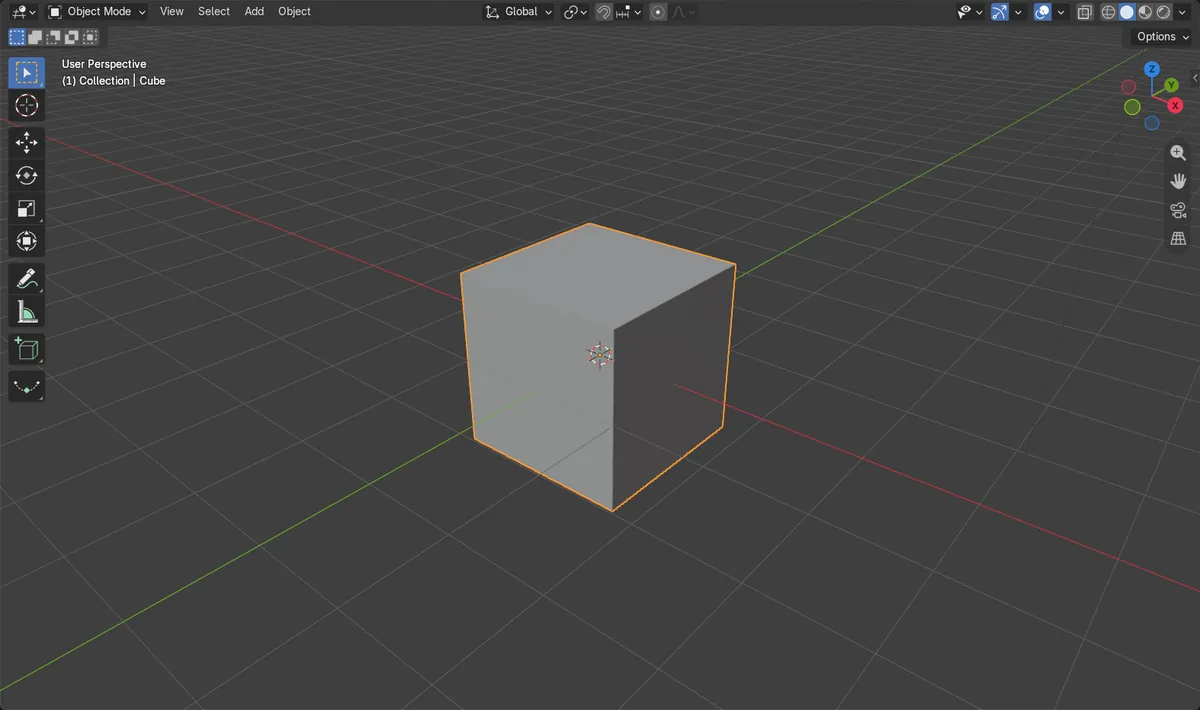
Before and after

AI Scene Builder is a Blender add-on. You type what you want, and it builds it in your scene: buildings, neon signs, wet pavement, fog and lights. Nothing in this picture was modeled by hand.
On a phone now? The add-on runs in Blender on a computer. Send yourself the link and open it there.
Step by step (Blender 5.x)
- Click the object in Object Mode to select it.
- Press Ctrl + 2. A Subdivision Surface modifier with level 2 is added and the shape becomes smooth.
- Press Ctrl + 1 or Ctrl + 3 to lower or raise the level later; each step makes the mesh about four times denser.
- To add it by menu instead, open the Modifiers tab (wrench icon) in the Properties Editor and click Add Modifier.
- Choose Generate › Subdivision Surface, then set Levels Viewport and Render in the modifier panel.
- Right-click the object and pick Shade Smooth so the surface looks soft instead of faceted.
Other ways to do it
- Properties Editor, Modifiers tab: Add Modifier › Generate › Subdivision Surface
- Ctrl + 0 to Ctrl + 5 in Object Mode set the level directly; Ctrl + 0 keeps the modifier at level 0
Common snags
The cube turned into a ball
Subdivision rounds every corner. Add edge loops close to the edges you want to keep sharp, or lower the level.
Blender becomes very slow
Each level multiplies the face count by four. Keep the viewport level at 1 or 2 and use a higher level only for rendering.
Edit Mode still shows the old cube
The modifier works on top of the mesh, so the original 8 vertices are what you edit. Use Apply in the modifier's drop-down menu only when you need the dense mesh for real.
An AI add-on for Blender
AI Scene Builder is a Blender add-on that builds and edits your scene from one typed request, such as “a small wooden table with two chairs”. Each request can be undone in one click.
 A log cabin room built with the add-on from 9 typed requests. See every request →
Questions
What is the shortcut for subdivision surface in Blender?
Ctrl + 1 to Ctrl + 5 in Object Mode add the modifier with that level, or change the level if it is already there.
What is the difference between Levels Viewport and Render?
Levels Viewport is used while you work, Render is used for the final image. Keeping the viewport level lower makes Blender faster.
Does subdivision change my original mesh?
No. The modifier is applied only on top until you click Apply, so you can remove or change it at any time.
What the pictures show
- Before: a default cube with 8 vertices and no modifiers.
- After adding Subdivision Surface at level 2: the evaluated mesh has 98 vertices.
- The base mesh still has 8 vertices, so nothing was changed until the modifier is applied.
- Results were identical in Blender 4.2 LTS and Blender 5.x.