How to Snap an Object to the Grid in Blender
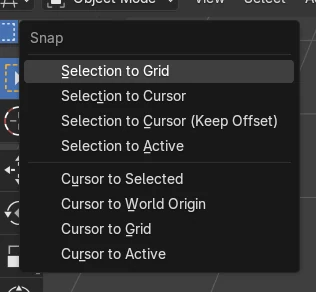
In Object Mode select the object and choose Object › Snap › Selection to Grid in the 3D Viewport header. The object's origin jumps to the nearest grid point. To keep snapping while you move with G, turn on snapping with the magnet button in the header and choose Grid; it is off by default.
- Mode
- Object Mode, 3D Viewport
- Menu
- Object › Snap › Selection to Grid
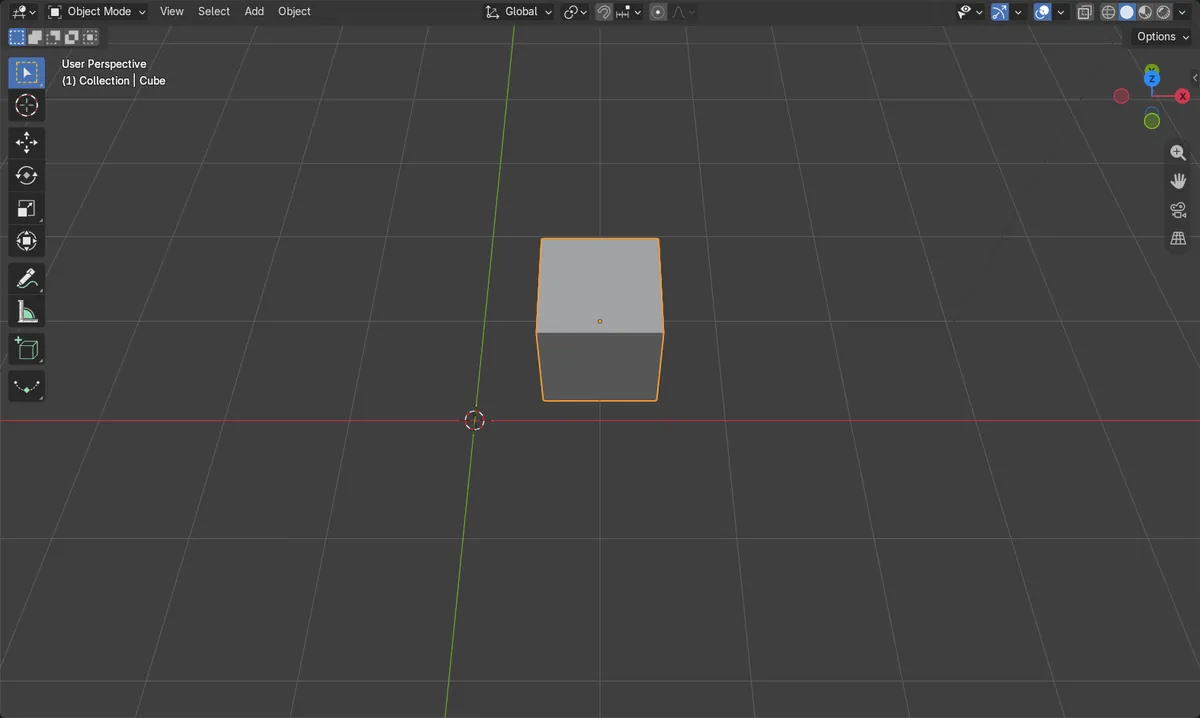
Object > Snap
Moves the object to the nearest grid point.
Magnet button
Turns on snapping while you move.
Off by default
G moves freely until snapping is on.
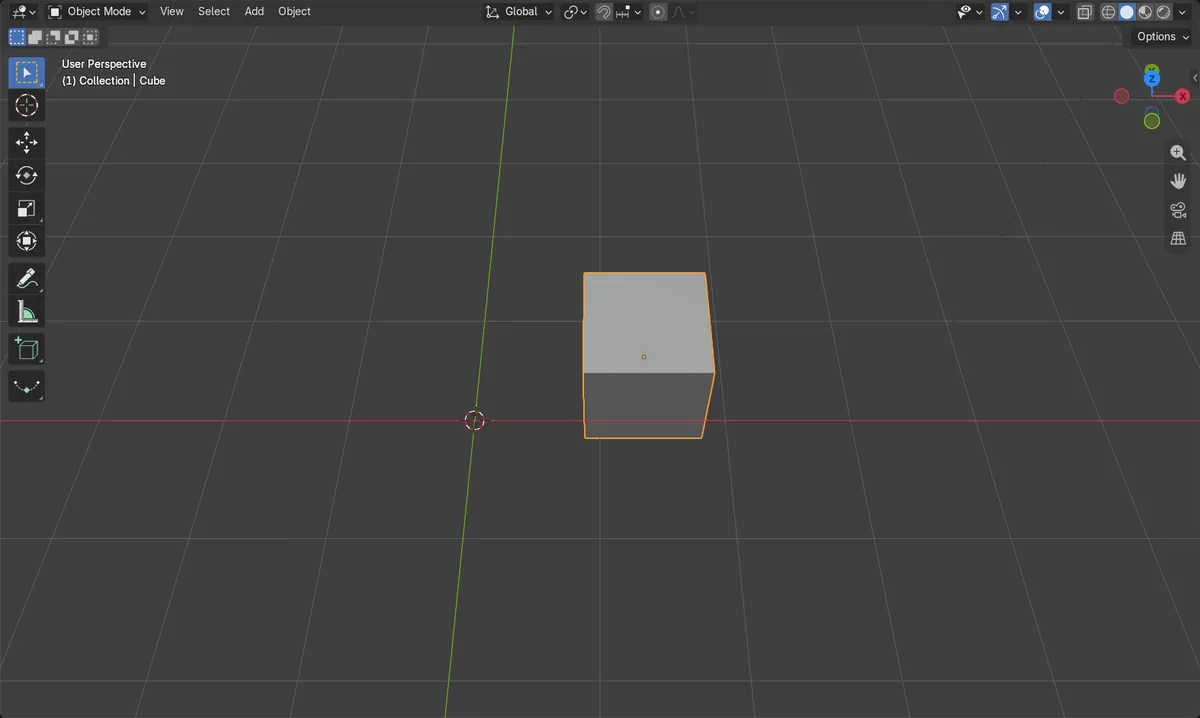
Before and after

AI Scene Builder is a Blender add-on. You type what you want, and it builds it in your scene: buildings, neon signs, wet pavement, fog and lights. Nothing in this picture was modeled by hand.
On a phone now? The add-on runs in Blender on a computer. Send yourself the link and open it there.
Step by step (Blender 5.x)
- In Object Mode, select the object.
- In the 3D Viewport header, choose Object › Snap › Selection to Grid.
- To snap while moving, turn on the magnet button in the header and set Snap To to Grid.
Other ways to do it
- Hold Ctrl while moving with G to snap only during that move
Common snags
The object is off the grid
Selection to Grid moves the origin, not the edges. If the origin is not at a corner, the sides fall between grid lines.
G moves in small steps but not on the grid
The default snap target is Increment, which moves in steps from where it started. Choose Grid, or tick Absolute Increment Snap.
An AI add-on for Blender
AI Scene Builder is a Blender add-on that builds and edits your scene from one typed request, such as “a small wooden table with two chairs”. Each request can be undone in one click.
 A lighthouse island at sunset built with the add-on from 10 typed requests. See every request →
Questions
How do I snap an object to the grid in Blender?
Select it and choose Object › Snap › Selection to Grid.
How do I make objects snap while moving?
Turn on the magnet button in the 3D Viewport header and choose Grid, or hold Ctrl while moving.
What the pictures show
- Before: the cube sat off the grid at (1.37, 0.62, 0).
- Object > Snap > Selection to Grid moved it to the grid point (1, 1, 0).
- Snapping while moving was off by default, with Increment as its target.
- Results were identical in Blender 4.2 LTS and Blender 5.x.