How to Merge/Dissolve Two Faces in Blender
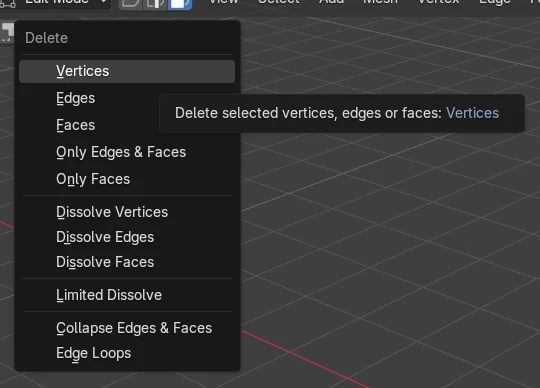
In Edit Mode, select the two neighbouring faces, then choose Mesh › Delete › Dissolve Faces. You can also press X to open the Delete menu and pick Dissolve Faces. The two faces become one n-gon and the shared edge is removed.
- Mode
- Edit Mode (Face select mode)
- Menu
- Mesh › Delete › Dissolve Faces
- Shortcut
- X (opens the Delete menu), then Dissolve Faces
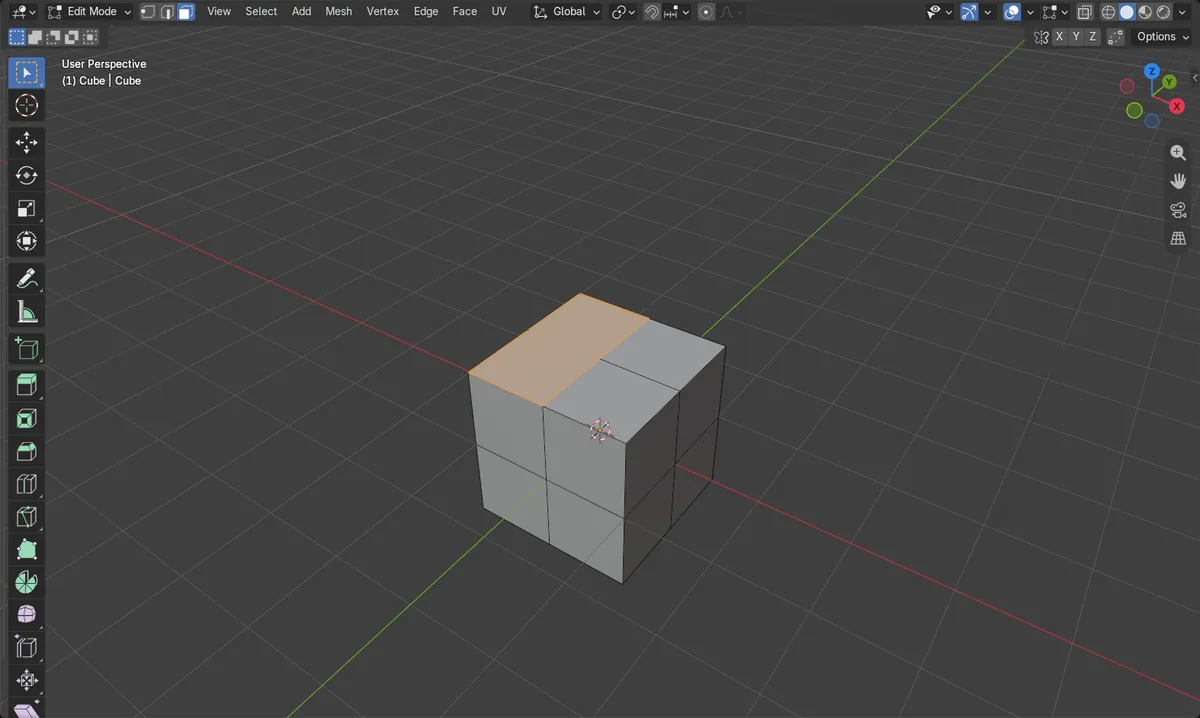
Dissolve Faces
Mesh › Delete › Dissolve Faces Merges the selected faces into one.
X or Delete
Opens the Delete menu in Edit Mode. Pick Dissolve Faces from it.
One n-gon result
Two quads sharing an edge become a single 6-vertex face.
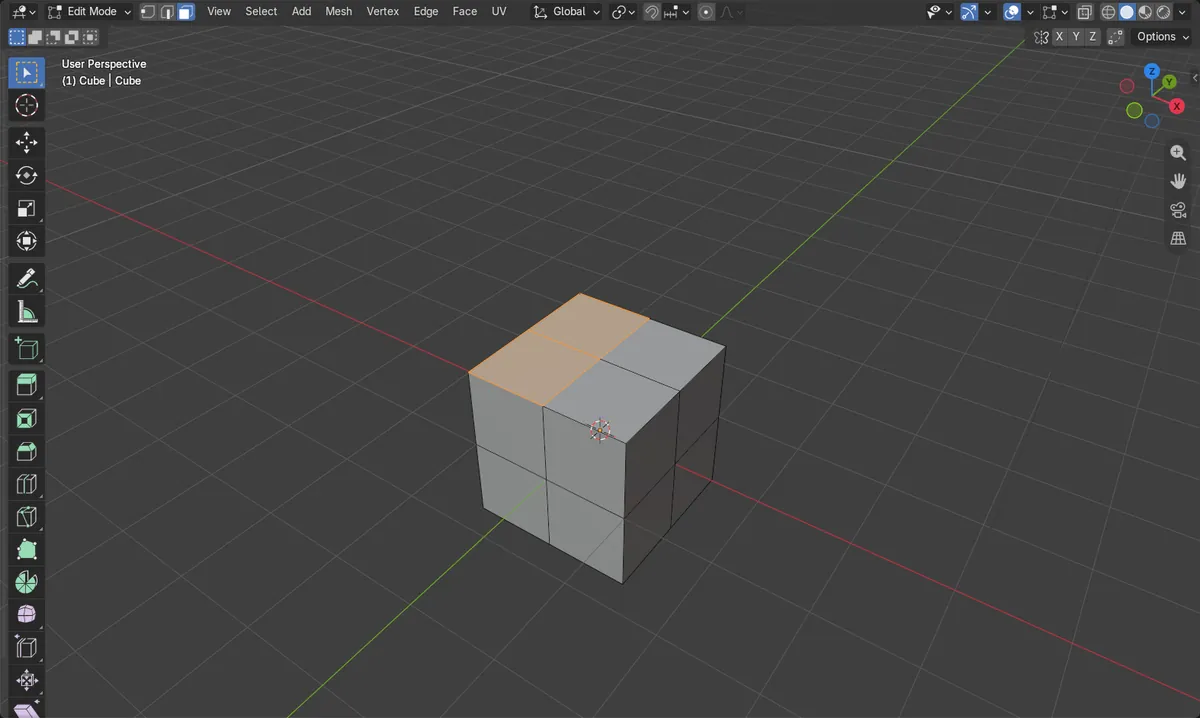
Before and after

AI Scene Builder is a Blender add-on. You type what you want, and it builds it in your scene: buildings, neon signs, wet pavement, fog and lights. Nothing in this picture was modeled by hand.
On a phone now? The add-on runs in Blender on a computer. Send yourself the link and open it there.
Step by step (Blender 5.x)
- Click the 3D Viewport and press Tab to enter Edit Mode on your object.
- Switch to Face select mode (the face icon in the header).
- Click the first face, then Shift + click the face next to it. They must share an edge.
- Choose Mesh › Delete › Dissolve Faces, or press X (or Delete) and click Dissolve Faces.
- Check the result: the shared edge is gone and one merged face is selected.
Other ways to do it
- Press Ctrl + X or Ctrl + Delete to run Dissolve Selection, which dissolves whatever is selected in the current mode.
- Select the shared edge and run Dissolve Edges, which also merges the faces on either side of it.
Common snags
Faces not touching
If the faces do not share an edge, the result is not a tidy merged face. Select faces that sit side by side.
Wrong mode
The Mesh menu and Delete menu only appear in Edit Mode. Press Tab with the mouse over the 3D Viewport.
Using Merge by mistake
Mesh › Merge (M) joins vertices, not faces. Use Dissolve Faces to combine faces and keep their outer outline.
An AI add-on for Blender
AI Scene Builder is a Blender add-on that builds and edits your scene from one typed request, such as “a small wooden table with two chairs”. Each request can be undone in one click.
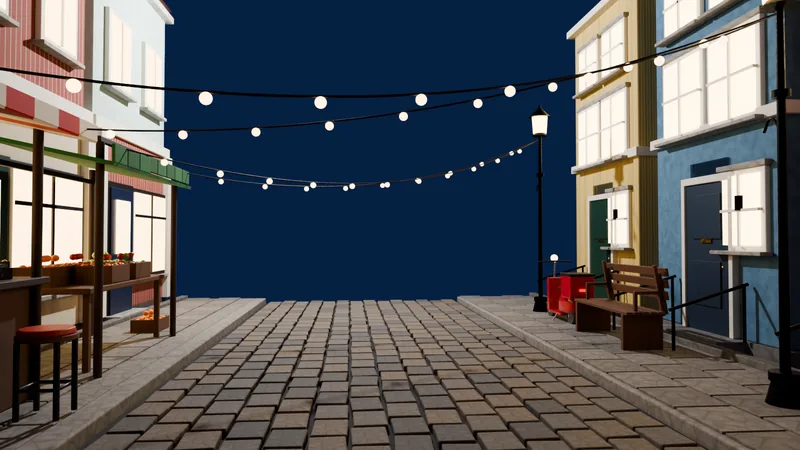 An evening market street built with the add-on from 11 typed requests. See every request →
Questions
What is the difference between dissolve and delete faces?
Delete Faces removes the faces and leaves a hole. Dissolve Faces removes the edges between selected faces and keeps one merged face.
Does dissolving faces remove vertices?
Not in this test: the vertex count stayed at 26 and only the shared edge was removed, going from 48 to 47 edges.
What the pictures show
- Before: 24 faces, 26 vertices, 48 edges, 2 faces selected, largest face has 4 vertices.
- After: 23 faces, 26 vertices, 47 edges, 1 face selected.
- The merged face has 6 vertices. The same result occurred in Blender 4.2 LTS and 5.2.