Objects disappear far from the camera in Blender: Clip End
Objects disappear when they are farther from the camera than its Clip End distance. Select the camera, open the Data tab in the Properties editor, and in Lens raise End (Clip End) to a value larger than the distance to the object.
- Mode
- Properties editor, Data tab of the camera (any mode)
- Menu
- Properties › Data tab › Lens › Clip End
Lens panel
Data tab › Lens › Clip Start / End.
Distance limit
Anything beyond Clip End is not drawn or rendered.
Test result
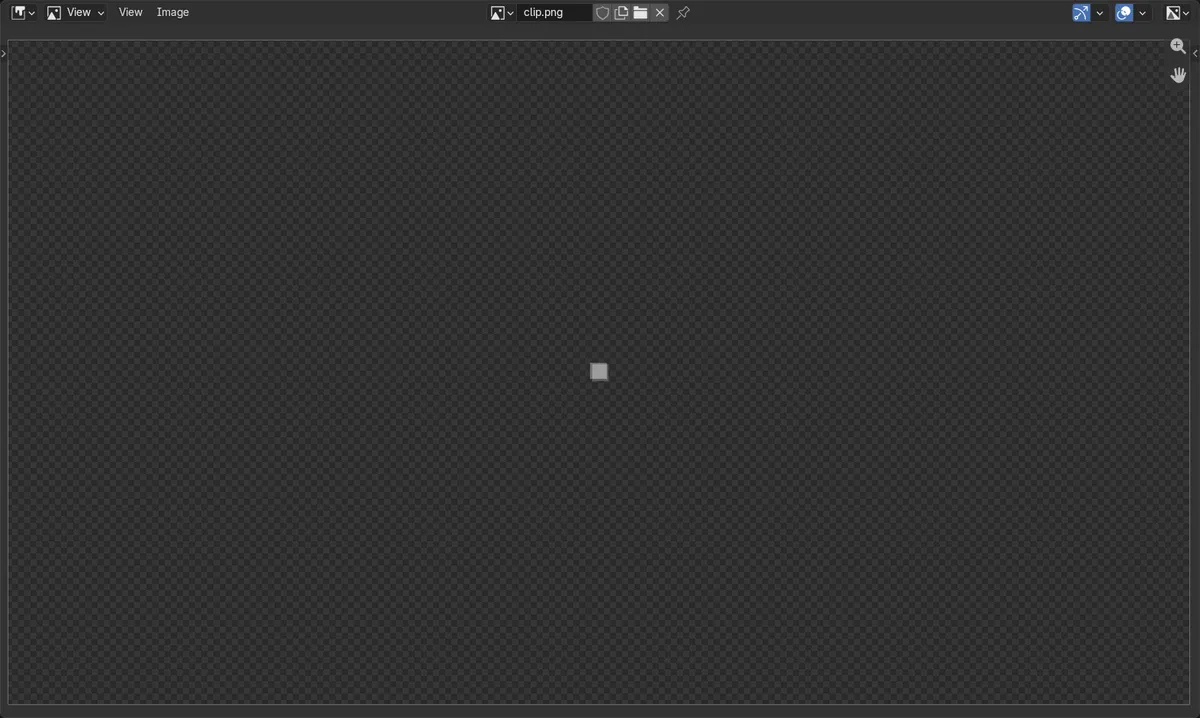
Cube at 200 m: hidden at End 100, visible at End 1000.
Before and after

AI Scene Builder is a Blender add-on. You type what you want, and it builds it in your scene: buildings, neon signs, wet pavement, fog and lights. Nothing in this picture was modeled by hand.
On a phone now? The add-on runs in Blender on a computer. Send yourself the link and open it there.
Step by step (Blender 5.x)
- Click the camera in the viewport or Outliner to select it.
- Open the Properties editor and click the Data tab (the green camera icon).
- In the Lens panel, find the Clip fields: Clip Start and End.
- Set End (Clip End) to a value larger than the distance from the camera to your farthest object, for example 1000 m.
- Render with F12 or look through the camera to confirm the object is back.
Other ways to do it
- For the 3D viewport view (not the camera): press N, open the View tab, and raise End in the View panel.
- Clip Start is the near limit in the same Lens panel; objects closer than it are also hidden.
Common snags
Camera data not selected
The Data tab shows nothing about clipping if another object is active. Click the camera first so the Lens panel appears.
Clip Start too small relative to End
Very large End values with a tiny Clip Start can cause flickering surfaces. Raise Clip Start a little, or raise End only as far as needed.
Or type one line in AI Scene Builder
AI Scene Builder is a Blender add-on that carries out the steps for you from one typed request. For this task, type a request like this one, using your own object names:
Increase the camera clip end so distant objects are visible in the render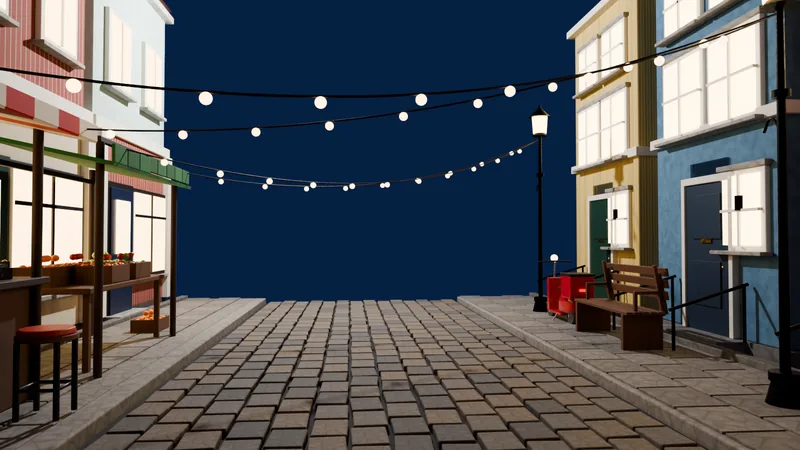 An evening market street built with the add-on from 11 typed requests. See every request →
Questions
Why does my object disappear when I zoom out in Blender?
The 3D viewport has its own clip distance. Press N, open the View tab and raise End.
Where is Clip End for the camera?
Select the camera, open the Data tab in Properties, and look in the Lens panel for End.
What the pictures show
- A camera was placed 200 m from a cube with Clip End at 100 m: the render centre pixel was fully transparent (alpha 0).
- Clip End was raised to 1000 m: the same pixel became solid (alpha 1).
- Both results were the same in Blender 4.2 LTS and Blender 5.2.