How to Scale Along One Axis in Blender
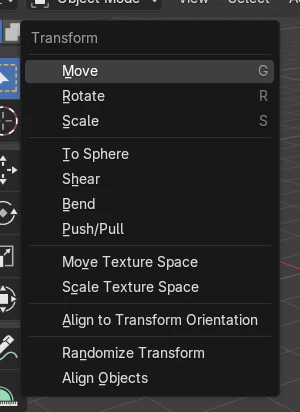
Press S to start scaling, then tap the X, Y or Z key to lock the scale to that one axis. Type a number such as 2 to scale by an exact factor and confirm with the Enter key or a left-click. The same keys work on vertices, edges and faces in Edit Mode.
- Mode
- Object Mode or Edit Mode, 3D Viewport
- Shortcut
- S
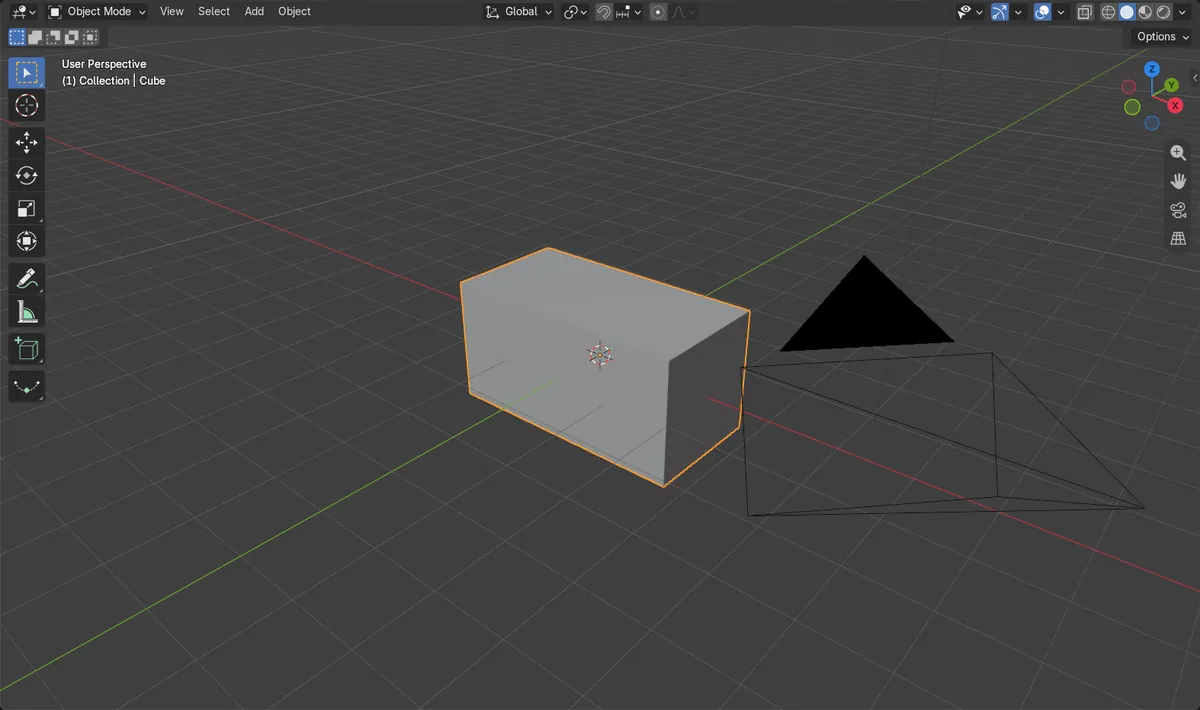
S, then an axis
S starts scaling, X, Y or Z keeps it on one axis.
Type the factor
Type 2 to double the size along that axis exactly.
Scale fields
Or type the value into Scale X, Y or Z in Object Properties.
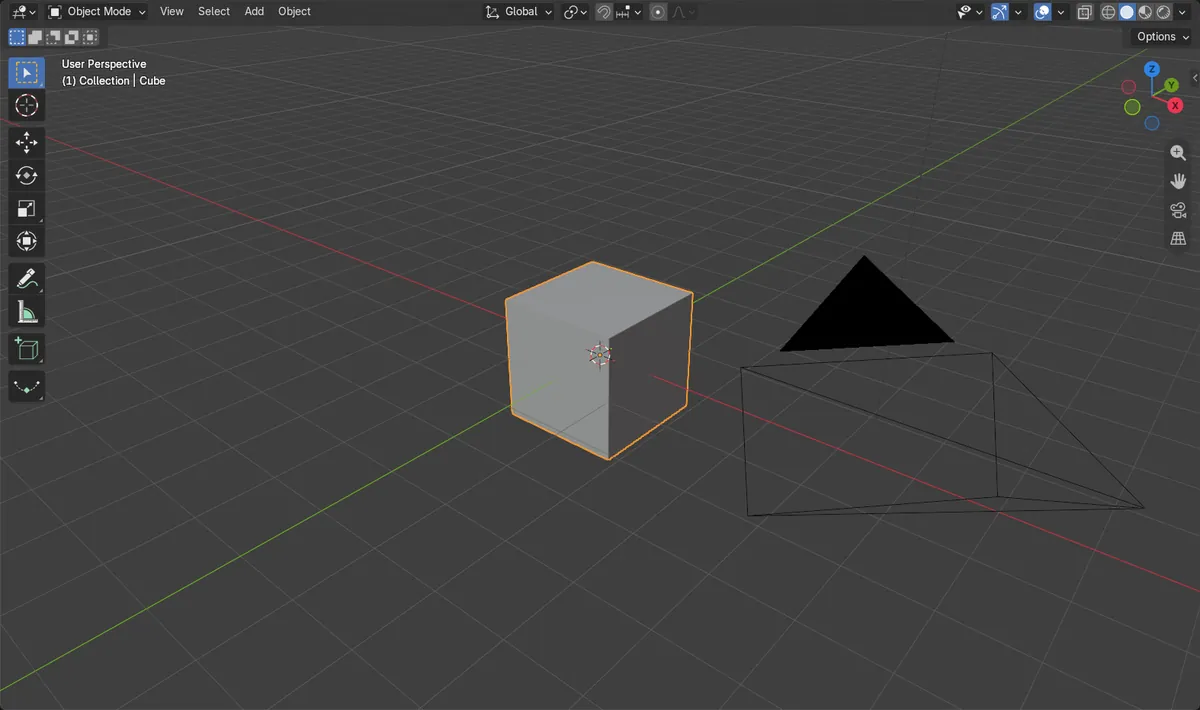
Before and after

AI Scene Builder is a Blender add-on. You type what you want, and it builds it in your scene: buildings, neon signs, wet pavement, fog and lights. Nothing in this picture was modeled by hand.
On a phone now? The add-on runs in Blender on a computer. Send yourself the link and open it there.
Step by step (Blender 5.x)
- Click the object to select it in Object Mode (or select the geometry in Edit Mode).
- Press S to start scaling. Moving the mouse now scales in every direction.
- Tap the X key to limit the scale to the X axis (use the Y or Z key for the other axes). A coloured line shows the active axis.
- Type 2 to make it exactly twice as long along that axis, or move the mouse for a free amount.
- Confirm with the Enter key or a left-click. Right-click cancels.
Other ways to do it
- Type the value into Scale X, Y or Z in the Transform panel of the Object Properties tab
- Press the same axis key twice while scaling to switch from the global axis to the object's own local axis
Common snags
Modifiers and bevels look stretched
Scaling in Object Mode keeps the mesh at its original size and stores the factor in Scale. Bevel widths, textures and physics can look uneven until you use Apply › Scale from the Object menu.
The object grows in every direction
The axis key was pressed before S, or not at all. Press S first, then X, Y or Z.
Scaling a rotated object goes the wrong way
The first axis press uses the world axis. Press the same letter a second time to use the object's own axis.
An AI add-on for Blender
AI Scene Builder is a Blender add-on that builds and edits your scene from one typed request, such as “a small wooden table with two chairs”. Each request can be undone in one click.
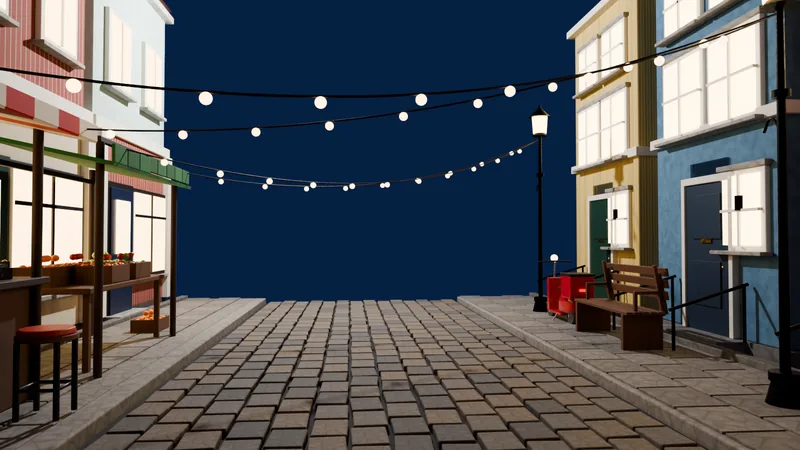 An evening market street built with the add-on from 11 typed requests. See every request →
Questions
How do I scale only in one direction in Blender?
Press S, then X, Y or Z, and move the mouse or type a factor. The scale is locked to that axis until you confirm.
How do I scale an object to an exact size in Blender?
Type the factor right after the axis key, for example S, X, 2, Enter. To set the final size in metres instead, type it into Dimensions in the Sidebar.
Why does my scaled object look wrong with modifiers?
The scale factor is still stored on the object. Apply the scale from the Object menu's Apply submenu so the mesh itself gets the new size.
What the pictures show
- Before: a 2 m cube with Scale 1, 1, 1 and Dimensions 2 x 2 x 2 m.
- After scaling by 2 on the X axis: Scale is 2, 1, 1 and Dimensions are 4 x 2 x 2 m.
- Only the X size changed; Y and Z stayed at 2 m.
- Results were identical in Blender 4.2 LTS and Blender 5.x.