How to Make an Orthographic Camera in Blender
Select the camera, open the Data tab in the Properties editor, and set Type to Orthographic in the Lens panel. Then set Orthographic Scale to control how much of the scene the camera shows (similar to zoom).
- Mode
- Properties editor, Data tab (camera selected)
- Menu
- Properties › Data tab › Lens › Type › Orthographic
- Shortcut
- Numpad 5 (switches the 3D view between perspective and orthographic; does not change the camera)
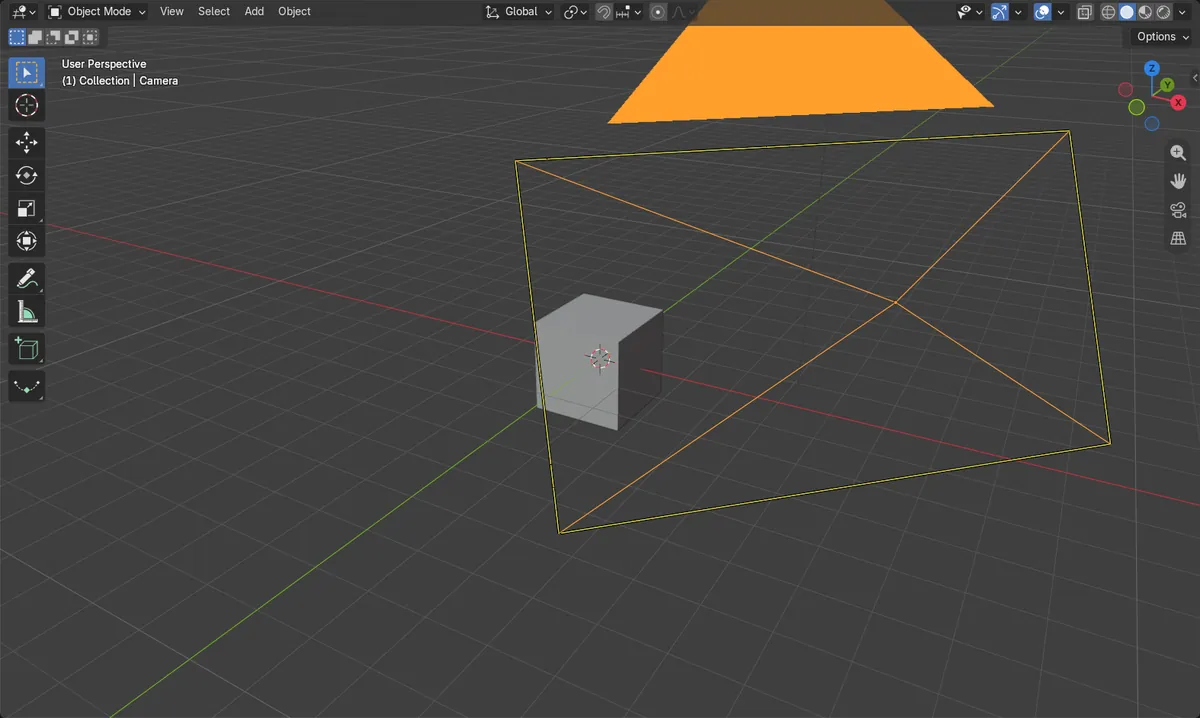
Lens panel Type
Data tab › Lens › Type. Choose Orthographic.
Orthographic Scale
Replaces focal length. Larger value shows more of the scene.
Numpad 5 is view only
It toggles the viewport projection. The camera stays unchanged.
Before and after

AI Scene Builder is a Blender add-on. You type what you want, and it builds it in your scene: buildings, neon signs, wet pavement, fog and lights. Nothing in this picture was modeled by hand.
On a phone now? The add-on runs in Blender on a computer. Send yourself the link and open it there.
Step by step (Blender 5.x)
- In the Properties editor, open the Data tab (camera icon).
- In the Lens panel, set Type to Orthographic.
- Set Orthographic Scale to the value you want, for example 6. Larger values show more of the scene.
- Make sure this camera is the active scene camera, then press Numpad 0 over the 3D Viewport to look through it.
Other ways to do it
- View › Cameras contains the Object as Camera operator, which makes the selected camera the active one.
- Hover over the 3D Viewport and press Numpad 5, or use View › Perspective/Orthographic, to toggle the viewport projection only (this does not change the camera).
Blender 4.2 LTS vs Blender 5.x
| What | Blender 4.2 LTS | Blender 5.x |
|---|---|---|
| Camera Type list | Type offers Perspective, Orthographic and Panoramic. | Type offers Perspective, Orthographic, Panoramic and Custom. |
Common snags
Wrong object selected
The Data tab shows no camera settings if another object is selected. Click the camera first, then open the Data tab.
Only the viewport changed
Numpad 5 or View › Perspective/Orthographic changes only your viewport, not the rendered camera. Set Type in the Lens panel of the camera's Data tab.
No numpad on a laptop
Use View › Perspective/Orthographic from the 3D Viewport header instead of the numpad key.
Or type one line in AI Scene Builder
AI Scene Builder is a Blender add-on that carries out the steps for you from one typed request. For this task, type a request like this one, using your own object names:
Switch my camera to orthographic and set the orthographic scale to 6 A log cabin room built with the add-on from 9 typed requests. See every request →
Questions
What does Orthographic Scale do?
It sets how much of the scene the orthographic camera sees, similar to zoom. Higher values show more.
How do I switch the viewport between perspective and orthographic?
Hover over the 3D Viewport and press Numpad 5, or choose View › Perspective/Orthographic. This affects only your view, not the camera.
Where is the camera Type setting?
Select the camera, open the Data tab in Properties, and look in the Lens panel for Type.
What the pictures show
- The camera started as Perspective with a 50 mm lens.
- After the change its Type read Orthographic.
- Orthographic Scale was set to 6.0 (it was 7.314 before the change).
- The same results were seen in Blender 4.2 LTS and Blender 5.x.