How to Use Diffuse Roughness in EEVEE in Blender 5.4
In Blender 5.4, select the material, open the Principled BSDF node, expand its Diffuse panel and raise Roughness there (the Diffuse Roughness input) from 0 towards 1. EEVEE now renders it: the surface looks flatter and more matte, and the edges of a rounded object stay bright instead of fading to dark, like clay or the Moon. In Blender 5.3 EEVEE ignores this input, so only Cycles showed the effect.
- Mode
- Principled BSDF node: Diffuse panel, Roughness field (render engine EEVEE)
- Menu
- Material › Principled BSDF
- Shortcut
- F12 to render
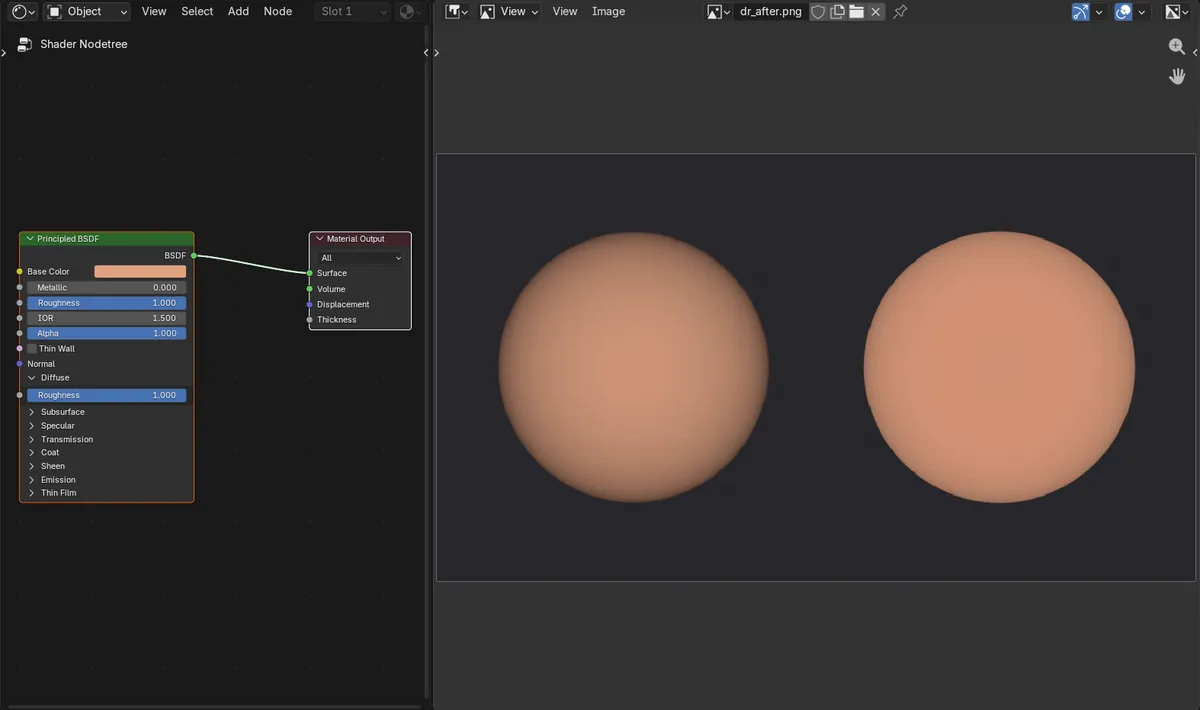
Where to find it
Open the Diffuse panel of the Principled BSDF node: its Roughness field is the Diffuse Roughness setting. The Material tab of the Properties editor shows the same field.
Matte edges that stay bright
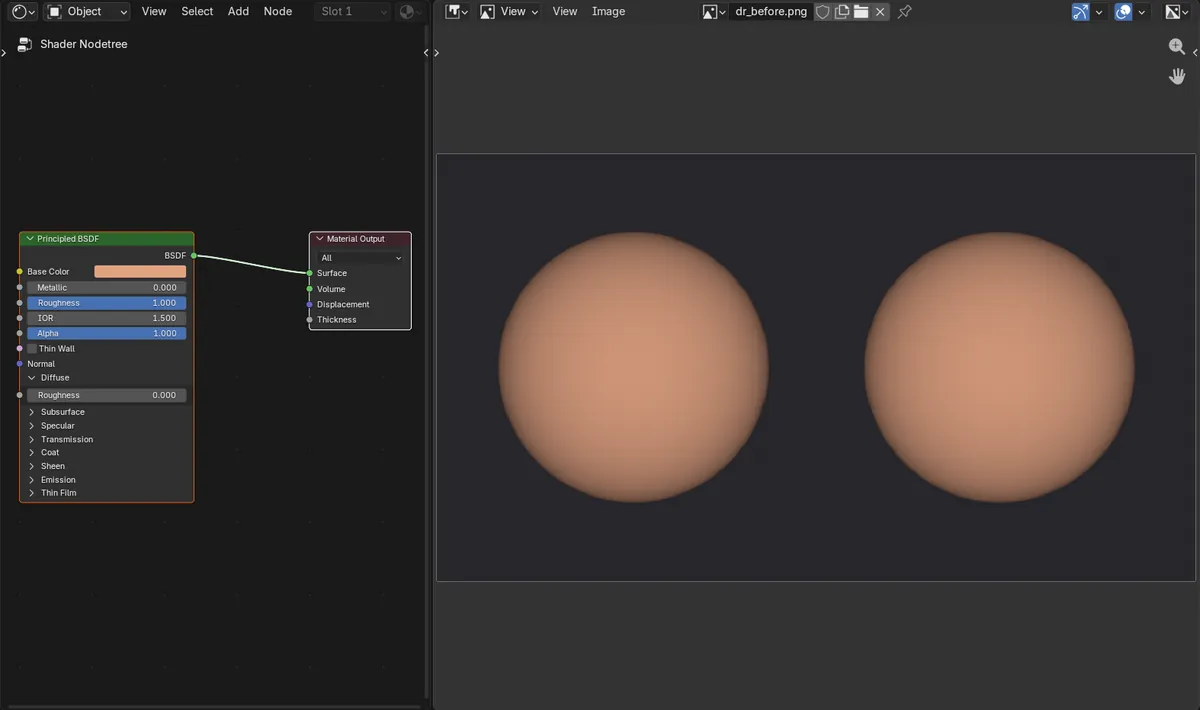
With Diffuse Roughness at 1, the rim of our clay sphere went from 70% to 91% of the brightness of its centre.
New for EEVEE in 5.4
Blender 5.3 EEVEE renders the same picture whatever the Diffuse Roughness value.
Before and after

AI Scene Builder is a Blender add-on. You type what you want, and it builds it in your scene: buildings, neon signs, wet pavement, fog and lights. Nothing in this picture was modeled by hand.
On a phone now? The add-on runs in Blender on a computer. Send yourself the link and open it there.
Step by step (Blender 5.4 Alpha)
- Set the render engine to EEVEE in Properties › Render.
- Select the object and open its material in the Shader Editor (or the Material tab of the Properties editor).
- On the Principled BSDF node, click the small arrow next to Diffuse to open that panel.
- Raise Roughness in the Diffuse panel. 0 is the classic smooth diffuse look; 1 is the flattest, most matte look.Blender 5.3: Blender 5.3 has the same field, but EEVEE renders no difference.
- Press F12 or switch the 3D Viewport to Rendered shading to see the result. The change is strongest where light comes from behind the camera: the edges of rounded shapes no longer fall off to dark.
Other ways to do it
- The Material tab of the Properties editor shows the same Diffuse panel of the Principled BSDF, so you can change the value without opening the Shader Editor.
- The setting is separate from the main Roughness slider of the Principled BSDF, which controls how blurry reflections are.
Blender 5.3 vs Blender 5.4 Alpha
| What | Blender 5.3 | Blender 5.4 Alpha |
|---|---|---|
| Diffuse Roughness in EEVEE | Blender 5.3.0 EEVEE ignores it: our render with Diffuse Roughness 1 matched the render with 0. | Blender 5.4 EEVEE renders it: the edges of a lit sphere become clearly brighter compared with its centre. |
| Release status | Blender 5.3.0 is the current stable release. | Blender 5.4 is in Alpha; the final release is planned for February 3, 2027. |
Common snags
I can't find a Diffuse Roughness field
It is not shown on the node until you open the Diffuse panel of the Principled BSDF. Inside that panel it is labelled just Roughness.
The change is hard to see
The effect shows most at the edges of rounded shapes lit from the camera side. With light coming from the side or behind, raise the value and compare the edges with F12 renders.
Nothing changes in EEVEE
You are on Blender 5.3 or older, where EEVEE ignores this setting. Open the file in Blender 5.4.
I changed the wrong Roughness
The Roughness near the top of the node is for reflections. The one for the matte look is inside the Diffuse panel.
Questions
Does EEVEE support Diffuse Roughness?
Yes, from Blender 5.4. In our test the rim of a clay sphere went from 70% to 91% of the brightness of its centre when Diffuse Roughness went from 0 to 1. Blender 5.3 EEVEE ignores the setting.
Where is Diffuse Roughness on the Principled BSDF?
Open the Diffuse panel of the Principled BSDF node. The field inside it, labelled Roughness, is the Diffuse Roughness setting.
How do I make clay or plaster look flat and matte in EEVEE?
In Blender 5.4, open the Diffuse panel of the Principled BSDF and raise its Roughness towards 1. Rounded edges then stay bright instead of turning dark.
Is Diffuse Roughness the same as the main Roughness?
No. The main Roughness controls how sharp reflections are. Diffuse Roughness changes how the matte, non-shiny part of the surface takes the light.
What the pictures show
- Tested build: Blender 5.4.0 Alpha (f9495703eb0b, 2026-11-10 build), compared with Blender 5.3.0.
- Scene: two identical clay-coloured spheres (Roughness 1), one sun light from the camera direction, EEVEE render at 960 x 540.
- Before: both spheres had Diffuse Roughness 0; on each, the rim was 70% as bright as the centre (0.431 against 0.615).
- After setting Diffuse Roughness to 1 on the right sphere in 5.4: its rim rose to 91% of the centre (0.558 against 0.610). The left sphere did not change.
- In Blender 5.3.0 the same change left the right sphere at 70%, the same picture as before.