How to Select All Strips of One Type in the Blender Video Editor
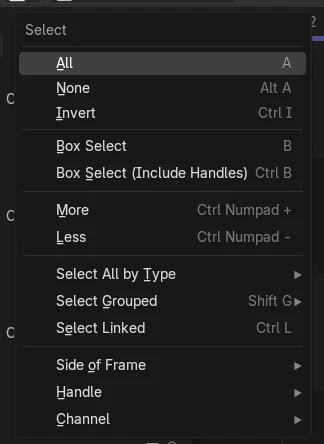
In the Blender 5.3 Video Sequencer, open Select › Select All by Type and pick a type such as Text, Movie, Sound or Image. Every strip of that type is selected and the previous selection is replaced, so you can move, mute or delete them together.
- Mode
- Video Sequencer, Sequencer timeline
- Menu
- Select › Select All by Type
Select All by Type
In the Select menu of the Sequencer.
Pick the type
Text, Movie, Sound, Image, Color, Adjustment Layer and more.
New in 5.3
Blender 5.2 LTS has no Select All by Type.
Before and after

AI Scene Builder is a Blender add-on. You type what you want, and it builds it in your scene: buildings, neon signs, wet pavement, fog and lights. Nothing in this picture was modeled by hand.
On a phone now? The add-on runs in Blender on a computer. Send yourself the link and open it there.
Step by step (Blender 5.3)
- Open the Video Sequencer with the timeline of your edit.
- Open the Select menu in the Sequencer header.
- Choose Select › Select All by Type.
- Pick the type you want, for example Text to select every text strip.
- Work on the selected strips together, for example move them with G or change them in the Sidebar.
Other ways to do it
- Select one strip, press Shift + G for Select Grouped and pick Type to select the strips of the same type as that strip
- A selects all strips and Alt + A deselects all, before or after picking a type
- Ctrl + I inverts the selection, for example to select everything except the text strips
Blender 5.2 LTS vs Blender 5.3
| What | Blender 5.2 LTS | Blender 5.3 |
|---|---|---|
| Select All by Type | Not in Blender 5.2 LTS. The Select menu has no Select All by Type. | Blender 5.3 has Select › Select All by Type in the Sequencer. |
| Select Grouped options | Blender 5.2 LTS lists Type, Global Type, Effect Type, Data, Effect, Effect/Linked and Overlap. | Blender 5.3 lists Type, Data, Strips Under Effect, Time Overlap and Visual Overlap. |
Common snags
My other selection was lost
Select All by Type replaces the current selection with the strips of the chosen type. Pick the type first, then add other strips with Shift + click.
Effect strips were not selected
Each strip type is its own entry. Text and Color strips are separate from Effect, so pick the exact type, or run it again for each type you need.
The menu entry is missing
Select All by Type is new in Blender 5.3. In Blender 5.2 LTS the Select menu of the Sequencer does not have it.
An AI add-on for Blender
AI Scene Builder is a Blender add-on that builds and edits your scene from one typed request, such as “a small wooden table with two chairs”. Each request can be undone in one click.
 An evening market street built with the add-on from 11 typed requests. See every request →
Questions
How do I select all text strips at once in Blender?
In Blender 5.3, choose Select › Select All by Type › Text in the Video Sequencer. All text strips are selected at once.
Which strip types can Select All by Type pick?
Scene, Clip, Mask, Movie, Sound, Image, Color, Text, Adjustment Layer, Compositor, Effect and Visual.
What is the difference from Select Grouped?
Select Grouped (Shift + G) works from the strips you already selected, for example strips of the same type as them. Select All by Type needs no starting strip: you just pick the type.
What the pictures show
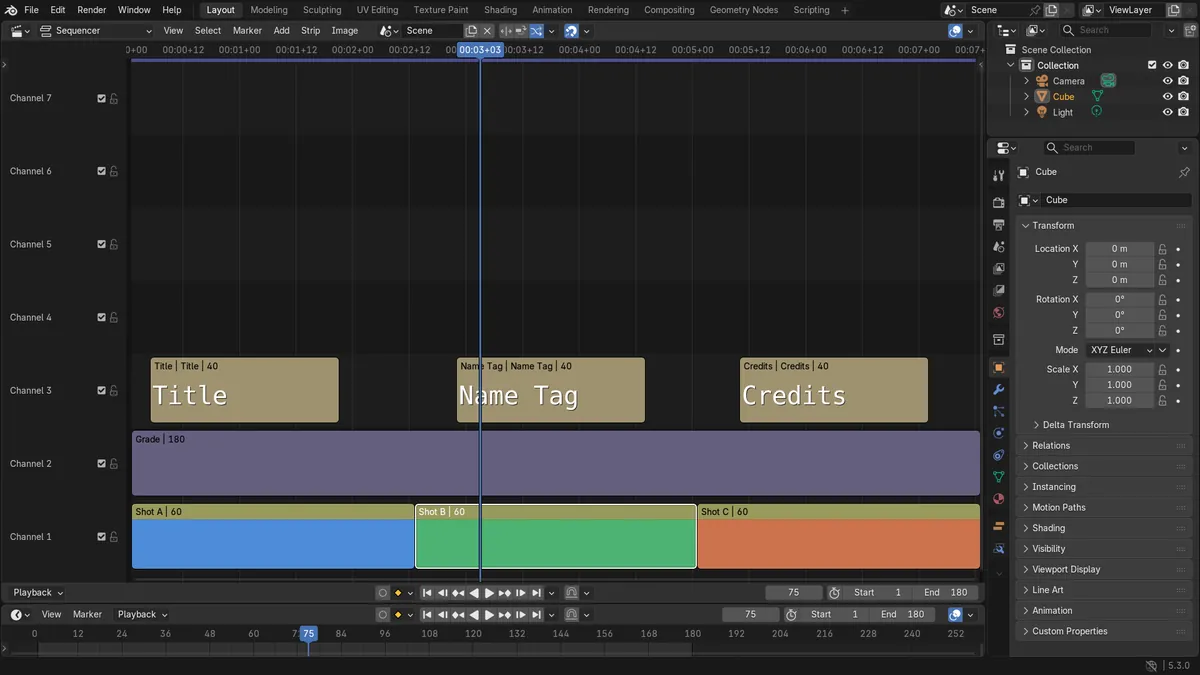
- Before: the edit had seven strips (three shots, three text strips and one adjustment layer) and only Shot B was selected.
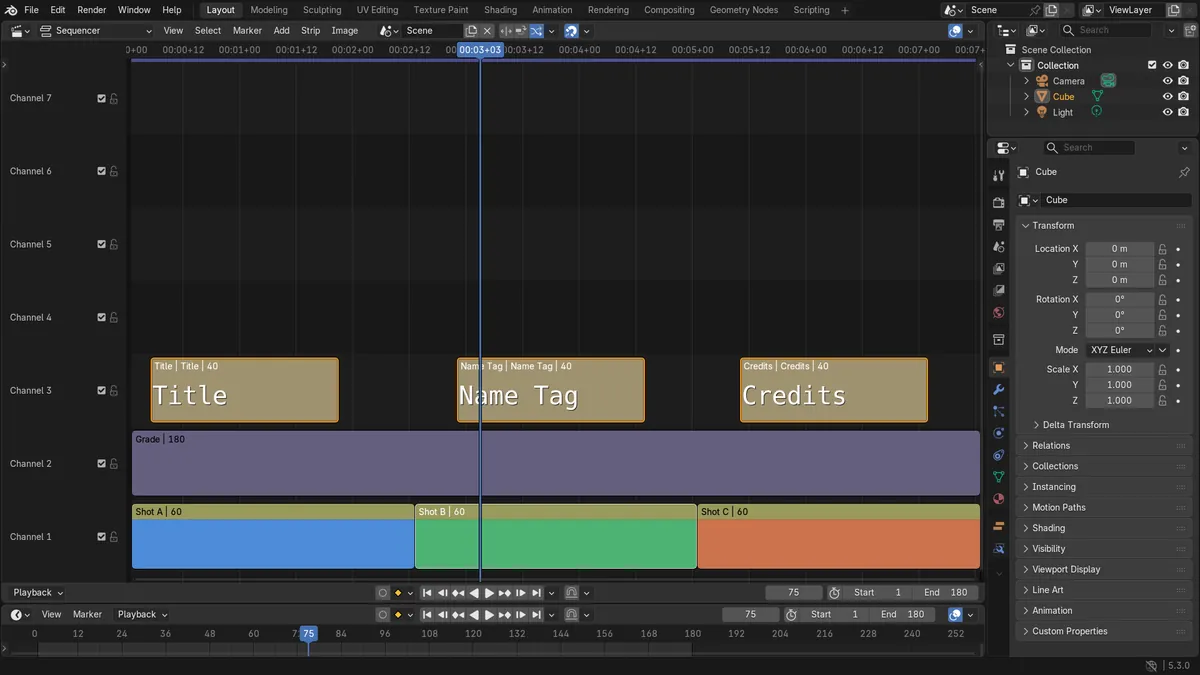
- After Select All by Type > Text: exactly the three text strips (Title, Name Tag and Credits) were selected.
- Shot B was no longer selected, and all seven strips were still in the edit.
- In Blender 5.2 LTS the Select menu has no Select All by Type, so the selection stayed on Shot B.