How to Delete Vertices, Edges or Faces in Blender
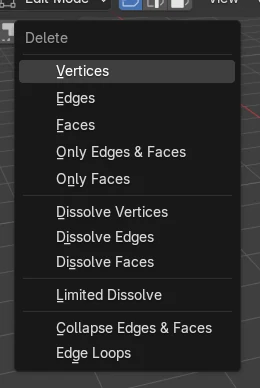
In Edit Mode, select what you want to remove and press X (or the Delete key) to open the Delete menu, then choose Vertices, Edges or Faces. Choose Only Faces to keep the edges and vertices around a hole, or use Dissolve Vertices to remove points without leaving a gap.
- Mode
- Edit Mode, 3D Viewport
- Menu
- Mesh › Delete
- Shortcut
- X
X or Delete
Opens the Delete menu for the current selection.
Pick what to remove
Vertices, Edges, Faces, Only Edges & Faces or Only Faces.
Ctrl + X dissolves
Removes the selection but closes the surface over it.
Before and after

AI Scene Builder is a Blender add-on. You type what you want, and it builds it in your scene: buildings, neon signs, wet pavement, fog and lights. Nothing in this picture was modeled by hand.
On a phone now? The add-on runs in Blender on a computer. Send yourself the link and open it there.
Step by step (Blender 5.x)
- Select the mesh and press Tab to enter Edit Mode.
- Press 1, 2 or 3 to switch to Vertex, Edge or Face select mode, then click the parts to remove.
- Press X (or the Delete key). The Delete menu opens under the mouse.
- Choose Vertices to remove the points and every edge and face that uses them.
- Choose Only Faces instead if you only want to open a hole and keep the outline.
Other ways to do it
- Mesh › Delete in the 3D Viewport header while in Edit Mode
- Ctrl + X (Dissolve Selection) removes the selection and fills the gap with the surrounding faces
Common snags
A big hole appeared
Deleting vertices also removes every face connected to them. To remove a point but keep the surface closed, use Dissolve Vertices from the same menu, or Ctrl + X.
Nothing happens when pressing X
In Object Mode, X deletes the whole object after a confirm instead. Press Tab to be in Edit Mode first.
Loose edges are left behind
Only Faces removes just the faces and leaves their edges. Pick Faces if you want the edges that are not shared with other faces to go too.
An AI add-on for Blender
AI Scene Builder is a Blender add-on that builds and edits your scene from one typed request, such as “a small wooden table with two chairs”. Each request can be undone in one click.
 An evening market street built with the add-on from 11 typed requests. See every request →
Questions
How do I delete a vertex without making a hole in Blender?
Use Dissolve Vertices from the Delete menu, or press Ctrl + X. The vertex goes away and the faces around it merge into one.
What is the difference between Faces and Only Faces?
Faces also removes edges and vertices that no other face uses. Only Faces removes just the faces and keeps all edges and vertices.
How do I delete an edge loop in Blender?
Select the loop, press X and choose Edge Loops. The loop is removed and the faces on both sides join up.
What the pictures show
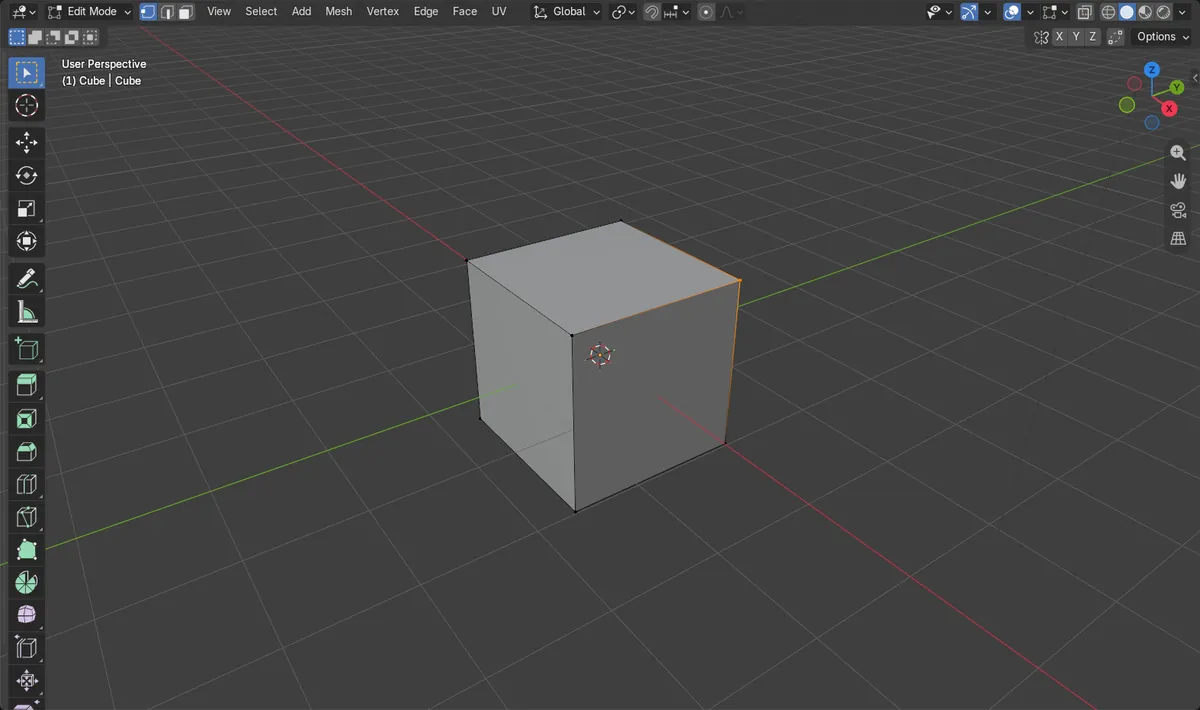
- Before: a cube with 8 vertices, 12 edges and 6 faces, with one corner vertex selected.
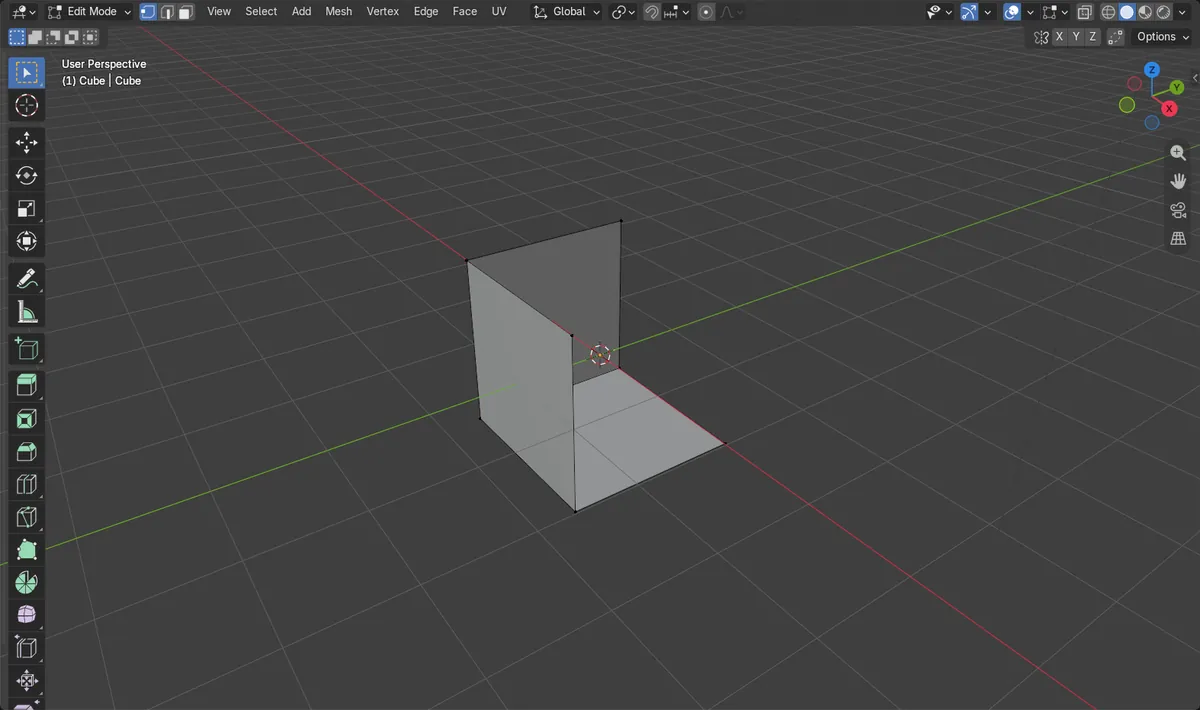
- After X > Vertices: 7 vertices, 9 edges and 3 faces remain; the 3 edges and 3 faces at that corner are gone.
- Results were identical in Blender 4.2 LTS and Blender 5.x.