How to Convert Text to a Mesh in Blender
Select the text object in Object Mode and choose Object › Convert › Mesh: the letters become an ordinary mesh object that you can edit vertex by vertex, sculpt or export. The words can no longer be retyped afterwards, so duplicate the text first with Shift + D if you want to keep an editable copy.
- Mode
- Object Mode, 3D Viewport
- Menu
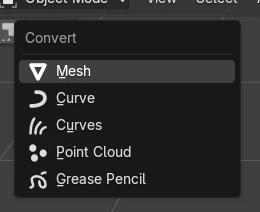
- Object › Convert › Mesh
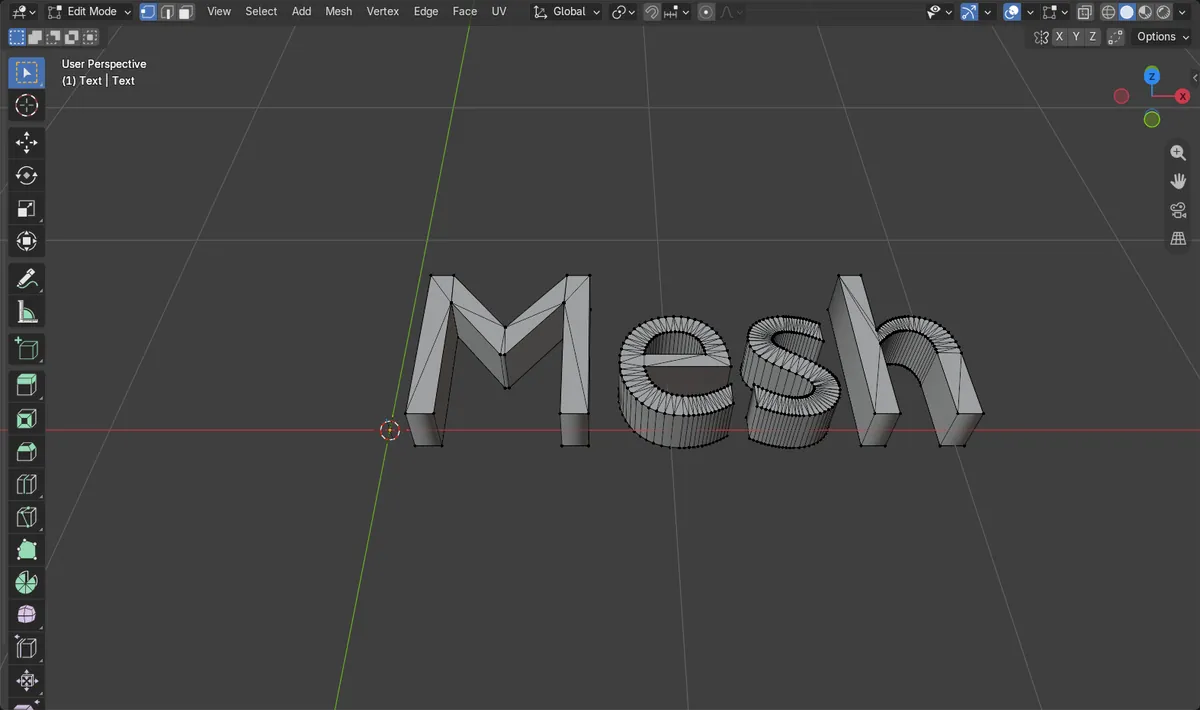
Object > Convert > Mesh
Turns text, curves and other types into editable mesh.
Right-click works too
Convert To is also in the Object context menu.
Keep Original
Leaves the text object in place and adds a mesh copy.
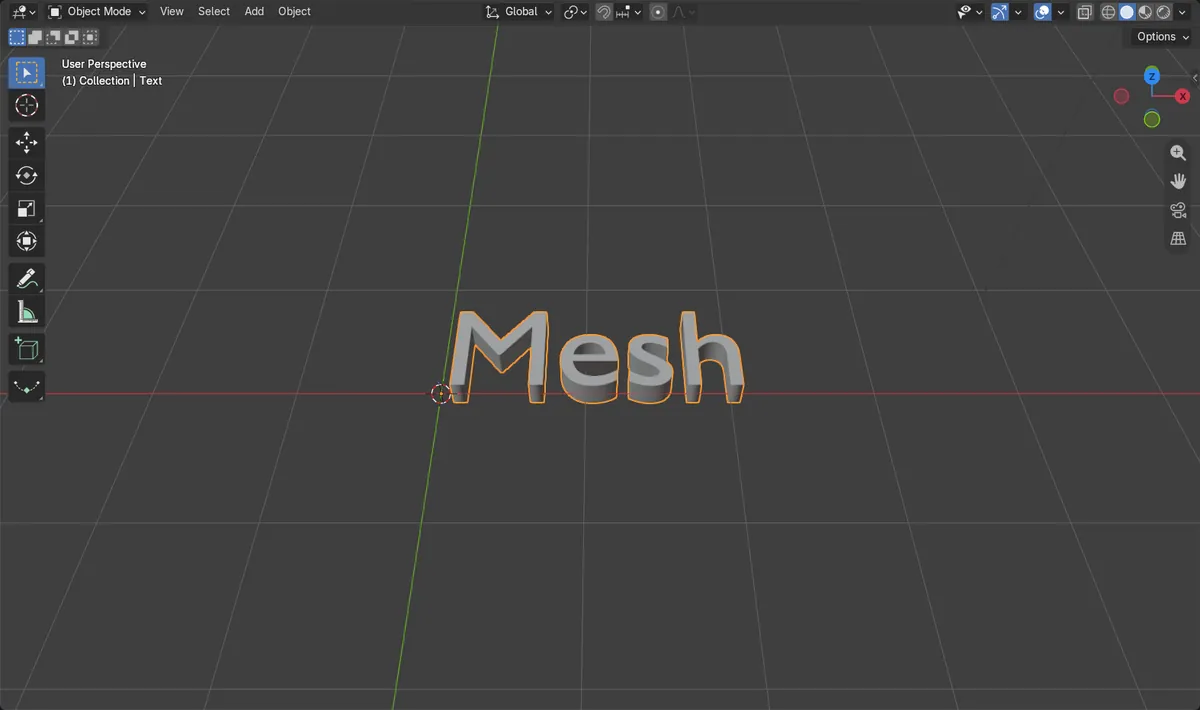
Before and after

AI Scene Builder is a Blender add-on. You type what you want, and it builds it in your scene: buildings, neon signs, wet pavement, fog and lights. Nothing in this picture was modeled by hand.
On a phone now? The add-on runs in Blender on a computer. Send yourself the link and open it there.
Step by step (Blender 5.x)
- Click the text object in Object Mode to select it.
- Optional: press Shift + D and then right-click to make a copy in place, so you keep an editable text version.
- Open the Object menu in the 3D Viewport header and hover Convert.
- Choose Mesh. The text is now a mesh object with the same name.
- Press Tab to see and edit the vertices of the letters.
Other ways to do it
- Right-click the text and choose Convert To › Mesh
- Tick Keep Original in the Adjust Last Operation panel to keep the text object as well
Common snags
The mesh has long thin triangles
Letters are filled with many thin faces. In Edit Mode select all and use Limited Dissolve in the Delete menu to merge them into cleaner faces.
The text cannot be changed any more
Converted letters are geometry, not words. Undo that step, or keep a copy of the text object before converting.
Convert is greyed out
You are in Edit Mode. Press Tab to go back to Object Mode first.
An AI add-on for Blender
AI Scene Builder is a Blender add-on that builds and edits your scene from one typed request, such as “a small wooden table with two chairs”. Each request can be undone in one click.
 A lighthouse island at sunset built with the add-on from 10 typed requests. See every request →
Questions
How do I turn text into a mesh in Blender?
Select it in Object Mode and choose Object › Convert › Mesh.
Can I edit the words after converting?
No. Keep a copy of the text object first if you may want to change the words.
How do I convert a mesh back to text?
That is not possible. Undo the conversion or use the copy you kept.
What the pictures show
- Before: a text object named Text with 0 mesh vertices.
- After Object > Convert > Mesh: the object is a mesh named Text with 1,220 vertices, and no text objects are left.
- Results were identical in Blender 4.2 LTS and Blender 5.x.