How to Slide an Edge Along the Mesh in Blender
In Edit Mode press 2 for Edge select and select the edges, for example a loop around the mesh. Press G twice (G, G) and move the mouse: the edges glide along the neighbouring faces instead of moving freely, so the outline of the mesh stays the same. Click to confirm. In Edge select mode the right-click menu has Edge Slide too, and the header has Edge › Edge Slide.
- Mode
- Edit Mode, Edge select
- Menu
- Edge › Edge Slide
- Shortcut
- G, G
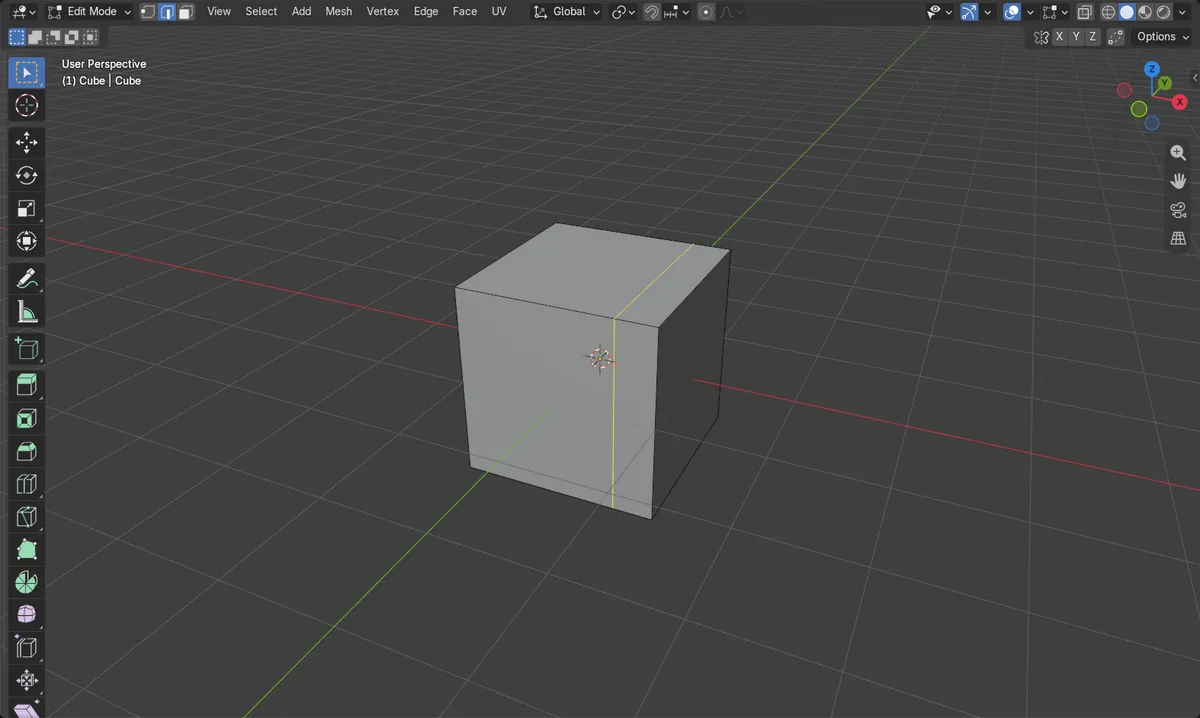
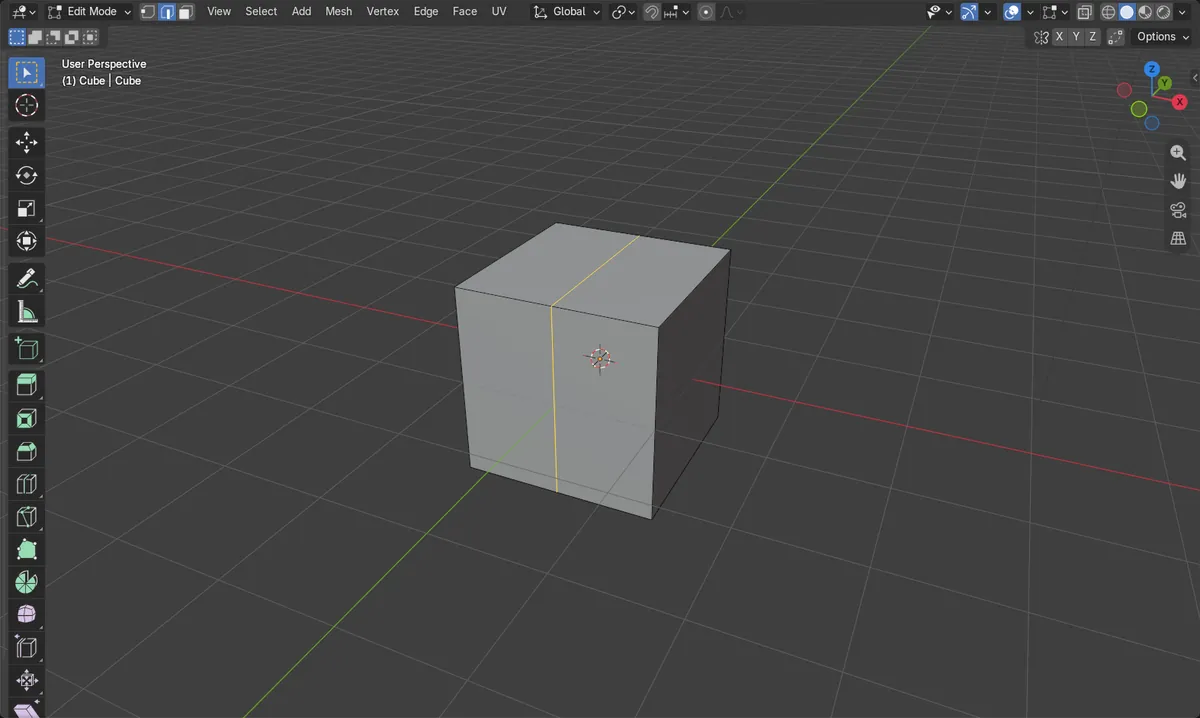
G twice
Switches a move into a slide along the faces.
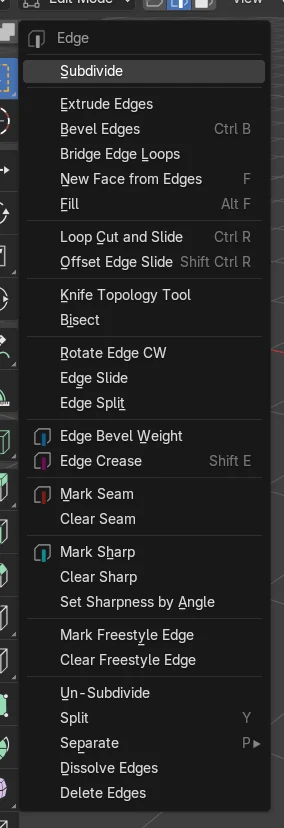
Right-click in Edge select
Edge Slide is in that menu.
The shape stays
On flat faces like this cube, sliding does not change the outline of the mesh.
Before and after

AI Scene Builder is a Blender add-on. You type what you want, and it builds it in your scene: buildings, neon signs, wet pavement, fog and lights. Nothing in this picture was modeled by hand.
On a phone now? The add-on runs in Blender on a computer. Send yourself the link and open it there.
Step by step (Blender 5.x)
- Select the object, press Tab for Edit Mode and 2 for Edge select.
- Select the edges to slide, for example a ring around the middle.
- Hover the 3D Viewport and press G, then G again.
- Move the mouse to slide the edges, then left-click to confirm or right-click to cancel.
- Set an exact Factor in the panel at the bottom left if needed.
Other ways to do it
- In Edge select, right-click and choose Edge Slide
- Edge › Edge Slide in the header
- Shift + V (Vertex Slide) to slide single vertices
- Ctrl + R (Loop Cut and Slide) to add a new loop and slide it at once
Common snags
The edges moved off the surface
One G moves freely. Press G a second time while moving to switch to slide.
No Edge Slide in the right-click menu
The right-click menu changes with the select mode. Edge Slide is there in Edge select; press 2 first.
The slide stops early
Clamp, on by default, keeps the edges between their neighbouring edges.
An AI add-on for Blender
AI Scene Builder is a Blender add-on that builds and edits your scene from one typed request, such as “a small wooden table with two chairs”. Each request can be undone in one click.
 A log cabin room built with the add-on from 9 typed requests. See every request →
Questions
How do I move an edge without changing the shape in Blender?
Select it and press G twice to slide it along the faces.
How do I slide a single vertex?
Select it and press Shift + V (Vertex Slide).
What the pictures show
- Before: a ring of 4 edges around the middle of a 2 m cube, in Edge select.
- Edge Slide with Factor 0.6 moved the ring 0.6 m sideways along the faces.
- The cube kept its 2 x 2 x 2 m size and its 12 vertices.
- Results were identical in Blender 4.2 LTS and Blender 5.x.