How to Hide an Object from the Render but Keep It in the Viewport in Blender
Select the object, open the Object tab in the Properties editor, and under Visibility untick Renders. The object stays visible in the 3D viewport but no longer appears in the rendered image.
- Mode
- Object Mode, Properties editor (Object tab)
- Menu
- Properties › Object tab › Visibility › Renders
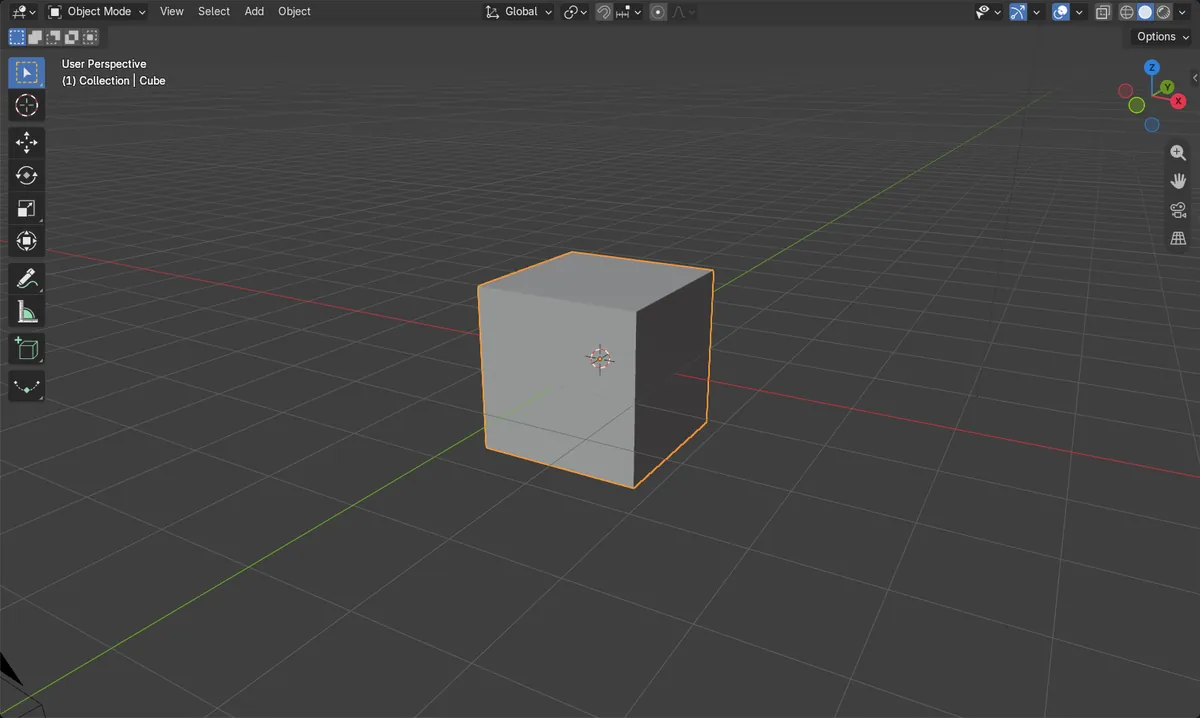
Untick Renders
Object tab › Visibility › Renders. The object is skipped by F12 renders.
Viewport unchanged
The Viewports checkbox stays on, so the object remains visible in the 3D viewport.
Not the H key
H only hides in the viewport. It does not change the render setting.
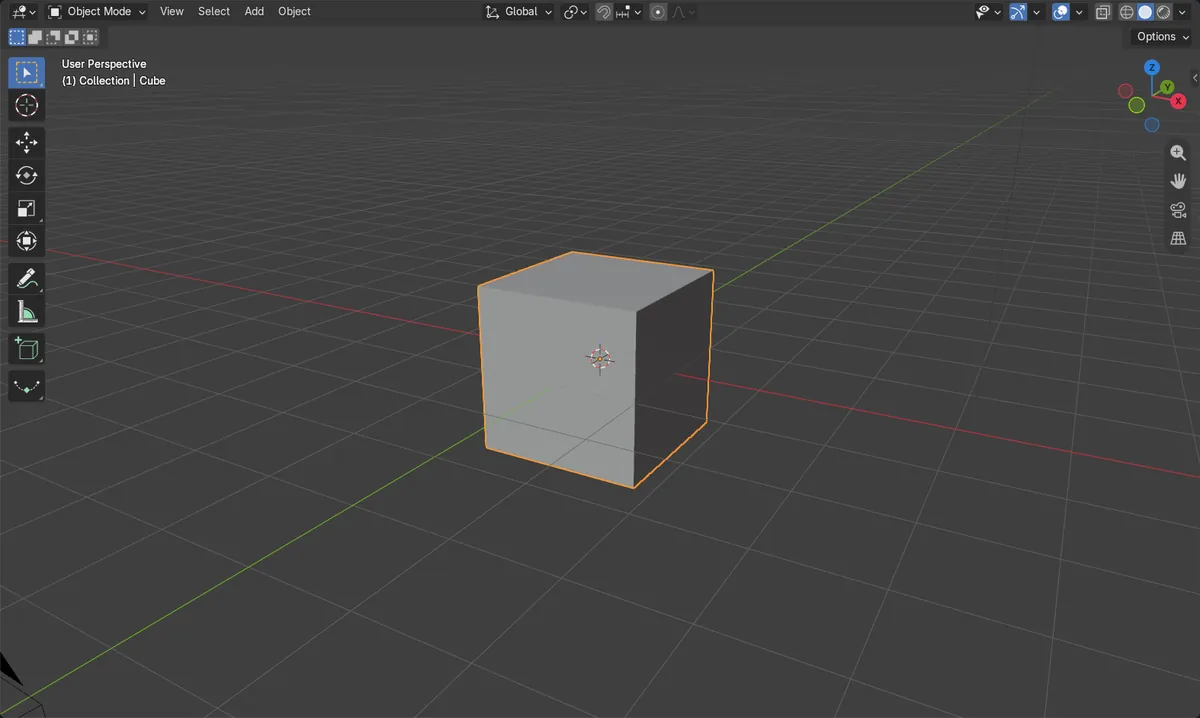
Before and after

AI Scene Builder is a Blender add-on. You type what you want, and it builds it in your scene: buildings, neon signs, wet pavement, fog and lights. Nothing in this picture was modeled by hand.
On a phone now? The add-on runs in Blender on a computer. Send yourself the link and open it there.
Step by step (Blender 5.x)
- In the 3D Viewport, click the object to select it so it becomes the active object.
- In the Properties editor, open the Object tab.
- Expand the Visibility panel.
- Untick Renders. Leave Viewports ticked so the object stays visible in the 3D viewport.
- Render with F12 (or Render › Render Image). The object is absent from the image.
Other ways to do it
- For a whole group, open the Collection tab and untick Renders under Visibility (Blender 5.x) or the render checkbox under Restrictions (Blender 4.2).
Blender 4.2 LTS vs Blender 5.x
| What | Blender 4.2 LTS | Blender 5.x |
|---|---|---|
| Collection tab render setting | The collection panel is labelled Restrictions and its render checkbox is not worded 'Renders'. | The collection panel is labelled Visibility and shows Renders. |
Common snags
Wrong checkbox
If the object disappears from the viewport too, you unticked Viewports. Tick Viewports again and untick only Renders.
Nothing selected
The Object tab shows the active object. Click the object first, or you will change a different one.
Using H to hide
H (Hide Objects) only hides temporarily in the viewport. Alt + H shows hidden objects again; it does not affect rendering.
Or type one line in AI Scene Builder
AI Scene Builder is a Blender add-on that carries out the steps for you from one typed request. For this task, type a request like this one, using your own object names:
Hide the selected object from the render but keep it visible in the viewport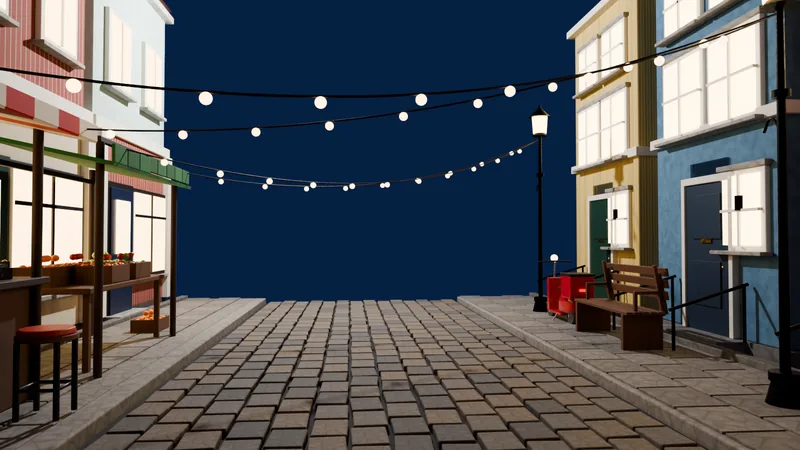 An evening market street built with the add-on from 11 typed requests. See every request →
Questions
How do I hide an object in the viewport but not the render?
Untick Viewports in Object tab › Visibility and leave Renders ticked.
Does hiding from render delete the object?
No. The object stays in the scene and viewport; it is just skipped when rendering.
What the pictures show
- Before: the pixel at the image centre was opaque (alpha 1.0) with the cube rendering.
- After turning the cube's Renders option off: the same pixel was fully transparent (alpha 0.0).
- The cube stayed visible in the viewport and Viewports stayed enabled.