How to Model Symmetrically with the Mirror Modifier in Blender
Select your mesh, open the Modifiers tab in the Properties editor, choose Add Modifier › Generate › Mirror. The X axis is on by default, so a mirrored copy appears across the object's origin and you only need to model one half.
- Mode
- Object Mode (Properties editor, Modifiers tab)
- Menu
- Add Modifier › Generate › Mirror
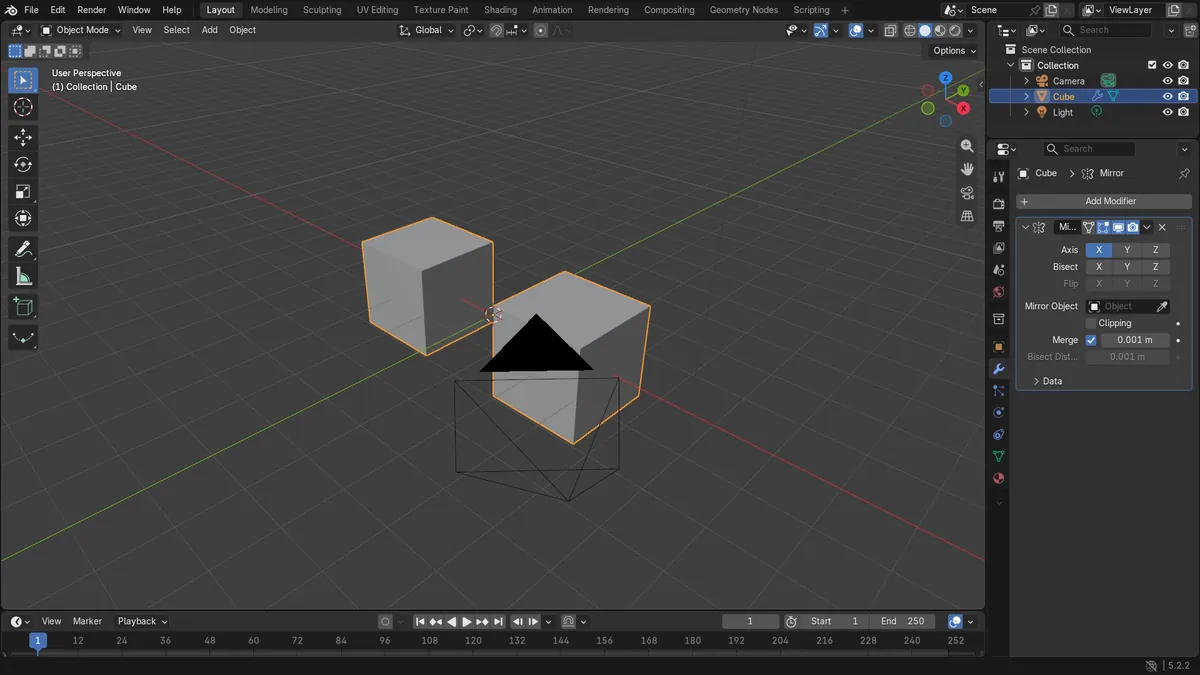
X axis on
Mirror Axis X is enabled by default.
Origin sets the plane
The mirror plane passes through the object origin unless you set a Mirror Object.
Before and after

AI Scene Builder is a Blender add-on. You type what you want, and it builds it in your scene: buildings, neon signs, wet pavement, fog and lights. Nothing in this picture was modeled by hand.
On a phone now? The add-on runs in Blender on a computer. Send yourself the link and open it there.
Step by step (Blender 5.x)
- Click the mesh object in the 3D Viewport so it is selected and active.
- Open the Modifiers tab in the Properties editor.
- Click Add Modifier, then choose Generate › Mirror.
- Check that Mirror Axis X is enabled. Turn on Y or Z as well if you need symmetry on those axes.
- Press Tab to enter Edit Mode and edit one half; the other half follows every change.
- Enable Clip to stop vertices on the mirror plane from crossing it while you transform them, and keep Merge Vertices on so the halves join (Merge Distance defaults to 0.001).
- Optionally enable Bisect Axis to cut the mesh across the mirror plane, or set Mirror Object to mirror around another object.
Common snags
No mirrored copy visible
If the mesh sits away from the origin, the copy appears on the far side of the origin. Move the origin or set a Mirror Object to change the mirror plane.
Modifier menu missing
The Add Modifier button is in the Modifiers tab of the Properties editor. Make sure an object is selected and active.
Halves not joined
If a seam shows in the middle, make sure Merge Vertices is on and vertices at the centre lie within the Merge Distance.
Or type one line in AI Scene Builder
AI Scene Builder is a Blender add-on that carries out the steps for you from one typed request. For this task, type a request like this one, using your own object names:
Add a Mirror modifier to the selected object so I can model one half symmetrically A log cabin room built with the add-on from 9 typed requests. See every request →
Questions
Does the Mirror modifier change my original mesh?
No. The modifier shows a mirrored result while the base mesh keeps its own vertices, so you keep editing one half.
How do I mirror across Y or Z instead?
In the Mirror modifier's Mirror Axis setting, enable Y or Z. You can enable several axes at once.
What the pictures show
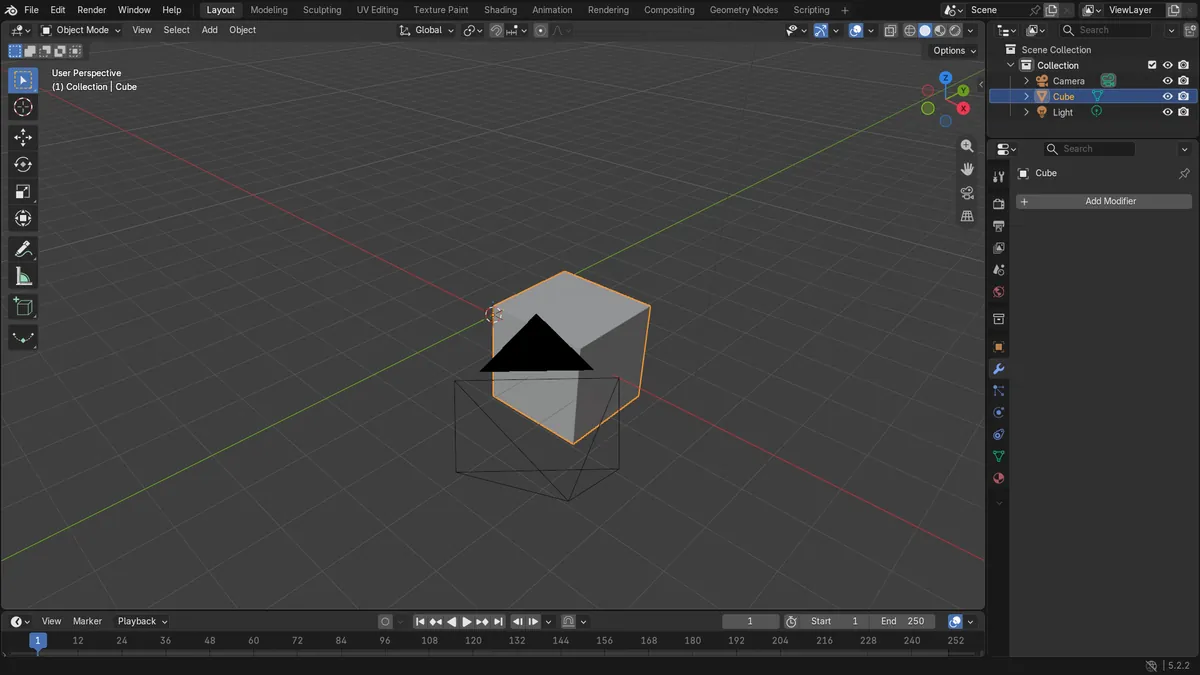
- A cube moved 2 m along X had 8 vertices spanning X 1 m to 3 m with no modifiers.
- After adding Mirror, the evaluated mesh had 16 vertices spanning X -3 m to 3 m.
- The original mesh kept its 8 vertices, and Mirror Axis X was on.
- Results were the same in Blender 4.2 LTS and Blender 5.x.