How to Snap an Object onto Another Object's Origin in Blender 5.3
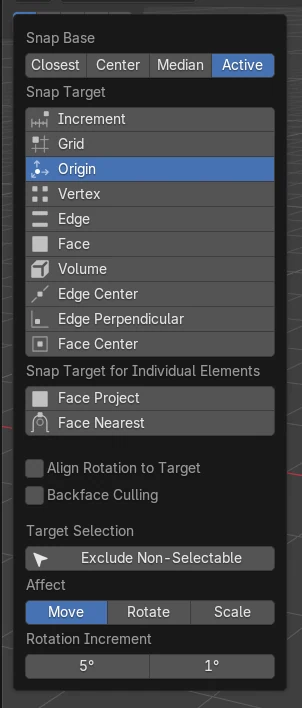
In Blender 5.3, turn on snapping (the magnet in the 3D Viewport header, or Shift + Tab), open the Snapping menu and choose Origin under Snap Target, with Snap Base set to Active. Press G, move the object near the other one and click: its origin lands exactly on the other object's origin.
- Mode
- Object Mode, 3D Viewport
- Menu
- 3D Viewport header › Snapping › Snap Target › Origin
- Shortcut
- Shift + Tab, G
Snap Target: Origin
Origin is a new choice in the Snapping menu, next to Increment, Grid, Vertex, Edge and Face.
Exact match
A box 4.73 m away from an empty ended at 0.0 m from it after one move with Origin snapping.
New in 5.3
Blender 5.2 LTS has no Origin choice; there you snap with the 3D cursor instead.
Before and after

AI Scene Builder is a Blender add-on. You type what you want, and it builds it in your scene: buildings, neon signs, wet pavement, fog and lights. Nothing in this picture was modeled by hand.
On a phone now? The add-on runs in Blender on a computer. Send yourself the link and open it there.
Step by step (Blender 5.3)
- In Object Mode, select the object you want to move.
- Turn on snapping with the magnet icon in the 3D Viewport header, or press Shift + Tab.
- Open the Snapping menu next to the magnet and set Snap Base to Active.
- Under Snap Target, choose Origin (and untick the other targets if they are on).
- Press G and move the mouse toward the object you want to line up with.
- When the snap circle sits on that object's origin, click to confirm.
Other ways to do it
- Use the Move tool in the toolbar instead of G; it snaps the same way while snapping is on
- Hold Ctrl while moving to snap only for that move when the magnet is off
Blender 5.2 LTS vs Blender 5.3
| What | Blender 5.2 LTS | Blender 5.3 |
|---|---|---|
| Snap to Origin | Not in Blender 5.2 LTS. The Snapping menu has no Origin target; select the other object, choose Cursor to Selected in the Object › Snap menu, then select your object and choose Selection to Cursor in the same menu. | Blender 5.3 adds Origin as a Snap Target, so an object snaps onto another object's origin while you move it. |
Common snags
It snaps to a vertex or face instead
More than one Snap Target can be on at once. Leave only Origin ticked so the nearest origin wins.
The wrong point lands on the target
Snap Base decides which point of your object is moved onto the target. Set it to Active so the object's own origin is used.
Nothing snaps
Snapping must be on (magnet icon or Shift + Tab), or hold Ctrl while moving.
An AI add-on for Blender
AI Scene Builder is a Blender add-on that builds and edits your scene from one typed request, such as “a small wooden table with two chairs”. Each request can be undone in one click.
 A log cabin room built with the add-on from 9 typed requests. See every request →
Questions
How do I move an object exactly onto another object's origin in Blender?
In Blender 5.3, set Snap Target to Origin in the Snapping menu, turn snapping on and move the object with G near the other one.
What does Snap Base do?
It picks which point of the moved object goes onto the target. Active uses the active object's origin.
Can I do this in Blender 5.2 LTS?
Not while moving. In 5.2 LTS, select the other object and choose Cursor to Selected in the Object › Snap menu, then select your object and choose Selection to Cursor in the same menu.
What the pictures show
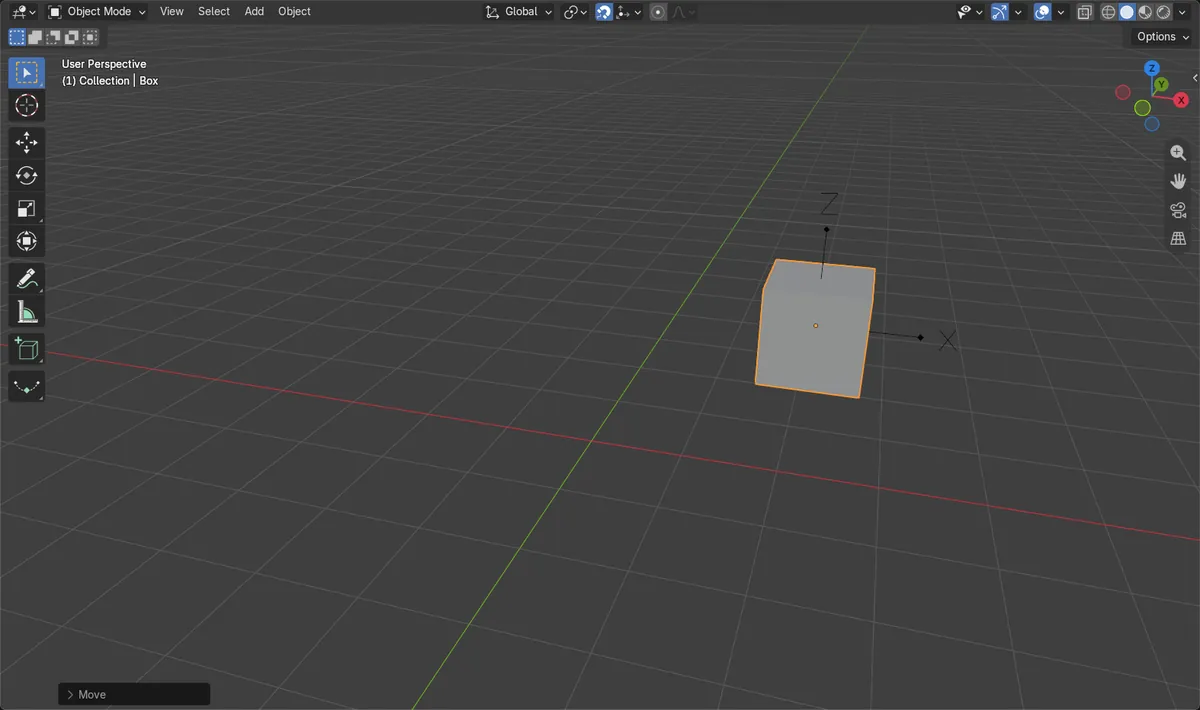
- Before: snapping was on with Snap Target set to Origin and Snap Base set to Active; a box sat 4.73 m away from an empty named Target.
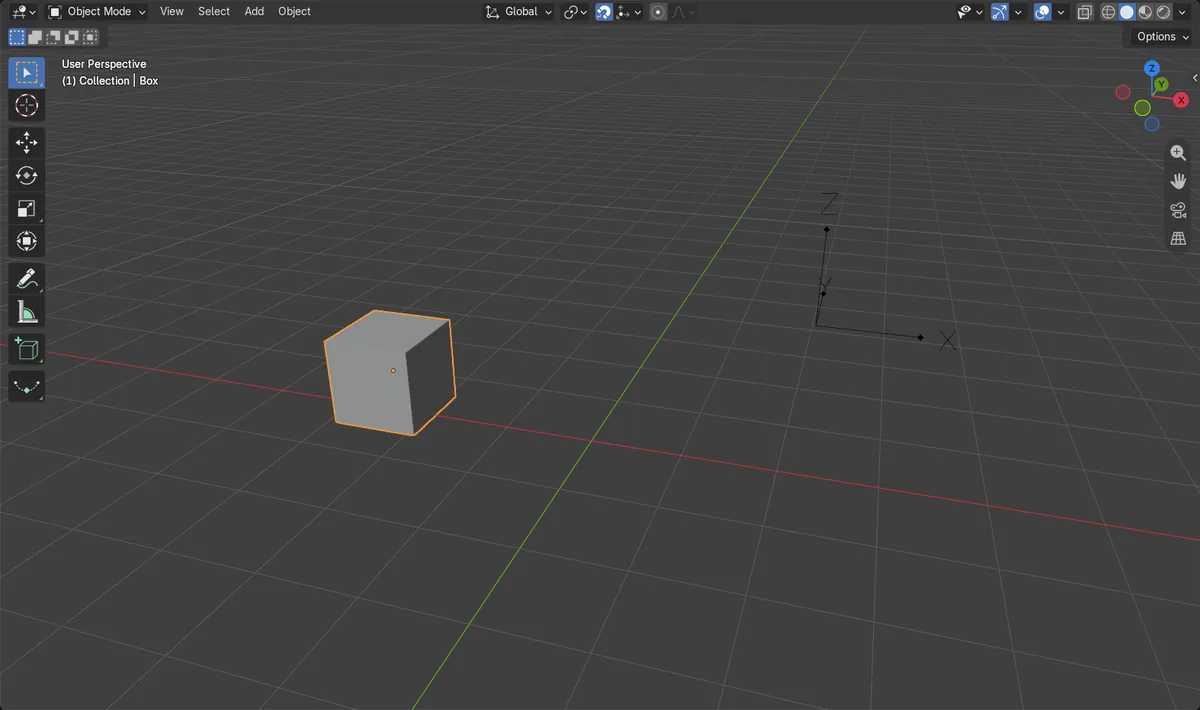
- After pressing G, moving the mouse near the Target and clicking: the box's origin was 0.0 m from the Target's origin.
- In Blender 5.2 LTS the Snapping menu had no Origin choice; the same move left the box 1.71 m away from the Target.