How to Change the Render Resolution in Blender
Open the Properties editor, go to the Output tab, and in the Format panel type new values into Resolution X and Y. Use the % field below them to scale the result, then press F12 to render at the new size.
- Mode
- Properties editor (any mode)
- Menu
- Properties › Output tab › Format
- Shortcut
- F12 (render image)
Output tab
Format panel holds Resolution X, Y and %.
Scale with %
The final size is X and Y multiplied by the % value.
Render with F12
Renders a still image at the new size.
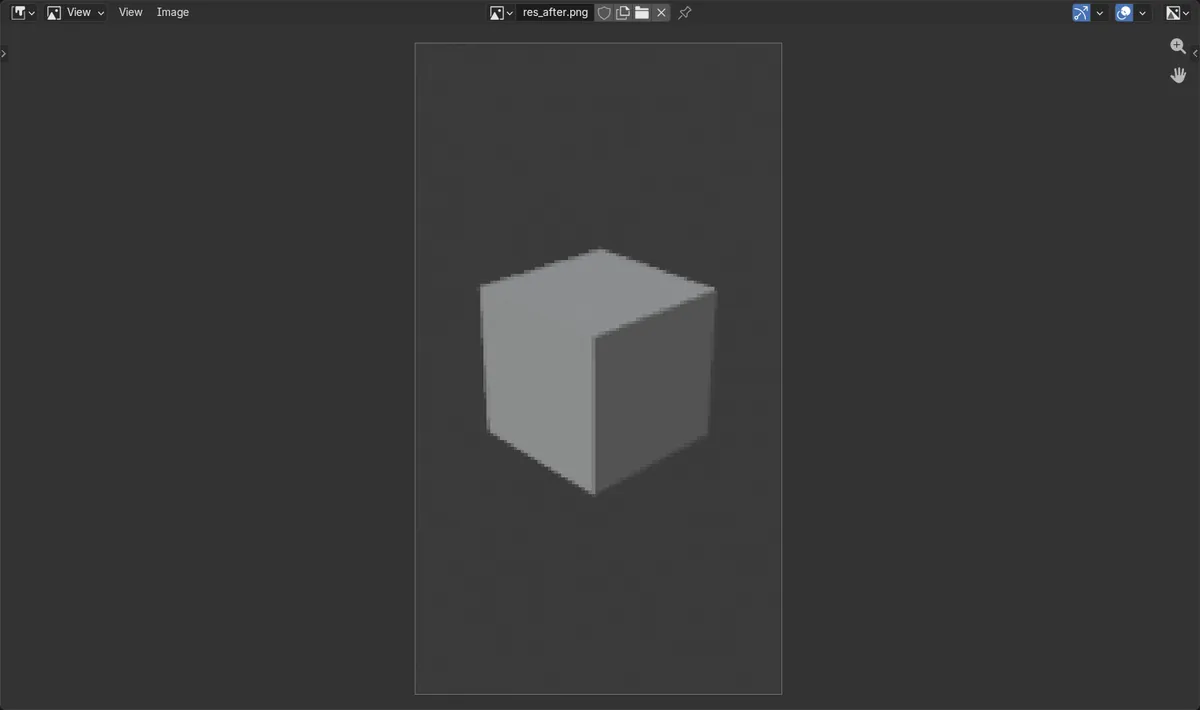
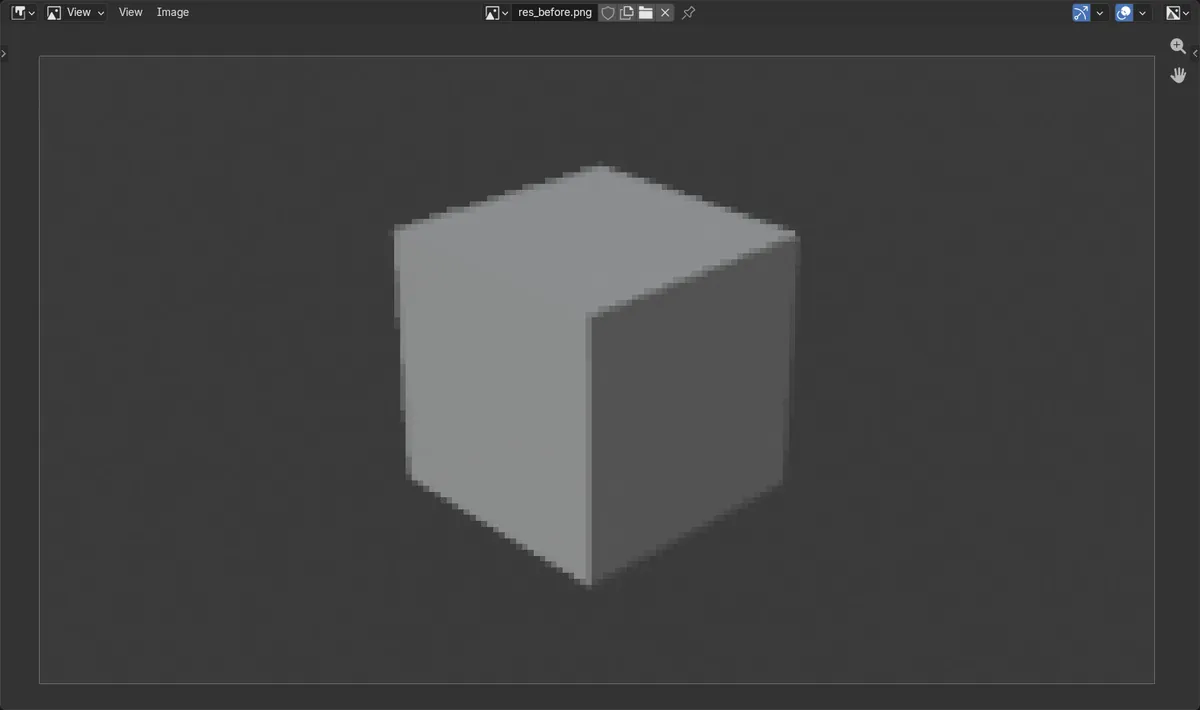
Before and after

AI Scene Builder is a Blender add-on. You type what you want, and it builds it in your scene: buildings, neon signs, wet pavement, fog and lights. Nothing in this picture was modeled by hand.
On a phone now? The add-on runs in Blender on a computer. Send yourself the link and open it there.
Step by step (Blender 5.x)
- Hover over the Properties editor and click the Output tab.
- Find the Format panel.
- Double-click Resolution X and type the width in pixels, for example 1080.
- Double-click Y and type the height in pixels, for example 1920.
- Set the % field to 100 for full size, or a lower value for a quick small preview render.
- Press F12, or choose Render › Render Image, to render at the new size.
Other ways to do it
- Render › Render Image renders a still with the current resolution.
Common snags
Image smaller than expected
The % (Resolution Scale) field multiplies the size. If the render is tiny, set it back to 100.
Wrong tab
Resolution X and Y also appear on the Data tab for light probes. Use the Output tab, Format panel, for the render size.
Wrong orientation
Width is Resolution X and height is Y. Swap the two values to switch between landscape and portrait.
Or type one line in AI Scene Builder
AI Scene Builder is a Blender add-on that carries out the steps for you from one typed request. For this task, type a request like this one, using your own object names:
Set the render resolution to 1080 by 1920 pixels at 100 percent A lighthouse island at sunset built with the add-on from 10 typed requests. See every request →
Questions
Where is the resolution setting in Blender?
It is in the Properties editor, on the Output tab, in the Format panel, as Resolution X and Y.
How do I make a quick low-resolution test render?
Lower the % field in the Format panel, for example to 50 or 10, and press F12. Set it back to 100 for the final render.
How do I render a vertical video size?
Set Resolution X to 1080 and Y to 1920 in the Format panel.
What the pictures show
- Resolution X and Y were changed from 1920 x 1080 to 1080 x 1920 at 10%.
- The render before was a landscape image of 192 x 108 pixels.
- The render after was a portrait image of 108 x 192 pixels.
- The result was the same in Blender 4.2 LTS and Blender 5.x.