How to Make a Material Transparent in Blender
Select the object, open the Material tab, and lower the Alpha value in the Surface panel (Principled BSDF) from 1.0 to something smaller, such as 0.2. For smooth see-through blending in EEVEE, set Render Method to Blended in the Thickness panel.
- Mode
- Object Mode, Properties editor > Material tab
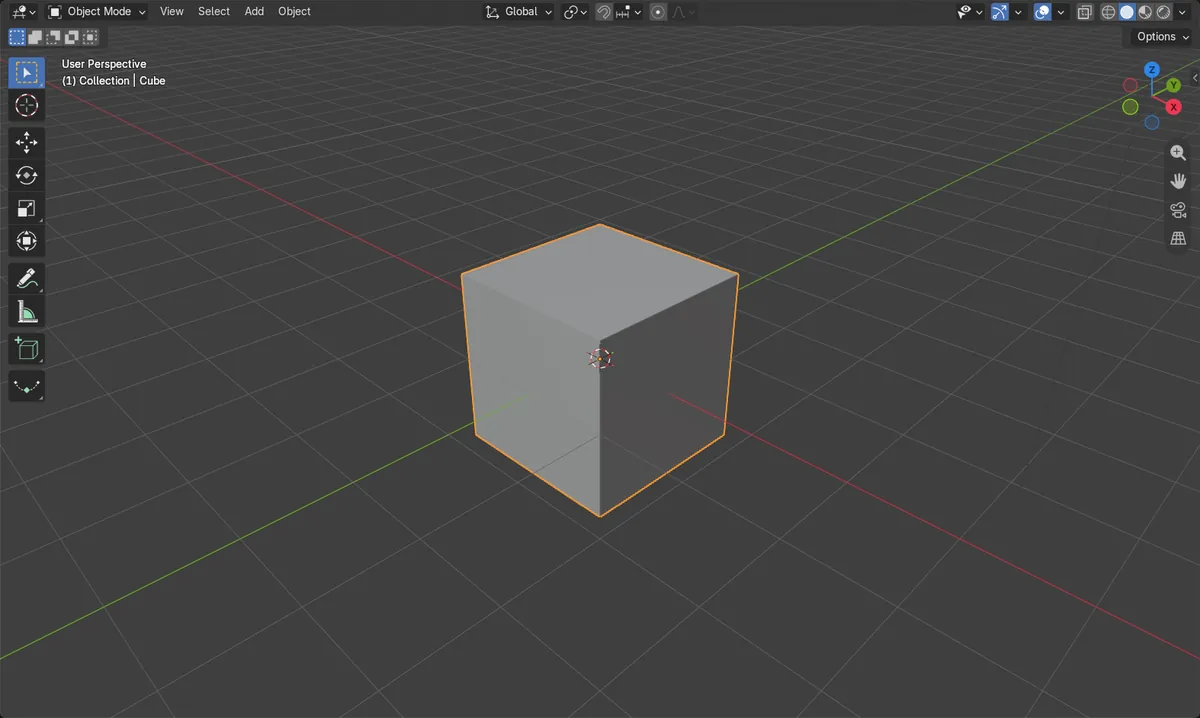
Lower Alpha
In Surface, set Alpha below 1.0. 1.0 is opaque, 0 is invisible.
Use Blended
Set Render Method to Blended so EEVEE blends the faces.
Needs nodes
The material must use nodes with a Principled BSDF.
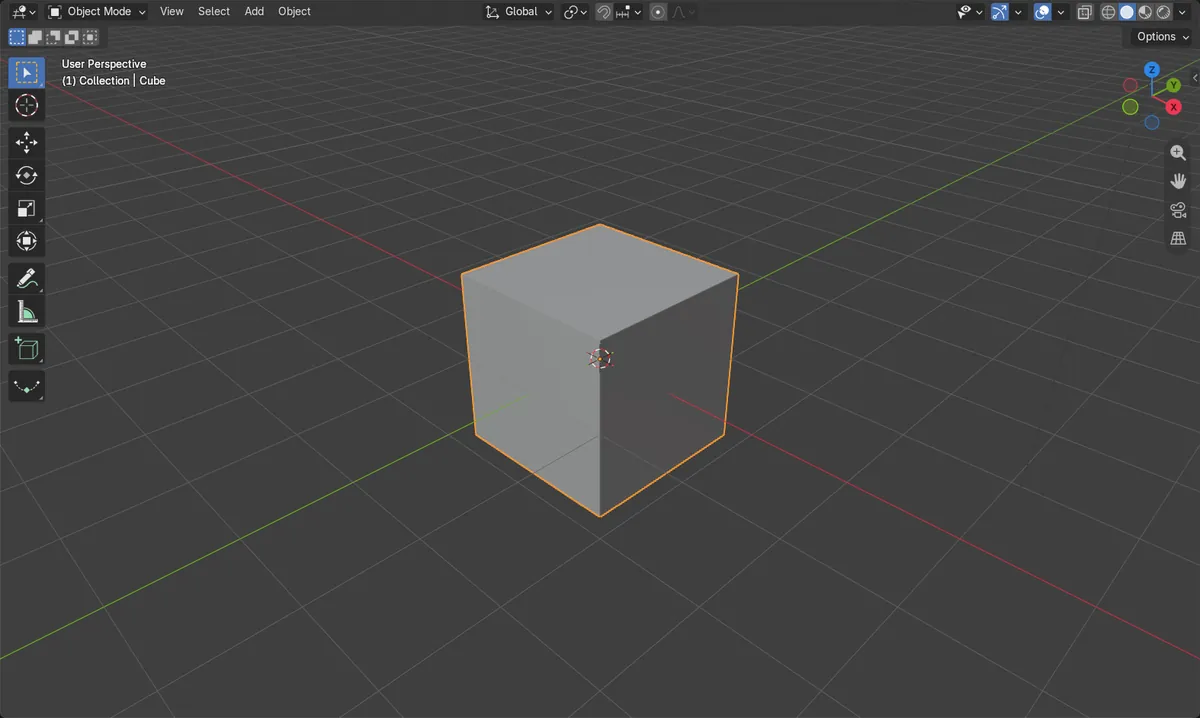
Before and after

AI Scene Builder is a Blender add-on. You type what you want, and it builds it in your scene: buildings, neon signs, wet pavement, fog and lights. Nothing in this picture was modeled by hand.
On a phone now? The add-on runs in Blender on a computer. Send yourself the link and open it there.
Step by step (Blender 5.x)
- Click the object in the 3D Viewport to select it.
- Open the Properties editor and click the Material tab.
- In the Surface panel, find the Principled BSDF and set Alpha to a value below 1.0, for example 0.2.
- Scroll to the Thickness panel and set Render Method to Blended.
- To keep the background see-through in a final render, open the Render tab › Film and turn on Transparent.Blender 4.2 LTS: In Blender 4.2 LTS the EEVEE Film panel is also named Film and holds the same Transparent checkbox.
- Press F12 to render and check the result.
Other ways to do it
- Render menu › Render Image
- Render tab › Film › Transparent (Cycles: Film › Transparent)
Blender 4.2 LTS vs Blender 5.x
| What | Blender 4.2 LTS | Blender 5.x |
|---|---|---|
| Render engine name | The EEVEE engine uses the internal identifier EEVEE Next, but it is labeled EEVEE in the interface. | The engine is labeled EEVEE. |
| Use Nodes checkbox | The Surface panel shows a Use Nodes button for the material. | The Use Nodes button is not shown in the Surface panel. |
Common snags
Transparency looks grainy or wrong
Alpha is lowered but the surface does not look right in EEVEE. Set Render Method to Blended in the Thickness panel of the Material tab.
Wrong material changed
Nothing changes because another material slot is active. Select the object and pick the right slot in the Material tab first.
Background is not transparent
The object is see-through but the render has a solid background. Turn on Render tab › Film › Transparent.
Or type one line in AI Scene Builder
AI Scene Builder is a Blender add-on that carries out the steps for you from one typed request. For this task, type a request like this one, using your own object names:
Make the selected object's material transparent with an alpha of 0.2 A log cabin room built with the add-on from 9 typed requests. See every request →
Questions
Why is my Blender material still not transparent?
Check that Alpha is below 1.0 and that Render Method is set to Blended in the material's Thickness panel.
How do I get a transparent background in a render?
Open the Render tab, go to Film and turn on Transparent. Then save the image in a format that supports alpha, such as PNG.
What the pictures show
- Alpha on the Principled BSDF started at 1.0 (fully opaque).
- After the change Alpha was 0.2, in both Blender 4.2 LTS and Blender 5.x.
- The cube kept its single material, and Film > Transparent stayed on.