How to Add Bloom in Blender 5.3 (Scene Effects)
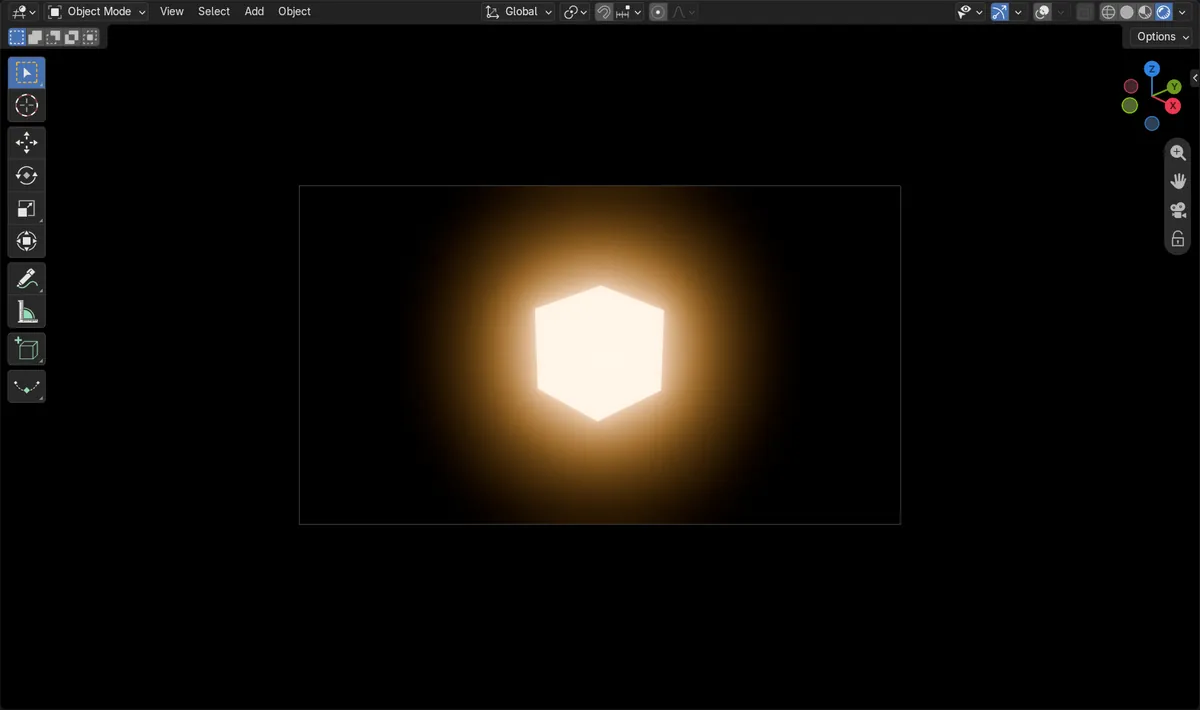
In Blender 5.3, open the Compositor & Effects tab of the Properties editor, click Add Scene Effect, open Camera & Lens Effects and choose Bloom. A soft glow then spreads around the bright, emissive parts of the image, both in the final render and in the viewport's Rendered view. Scene Effects are new in 5.3 and are not in Blender 5.2 LTS.
- Mode
- Properties editor, Compositor & Effects tab (any mode)
- Menu
- Properties › Compositor & Effects › Add Scene Effect
- Shortcut
- Shift + A
Where to find it
Compositor & Effects tab, Add Scene Effect, then Camera & Lens Effects and Bloom.
Viewport and render
On for both by default. Preview it in Rendered shading.
New in 5.3
Blender 5.2 LTS has no Scene Effects.
Before and after

AI Scene Builder is a Blender add-on. You type what you want, and it builds it in your scene: buildings, neon signs, wet pavement, fog and lights. Nothing in this picture was modeled by hand.
On a phone now? The add-on runs in Blender on a computer. Send yourself the link and open it there.
Step by step (Blender 5.3)
- Make sure something in the scene is bright, for example a material with a high Emission Strength. Bloom spreads light from the brightest parts of the image.
- In the Properties editor, click the Compositor & Effects tab.
- Click Add Scene Effect. With the mouse over this tab you can also press Shift + A.
- In the menu, open Camera & Lens Effects and click Bloom. A Bloom entry appears in the list of scene effects.
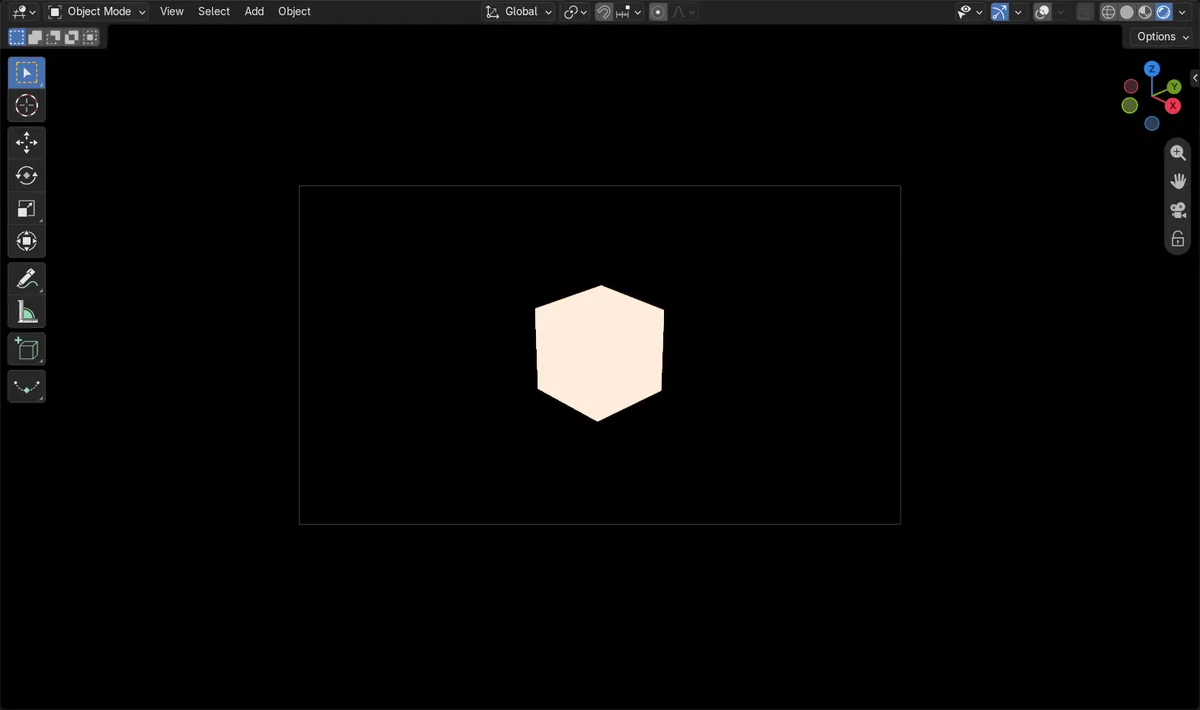
- To preview the glow, switch the 3D Viewport to Rendered shading and look through the camera, as in the pictures.
- Tune the glow with Strength under Adjust and Size under Glare, then press F12 to render the image with bloom.
Other ways to do it
- Shift + A with the mouse over the Compositor & Effects tab opens the same Add Scene Effect menu.
- Click Search... at the top of the Add Scene Effect menu and type Bloom.
Blender 5.2 LTS vs Blender 5.3
| What | Blender 5.2 LTS | Blender 5.3 |
|---|---|---|
| Scene Effects and Bloom | Not in Blender 5.2 LTS. Its Properties editor has no Compositor & Effects tab. | Blender 5.3 adds Scene Effects, with a ready-made Bloom effect. |
Common snags
No glow appears
Bloom only spreads the brightest parts of the image. Raise the material's Emission Strength so that part of the image is clearly brighter than the rest.
Glow missing in the viewport
Solid shading does not show scene effects. Switch the 3D Viewport to Rendered shading; the Compositor option in the viewport's Shading popover also decides whether effects show there.
Shift + A does nothing
The shortcut only works while the mouse is over the Properties editor with the Compositor & Effects tab open. Otherwise click Add Scene Effect.
An AI add-on for Blender
AI Scene Builder is a Blender add-on that builds and edits your scene from one typed request, such as “a small wooden table with two chairs”. Each request can be undone in one click.
 A lighthouse island at sunset built with the add-on from 10 typed requests. See every request →
Questions
Does the Bloom scene effect show in the final render?
Yes. A new Bloom effect is on for both the viewport and the render, so pressing F12 renders the image with the glow.
How do I make the bloom stronger or wider?
In the Bloom effect, raise Strength under Adjust for a brighter glow and Size under Glare for a wider one. The defaults are 1.000 and 0.500.
Is Bloom as a scene effect in Blender 5.2 LTS?
No. Scene Effects and the Compositor & Effects tab are new in Blender 5.3.
What the pictures show
- Before: the scene had no scene effects, and 1,117 of 14,400 pixels in a 160 x 90 render were lit (above 3% brightness).
- After choosing Bloom: 1 scene effect named Bloom, switched on for both the viewport and the render.
- The same render then had 8,752 lit pixels, and the total brightness rose about 3.2 times (972 to 3,103) as the glow spread around the cube.