Keep Sharp Edges with Subdivision Surface in Blender
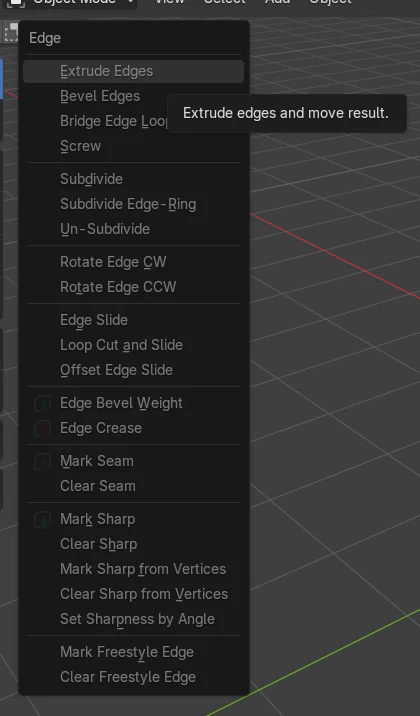
In Edit Mode, select the edges you want to keep sharp and press Shift + E, then enter 1 to set a full Edge Crease. The same command is in the Edge menu › Edge Crease. The Subdivision Surface modifier then keeps those edges and corners tight instead of rounding them.
- Mode
- Edit Mode (Edge select), 3D Viewport
- Menu
- Edge › Edge Crease
- Shortcut
- Shift + E
Shift + E
Runs Edge Crease on the selected edges in Edit Mode.
Edge menu
Edge › Edge Crease does the same thing.
Use Creases
The modifier's Use Creases option must stay on (it is on by default).
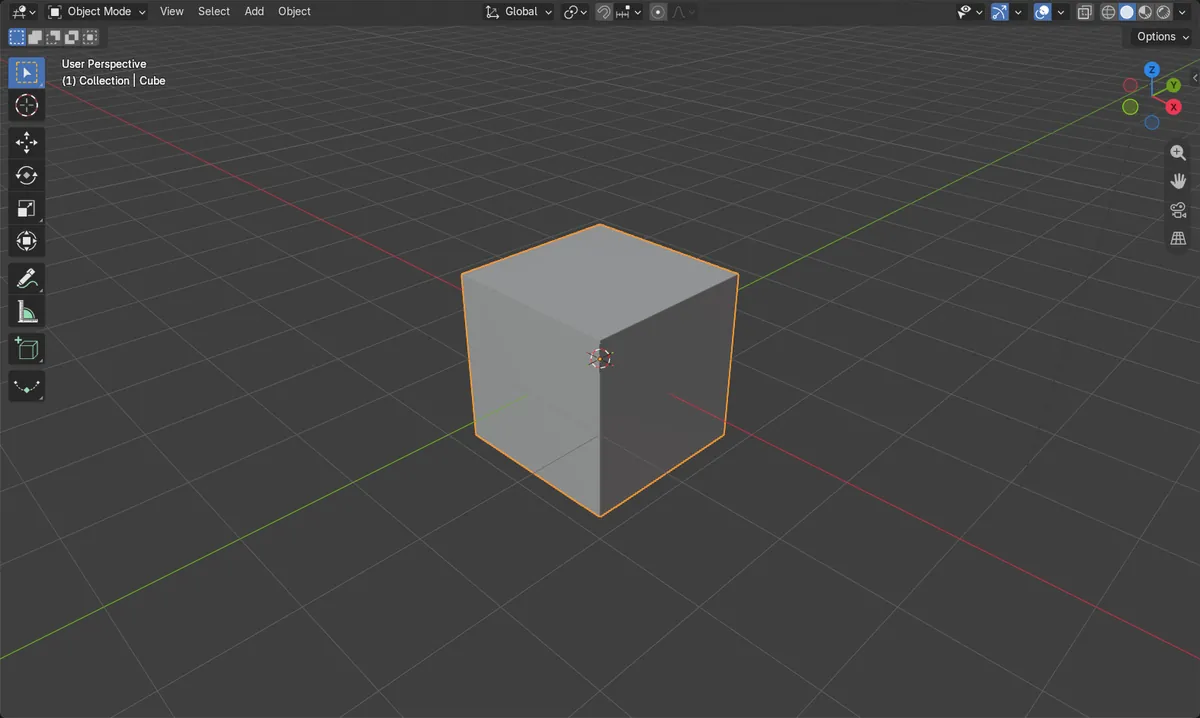
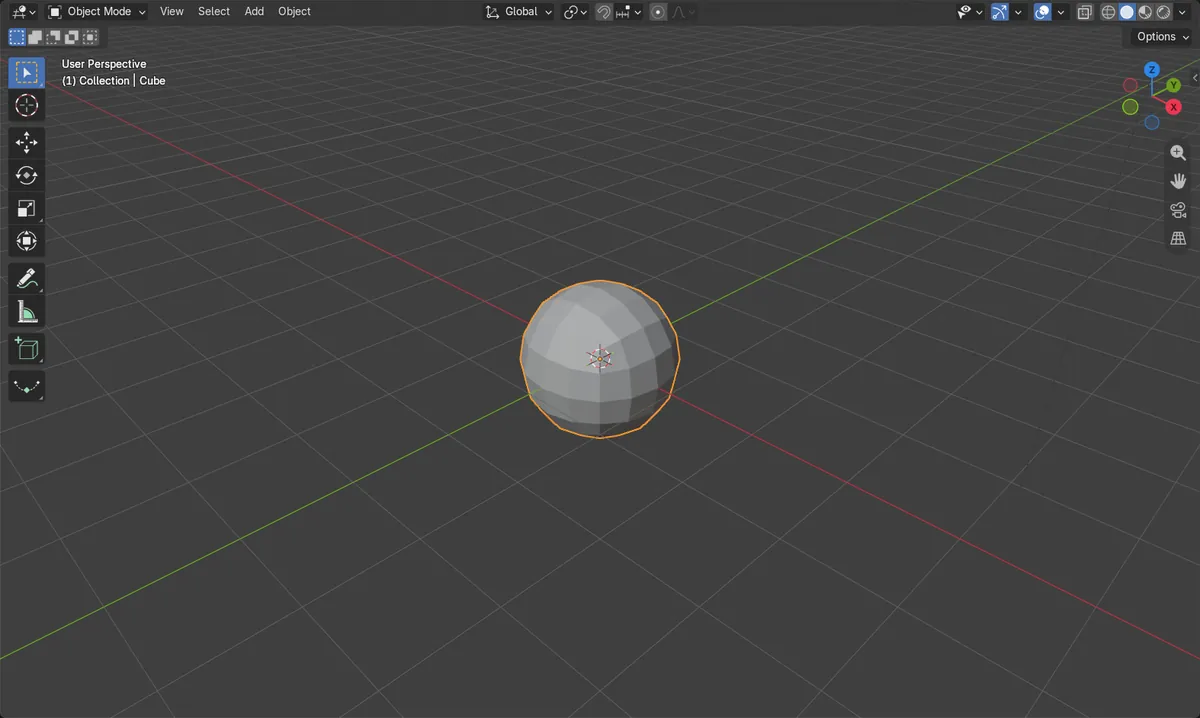
Before and after

AI Scene Builder is a Blender add-on. You type what you want, and it builds it in your scene: buildings, neon signs, wet pavement, fog and lights. Nothing in this picture was modeled by hand.
On a phone now? The add-on runs in Blender on a computer. Send yourself the link and open it there.
Step by step (Blender 5.x)
- Select the object, then open the Modifiers tab in the Properties editor and add a Subdivision Surface modifier (Add Modifier). Set Levels, for example 2.
- Hover over the 3D Viewport and press Tab to enter Edit Mode.
- Switch to Edge select mode and select the edges to keep sharp (press A to select all).
- With the edges selected, press Shift + E (or choose Edge › Edge Crease), type 1 and click to confirm. This sets the crease to full.
- Press Tab to return to Object Mode and check the result. Corners and edges now stay close to the original shape.
Other ways to do it
- Edge › Edge Crease in the 3D Viewport header menu in Edit Mode.
- Adding a Bevel (Bevel operator) or Edge Bevel Weight, or Mark Sharp, are other ways to shape edges, but only Edge Crease controls how the Subdivision Surface modifier sharpens them.
Common snags
Nothing changes
Edge Crease only works on selected edges in Edit Mode. Select the edges first, then press Shift + E with the mouse over the 3D Viewport.
Edges still look soft
A crease value below 1 gives only partial sharpness. Press Shift + E again and enter 1 for full sharpness. Also check that Use Creases is enabled on the Subdivision Surface modifier.
Shift + E does nothing
The key belongs to the Mesh keymap, so it only works in Edit Mode. Press Tab first, or use Edge › Edge Crease.
Or type one line in AI Scene Builder
AI Scene Builder is a Blender add-on that carries out the steps for you from one typed request. For this task, type a request like this one, using your own object names:
Crease all edges of the selected cube so it stays sharp under the Subdivision Surface modifier A log cabin room built with the add-on from 9 typed requests. See every request →
Questions
How do I stop a subdivided cube from becoming a sphere?
Select all edges in Edit Mode and press Shift + E, then enter 1. The cube keeps its shape and sharp edges.
Can I sharpen only some edges?
Yes. Select only those edges before using Edge Crease. Unselected edges stay smooth.
What the pictures show
- Before creasing, a 2-level subdivided default cube reached only about 0.84 m from the centre on the X axis.
- After setting all edges to a crease of 1, the cube reached 1.0 m on the X axis.
- The original mesh kept its 8 vertices; the subdivided result has 98 vertices in both cases.