How to Select Multiple Objects in Blender
Click the first object in the 3D Viewport, then hold Shift and click each of the others to add them to the selection. The last object you Shift-click becomes the active object (light orange outline), which matters for tools that copy settings from the active one. Press A to select every object, or Alt + A to select none.
- Mode
- Object Mode, 3D Viewport
- Menu
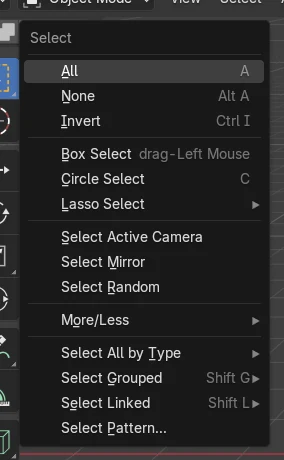
- Select › All / Box Select
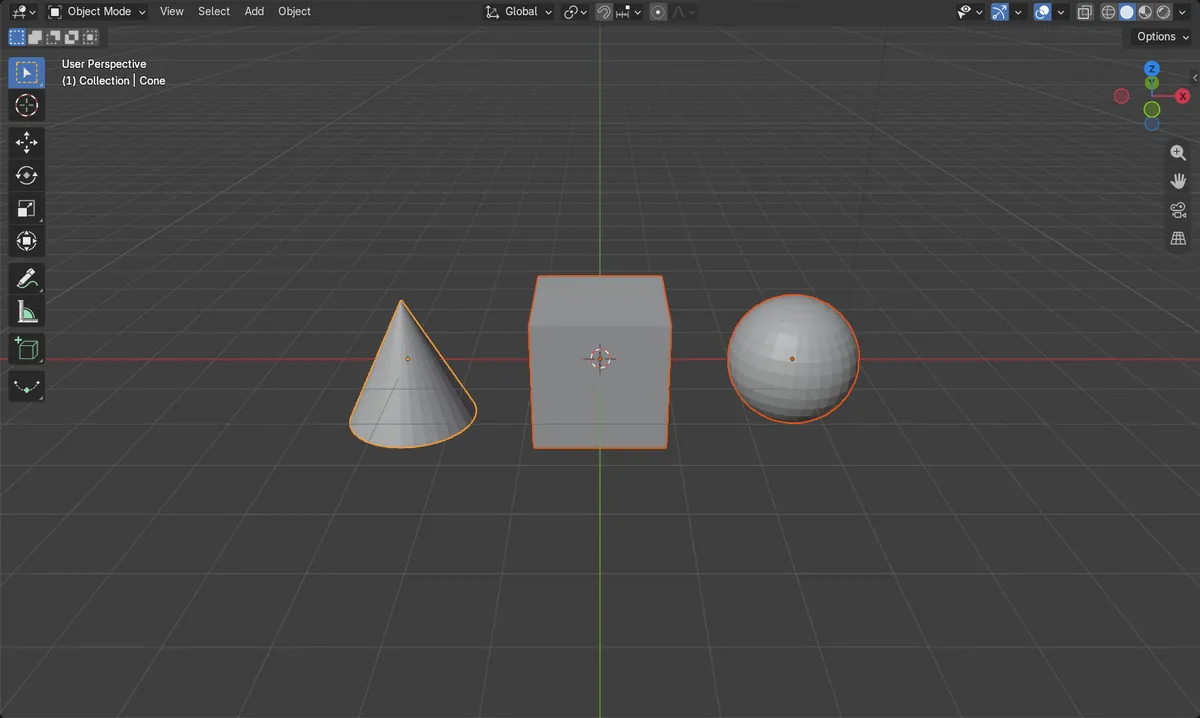
Shift + click
Adds an object to the selection. Shift-click the active one again to deselect it.
B for Box Select
Drag a rectangle to select everything inside it. C paints with Circle Select.
A / Alt + A
A selects all objects, Alt + A selects none.
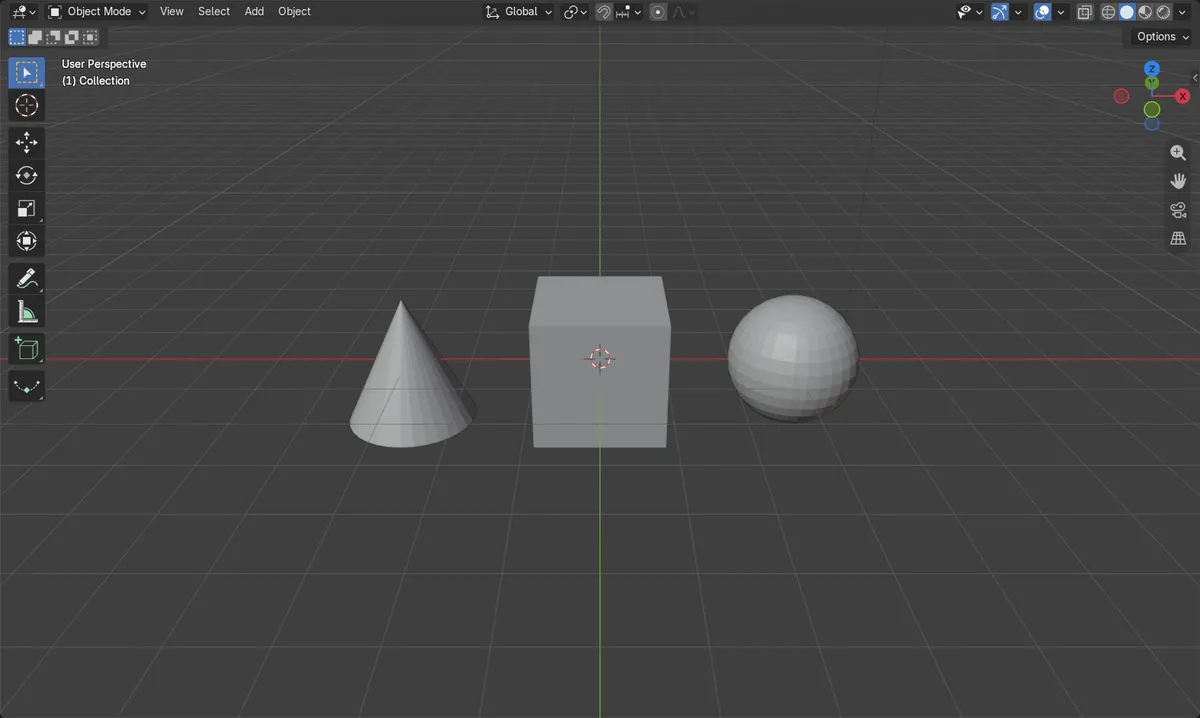
Before and after

AI Scene Builder is a Blender add-on. You type what you want, and it builds it in your scene: buildings, neon signs, wet pavement, fog and lights. Nothing in this picture was modeled by hand.
On a phone now? The add-on runs in Blender on a computer. Send yourself the link and open it there.
Step by step (Blender 5.x)
- Make sure the 3D Viewport is in Object Mode.
- Left-click the first object. This selects it and clears any earlier selection.
- Hold Shift and left-click the next object. It is added to the selection.
- Keep holding Shift and click each remaining object. The last one you click becomes the active object.
- To select a whole area at once, press B and drag a rectangle around the objects instead.
Other ways to do it
- Select › All (A) in the 3D Viewport header selects every object
- Select › Box Select (B), or C for Circle Select
- In the Outliner, Ctrl + click adds an item and Shift + click selects a range
Common snags
Shift-clicking an object removed it
Shift + click on an object that is already selected and active deselects it. If it is selected but not active, the first Shift + click makes it active and a second one deselects it.
The wrong object is active
The active object is the last one you clicked. Shift-click the object you want to be active once more so it gets the light orange outline.
A plain click lost my selection
A click without Shift selects only that object and deselects the rest. Hold Shift for every click after the first.
An AI add-on for Blender
AI Scene Builder is a Blender add-on that builds and edits your scene from one typed request, such as “a small wooden table with two chairs”. Each request can be undone in one click.
 A lighthouse island at sunset built with the add-on from 10 typed requests. See every request →
Questions
How do I select all objects in Blender?
Hover the 3D Viewport in Object Mode and press A, or use Select › All.
How do I deselect one object from a selection?
Shift + click it until its outline disappears: once to make it active if it is not, then once more to deselect it.
How do I select several objects in the Outliner?
Click the first item, then Ctrl + click to add single items or Shift + click to select everything between two items.
What the pictures show
- Before: no objects were selected.
- After one click on the sphere and Shift + clicks on the cube and the cone, all 3 objects were selected.
- The cone, the last object Shift-clicked, was the active object.
- Results were identical in Blender 4.2 LTS and Blender 5.x.