How to Apply Scale in Blender (Object > Apply > Scale)
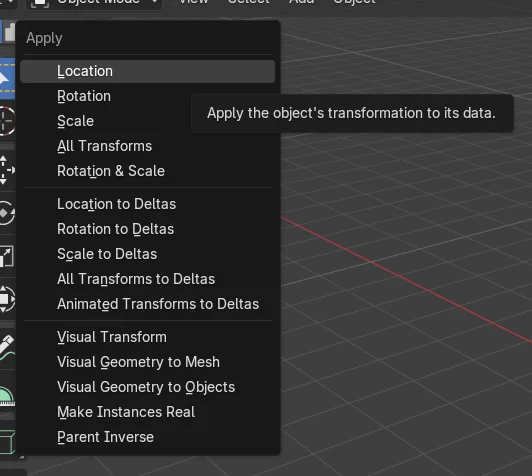
Select the object in Object Mode, then choose Object › Apply › Scale in the 3D Viewport. The object's Scale values reset to (1, 1, 1) while its visible size stays the same, because the size is written into the mesh itself.
- Mode
- Object Mode, 3D Viewport
- Menu
- Object › Apply › Scale
Use the Apply menu
Object › Apply › Scale in the 3D Viewport header.
Size stays the same
Only the Scale values reset; Dimensions do not change.
Select first
Apply works on the selected objects in Object Mode.
Before and after

AI Scene Builder is a Blender add-on. You type what you want, and it builds it in your scene: buildings, neon signs, wet pavement, fog and lights. Nothing in this picture was modeled by hand.
On a phone now? The add-on runs in Blender on a computer. Send yourself the link and open it there.
Step by step (Blender 5.x)
- Hover the mouse over the 3D Viewport and make sure you are in Object Mode.
- Click the object to select it (or select several objects).
- Open the Object menu in the 3D Viewport header and choose Apply › Scale.
- Open the Properties editor, go to the Object tab › Transform panel, and check that Scale now reads 1, 1, 1.
Other ways to do it
- Object › Apply › All Transforms applies location, rotation and scale together.
- Object › Apply › Rotation & Scale applies only rotation and scale.
Common snags
Nothing happens
No object is selected or you are not in Object Mode. Press Tab to leave Edit Mode, click the object, then use Object › Apply › Scale again.
Shared mesh data
If several objects use the same mesh, Blender may refuse to apply. Use Make Single User first so each object has its own data, then apply again.
Wrong value in the panel
Delta Scale (Object tab › Transform › Delta Transform) is separate from Scale. Check there if the object still looks scaled.
Or type one line in AI Scene Builder
AI Scene Builder is a Blender add-on that carries out the steps for you from one typed request. For this task, type a request like this one, using your own object names:
Apply the scale of the selected object so its scale becomes 1 without changing its size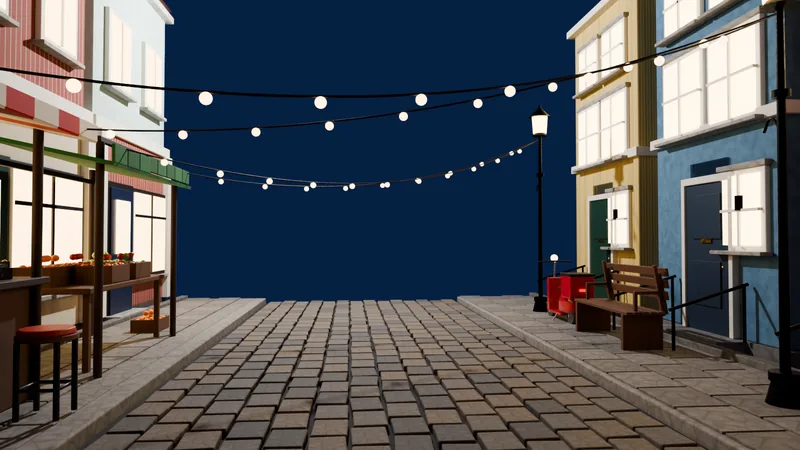 An evening market street built with the add-on from 11 typed requests. See every request →
Questions
Does applying scale change the size of my object?
No. The Dimensions stay the same; only the Scale values reset to 1 and the mesh data takes over the size.
Is there a default shortcut for Apply Scale?
No default key is listed for it, so use Object › Apply › Scale in the 3D Viewport.
How do I apply scale and rotation together?
Choose Object › Apply › Rotation & Scale. Use All Transforms to include location as well.
What the pictures show
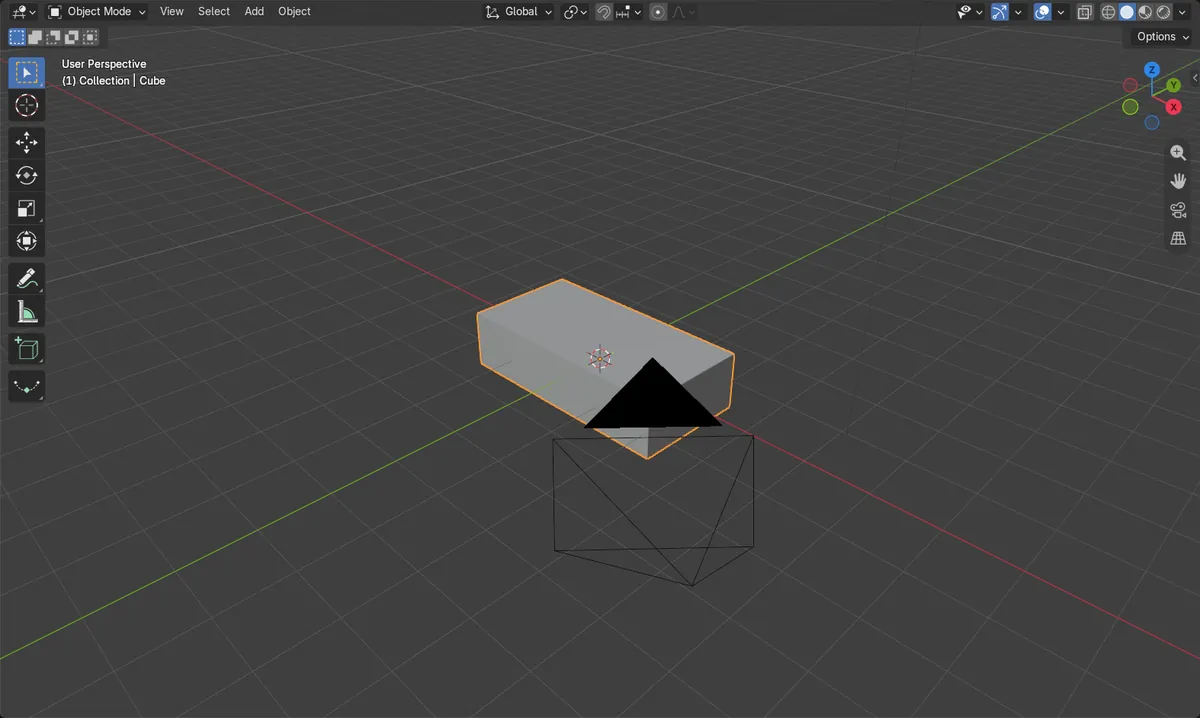
- Before applying, the cube had Scale (2, 1, 0.5) and Dimensions of 4 × 2 × 1 m.
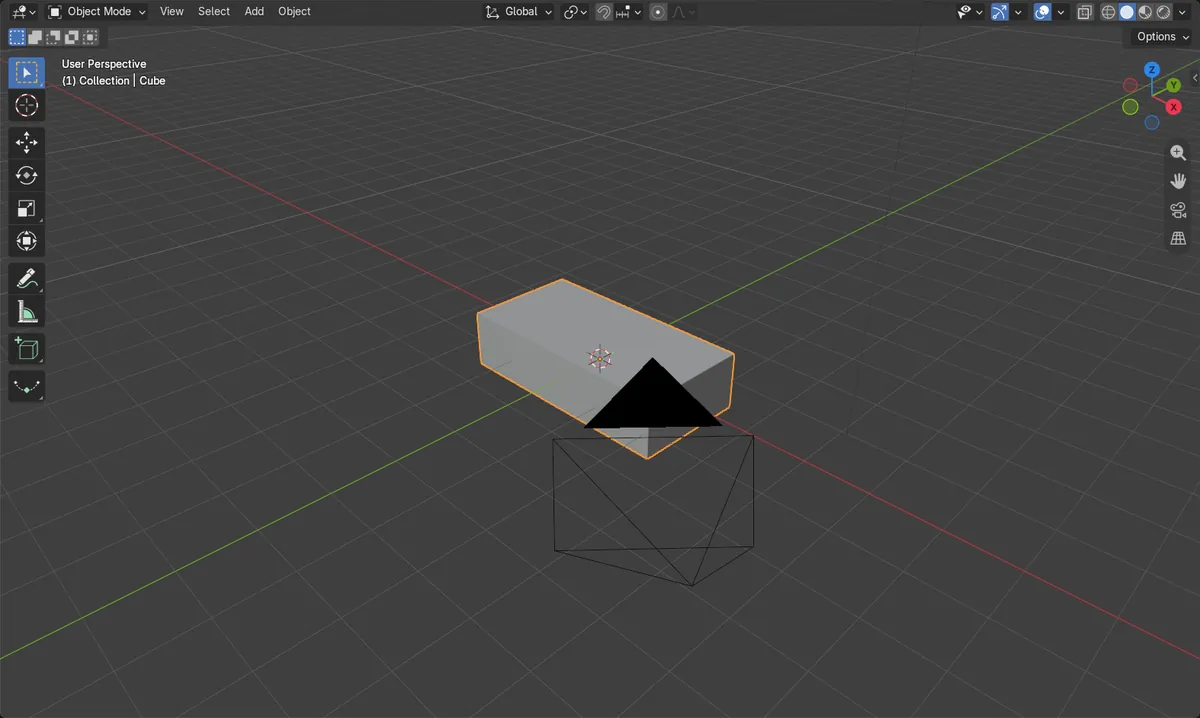
- After applying, Scale was (1, 1, 1) and Dimensions were still 4 × 2 × 1 m.
- The mesh's farthest vertex on X moved from 1 m to 2 m, and on Z from 1 m to 0.5 m, so the size is now stored in the mesh.
- Location stayed at (0, 0, 0) and the cube kept its 8 vertices.