How to Connect Two Vertices With an Edge in Blender (J)
Press Tab for Edit Mode and 1 for Vertex select. Click one vertex, Shift + click another on the same face, hover the 3D Viewport and press J (Connect Vertex Path). A new edge joins them and splits the face in two. In Vertex select mode the same tool is in the right-click menu as Connect Vertex Path, and in the header under Vertex.
- Mode
- Edit Mode, Vertex select
- Menu
- Vertex › Connect Vertex Path
- Shortcut
- J
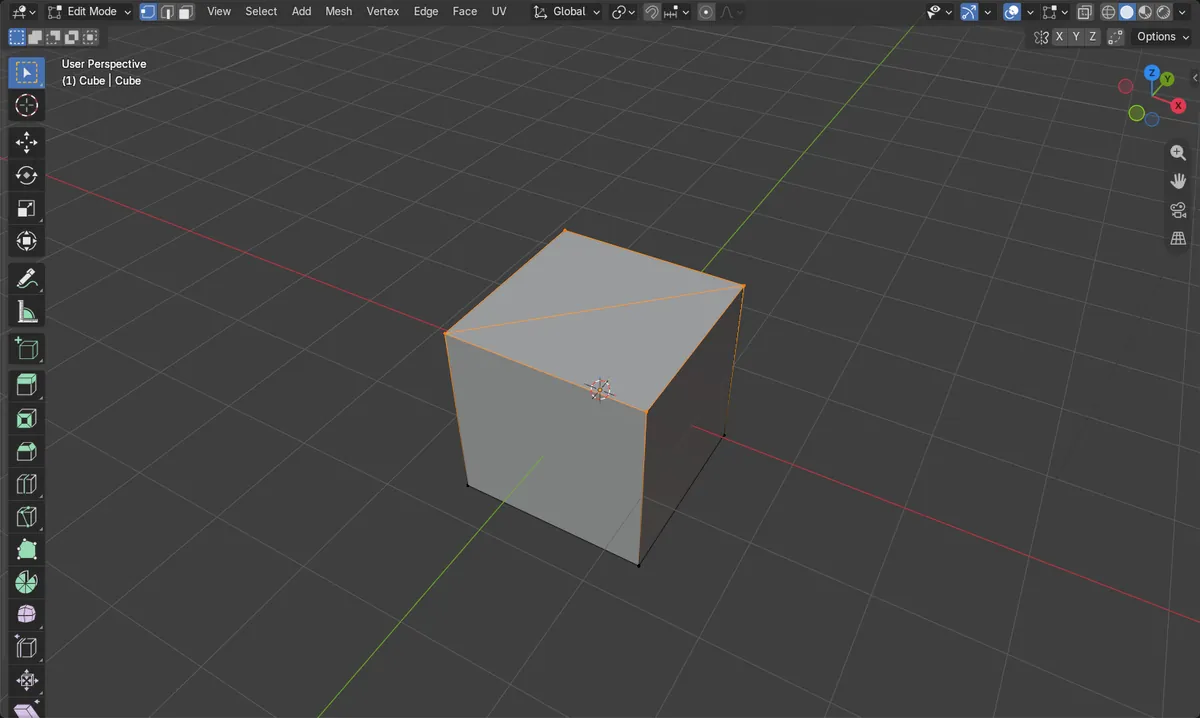
J
Joins the selected vertices with a new edge across the face.
Right-click in Vertex select
Connect Vertex Path is in that menu.
F is different
F makes an edge but does not split the face.
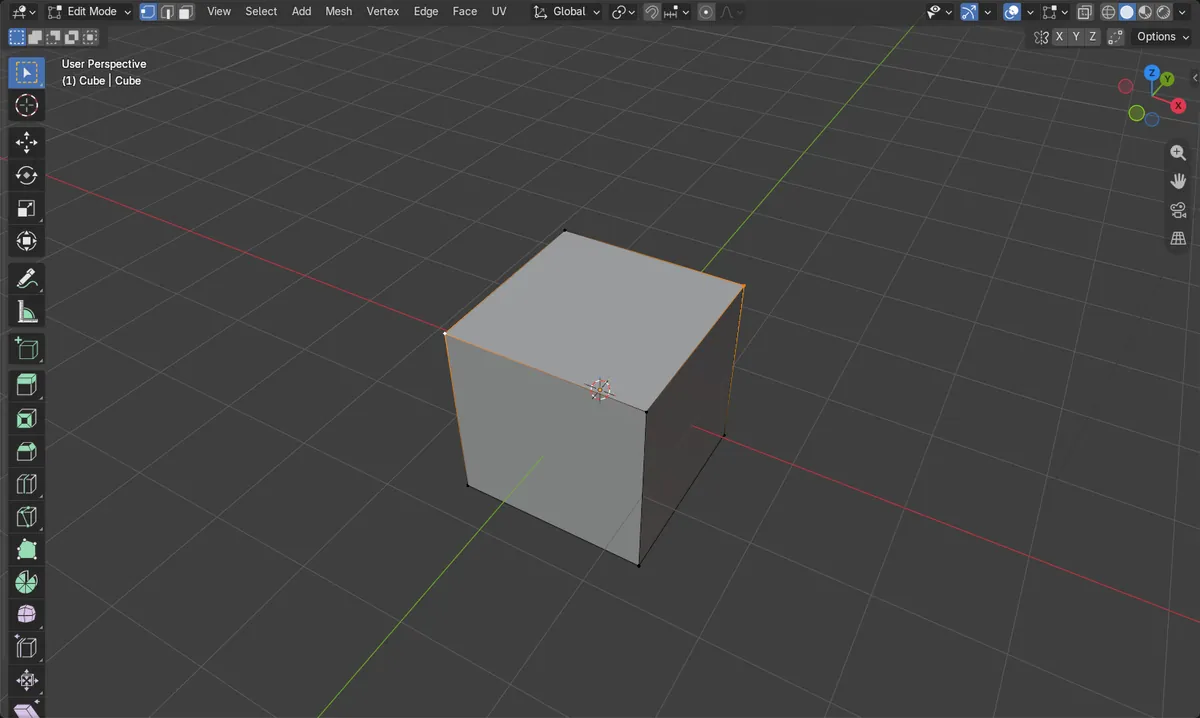
Before and after

AI Scene Builder is a Blender add-on. You type what you want, and it builds it in your scene: buildings, neon signs, wet pavement, fog and lights. Nothing in this picture was modeled by hand.
On a phone now? The add-on runs in Blender on a computer. Send yourself the link and open it there.
Step by step (Blender 5.x)
- Select the object and press Tab for Edit Mode.
- Press 1 for Vertex select.
- Click a vertex, then Shift + click a second vertex on the same face.
- Press J. A new edge appears between them and the face is split.
Other ways to do it
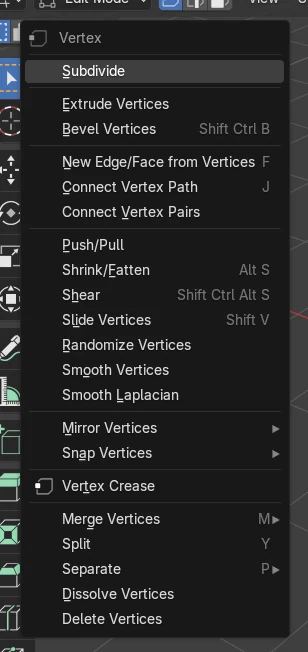
- In Vertex select, right-click and choose Connect Vertex Path
- Vertex › Connect Vertex Path in the header
- Vertex › Connect Vertex Pairs
Common snags
No Connect Vertex Path in the right-click menu
The right-click menu changes with the select mode. Connect Vertex Path is there in Vertex select; press 1 first.
F made an edge but the face is not split
F (New Edge/Face from Vertices) adds an edge without cutting the face. Undo and use J instead.
J does nothing
You need two or more selected vertices in Edit Mode, with the mouse over the 3D Viewport.
An AI add-on for Blender
AI Scene Builder is a Blender add-on that builds and edits your scene from one typed request, such as “a small wooden table with two chairs”. Each request can be undone in one click.
 A lighthouse island at sunset built with the add-on from 10 typed requests. See every request →
Questions
How do I make an edge between two vertices in Blender?
Select both in Vertex select and press J to cut a face, or F to add a plain edge.
What is the difference between J and F in Blender?
J connects vertices and splits the face between them. F adds an edge or face without cutting.
What the pictures show
- Before: two opposite corners of the cube's top face selected in Vertex select; 12 edges and 6 faces.
- J added one edge across the top face: 13 edges and 7 faces, still 8 vertices.
- Results were identical in Blender 4.2 LTS and Blender 5.x.