How to Export an FBX File from Blender
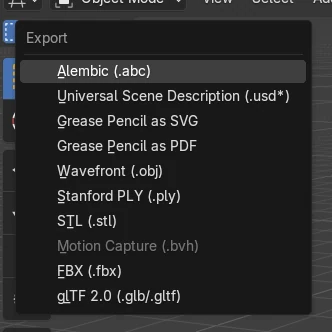
Select the objects you want to save, then choose File › Export › FBX (.fbx). In the Include section of the export window turn on Selected Objects under Limit to, type a file name and click Export FBX. Without that option Blender also saves every other object in the scene, such as the camera and the light.
- Mode
- Object Mode
- Menu
- File › Export › FBX (.fbx)
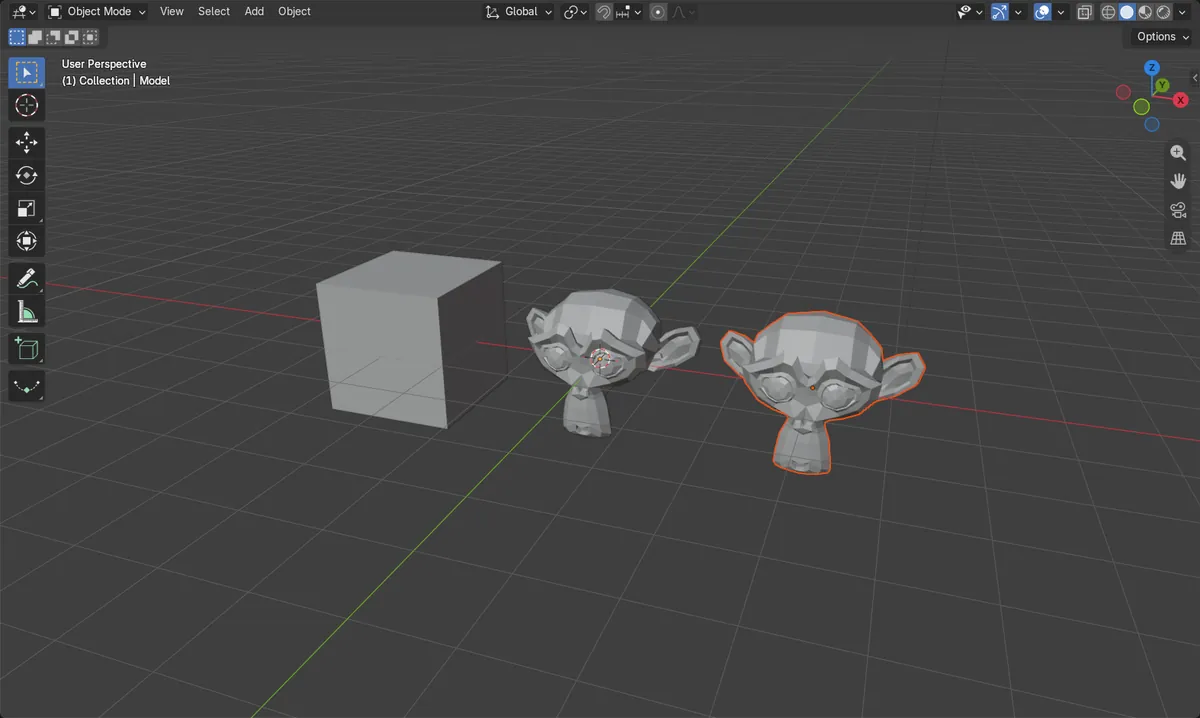
File > Export > FBX
Opens the FBX export window.
Selected Objects
Selected Objects under Limit to saves only your selection.
Textures
Set Path Mode to Copy and turn on the box icon to embed them.
Before and after

AI Scene Builder is a Blender add-on. You type what you want, and it builds it in your scene: buildings, neon signs, wet pavement, fog and lights. Nothing in this picture was modeled by hand.
On a phone now? The add-on runs in Blender on a computer. Send yourself the link and open it there.
Step by step (Blender 5.x)
- In Object Mode, select the objects to export. Shift-click to add more.
- Choose File › Export › FBX (.fbx).
- On the right, open the Include section and, under Limit to, turn on Selected Objects.
- To pack the textures into the file, set Path Mode to Copy and click the box icon next to it.
- Pick a folder, type a file name and click Export FBX.
Other ways to do it
- Object Types in the Include section leaves out cameras, lights or other kinds of objects
- Visible Objects or Active Collection under Limit to, instead of Selected Objects
Common snags
The camera and light are in the file too
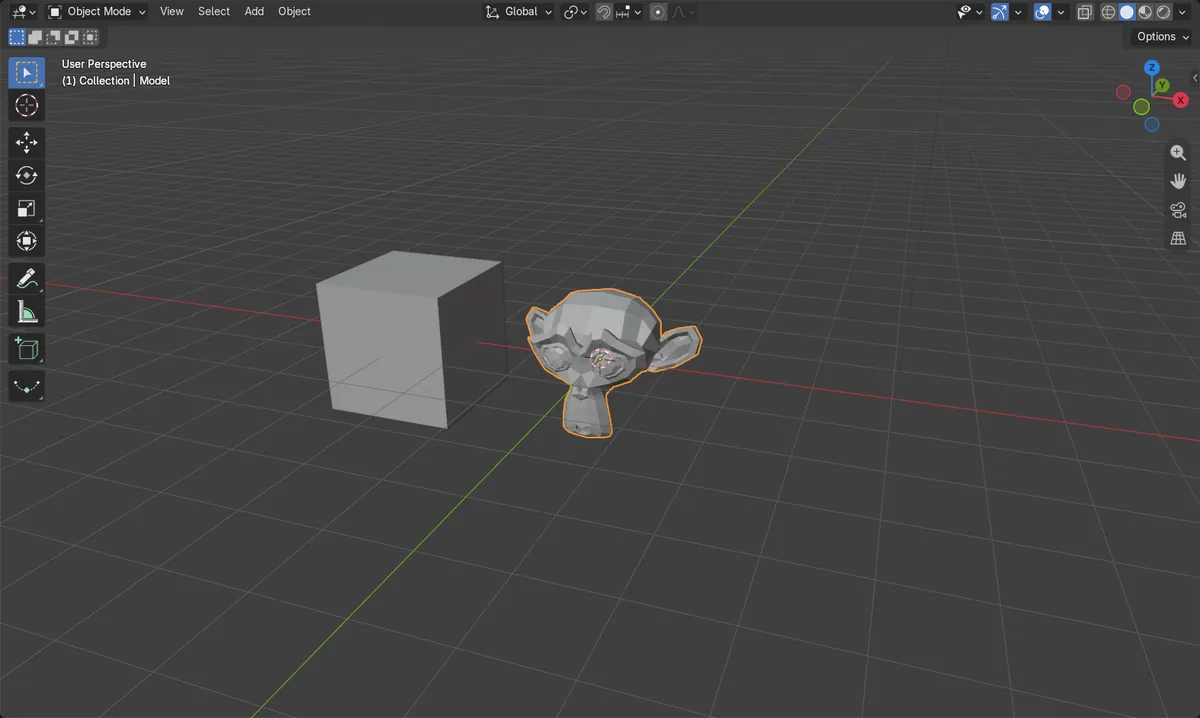
Selected Objects is off by default, so the whole scene is exported. Turn it on in Include. In the test only the selected model came back when the FBX was imported again; the cube was left out.
The textures are missing on another computer
By default the FBX only points to the image files. Set Path Mode to Copy and click the box icon next to it to embed the images.
The model has the wrong size in another program
Check Scale and Apply Scalings in the Transform section of the export window. Before exporting, press Ctrl + A and choose Scale on the model so its scale is 1.
An AI add-on for Blender
AI Scene Builder is a Blender add-on that builds and edits your scene from one typed request, such as “a small wooden table with two chairs”. Each request can be undone in one click.
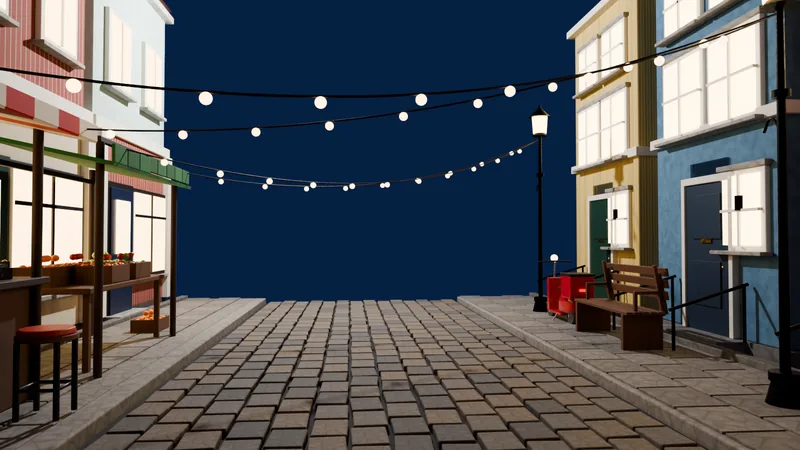 An evening market street built with the add-on from 11 typed requests. See every request →
Questions
How do I export animation to FBX?
Leave Bake Animation turned on in the export window; it is on by default.
How do I import an FBX file into Blender?
Choose File › Import › FBX (.fbx).
Can I export several objects to one FBX?
Yes. Select them all and turn on Selected Objects; they are saved in one file.
What the pictures show
- Before: the scene had the cube and the selected model.
- Exported with Selected Objects on and imported back: only the model came back, without the cube.
- The imported model had all 507 vertices and the same size as the original, 2.73 x 1.7 x 1.97.
- Results were identical in Blender 4.2 LTS and Blender 5.x.