Cutting a Mesh in Half in Blender (Bisect Tool)
In Edit Mode, select the geometry, right-click in the 3D Viewport and choose Bisect, then drag a line across the mesh to define the cut plane. Enable Clear Inner or Clear Outer in the Bisect panel to delete one half.
- Mode
- Edit Mode (3D Viewport)
Right-click Bisect
In Edit Mode, right-click the mesh and pick Bisect. Drag a line to place the plane.
Tab for Edit Mode
Press Tab with the mesh selected. Bisect works only in Edit Mode.
Clear one half
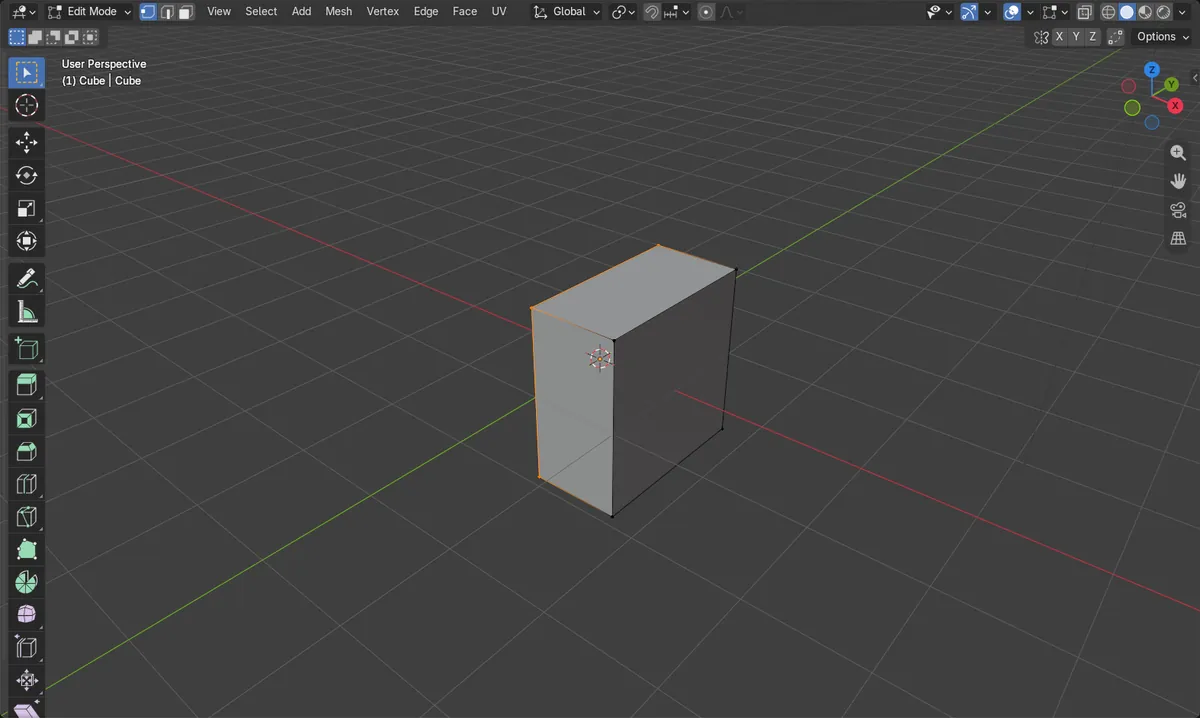
Use Clear Inner or Clear Outer. The other half stays, with new edge vertices on the cut.
Before and after

AI Scene Builder is a Blender add-on. You type what you want, and it builds it in your scene: buildings, neon signs, wet pavement, fog and lights. Nothing in this picture was modeled by hand.
On a phone now? The add-on runs in Blender on a computer. Send yourself the link and open it there.
Step by step (Blender 5.x)
- Hover over the 3D Viewport, click the mesh object, and press Tab to enter Edit Mode.
- Select the geometry to cut (for the whole mesh, press A to select all).
- Right-click in the viewport and choose Bisect.
- Click and drag across the mesh to draw the cut plane line.
- In the Bisect panel that appears at the bottom left, set the plane position and normal, and tick Clear Inner or Clear Outer to remove one half.
- Press Tab to go back to Object Mode when finished.
Other ways to do it
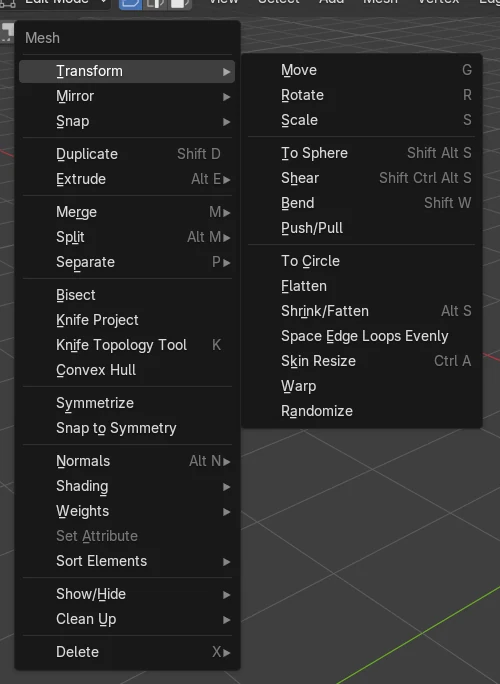
- Knife Topology Tool: press K in Edit Mode and draw a cut by hand.
- Loop Cut and Slide: press Ctrl + R to add an edge loop through the middle.
- Separate: use the Separate operation to split selected geometry into a new mesh instead of deleting it.
Common snags
Bisect is missing
You are probably in Object Mode. Press Tab with the mouse over the 3D Viewport to enter Edit Mode first.
Nothing is cut
Bisect only affects selected geometry. Select the parts you want cut, for example by pressing A.
Cut is in the wrong place
Adjust the plane point and normal in the Bisect panel after the drag, or redo the drag more carefully.
Or type one line in AI Scene Builder
AI Scene Builder is a Blender add-on that carries out the steps for you from one typed request. For this task, type a request like this one, using your own object names:
Cut the selected mesh in half along the X axis and delete the left half A log cabin room built with the add-on from 9 typed requests. See every request →
Questions
How do I cut a mesh exactly in half in Blender?
Select all in Edit Mode, choose Bisect from the right-click menu, drag a line, then set the plane position to the centre and the normal to the axis you want in the Bisect panel.
How do I delete one half after cutting?
Enable Clear Inner or Clear Outer in the Bisect panel. This removes the geometry on that side of the plane.
What the pictures show
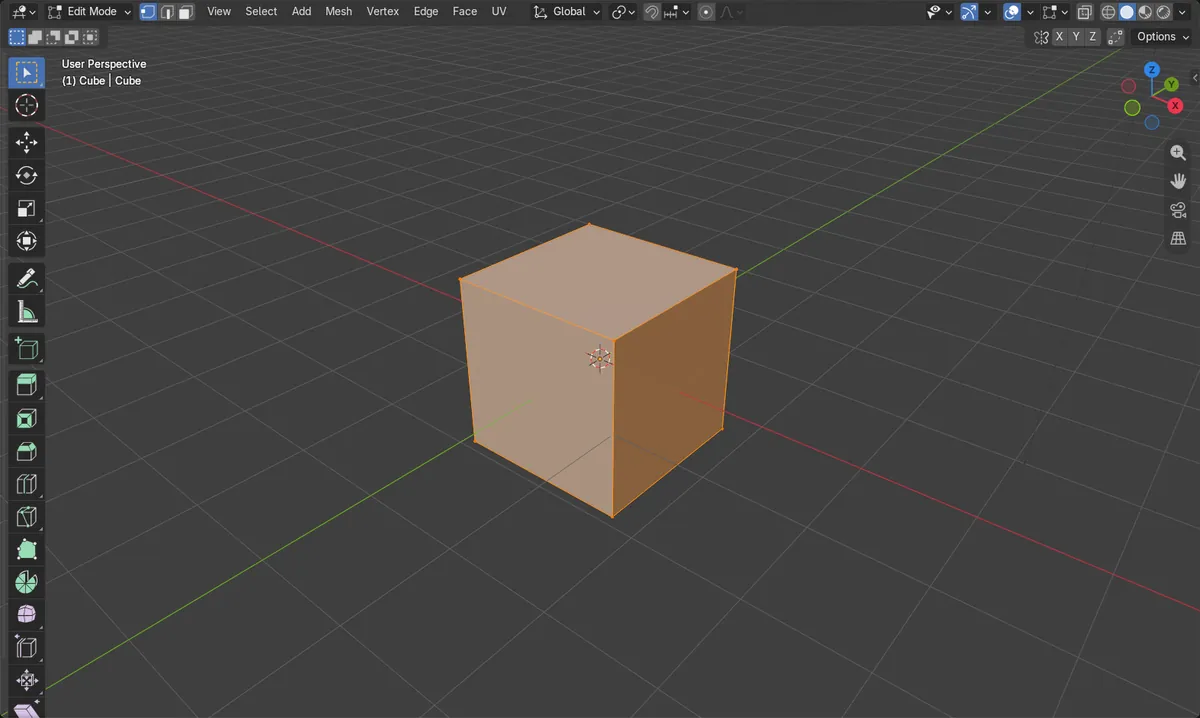
- A default cube spanning -1 m to 1 m on the X axis was selected in Edit Mode.
- Running Bisect with the plane at X = 0, the normal along X and Clear Inner turned on, the lowest X went from -1 m to 0 m.
- The highest X stayed at 1 m.
- The vertex count stayed at 8: four kept corners plus four new vertices on the cut.