How to Ripple Trim a Strip to the Playhead in Blender 5.3
In Blender 5.3, place the playhead where the strip should end, select the strip in the Sequencer timeline and press Shift + W, or choose Strip › Transform › Ripple Trim End. The strip is cut at the playhead and every strip after it moves back, so no gap is left. Use Shift + Q (Ripple Trim Start) to cut the front of the strip instead.
- Mode
- Video Sequencer, Sequencer timeline
- Menu
- Strip › Transform › Ripple Trim End
- Shortcut
- Shift + W
Shift + W / Shift + Q
Shift + W trims the end to the playhead. Shift + Q trims the start.
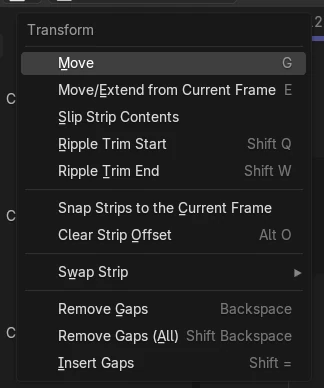
Transform submenu
Strip › Transform › Ripple Trim Start or Ripple Trim End.
New in 5.3
Blender 5.2 LTS has no Ripple Trim.
Before and after

AI Scene Builder is a Blender add-on. You type what you want, and it builds it in your scene: buildings, neon signs, wet pavement, fog and lights. Nothing in this picture was modeled by hand.
On a phone now? The add-on runs in Blender on a computer. Send yourself the link and open it there.
Step by step (Blender 5.3)
- Open the Video Sequencer and move the playhead to the frame where the strip should end.
- Click the strip you want to shorten so it is selected.
- With the mouse over the Sequencer timeline, press Shift + W, or choose Strip › Transform › Ripple Trim End.
- Check that the strip now ends at the playhead and the next strip starts right after it.
- To cut the beginning of a strip instead, put the playhead where it should start and press Shift + Q (Strip › Transform › Ripple Trim Start).
Other ways to do it
- Strip › Transform › Ripple Trim End in the Sequencer header
- Strip › Transform › Ripple Trim Start (Shift + Q) to cut the front part
- Split the strip with K and then remove the unwanted part with Ripple Delete (Shift + X)
Blender 5.2 LTS vs Blender 5.3
| What | Blender 5.2 LTS | Blender 5.3 |
|---|---|---|
| Ripple Trim Start / End | Not in Blender 5.2 LTS. The Transform submenu has no Ripple Trim items. | Blender 5.3 has Strip › Transform › Ripple Trim Start (Shift + Q) and Ripple Trim End (Shift + W). |
| Ripple Delete | Not in Blender 5.2 LTS. | Blender 5.3 has Strip › Ripple Delete (Shift + X or Shift + Delete). |
| Edit Mode ripple options | Not in Blender 5.2 LTS. | Blender 5.3 has the Edit Mode popover in the Sequencer header with All Channels and Markers. |
Common snags
The wrong end was cut
Shift + W cuts from the playhead to the end of the strip, and Shift + Q cuts from the start of the strip to the playhead. Undo and use the other key.
Shift + W did nothing
The key works only while the mouse is over the Sequencer timeline. Move the mouse there and press it again, or use Strip › Transform › Ripple Trim End.
Strips on other channels moved too
All Channels is on by default, so strips on every channel move back. Open the Edit Mode popover in the Sequencer header and turn off All Channels to move only the same channels.
An AI add-on for Blender
AI Scene Builder is a Blender add-on that builds and edits your scene from one typed request, such as “a small wooden table with two chairs”. Each request can be undone in one click.
 A log cabin room built with the add-on from 9 typed requests. See every request →
Questions
What is the shortcut for ripple trim in Blender?
In Blender 5.3, Shift + W trims the end of the selected strip to the playhead and Shift + Q trims its start, with the mouse over the Sequencer timeline.
How do I trim a strip and close the gap in one step?
Use Ripple Trim (Strip › Transform › Ripple Trim End or Ripple Trim Start). The cut part is removed and the later strips move back.
Is ripple trim in Blender 5.2 LTS?
No. Ripple Trim and Ripple Delete are new in Blender 5.3.
What the pictures show
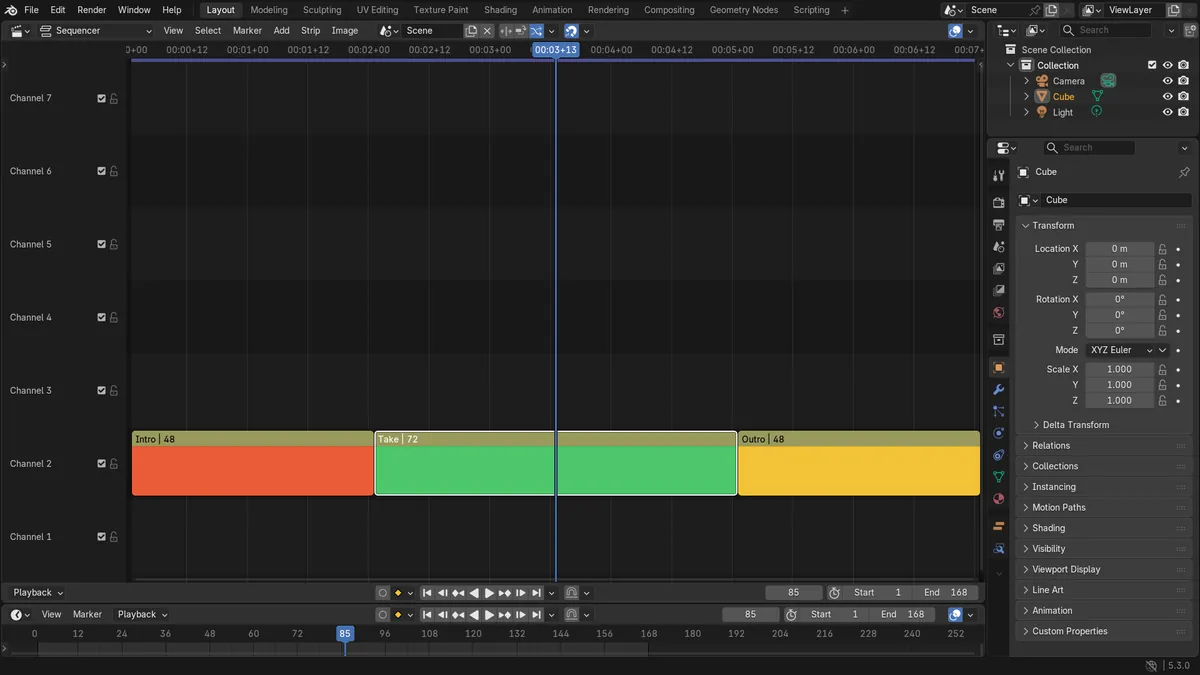
- Before: Intro (frames 1 to 49), Take (49 to 121) and Outro (121 to 169) sat end to end, with the playhead at frame 85.
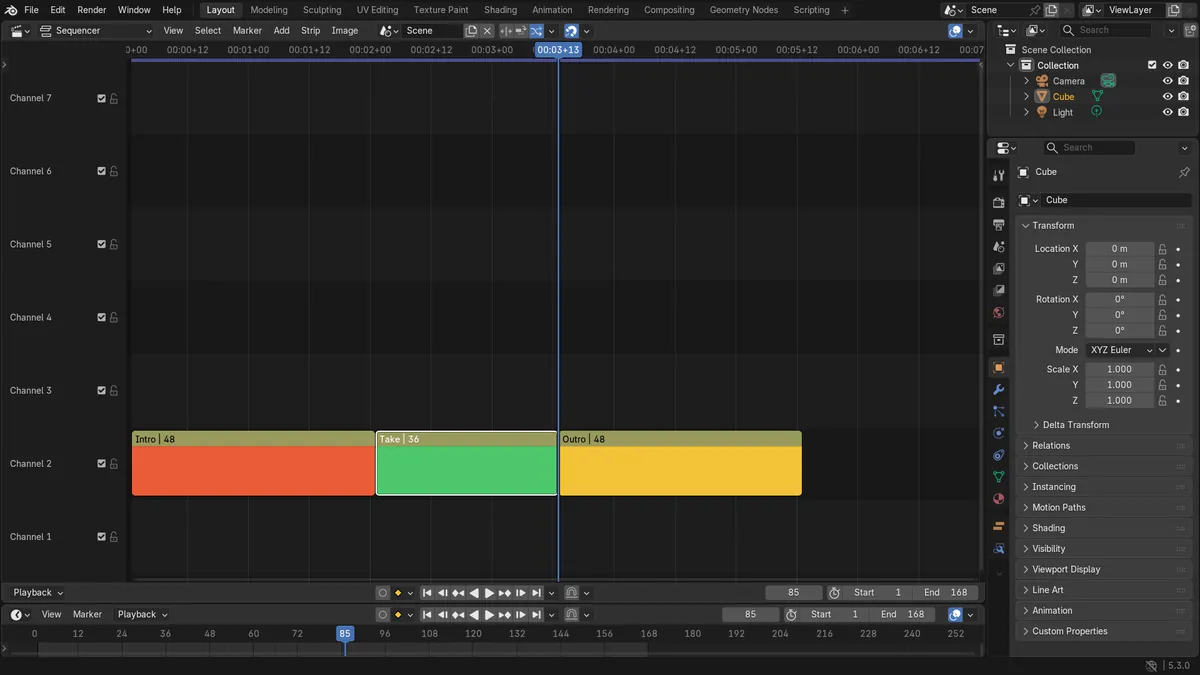
- After Ripple Trim End: Take ran from frame 49 to 85, ending exactly at the playhead.
- Outro moved back from frame 121 to 85, so there was no gap and the edit ended at frame 133 instead of 169.
- All three strips were still there; only the 36 frames after the playhead were removed.