How to Keep Seeing Node Warnings When Nodes Are Collapsed (Blender 5.3)
In Blender 5.3 you do not need to change anything: a node that has a warning keeps its warning icon in the header after you collapse it with H (Collapse in the Show/Hide submenu of the Node menu). Hover over the icon to read the message, or expand the node again with H.
- Mode
- Geometry Nodes editor
- Shortcut
- H
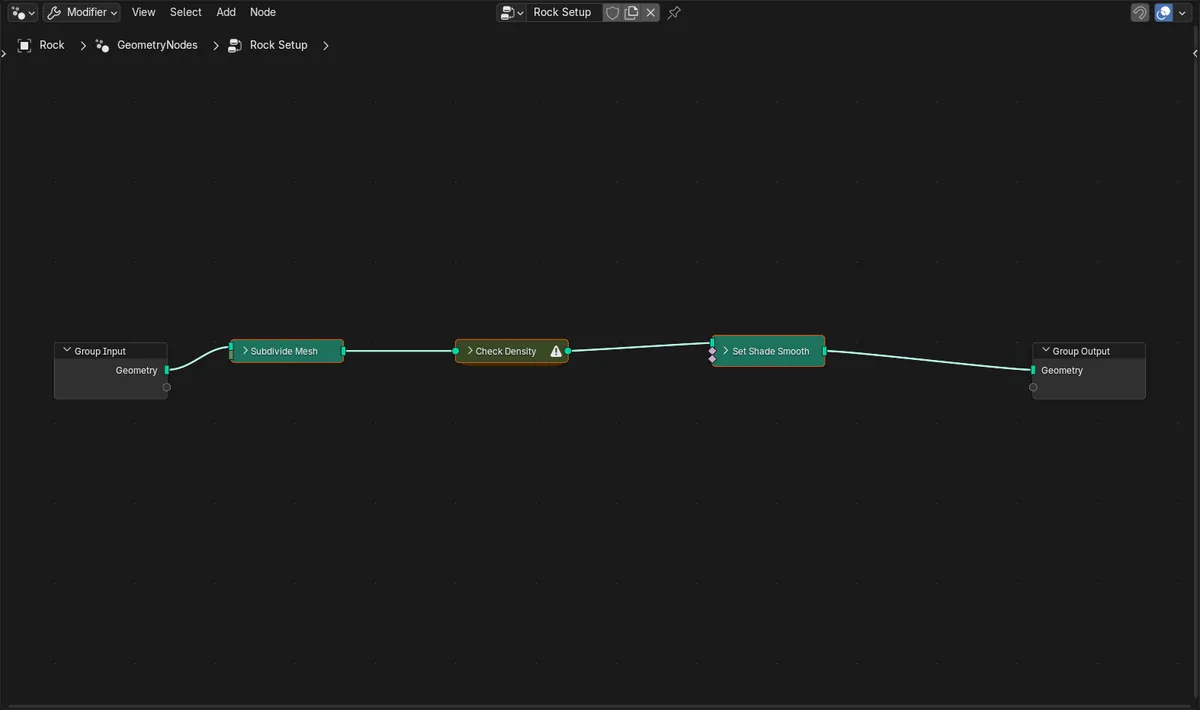
Collapse with H
Collapsing shrinks nodes to a single header row, from H, the Node menu or the right-click menu.
Icon stays
A group node with a warning showed the same warning icon before and after collapsing.
New in 5.3
In Blender 5.2 LTS the warning icon disappears when the node is collapsed.
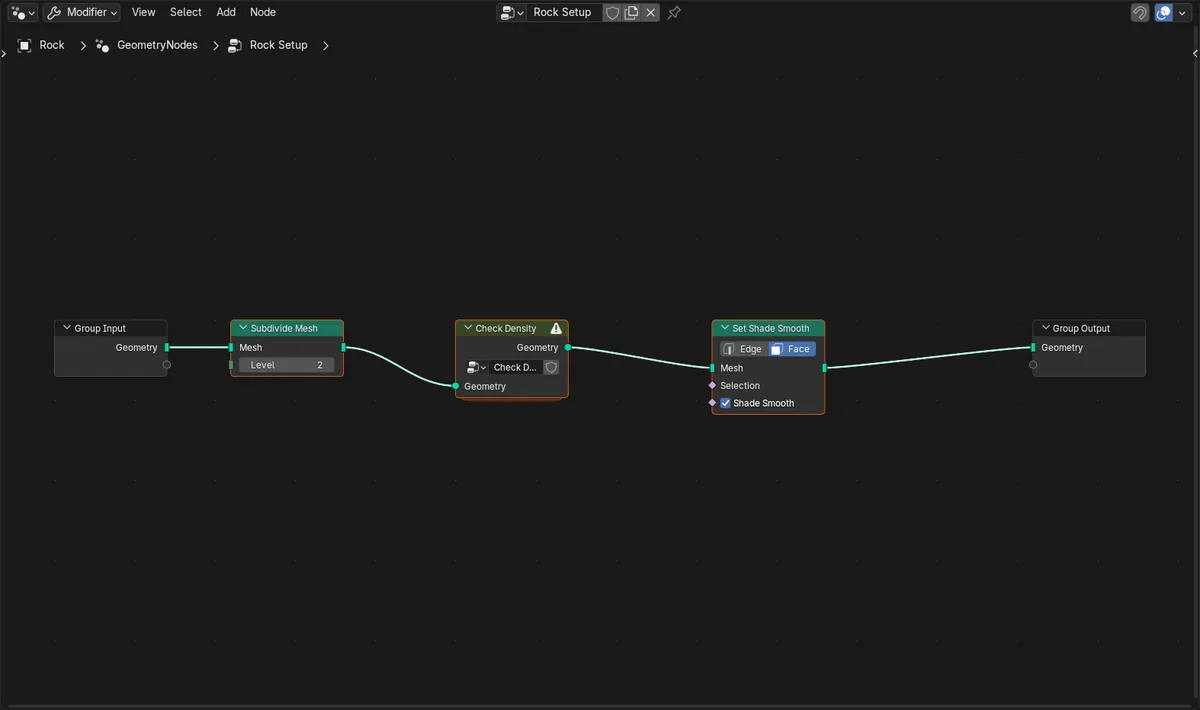
Before and after

AI Scene Builder is a Blender add-on. You type what you want, and it builds it in your scene: buildings, neon signs, wet pavement, fog and lights. Nothing in this picture was modeled by hand.
On a phone now? The add-on runs in Blender on a computer. Send yourself the link and open it there.
Step by step (Blender 5.3)
- Open the Geometry Nodes editor with your node group.
- Select the nodes you want to tidy up.
- Press H, or choose Collapse in the Show/Hide submenu of the Node menu.
- Look for the warning icon at the right end of a collapsed node's header.
- Hover over the icon to read the warning, or press H again to expand the node.
Other ways to do it
- Right-click a node and choose Collapse in the Show/Hide submenu
- Click the small arrow at the left of a node's header to collapse or expand just that node
Blender 5.2 LTS vs Blender 5.3
| What | Blender 5.2 LTS | Blender 5.3 |
|---|---|---|
| Warnings on collapsed nodes | Not in Blender 5.2 LTS. A collapsed node hides its warning icon; expand the node with H to see it. | Blender 5.3 keeps the warning icon in the header of collapsed nodes. |
Common snags
No warning icon at all
Warnings appear only after the tree has been evaluated. The object using the node group must be visible and have the Geometry Nodes modifier turned on.
The icon is on a group node
A group node shows warnings from nodes inside it. Press Tab on the group to open it and find the node that raised the warning.
The warning is still there after a fix
The icon updates when the tree runs again. Change a value or move to another frame to refresh it.
An AI add-on for Blender
AI Scene Builder is a Blender add-on that builds and edits your scene from one typed request, such as “a small wooden table with two chairs”. Each request can be undone in one click.
 A lighthouse island at sunset built with the add-on from 10 typed requests. See every request →
Questions
Why can't I see node warnings after collapsing nodes in Blender?
Blender 5.2 LTS and older hide the icon on collapsed nodes. Blender 5.3 keeps it in the header.
How do I collapse a node in Geometry Nodes?
Select it and press H, or choose Collapse in the Show/Hide submenu of the Node menu.
How do I read the warning on a collapsed node?
Hover over the warning icon in its header to see the message.
What the pictures show
- Before: a Geometry Nodes tree with Subdivide Mesh, a group node 'Check Density' holding a Warning node, and Set Shade Smooth showed a warning icon on the group node's header.
- After collapsing all three nodes with H: the tree became a row of single-line nodes and the collapsed group node still showed the warning icon.
- In Blender 5.2 LTS the expanded group node showed the icon too, but after collapsing it the icon was gone.