How to Turn On Hardware Video Decoding in the Video Editor (Blender 5.3)
In Blender 5.3, open Edit › Preferences..., go to System and tick Hardware Video Decoding in the Video Sequencer section. Blender then uses the GPU to decode videos when the system supports it. The setting is off by default and affects videos opened after the change, so add the movie strip again or reopen the file. In the test a 3840 x 2160 H.264 movie strip played at 28.5 ms per frame with the setting on and 27.3 ms with it off, so on this PC playback speed stayed about the same. Blender 5.2 LTS has no such setting.
- Mode
- Preferences, System section
- Menu
- Edit › Preferences... › System › Video Sequencer
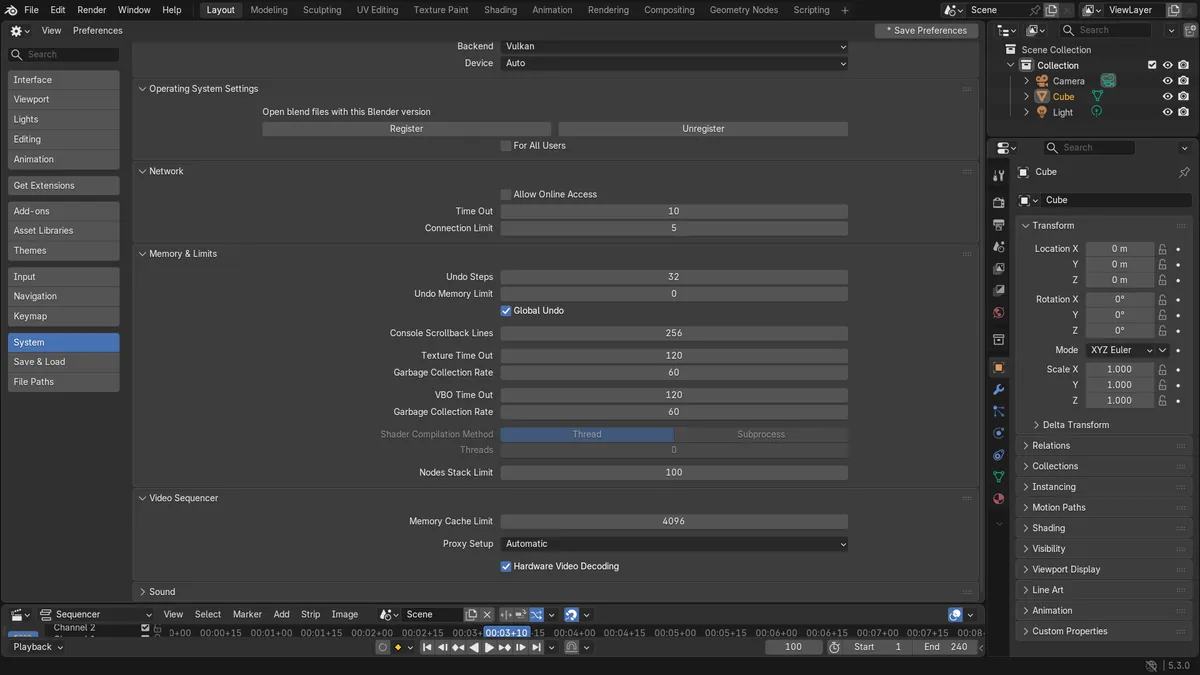
A new System preference
Hardware Video Decoding sits in the Video Sequencer section of the System preferences, next to the Memory Cache Limit.
Off by default
Blender 5.3 starts with the setting off. Its tooltip reads: Use the GPU to decode videos when supported. Videos that are already open are not affected.
Results depend on the hardware
On the test PC a 4K H.264 clip played at about the same speed with the setting on and off. GPUs and video formats differ in what they can decode.
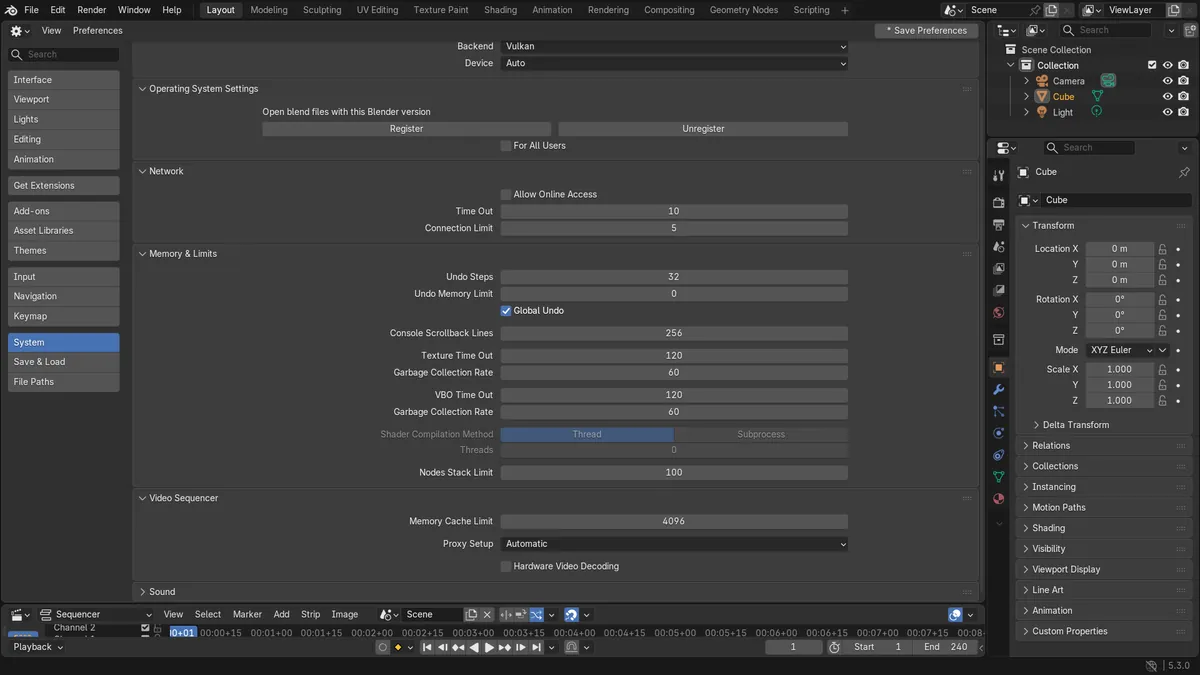
Before and after

AI Scene Builder is a Blender add-on. You type what you want, and it builds it in your scene: buildings, neon signs, wet pavement, fog and lights. Nothing in this picture was modeled by hand.
On a phone now? The add-on runs in Blender on a computer. Send yourself the link and open it there.
Step by step (Blender 5.3)
- Open Edit › Preferences... from the top menu.
- Click System in the list on the left.
- In the Video Sequencer section, tick Hardware Video Decoding.Blender 5.2 LTS: Blender 5.2 LTS has no Hardware Video Decoding setting.
- If Auto-Save Preferences is off, click Save Preferences in the lower left so the setting is kept.
- Add the movie strip again in the Video Editor, or reopen the .blend file, so the video is opened with the new setting.
Other ways to do it
- Raise the Memory Cache Limit in the same Video Sequencer section so more decoded frames stay in memory during playback
Blender 5.2 LTS vs Blender 5.3
| What | Blender 5.2 LTS | Blender 5.3 |
|---|---|---|
| Hardware Video Decoding | Not in Blender 5.2 LTS. Videos are decoded on the CPU. | Blender 5.3 adds Hardware Video Decoding in the System preferences, off by default. |
Common snags
Playback did not change after ticking the box
Videos that are already open keep their old decoder. Add the movie strip again or reopen the .blend file after changing the setting.
The setting is gone after a restart
Auto-Save Preferences is off. Open the Preferences again, tick the box and click Save Preferences.
No speed-up
Support depends on the GPU, its driver and the video codec. On the test PC a 4K H.264 clip played at about the same speed with the setting on and off. Raising the Memory Cache Limit in the same section keeps more decoded frames in memory for playback.
An AI add-on for Blender
AI Scene Builder is a Blender add-on that builds and edits your scene from one typed request, such as “a small wooden table with two chairs”. Each request can be undone in one click.
 A log cabin room built with the add-on from 9 typed requests. See every request →
Questions
Does Blender use the GPU to decode video?
From Blender 5.3, yes, when Hardware Video Decoding is ticked in the System preferences and the GPU supports the video format. It is off by default.
Why is video playback still slow after turning on hardware decoding?
Videos already open are not affected, so add the strip again. If it is still slow, the GPU may not decode that format; raise the Memory Cache Limit so more frames stay cached.
Where is the hardware decoding setting in Blender?
In Blender 5.3 it is under Edit › Preferences... › System, in the Video Sequencer section.
What the pictures show
- Before: Blender 5.3 with Hardware Video Decoding off (the default) and a 3840 x 2160 H.264 movie strip of 240 frames in the Video Editor.
- With the setting on and the strip added again, three passes of 60 frames averaged 28.5 ms per frame. With the setting off, the same passes averaged 27.3 ms per frame.
- Blender 5.2 LTS had no Hardware Video Decoding setting, and the same clip averaged 32.4 ms per frame.