Invert Selection in Edit Mode in Blender
Yes. In Edit Mode, press Ctrl + I with the mouse over the 3D Viewport, or choose Select › Invert from the viewport header. Everything that was selected becomes deselected, and everything that was not selected becomes selected.
- Mode
- Edit Mode (3D Viewport)
- Menu
- Select › Invert
- Shortcut
- Ctrl + I
Ctrl + I
Inverts the selection in Edit Mode. Mouse must be over the 3D Viewport.
Select > Invert
Same action from the 3D Viewport header Select menu.
Works on mesh elements
Applies to vertices, edges or faces, depending on select mode.
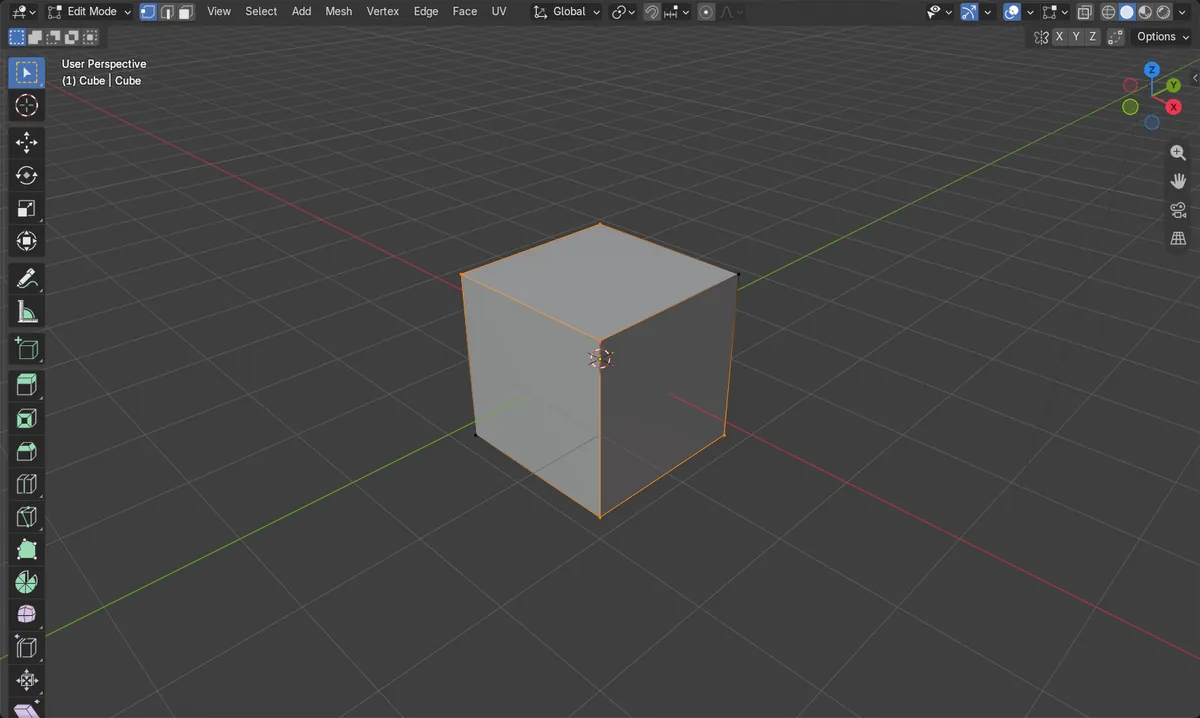
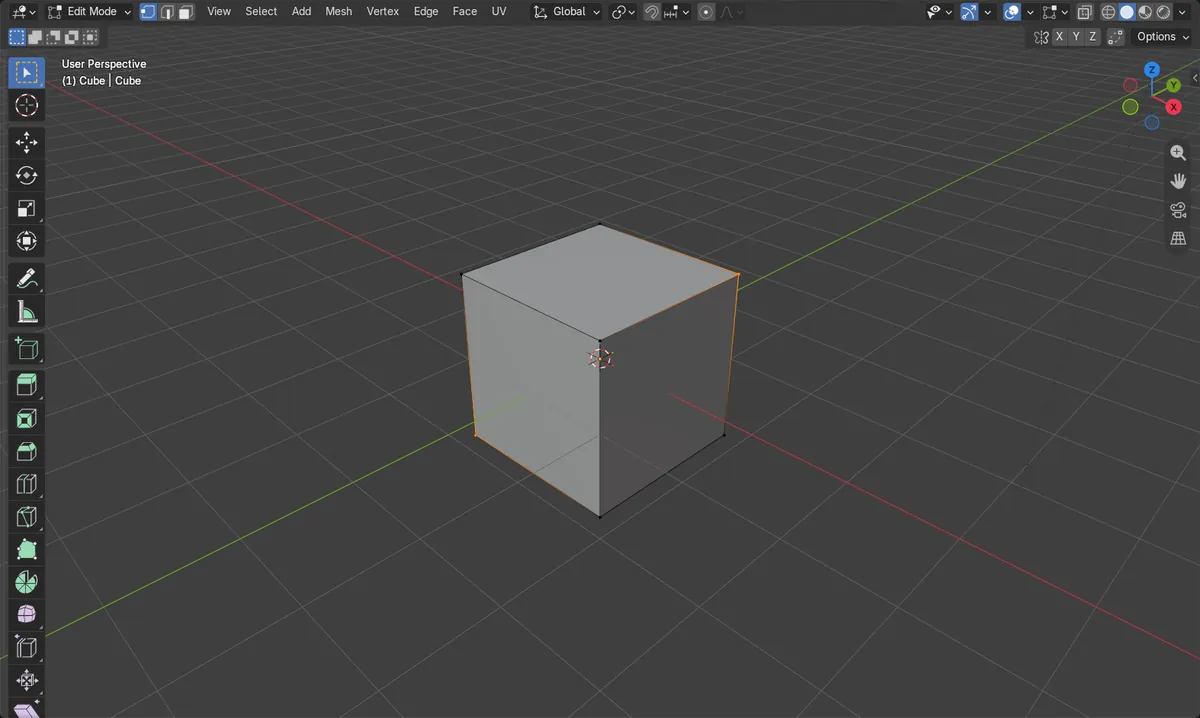
Before and after

AI Scene Builder is a Blender add-on. You type what you want, and it builds it in your scene: buildings, neon signs, wet pavement, fog and lights. Nothing in this picture was modeled by hand.
On a phone now? The add-on runs in Blender on a computer. Send yourself the link and open it there.
Step by step (Blender 5.x)
- Select the object and press Tab to enter Edit Mode.
- Choose a select mode: press 1 (vertex), 2 (edge) or 3 (face), then select the elements you want to leave out.
- Move the mouse over the 3D Viewport and press Ctrl + I, or choose Select › Invert.
- Check that the previously selected elements are now deselected and all the others are selected.
Other ways to do it
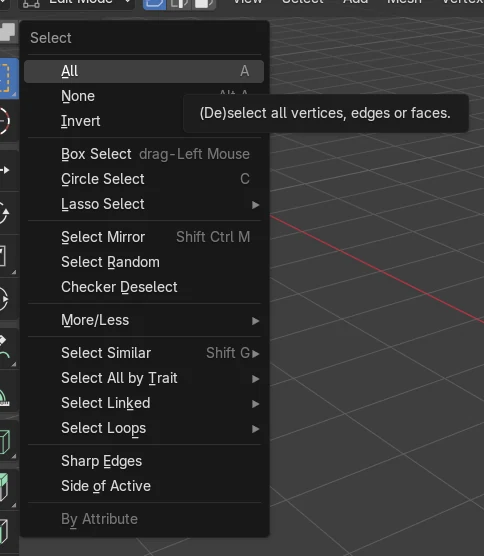
- Select › All (or the A key) selects everything, and Select › None (or Alt + A) clears the selection
Common snags
Nothing seems to happen
The mouse is probably over another editor, so the key is ignored. Move the pointer over the 3D Viewport and press Ctrl + I again.
Wrong mode
In Object Mode, the Select menu inverts objects instead of mesh elements. Press Tab to enter Edit Mode first.
Unexpected result in face or edge mode
Inversion works on the active select mode. Press 1, 2 or 3 to switch modes before inverting.
An AI add-on for Blender
AI Scene Builder is a Blender add-on that builds and edits your scene from one typed request, such as “a small wooden table with two chairs”. Each request can be undone in one click.
 A log cabin room built with the add-on from 9 typed requests. See every request →
Questions
What is the shortcut to invert selection in Blender Edit Mode?
Press Ctrl + I with the mouse over the 3D Viewport.
Where is Invert in the menu?
In the 3D Viewport header, open Select and click Invert.
Does it work the same in Blender 4.2 LTS and Blender 5.x?
Yes. The key and the menu item are the same in both versions.
What the pictures show
- Before: 2 of 8 vertices of a cube were selected (vertices 0 and 7).
- After Invert: 6 of 8 vertices were selected (vertices 1 to 6).
- None of the originally selected vertices remained selected, and the total stayed at 8.
- The object stayed in Edit Mode throughout.