How to Mirror an Object Across an Axis in Blender
Select the object, press Ctrl + M, tap the axis key (X, Y or Z) and confirm with a left-click or the Enter key: the object is flipped across that axis. The same command is in Object › Mirror › Interactive Mirror. To keep the original too, duplicate it with Shift + D first and mirror the copy.
- Mode
- Object Mode or Edit Mode, 3D Viewport
- Menu
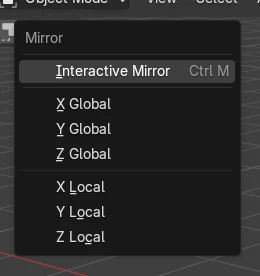
- Object › Mirror › Interactive Mirror
- Shortcut
- Ctrl + M
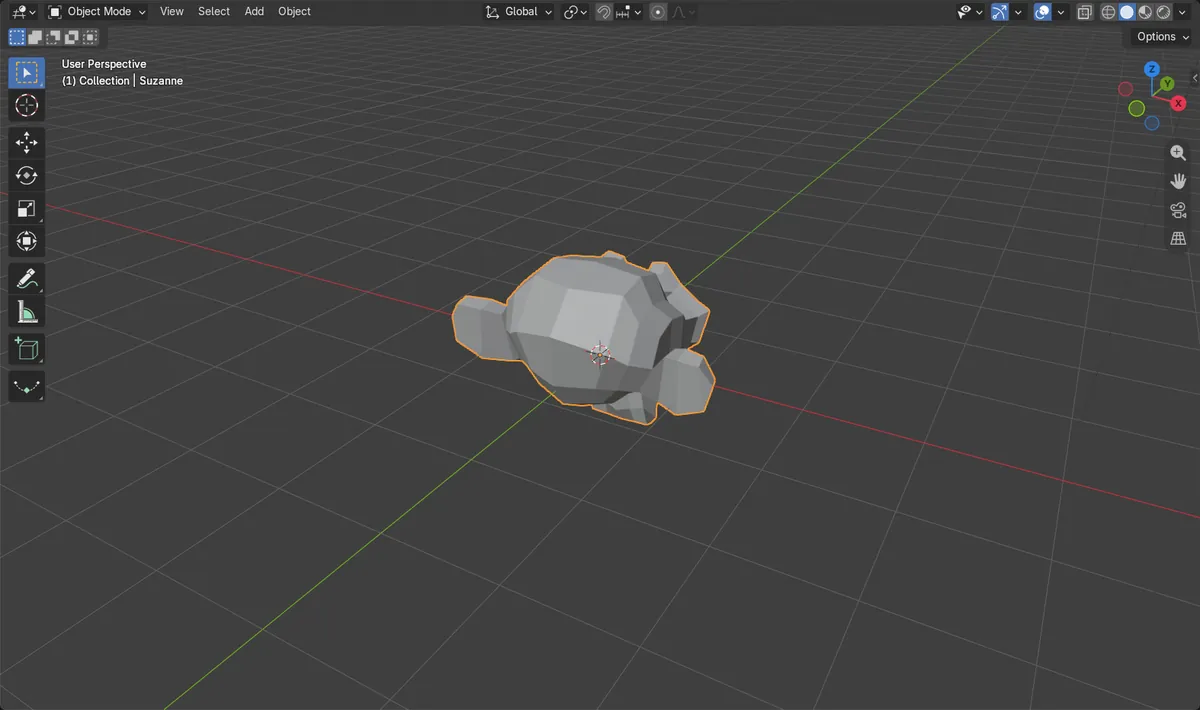
Ctrl + M, then axis
Flips the selection across X, Y or Z.
Object > Mirror
Interactive Mirror lives here, and in the Mesh menu in Edit Mode.
Shift + D for a copy
Duplicate first to keep both the original and the mirror.
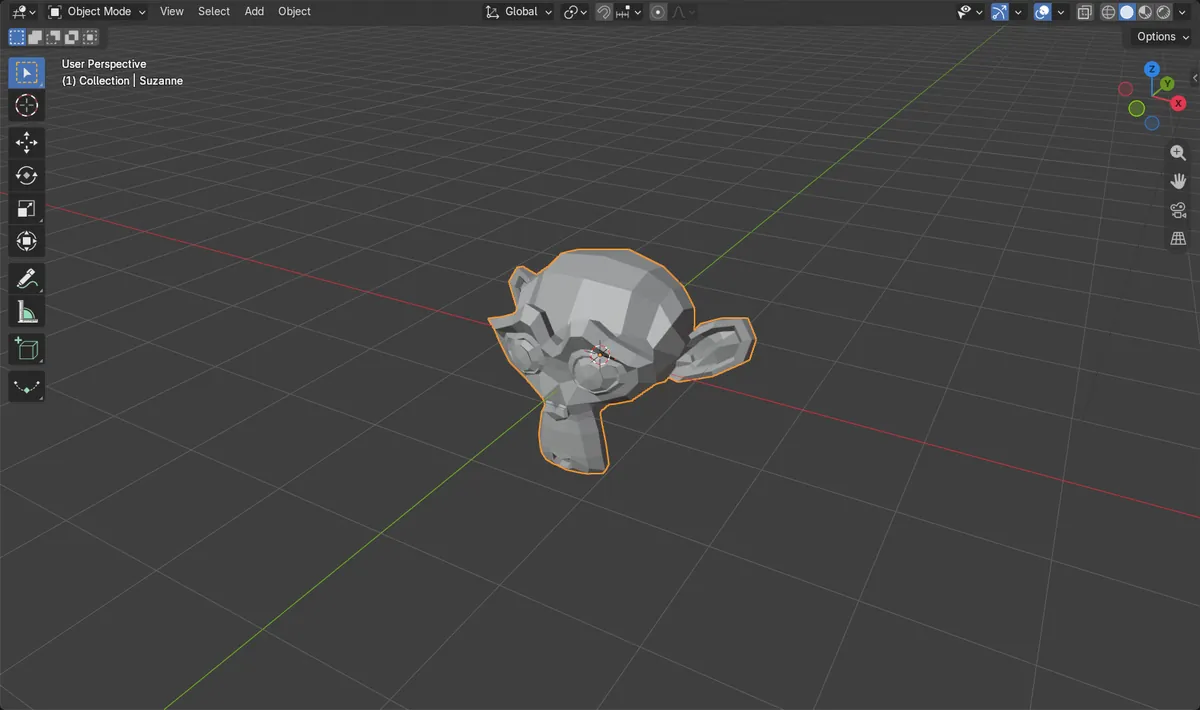
Before and after

AI Scene Builder is a Blender add-on. You type what you want, and it builds it in your scene: buildings, neon signs, wet pavement, fog and lights. Nothing in this picture was modeled by hand.
On a phone now? The add-on runs in Blender on a computer. Send yourself the link and open it there.
Step by step (Blender 5.x)
- Click the object in Object Mode to select it.
- If you want to keep the original, press Shift + D, then right-click so the copy stays in place.
- Press Ctrl + M to start Interactive Mirror.
- Tap the Y key to flip across the Y axis (or the X or Z key for the other axes).
- Confirm with a left-click or the Enter key. The object is now a mirror image of itself.
Other ways to do it
- Object › Mirror › Interactive Mirror in Object Mode
- Mesh › Mirror in Edit Mode, to mirror only the selected vertices, edges or faces
Common snags
Scale shows -1
Mirroring an object in Object Mode stores the flip as a negative Scale value. That is expected. Use Object › Apply › Scale if you want the mesh itself flipped and the Scale back to 1.
Shading looks dark after mirroring
A mirrored mesh can end up with its normals facing inward. In Edit Mode, select all and use Mesh › Normals › Recalculate Outside.
The copy jumped away
The mirror happens around the pivot point. If the 3D cursor or another point is the pivot, the object lands on the other side of it instead of in place.
An AI add-on for Blender
AI Scene Builder is a Blender add-on that builds and edits your scene from one typed request, such as “a small wooden table with two chairs”. Each request can be undone in one click.
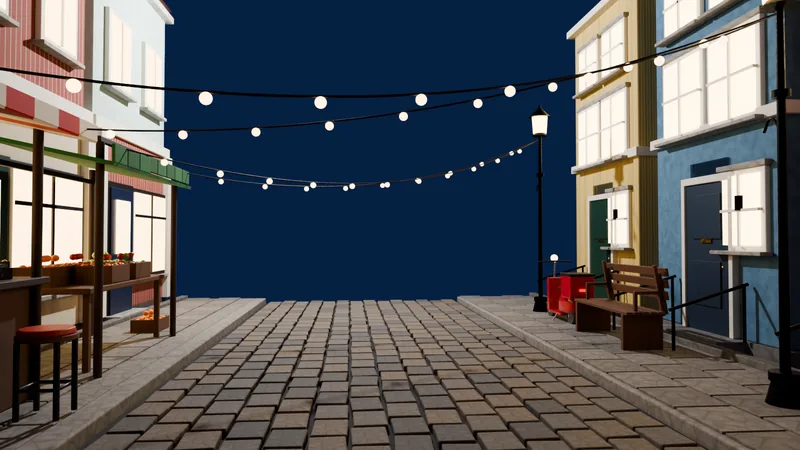 An evening market street built with the add-on from 11 typed requests. See every request →
Questions
What is the shortcut to mirror in Blender?
Ctrl + M starts Interactive Mirror. Tap X, Y or Z for the axis and click to confirm.
How do I mirror a copy of an object in Blender?
Duplicate it with Shift + D, right-click to keep it in place, then press Ctrl + M and pick the axis.
Why is my mirrored object's scale negative?
Mirroring in Object Mode is stored as a negative scale. Apply the scale from Object › Apply to make it positive again.
What the pictures show
- Before: Suzanne at location 0, 0, 0 with Scale 1, 1, 1.
- After Mirror on the Y axis: Scale is 1, -1, 1 and the location is still 0, 0, 0, so it flipped in place.
- Results were identical in Blender 4.2 LTS and Blender 5.x.