How to Show a Scene's New End Frames in a Scene Strip (Blender 5.3)
In Blender 5.3, a scene strip's content follows the frame range of the scene it shows; drag the strip's right edge out to show the new frames. In the test a strip of the scene Shot (frames 1 to 50) sat in the scene Edit; after changing Shot's End to 100 and dragging the strip's right edge to frame 101, the strip held all 100 frames of Shot. In Blender 5.2 LTS, choose Strip › Update Scene Frame Range before dragging; without it the strip held 50 frames, and frames 51 to 100 repeated Shot's frame 50 as a still.
- Mode
- Video Sequencer, scene strips
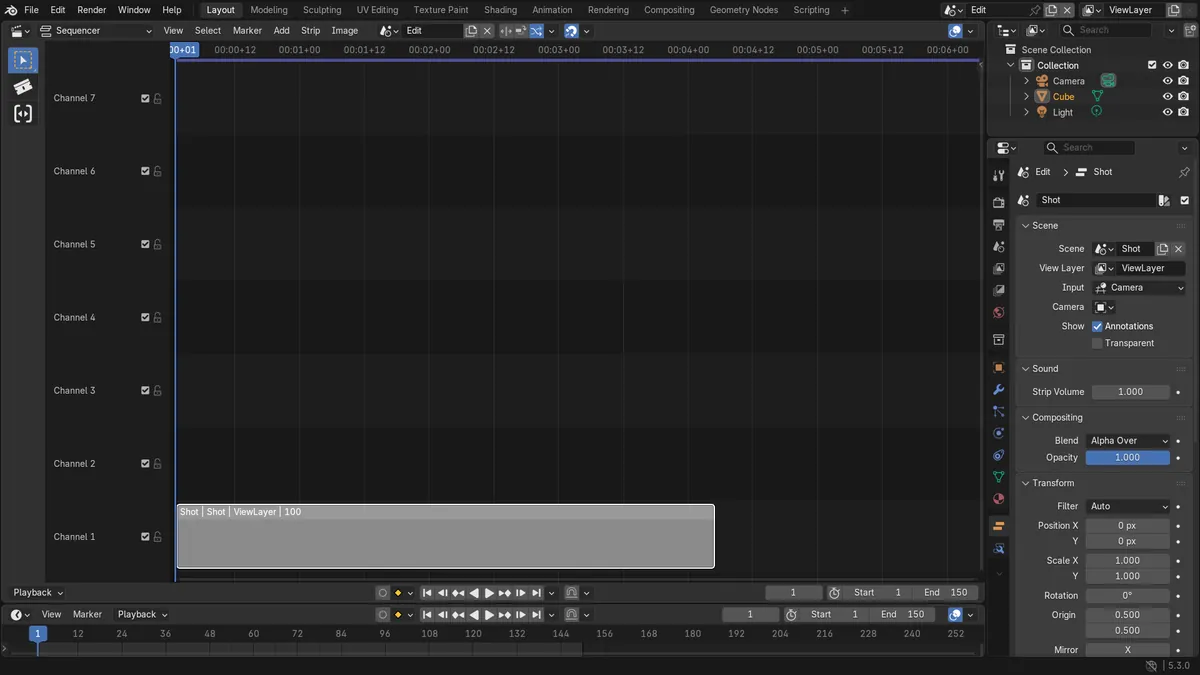
Content follows the scene
After Shot's End went from 50 to 100, the scene strip's content became 100 frames long in Blender 5.3.
No update button needed
Update Scene Frame Range is now deprecated and has no effect, because the strip's content updates by itself.
New in 5.3
In Blender 5.2 LTS the strip keeps the old length of the scene until Update Scene Frame Range is run, and stretching it before that repeats the last frame.
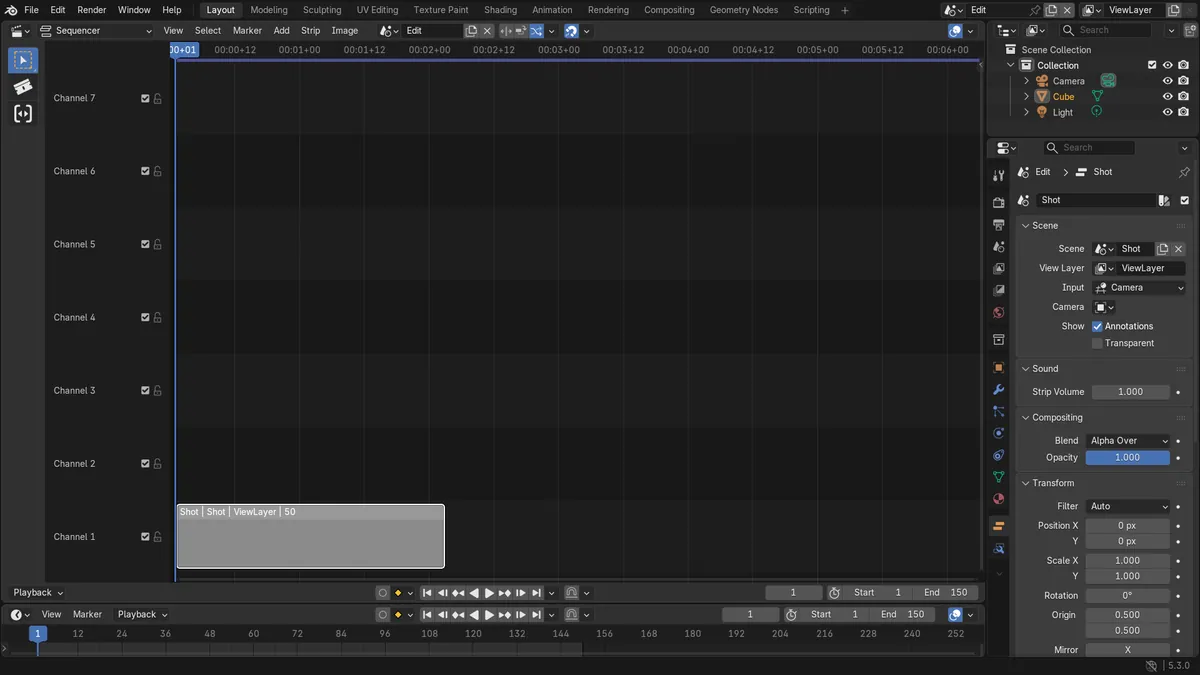
Before and after

AI Scene Builder is a Blender add-on. You type what you want, and it builds it in your scene: buildings, neon signs, wet pavement, fog and lights. Nothing in this picture was modeled by hand.
On a phone now? The add-on runs in Blender on a computer. Send yourself the link and open it there.
Step by step (Blender 5.3)
- Switch to the scene the strip shows (Shot in the test).
- In the Output properties, open the Frame Range panel and set End to the new last frame (from 50 to 100 in the test).
- Switch back to the editing scene (Edit in the test) and look at the scene strip in the Sequencer.
- If the strip still ends at the old frame, drag its right edge out until it covers the new frames (frame 101 for 100 frames starting at frame 1).Blender 5.2 LTS: In Blender 5.2 LTS, select the strip and choose Strip › Update Scene Frame Range first, then drag the edge. Without it, the frames past the old end show the scene's old last frame as a still.
- Scrub through the new part of the strip to check that it plays the scene's new frames.
Other ways to do it
- Add the scene again from Add › Scene in the Sequencer to place a new strip with its full length
Blender 5.2 LTS vs Blender 5.3
| What | Blender 5.2 LTS | Blender 5.3 |
|---|---|---|
| Scene strip length | Blender 5.2 LTS keeps the scene strip's content at the scene length it had when the strip was added. | Blender 5.3 updates the content of scene strips when the frame range of their scene changes. |
| Update Scene Frame Range | In Blender 5.2 LTS Update Scene Frame Range updates the strip's frame range to match its scene. | In Blender 5.3 Update Scene Frame Range is deprecated and has no effect; it will be removed in 6.0. |
Common snags
The strip did not get longer
The content is updated, but the strip's right edge stays where you placed it. Drag the right edge out to show the new frames.
The end of the strip shows a still frame
The strip is longer than the scene's frame range. Raise End in the scene's Frame Range panel, or drag the strip's right edge back.
The change went into the wrong scene
End belongs to the scene shown in the top bar. Switch to the source scene before changing it, not to the editing scene that holds the strip.
An AI add-on for Blender
AI Scene Builder is a Blender add-on that builds and edits your scene from one typed request, such as “a small wooden table with two chairs”. Each request can be undone in one click.
 A lighthouse island at sunset built with the add-on from 10 typed requests. See every request →
Questions
Why does my scene strip not show the new frames in Blender?
In Blender 5.3 the content follows the scene's frame range, but the strip edge stays put. Drag its right edge out. In Blender 5.2 LTS, select the strip and choose Strip › Update Scene Frame Range first, then drag the edge.
What happened to Update Scene Frame Range?
In Blender 5.3 it is deprecated and has no effect, because scene strips update their content by themselves. It will be removed in 6.0.
Can a scene strip be shorter than its scene?
Yes. Drag the strip's edges in to trim it; the scene itself keeps its frame range.
What the pictures show
- Before: scene Edit (frames 1 to 150) with one scene strip at frame 1 showing the scene Shot, whose frame range was 1 to 50, so the strip held 50 frames.
- After setting Shot's End to 100 in Blender 5.3: the strip's content became 100 frames while the strip itself stayed 50 frames long. After dragging its right edge to frame 101, the strip was 100 frames long with no held frames at the end.
- In Blender 5.2 LTS dragging the edge alone gave a 100-frame strip whose content stayed 50 frames, so frames 51 to 100 held a still of Shot's frame 50. After Strip > Update Scene Frame Range and the same drag, the strip held all 100 frames of Shot.