How to Change the UI Text Shadow in Blender 5.4 (None, Small, Large or Outline)
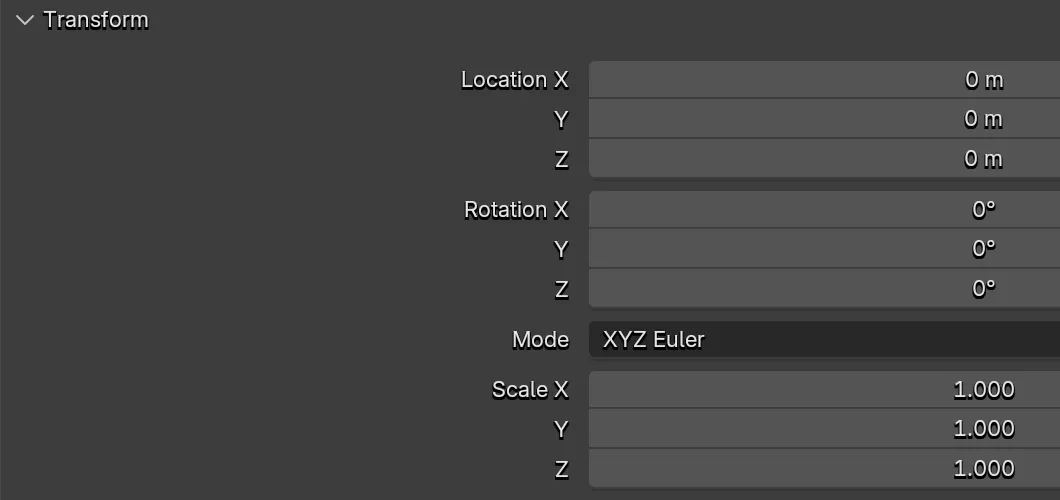
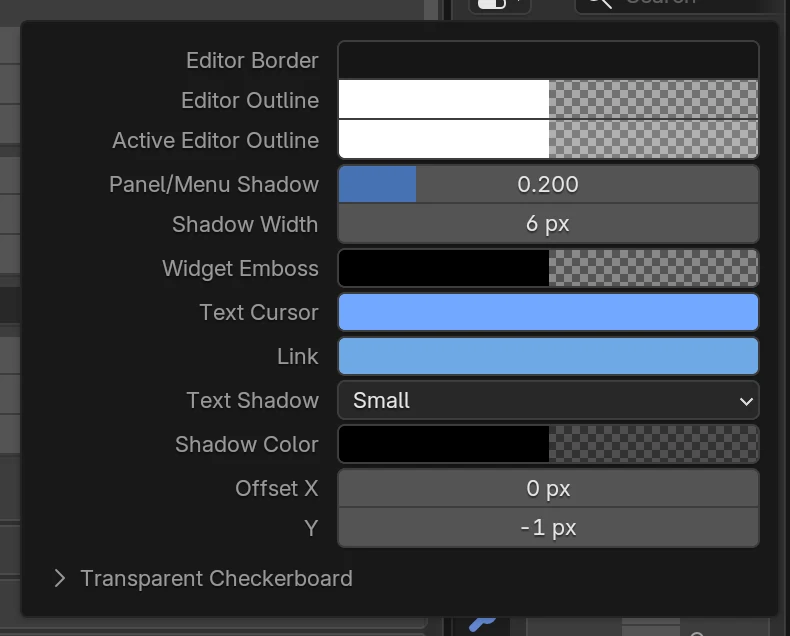
Open Edit › Preferences › Themes, expand User Interface › Editor & Widgets and pick an option in the Text Shadow menu: None, Small, Large or Outline. Shadow Color sets the color and strength of the shadow, and Offset moves it. In Blender 5.3 and older the text shadow was set per text style under Themes › User Interface › Text Style instead.
- Mode
- Preferences (Edit > Preferences)
- Menu
- Themes › User Interface › Editor & Widgets › Text Shadow
Where it is
Edit › Preferences › Themes › User Interface › Editor & Widgets. The Text Shadow menu sits below Widget Emboss, Text Cursor and Link.
Four choices
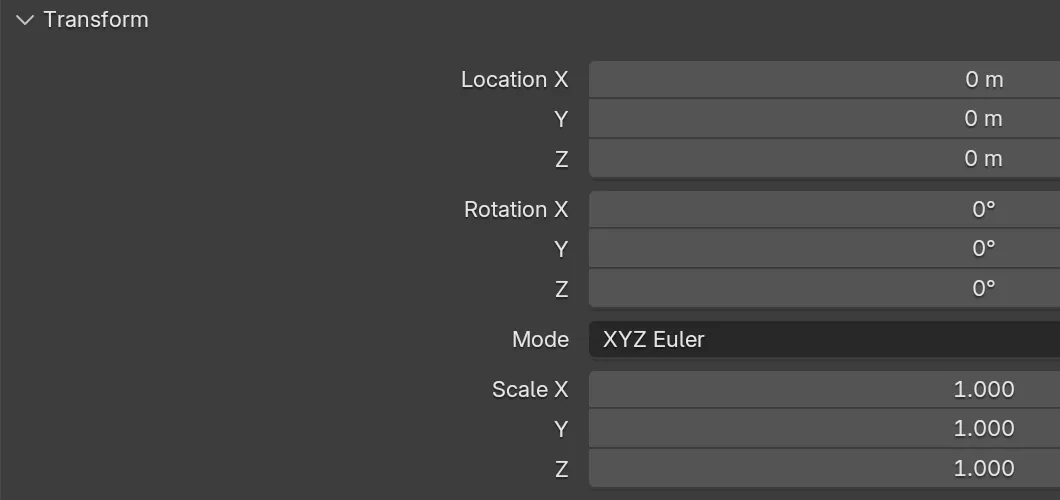
None removes the shadow, Small is the default, Large spreads it wider and Outline draws a thin border around every letter.
One color for all
Shadow Color is a single color with alpha. It replaces the separate Alpha and Brightness sliders of Blender 5.3.
Before and after

AI Scene Builder is a Blender add-on. You type what you want, and it builds it in your scene: buildings, neon signs, wet pavement, fog and lights. Nothing in this picture was modeled by hand.
On a phone now? The add-on runs in Blender on a computer. Send yourself the link and open it there.
Step by step (Blender 5.4 Alpha)
- Open Edit › Preferences and click Themes in the left column.
- Expand User Interface, then expand Editor & Widgets.Blender 5.3: In Blender 5.3, expand Text Style in the User Interface theme instead. Each text style (Panel Title, Widget, Tooltip) has its own Shadow, Alpha and Brightness.
- Choose None, Small, Large or Outline in the Text Shadow menu.Blender 5.3: Blender 5.3 has no menu. Set Shadow to 0 to remove it, or use a higher value for a wider shadow.
- Pick a Shadow Color. The alpha of the color sets how strong the shadow is. Use Offset X and Y to move a Small or Large shadow.
- If Auto-Save Preferences is off, open the menu at the bottom left of the Preferences window and click Save Preferences.
Other ways to do it
- Loading a theme preset changes the text shadow too, because it is part of the theme. The Blender Light preset in 5.4 sets Text Shadow to None.
- To use the same text shadow on another computer, save your theme as a preset with the + button next to the theme preset menu, then load that preset there.
Blender 5.3 vs Blender 5.4 Alpha
| What | Blender 5.3 | Blender 5.4 Alpha |
|---|---|---|
| Text shadow setting | In the Text Style section of the User Interface theme: Shadow, Alpha, Brightness and Offset for each text style. | Themes › User Interface › Editor & Widgets: one Text Shadow menu (None, Small, Large, Outline), Shadow Color and Offset. |
| Outline | Not available. | New option that draws a border around each letter. |
| Release status | Blender 5.3.0 is the current stable release. | Blender 5.4 is in Alpha until February 3, 2027, so menus and behaviour may still change before the final release. |
Common snags
I can't find Shadow Alpha or Brightness in Blender 5.4
They were replaced by one Shadow Color. Lower the alpha of that color for a weaker shadow, or raise it to 1 for a solid one.
The text shadow changed after I switched themes
The text shadow is stored in the theme, so a theme preset replaces it. Set Text Shadow again after loading a preset, then save the preferences.
Offset is missing or greyed out
Shadow Color and Offset are hidden when Text Shadow is None, so pick Small, Large or Outline first. Offset is also greyed out while the alpha of Shadow Color is 0.
An AI add-on for Blender
AI Scene Builder is a Blender add-on that builds and edits your scene from one typed request, such as “a small wooden table with two chairs”. Each request can be undone in one click.
 A log cabin room built with the add-on from 9 typed requests. See every request →
Questions
How do I remove the text shadow in Blender?
In Blender 5.4, open Edit › Preferences › Themes › User Interface › Editor & Widgets and set Text Shadow to None. In Blender 5.3, set Shadow to 0 for each text style under Text Style.
Can I put an outline around the interface text in Blender?
Yes, from Blender 5.4. Choose Outline in the Text Shadow menu and set a Shadow Color with full alpha for the strongest border.
Where did the text shadow settings go in Blender 5.4?
They moved from the Text Style section of the User Interface theme to the Editor & Widgets section, and Alpha and Brightness became one Shadow Color.
What the pictures show
- Tested build: Blender 5.4.0 Alpha (f9495703eb0b, 2026-11-10 build), compared with Blender 5.3.0.
- 5.4: the default theme used Text Shadow Small with a black Shadow Color at 50% alpha and an offset of 0, -1 px. The menu offered None, Small, Large and Outline.
- 5.4: after choosing Outline with a fully opaque black color, every label in the Properties editor was drawn with a dark border, as the screenshots show at a Resolution Scale of 2.
- 5.3.0: there was no Text Shadow menu in the theme. The Widget text style had Shadow 1 and Alpha 0.5 under Text Style.