How to Check Face Orientation (Blue and Red Faces) in Blender
Open the Overlays popover in the 3D Viewport header and, in the Geometry section, tick Face Orientation. Blue faces point outward (front) and red faces point inward (back), so any red face on a closed mesh is flipped.
- Mode
- 3D Viewport (any mode); fixing normals is done in Edit Mode
- Shortcut
- Shift + N (Recalculate Normals, in Edit Mode)
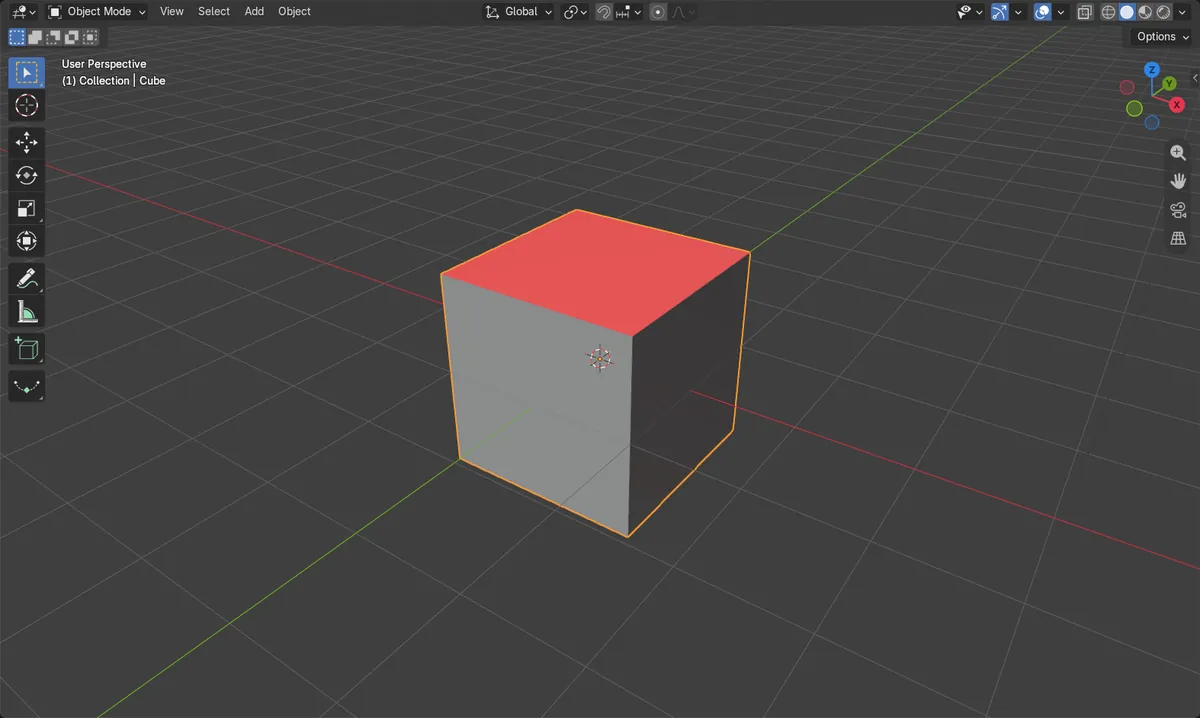
Overlays > Geometry
Tick Face Orientation in the Geometry section of the Overlays popover.
Blue is outside
Blue faces point outward. Red faces point inward and are flipped.
Shift + N fixes it
In Edit Mode, Shift + N recalculates normals to point outside.
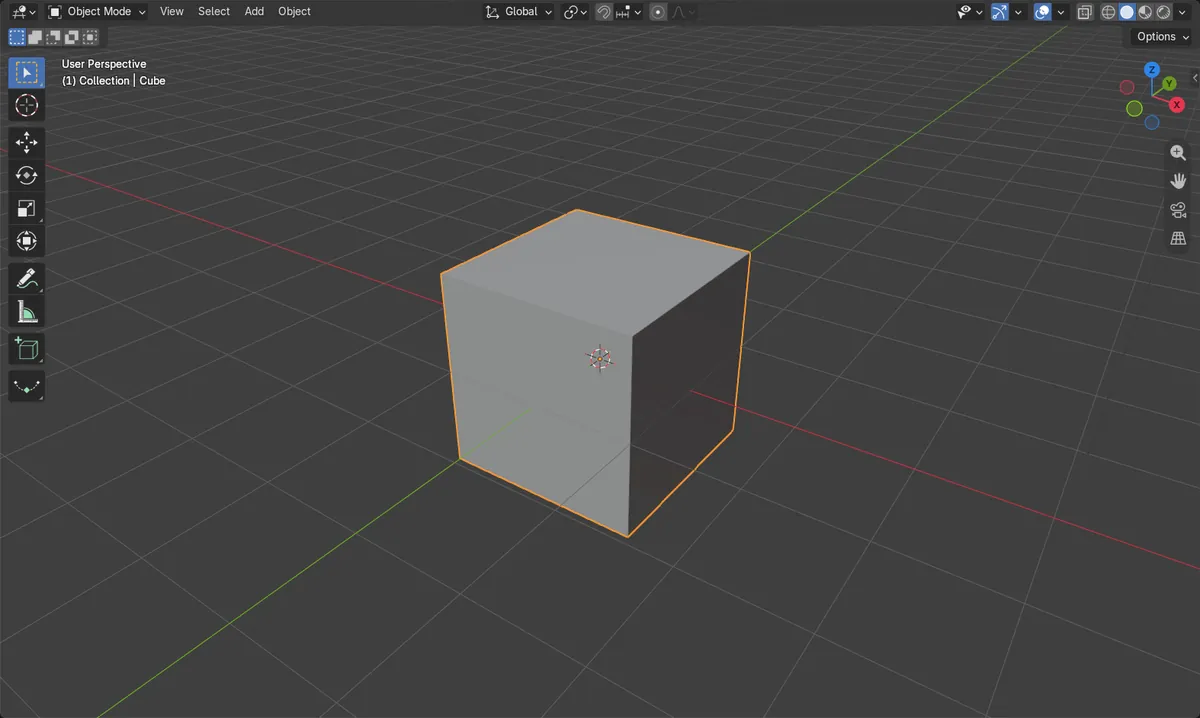
Before and after

AI Scene Builder is a Blender add-on. You type what you want, and it builds it in your scene: buildings, neon signs, wet pavement, fog and lights. Nothing in this picture was modeled by hand.
On a phone now? The add-on runs in Blender on a computer. Send yourself the link and open it there.
Step by step (Blender 5.x)
- Hover over the 3D Viewport and make sure Overlays are enabled in the header.
- Open the Overlays popover in the 3D Viewport header.
- In the Geometry section, tick Face Orientation. The mesh is now drawn in blue and red.
- Look for red faces on a closed mesh. Those faces point inward.
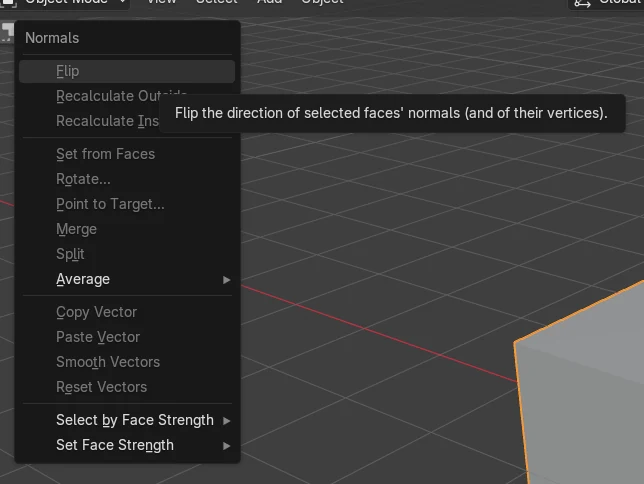
- To fix them, press Tab to enter Edit Mode, select the red faces, then use Mesh › Normals › Flip to flip them, or press Shift + N to recalculate normals outward.
- Press Tab to return to Object Mode and check that the red is gone. Untick Face Orientation when you are done.
Other ways to do it
- Mesh › Normals › Flip (Edit Mode) flips only the selected faces.
- Shift + N in Edit Mode runs Recalculate Normals so faces point outside.
- Ctrl + Shift + N in Edit Mode runs Recalculate Normals with the inside option, so faces point inward.
Common snags
Nothing changes in the viewport
Overlays may be turned off, or the mouse is over another editor. Enable Overlays in the 3D Viewport header and use its popover.
Flip changes nothing
Flip acts on the selected faces only. Enter Edit Mode and select the red faces first.
Wrong direction after Shift + N
Shift + N points normals outward. Ctrl + Shift + N points them inward, so use Shift + N for a normal solid object.
An AI add-on for Blender
AI Scene Builder is a Blender add-on that builds and edits your scene from one typed request, such as “a small wooden table with two chairs”. Each request can be undone in one click.
 A lighthouse island at sunset built with the add-on from 10 typed requests. See every request →
Questions
What do the blue and red faces mean in Blender?
Blue faces point outward (front) and red faces point inward (back). Red faces on a closed mesh are usually flipped normals.
How do I fix red faces?
In Edit Mode, select the faces and use Mesh › Normals › Flip, or press Shift + N to recalculate all normals outward.
What the pictures show
- Before: Face Orientation was off and the cube had 1 of 6 faces pointing inward.
- After turning it on: the overlay was on, and the same 1 of 6 faces was inward, which is the one shown red.
- The cube kept all 6 faces; the overlay only changes the display.