How to Switch Vertex, Edge and Face Select in Blender
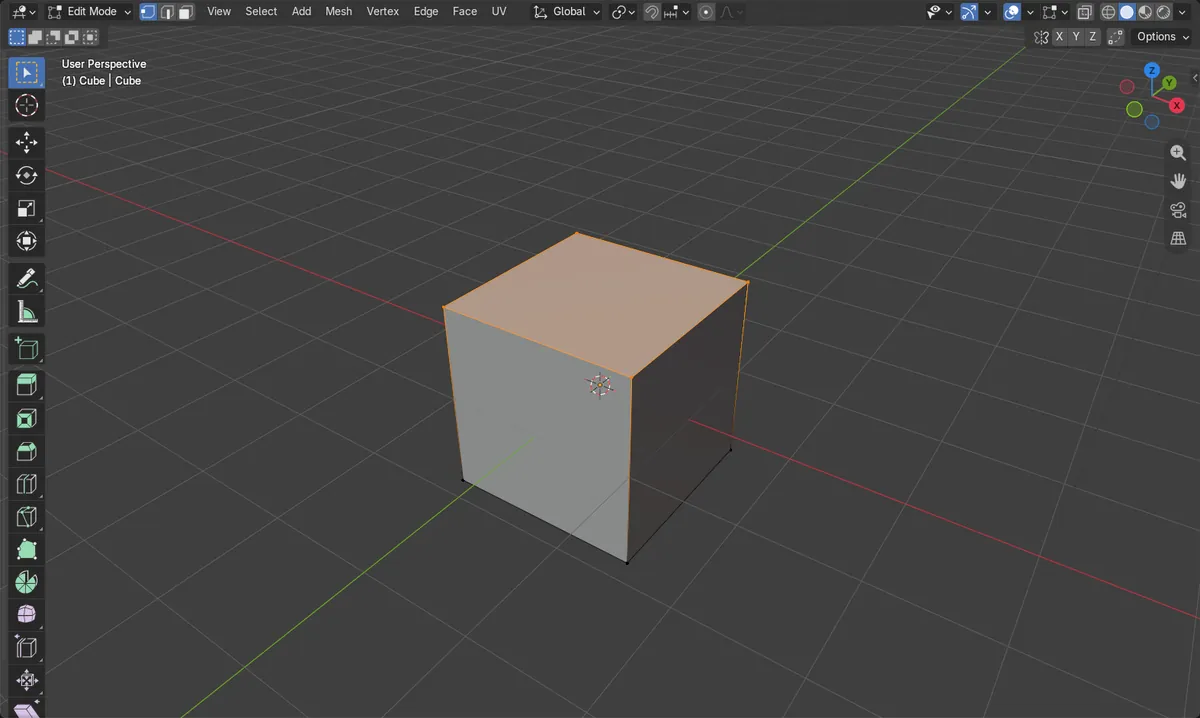
Press Tab to enter Edit Mode, hover the 3D Viewport and press 1 for Vertex select, 2 for Edge select or 3 for Face select, using the number keys above the letters. Shift + 1, 2 or 3 turns on more than one mode at once. When you switch, only the parts whose corners were all selected stay selected.
- Mode
- Edit Mode, 3D Viewport
- Shortcut
- 1, 2, 3
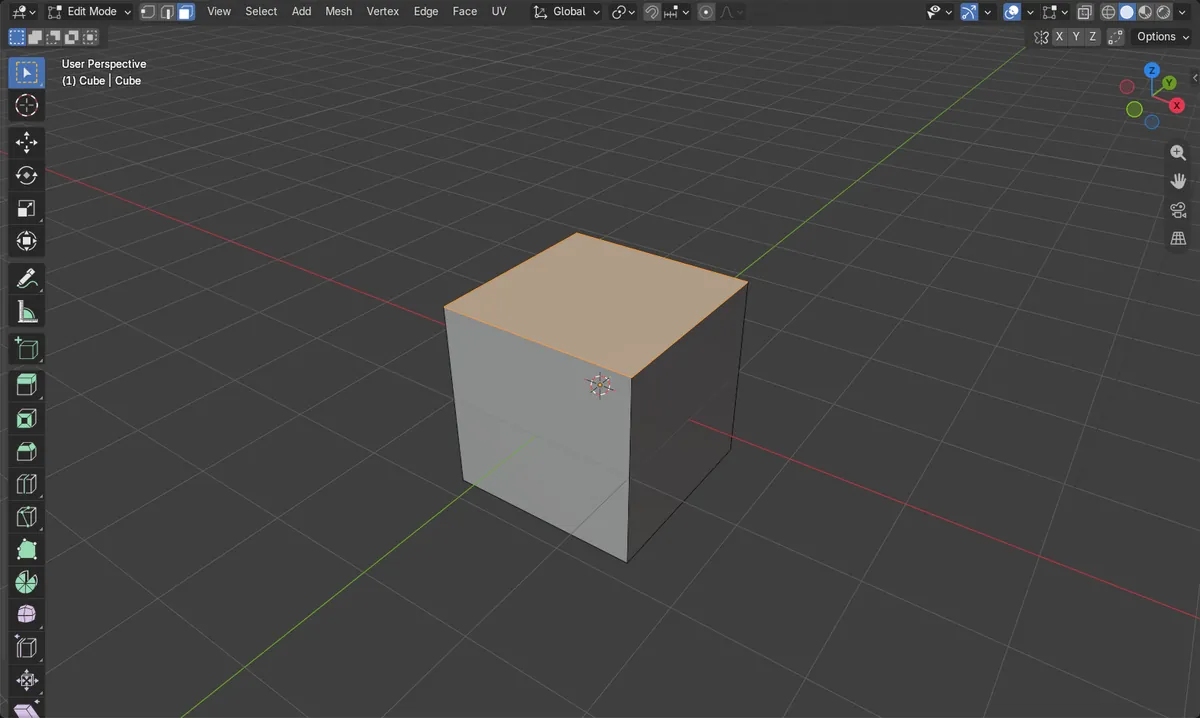
1, 2, 3
Vertex, Edge and Face select in Edit Mode.
Shift + 1, 2, 3
Turns on more than one mode together.
Selection can drop
Face select keeps only faces with every corner selected.
Before and after

AI Scene Builder is a Blender add-on. You type what you want, and it builds it in your scene: buildings, neon signs, wet pavement, fog and lights. Nothing in this picture was modeled by hand.
On a phone now? The add-on runs in Blender on a computer. Send yourself the link and open it there.
Step by step (Blender 5.x)
- Select the object and press Tab to enter Edit Mode.
- Hover the 3D Viewport and press 1 for Vertex select.
- Press 2 for Edge select or 3 for Face select.
- Hold Shift and press another number to add that mode, for example press 1, then Shift + 2 for Vertex and Edge together.
Other ways to do it
- The three select mode buttons in the 3D Viewport header, next to the mode menu
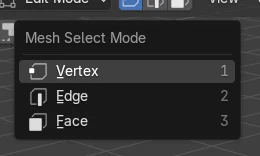
Common snags
1, 2 and 3 change the view instead
When Emulate Numpad is on in Preferences › Input, the top-row numbers act as the numpad. It is off by default; turn it off, or use the header buttons.
Switching to Face select lost my selection
Face select keeps only faces whose corners were all selected. In the test, with 3 of the 4 top corners selected, switching to Face select left no face selected.
The numbers do something else in Object Mode
Vertex, Edge and Face select exist only in Edit Mode. Press Tab first.
An AI add-on for Blender
AI Scene Builder is a Blender add-on that builds and edits your scene from one typed request, such as “a small wooden table with two chairs”. Each request can be undone in one click.
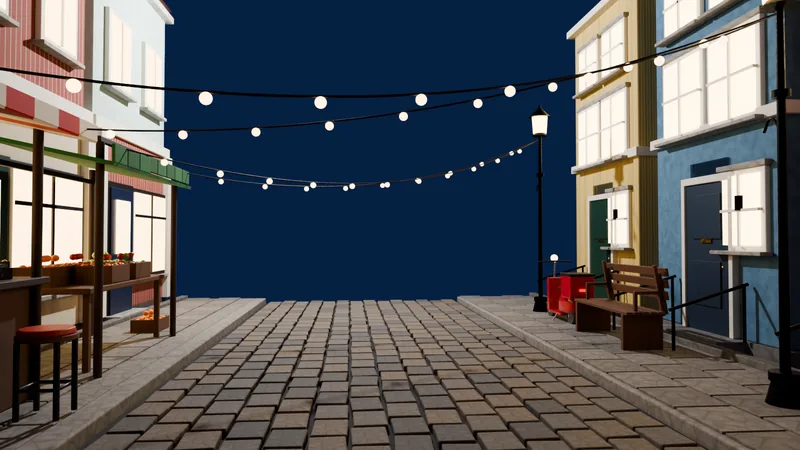 An evening market street built with the add-on from 11 typed requests. See every request →
Questions
What do 1, 2 and 3 do in Blender Edit Mode?
1 is Vertex select, 2 is Edge select and 3 is Face select.
How do I select vertices and edges at the same time?
Press 1, then Shift + 2 to add Edge select.
Why does 1 change my view?
Emulate Numpad is on in Preferences › Input. Turn it off to use 1, 2 and 3 for select modes.
What the pictures show
- Before: Vertex select with the 4 top corners of the cube selected.
- Pressing 3 switched to Face select, and the top face was selected.
- With only 3 of the 4 corners selected, switching to Face select left no face selected.
- Results were identical in Blender 4.2 LTS and Blender 5.x.