Add the Same Modifier to Multiple Objects in Blender
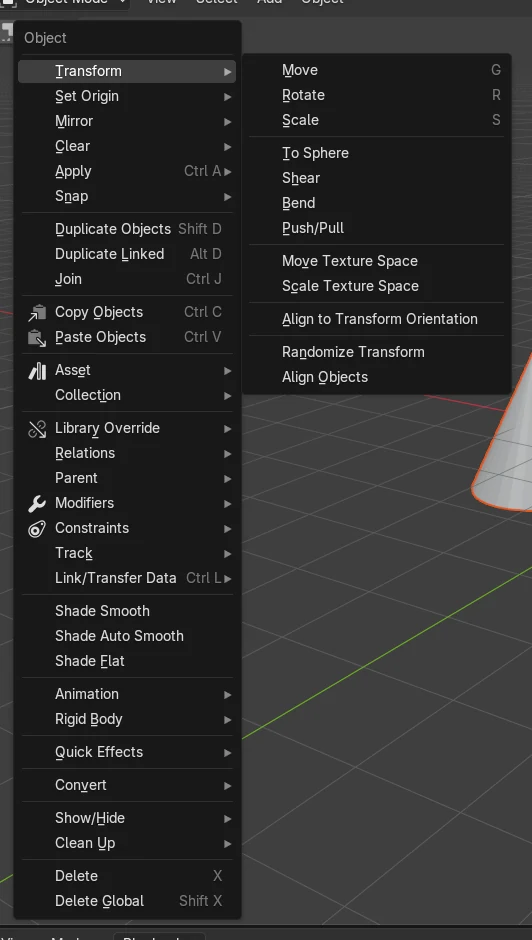
Add the modifiers to the active object, select the other objects too (active object last), then choose Object › Link/Transfer Data and pick the Modifiers entry. You can also press Ctrl + L in the 3D Viewport to open the same Link/Transfer Data menu. Every selected object then receives the same modifiers.
- Mode
- Object Mode, 3D Viewport
- Menu
- Object › Link/Transfer Data
- Shortcut
- Ctrl + L
Ctrl + L
Opens the Link/Transfer Data menu in the 3D Viewport.
Active object copies
Data goes from the active object to all other selected objects.
Add only affects active
Adding a modifier applies to the active object only.
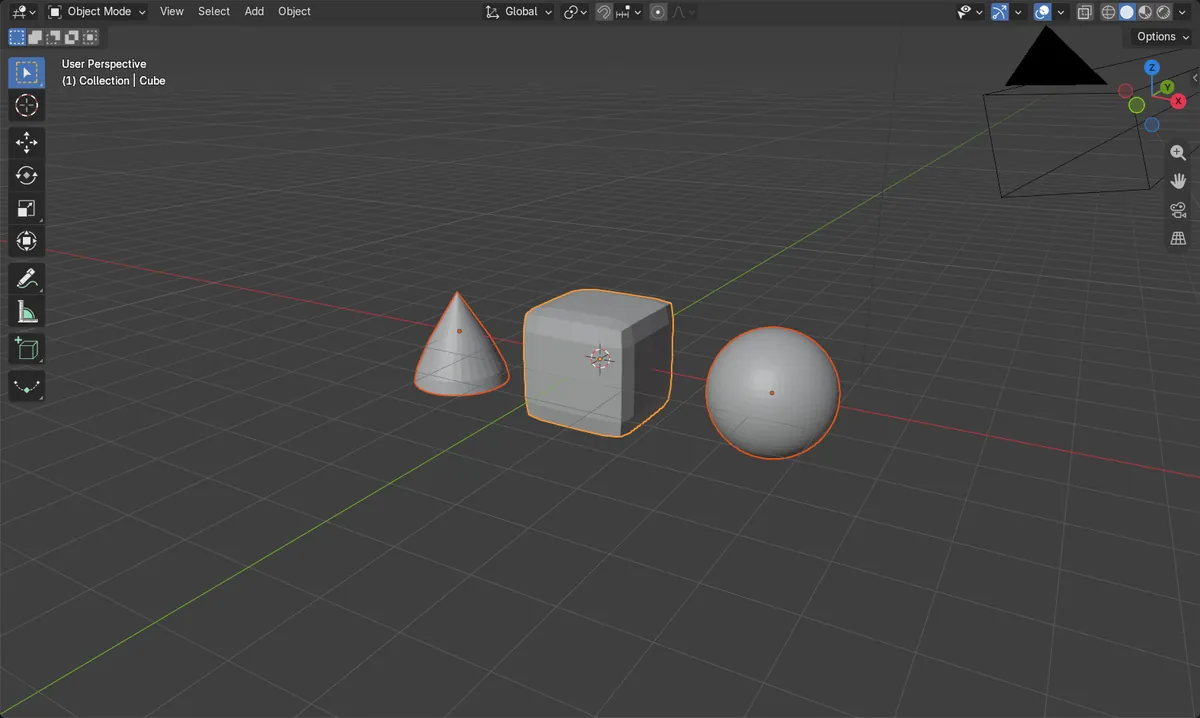
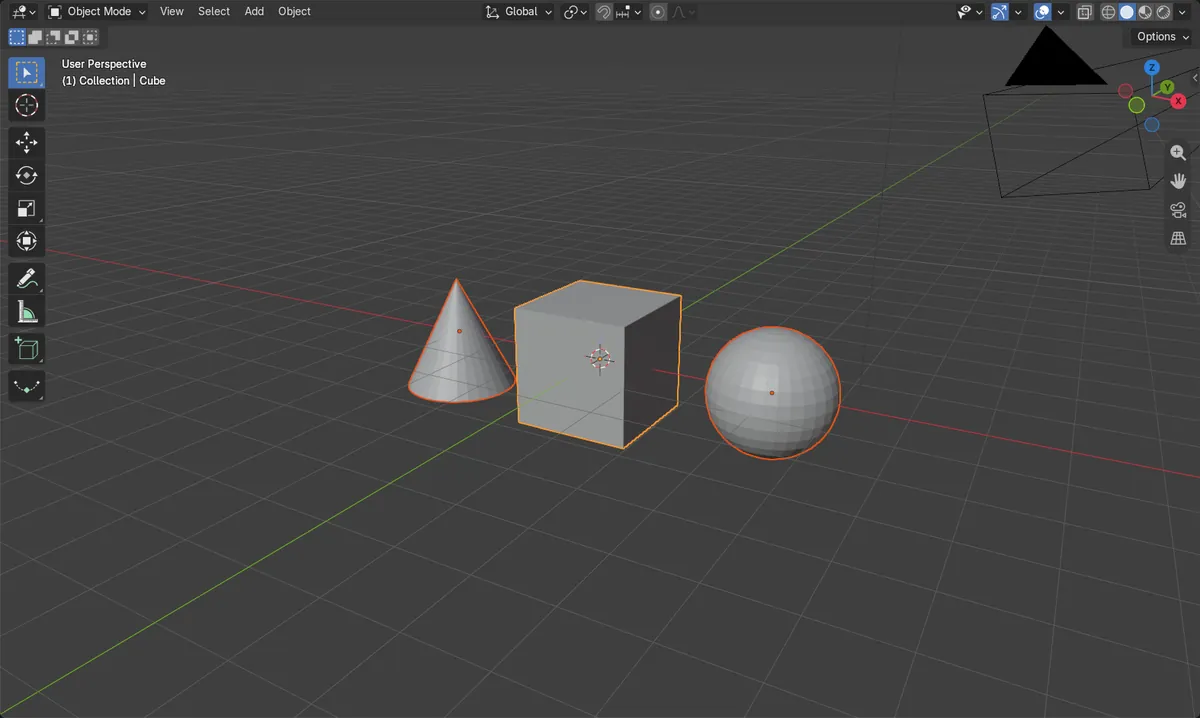
Before and after

AI Scene Builder is a Blender add-on. You type what you want, and it builds it in your scene: buildings, neon signs, wet pavement, fog and lights. Nothing in this picture was modeled by hand.
On a phone now? The add-on runs in Blender on a computer. Send yourself the link and open it there.
Step by step (Blender 5.x)
- In Object Mode, click the object that has (or will have) the modifiers you want, so it is the only one selected.
- Open the Modifiers tab in the Properties editor and add the modifiers (for example Bevel, then Subdivision Surface).
- Select the other objects you want to receive them, then Shift-click the object with the modifiers last so it is the active object.
- With the mouse over the 3D Viewport, choose Object › Link/Transfer Data and pick the Modifiers entry (or press Ctrl + L to open that menu).
- Check the Modifiers tab of each object: they now show the same modifiers in the same order.
Other ways to do it
- Press Ctrl + L in the 3D Viewport to open the Link/Transfer Data menu, then choose the Modifiers entry.
- Use the Copy Modifiers to Selected Objects operator, which copies modifiers to other selected objects.
- Use Copy Modifier to Selected on a single modifier to copy just that one to all selected objects.
Common snags
Wrong active object
The wrong modifiers get copied, or nothing useful happens, because the active object is not the one with the modifiers. Shift-click the source object last so it becomes active, then try again.
Only one object changed
Adding a modifier from the Modifiers tab affects only the active object, even if several are selected. Add it once, then copy it to the others with Link/Transfer Data.
Menu not available
Link/Transfer Data is under the Object menu in Object Mode. If it is missing, leave Edit Mode and make sure the mouse is over the 3D Viewport before pressing Ctrl + L.
Or type one line in AI Scene Builder
AI Scene Builder is a Blender add-on that carries out the steps for you from one typed request. For this task, type a request like this one, using your own object names:
Copy the modifiers from the active object to all other selected objects A log cabin room built with the add-on from 9 typed requests. See every request →
Questions
Can I add a modifier to several objects with one click?
Adding from the Modifiers tab affects only the active object. Add it there, then use Object › Link/Transfer Data and the Modifiers entry to copy it to the other selected objects.
Which object do the modifiers come from?
From the active object, the one highlighted most brightly. Link/Transfer Data transfers data from the active object to all other selected objects.
What the pictures show
- Before: Cube, Sphere and Cone all had 0 modifiers, with 3 objects selected.
- After: all three objects had 2 modifiers.
- The Cone's modifiers were Bevel then Subdivision Surface, in that order, matching the source object.