How to Use the Same Brush Size for All Sculpt Brushes (Blender 5.3)
In Blender 5.3, all sculpt brushes use one size when each of them has the shared-size button on: open Brush Settings, check that the icon to the right of Size is highlighted, and click it on any brush where it is off. A brush with the button off keeps its own size. In the test the shared size was set to 90 px with the button on for Draw and Clay Strips and off for Smooth: Draw and Clay Strips both used 90 px, and Smooth kept its own 30 px. In Blender 5.2 LTS the same button changes every brush at once: turning it off for Smooth turned it off for Draw and Clay Strips too, so the 90 px typed on Draw went to Draw alone and Clay Strips went back to its own 70 px.
- Mode
- Sculpt Mode, Brush Settings
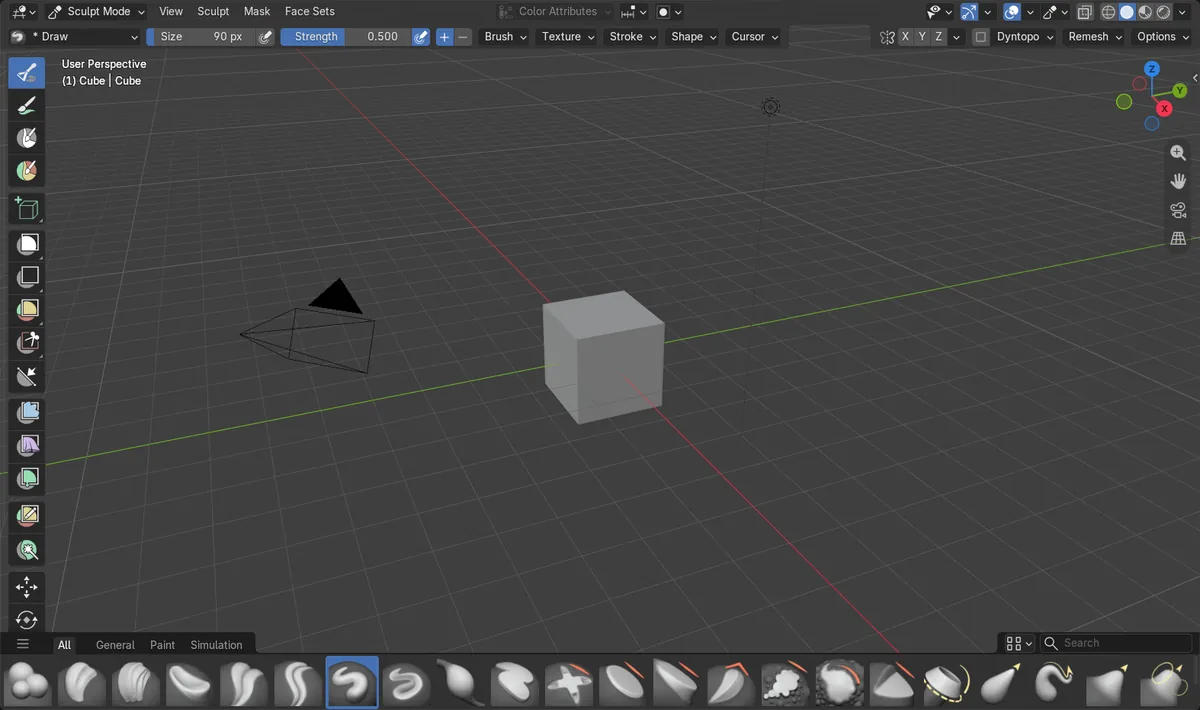
A button per brush
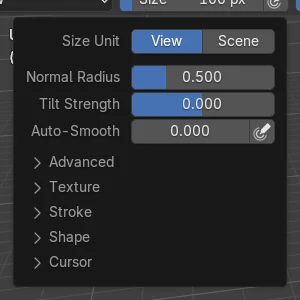
The shared-size button sits to the right of Size in Brush Settings, and in 5.3 its state is stored on each brush.
One size for the brushes you pick
With a shared size of 90 px, Draw and Clay Strips used 90 px while Smooth, with its button off, stayed at 30 px.
5.2 LTS switches all brushes
In Blender 5.2 LTS the button is one scene setting, so turning it on or off affects every brush.
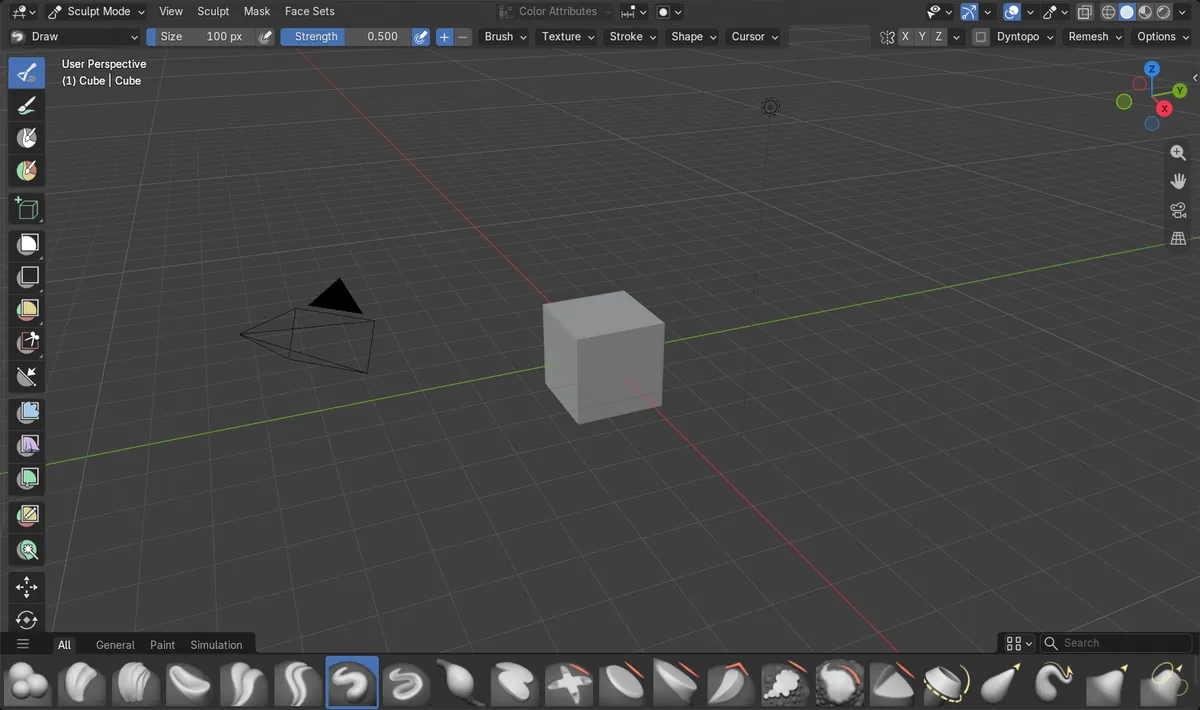
Before and after

AI Scene Builder is a Blender add-on. You type what you want, and it builds it in your scene: buildings, neon signs, wet pavement, fog and lights. Nothing in this picture was modeled by hand.
On a phone now? The add-on runs in Blender on a computer. Send yourself the link and open it there.
Step by step (Blender 5.3)
- In Sculpt Mode, pick the first brush that should share the size, for example Draw.
- Open Brush Settings in the Tool tab of the Sidebar, or in Properties › Tool.
- Check that the shared-size button to the right of Size is highlighted, and click it if it is not. Its tooltip reads "Use shared size for this brush".Blender 5.2 LTS: In Blender 5.2 LTS this button turns the shared size on or off for all brushes.
- Pick the next brush, for example Clay Strips, and check its shared-size button in the same place.
- For a brush that should keep its own size, such as Smooth, turn the button off and set its Size.
- Change Size on any brush with the button on, or press F in the viewport and drag. All brushes with the button on take the new size.
Other ways to do it
- Press F in the viewport and drag to change the size; with the shared-size button on, the shared value changes
- Turn the shared-size button off on a brush to give it back its own Size value
Blender 5.2 LTS vs Blender 5.3
| What | Blender 5.2 LTS | Blender 5.3 |
|---|---|---|
| Shared brush size | Blender 5.2 LTS has one shared-size setting for the scene, so all brushes share the size or none do. | Blender 5.3 stores the shared-size setting on each brush, so some brushes can share one size while others keep their own. |
| Strength and other values | Blender 5.2 LTS also shares strength, weight, colour and input samples for all brushes at once. | Blender 5.3 has the same per-brush buttons for strength, weight, colour and input samples. |
Common snags
Changing one brush also changed another
Both brushes have the shared-size button on. In the 5.3 factory settings Draw, Clay Strips and Smooth all start with it on, using a shared size of 100 px. Turn it off on the brush that should keep its own size.
A brush ignores its own Size value
When the shared-size button is on, the brush uses the shared size and its own Size value waits in the background. Turn the button off to use it again.
The button is not in the tool header
The shared-size button is drawn next to Size in Brush Settings. Open the Tool tab of the Sidebar or the Tool tab of the Properties editor to find it.
An AI add-on for Blender
AI Scene Builder is a Blender add-on that builds and edits your scene from one typed request, such as “a small wooden table with two chairs”. Each request can be undone in one click.
 A lighthouse island at sunset built with the add-on from 10 typed requests. See every request →
Questions
How do I make all sculpt brushes the same size in Blender?
In Blender 5.3, turn on the shared-size button next to Size in Brush Settings for each brush that should share it. In Blender 5.2 LTS the same button makes every brush share one size.
How do I give one brush its own size again?
Select that brush and turn off its shared-size button. It then uses its own Size value.
Why did my brush size change when I switched brushes?
The brushes do not share a size. Turn on the shared-size button for both brushes so they use one value.
What the pictures show
- Before: Blender 5.3 factory settings in Sculpt Mode. Draw, Clay Strips and Smooth each had their own size of 70 px, had the shared-size button on, and all three used the shared size of 100 px.
- After setting the shared size to 90 px, turning the button off for Smooth and setting Smooth to 30 px in Blender 5.3: Draw and Clay Strips used 90 px and Smooth used 30 px.
- In Blender 5.2 LTS the same steps gave a different result: turning the button off for Smooth turned it off for every brush, so Draw took the 90 px as its own size, Clay Strips went back to 70 px and Smooth used 30 px.