How to Add a Comment to Nodes in Blender 5.3 (Comment Node)
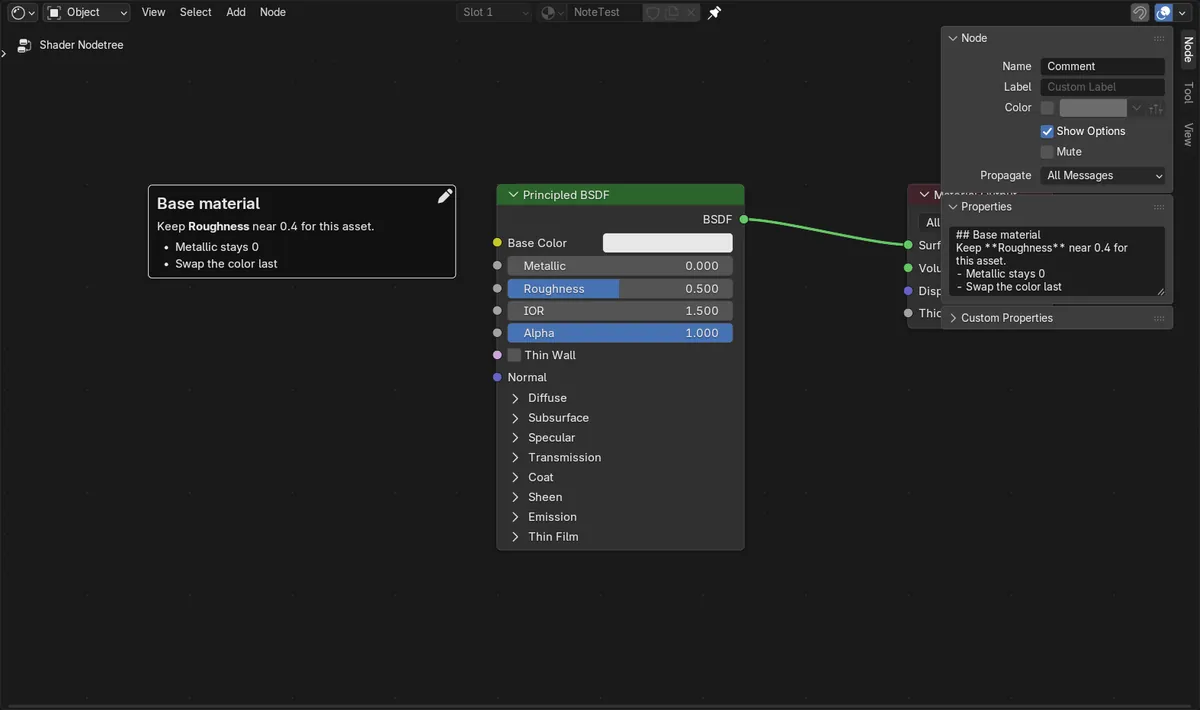
In Blender 5.3, hover over the node editor, press Shift + A and choose Layout › Comment. A Comment node appears as a note card with no sockets. Double-click it, or select it and press F2 or Enter, to type your note. Lines starting with ## show as headings, **text** shows in bold and lines starting with - become bullet points. The Comment node is new in 5.3; Blender 5.2 LTS only has Frame for this.
- Mode
- Any node editor (Shader Editor shown)
- Menu
- Add › Layout › Comment
- Shortcut
- Shift + A
Where to find it
Add › Layout › Comment, next to Frame and Reroute.
Edit the note
Double-click, or press F2 or Enter.
New in 5.3
Blender 5.2 LTS has no Comment node.
Before and after

AI Scene Builder is a Blender add-on. You type what you want, and it builds it in your scene: buildings, neon signs, wet pavement, fog and lights. Nothing in this picture was modeled by hand.
On a phone now? The add-on runs in Blender on a computer. Send yourself the link and open it there.
Step by step (Blender 5.3)
- Open the node tree you want to annotate, for example a material in the Shader Editor.
- With the mouse over the node area, press Shift + A, or click Add in the header.
- Open Layout and click Comment. The new note card sticks to the mouse; click to drop it where you want it.
- Double-click the Comment node, or select it and press F2 or Enter, to edit its text. A new comment starts with the text ## Comment.
- Type your note. Start a line with ## for a heading, wrap words in ** for bold, and start lines with - for a bullet list.
- Drag the side of the card to make it wider, and move it next to the nodes it explains, as in the picture.
Other ways to do it
- Click Add in the node editor header, then Layout › Comment.
- Press Shift + A, start typing comment and pick it from the search results.
- The pencil icon in the top right corner of a Comment node also opens it for editing.
Blender 5.2 LTS vs Blender 5.3
| What | Blender 5.2 LTS | Blender 5.3 |
|---|---|---|
| Comment node | Not in Blender 5.2 LTS. Its Layout menu has only Frame and Reroute; use a Frame with a label as a note instead. | Blender 5.3 adds the Comment node with formatted text. |
Common snags
Comment is missing from the Layout menu
The Comment node only exists in Blender 5.3 and later. In 5.2 LTS, label a Frame node instead.
Typing does nothing
The note is only edited after you double-click it or press F2 or Enter with the comment selected. Otherwise the keys run normal node editor shortcuts.
Will a comment change my material?
No. A Comment node has no sockets and connects to nothing, so it does not affect shading or the render.
An AI add-on for Blender
AI Scene Builder is a Blender add-on that builds and edits your scene from one typed request, such as “a small wooden table with two chairs”. Each request can be undone in one click.
 A log cabin room built with the add-on from 9 typed requests. See every request →
Questions
How do I edit a Comment node's text in Blender 5.3?
Double-click the comment, or select it and press F2 or Enter. The pencil icon on the card also starts editing.
Does the Comment node support Markdown?
It formats common Markdown marks: ## for headings, **text** for bold and - for bullet points.
Is there a Comment node in Blender 5.2 LTS?
No. It is new in Blender 5.3. In 5.2 LTS, add a Frame from Add › Layout and give it a label.
What the pictures show
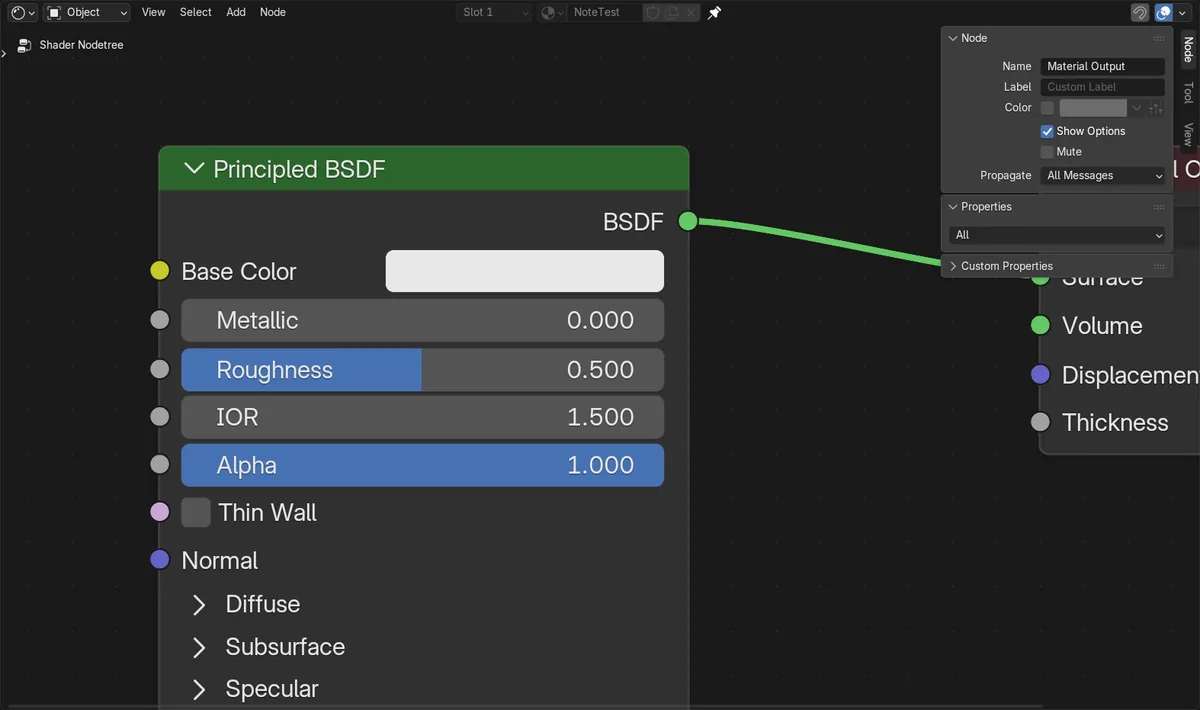
- Before: the material's node tree had 2 nodes (Principled BSDF and Material Output) and no Comment node.
- After Add > Layout > Comment: 3 nodes, including 1 Comment node, and still 1 link, so the shader was unchanged.
- A four-line note with ##, ** and - showed a heading, a bold word and two bullet points on the card.
- In Blender 5.2.2 LTS the Comment node type does not exist, so it cannot be added there.