How to Paste a Pose with Influence in Blender 5.3
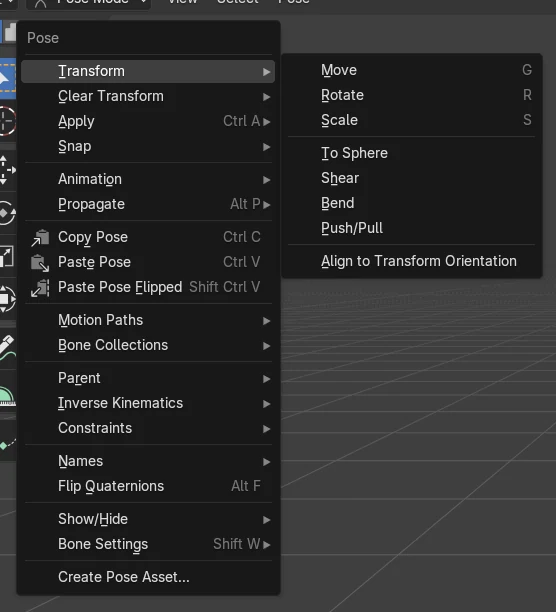
In Blender 5.3, copy the pose with Ctrl + C, select the bones in Pose Mode, press Ctrl + V (Pose › Paste Pose), then set Factor in the Paste Pose panel that appears in the bottom-left corner of the 3D Viewport. A Factor of 1 pastes the whole pose, and lower values blend the current pose toward the copied one, so 0.5 lands half way.
- Mode
- Pose Mode, 3D Viewport
- Menu
- Pose › Paste Pose
- Shortcut
- Ctrl + V
Ctrl + C, Ctrl + V
Copy the pose, then paste it on the selected bones.
Factor blends it
Factor 1 pastes fully. 0.5 goes half way.
New in 5.3
Blender 5.2 LTS pastes the full pose only.
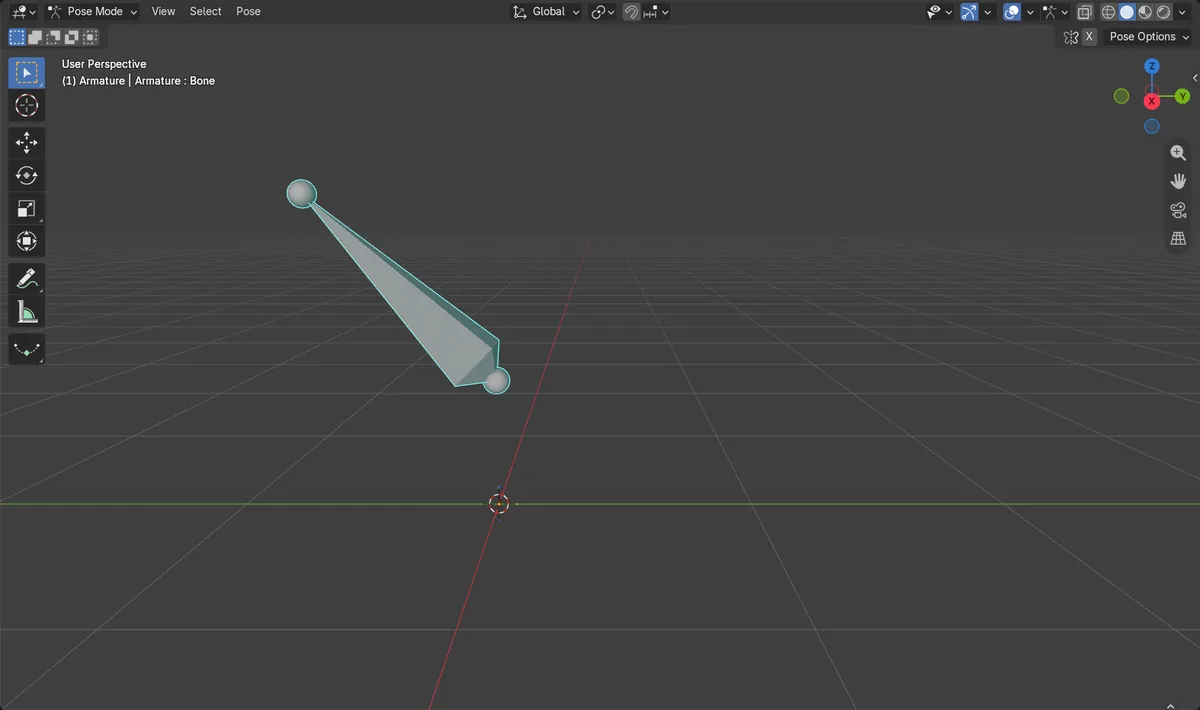
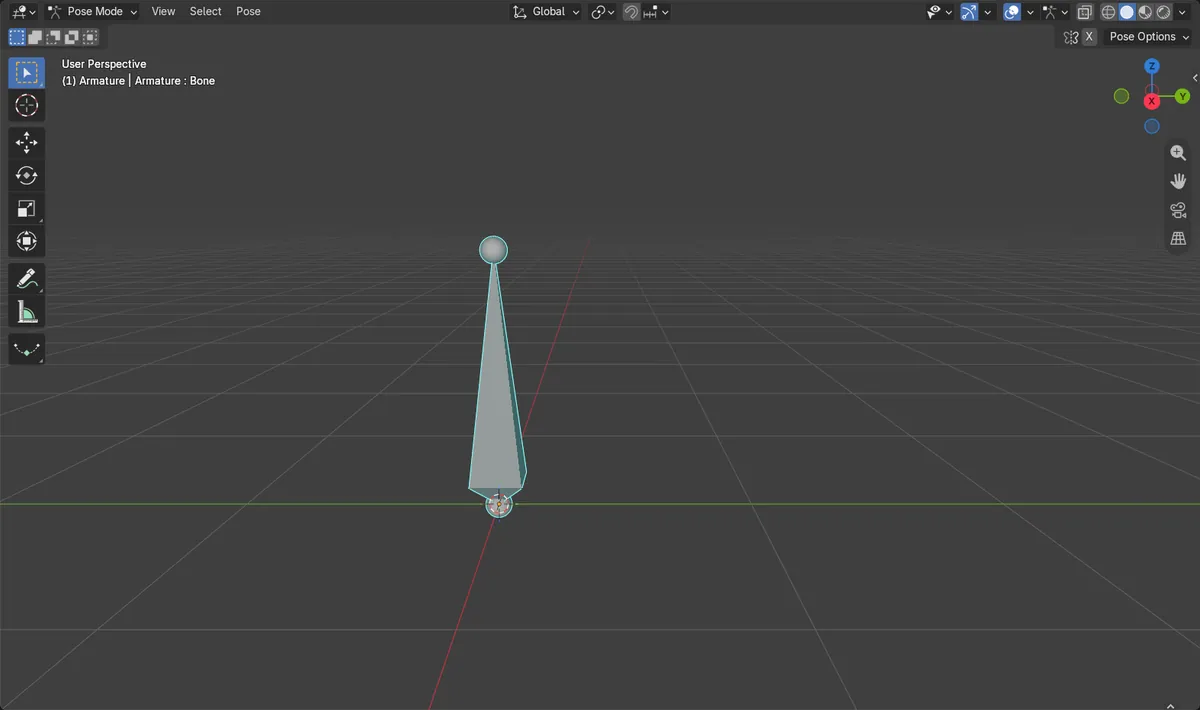
Before and after

AI Scene Builder is a Blender add-on. You type what you want, and it builds it in your scene: buildings, neon signs, wet pavement, fog and lights. Nothing in this picture was modeled by hand.
On a phone now? The add-on runs in Blender on a computer. Send yourself the link and open it there.
Step by step (Blender 5.3)
- Select the armature and switch to Pose Mode.
- Select the bones whose pose you want to keep and press Ctrl + C (Pose › Copy Pose).
- Go to the frame or pose you want to change and select the same bones.
- With the mouse over the 3D Viewport, press Ctrl + V or choose Pose › Paste Pose.
- Open the Paste Pose panel in the bottom-left corner of the viewport (or press F9) and lower Factor, for example to 0.5, to blend the pasted pose in part way.
Other ways to do it
- Right-click in the 3D Viewport in Pose Mode and choose Paste Pose
- Ctrl + Shift + V or Pose › Paste Pose Flipped to paste the mirrored pose, which also has the Factor setting
- Press F9 (Redo Last) right after pasting to open the panel with Factor again
Blender 5.2 LTS vs Blender 5.3
| What | Blender 5.2 LTS | Blender 5.3 |
|---|---|---|
| Factor in Paste Pose | Not in Blender 5.2 LTS. Paste Pose always replaces the pose completely. | Blender 5.3 adds Factor to the Paste Pose panel. At 1 the pasted pose fully overwrites the current one. |
Common snags
Nothing was pasted
Paste Pose works on the selected bones in Pose Mode. Select the bones first (A selects all), then press Ctrl + V again.
The Factor panel is gone
The Paste Pose panel closes as soon as you do something else. Paste again, or press F9 right after pasting to bring the panel back.
The pose came out mirrored
Ctrl + Shift + V pastes the pose flipped on the X axis. Undo and paste with Ctrl + V, or turn off Flipped on X-Axis in the Paste Pose panel.
An AI add-on for Blender
AI Scene Builder is a Blender add-on that builds and edits your scene from one typed request, such as “a small wooden table with two chairs”. Each request can be undone in one click.
 A lighthouse island at sunset built with the add-on from 10 typed requests. See every request →
Questions
Can I paste a pose only half way in Blender?
Yes, in Blender 5.3. Paste with Ctrl + V and set Factor to 0.5 in the Paste Pose panel. The bones move half way from the current pose to the copied one.
What does Factor do in Paste Pose?
It blends the current pose toward the copied pose. At 1 the copied pose fully overwrites the current pose, and at 0 nothing changes.
Does Paste Pose Flipped also have Factor?
Yes. Paste Pose Flipped is the same paste with Flipped on X-Axis turned on, so the same Paste Pose panel with Factor appears.
What the pictures show
- Before: a pose with the bone turned 90 degrees and moved 1 m was copied, and the bone was put back to rest (0 degrees, 0 m).
- After Paste Pose with Factor 0.5: the bone turned 45 degrees, half of the copied 90 degrees.
- The move was blended the same way: the bone moved 0.5 m instead of 1 m.
- In Blender 5.2 LTS Paste Pose has no Factor setting, so the pose cannot be blended there.