How to Fill a Hole in a Face in Blender
In Edit Mode, select the vertices or edges around the hole and press F (Make Edge/Face). Blender closes the gap with a new face. You can also use Face › Fill, or Alt + F, for an edge loop.
- Mode
- Edit Mode (3D Viewport)
- Menu
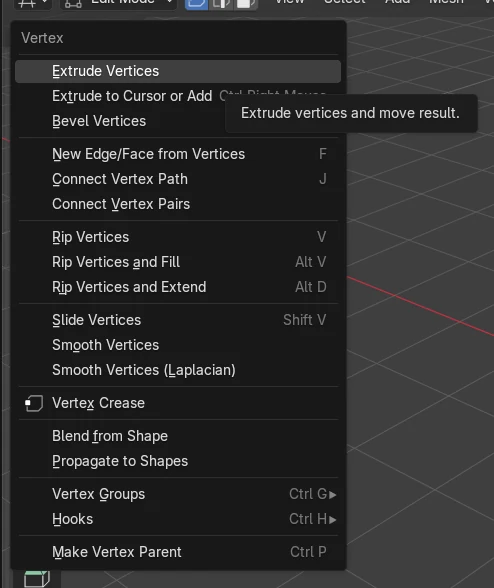
- Vertex › New Edge/Face from Vertices
- Shortcut
- F
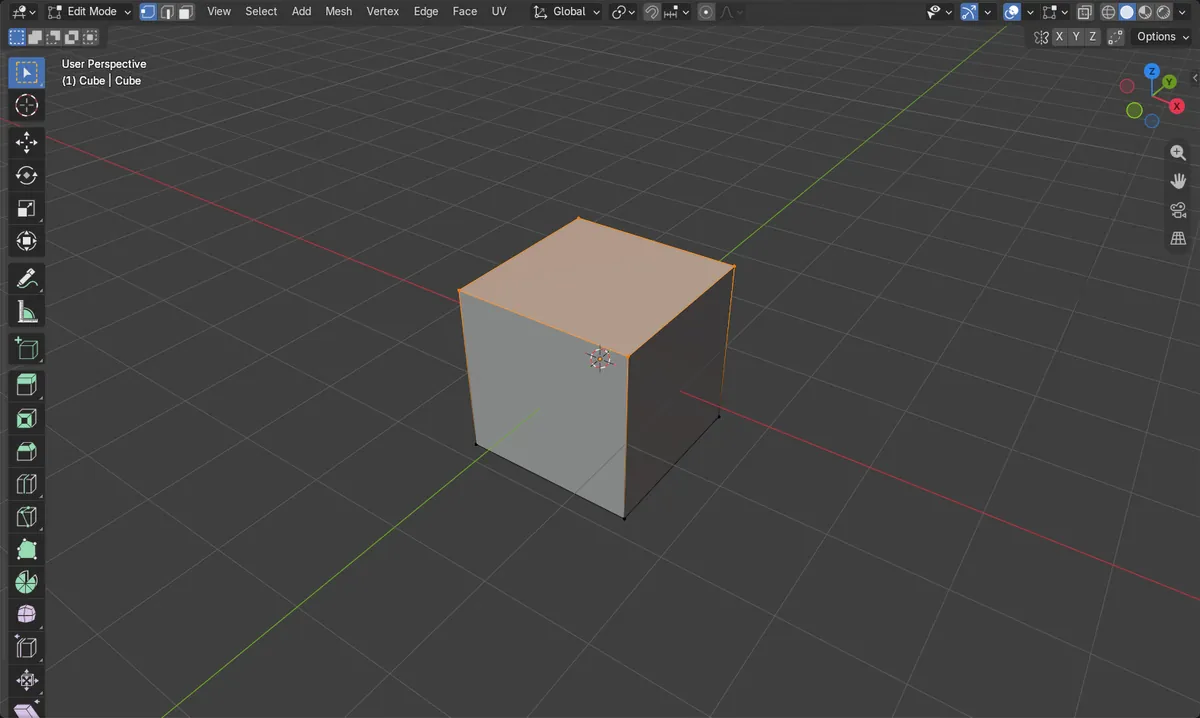
Press F
Makes a face from the selected vertices or edges.
Face > Fill
Fills a selected edge loop. Shortcut: Alt + F.
Select the rim
Select every vertex around the hole first.
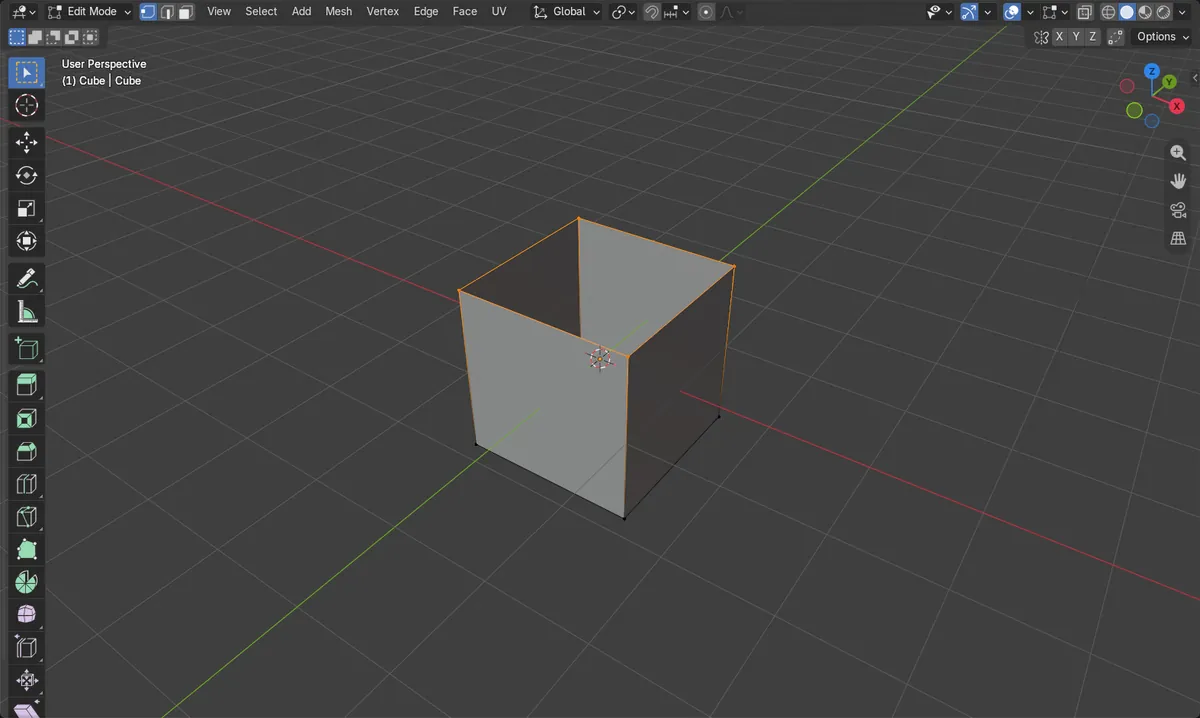
Before and after

AI Scene Builder is a Blender add-on. You type what you want, and it builds it in your scene: buildings, neon signs, wet pavement, fog and lights. Nothing in this picture was modeled by hand.
On a phone now? The add-on runs in Blender on a computer. Send yourself the link and open it there.
Step by step (Blender 5.x)
- Select the object and press Tab to enter Edit Mode.
- Switch to Vertex select mode and select all the vertices around the edge of the hole.
- Hover over the 3D Viewport and press F, or choose Vertex › New Edge/Face from Vertices.
- Check that the hole is now covered by a new face and no open boundary edges remain.
Other ways to do it
- Face › Fill (Alt + F) fills a selected edge loop with faces.
- Right-click in Edit Mode and choose New Edge/Face from Vertices.
- Select the edges instead and use the right-click item New Face from Edges.
Common snags
Nothing happens
The vertices around the hole are not all selected, or you are in Object Mode. Press Tab to enter Edit Mode and select the full rim.
Key does nothing
The mouse is over another editor. Move it over the 3D Viewport before pressing F.
Wrong shape
If you select extra vertices, the new face spans them too. Deselect everything and select only the ring around the hole.
Or type one line in AI Scene Builder
AI Scene Builder is a Blender add-on that carries out the steps for you from one typed request. For this task, type a request like this one, using your own object names:
Fill the hole in the selected mesh with a face A lighthouse island at sunset built with the add-on from 10 typed requests. See every request →
Questions
What is the shortcut to fill a hole in Blender?
Select the vertices around the hole in Edit Mode and press F. For an edge loop you can also press Alt + F.
Does filling a hole add vertices?
No. The new face uses the existing rim vertices, so the vertex count stays the same.
What the pictures show
- Before: the cube had 5 faces, 8 vertices and 4 open boundary edges.
- After pressing F: 6 faces, 8 vertices and 0 boundary edges.
- The 4 rim vertices stayed selected and no new vertices were added.