How to Use the Blade Tool by Holding C in the Blender 5.3 Video Editor
In Blender 5.3, hover over the Video Sequencer timeline and hold C. The active tool switches to Blade while the key is held; click a strip to cut it where you click, then release C to return to the tool you had before. Press K instead to split the selected strips at the playhead.
- Mode
- Video Sequencer timeline
- Shortcut
- C
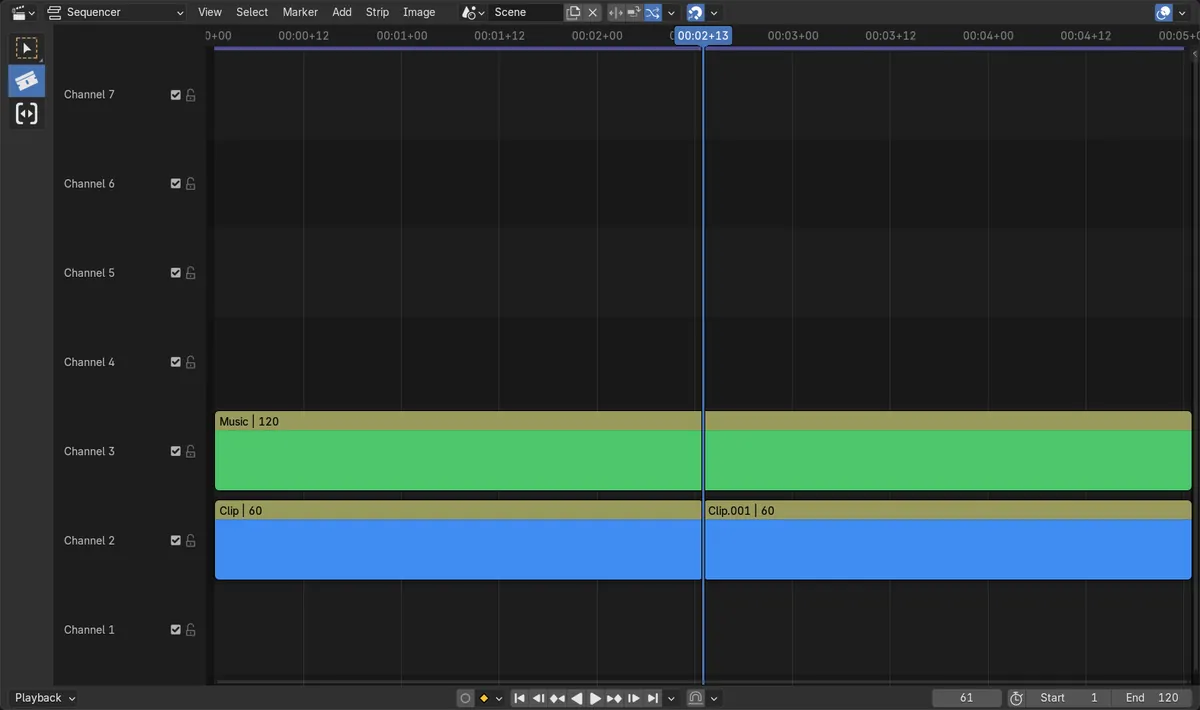
Hold, cut, let go
Holding C changed the tool from Select Box to Blade, and a cut at frame 61 split a 120-frame clip into frames 1 to 60 and 61 to 120.
Only the strip you click
The Blade cut only the clip under the click; the music strip below it stayed in one piece.
New in 5.3
In Blender 5.2 LTS, C in the timeline is Circle Select; there is no hold-to-blade key.
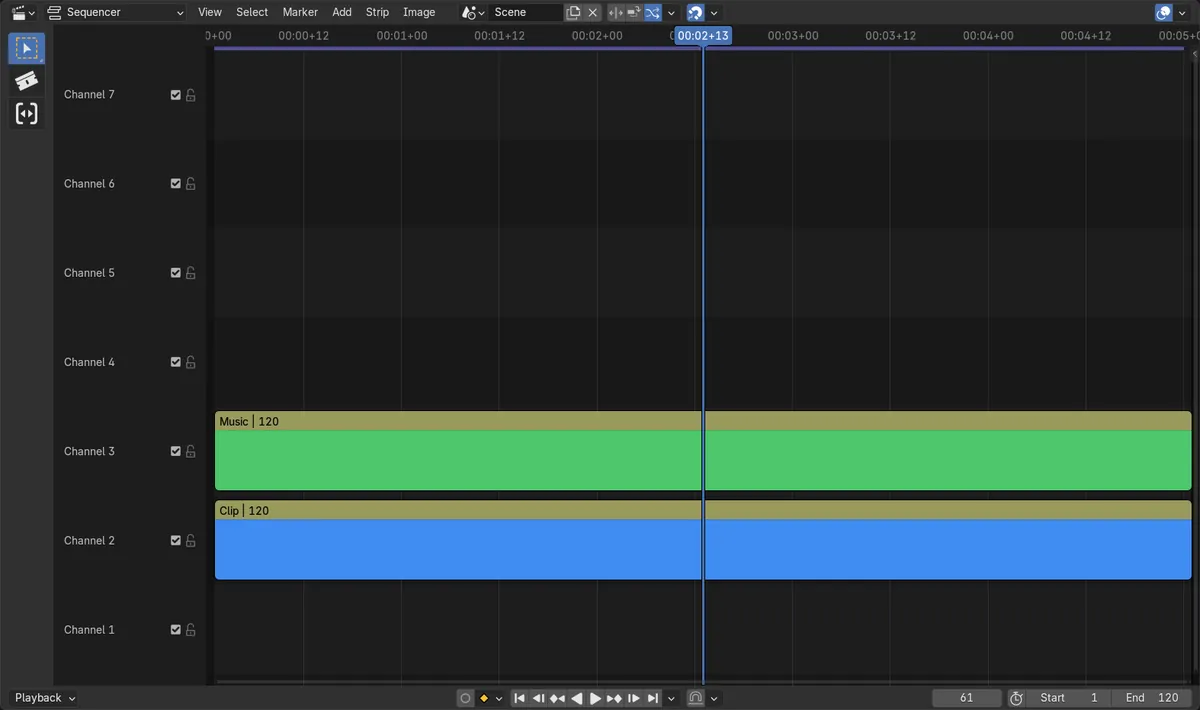
Before and after

AI Scene Builder is a Blender add-on. You type what you want, and it builds it in your scene: buildings, neon signs, wet pavement, fog and lights. Nothing in this picture was modeled by hand.
On a phone now? The add-on runs in Blender on a computer. Send yourself the link and open it there.
Step by step (Blender 5.3)
- Open the Video Editing workspace and move the mouse over the sequencer timeline.
- Hold C. The toolbar shows the Blade tool as active while you hold it.Blender 5.2 LTS: In 5.2 LTS pick Blade in the toolbar instead; C starts Circle Select.
- Click on a strip where you want to cut it. Only that strip is split.
- Release C. The tool goes back to the one you had before, such as Select Box.Blender 5.2 LTS: In 5.2 LTS pick your previous tool again in the toolbar.
- Select the new pieces as usual to move, delete or trim them.
Other ways to do it
- Press K to split the selected strips at the playhead.
- Pick Blade in the toolbar on the left of the timeline.
- Drag with the Blade tool across several strips to cut all of them at once.
Blender 5.2 LTS vs Blender 5.3
| What | Blender 5.2 LTS | Blender 5.3 |
|---|---|---|
| C key in the sequencer timeline | Circle Select. | Hold for the Blade tool; release to go back to the previous tool. |
Common snags
Keep holding while you click
The Blade tool stays only while C is down. Release C after the click, not before, or the click uses your normal tool.
Mouse must be over the timeline
The C shortcut belongs to the sequencer timeline. Over the preview or another editor it does something else.
The cut is not at the playhead
The Blade cuts at the frame under the mouse, not at the playhead. Put the mouse on the frame you want, or press K to cut the selected strips at the playhead.
An AI add-on for Blender
AI Scene Builder is a Blender add-on that builds and edits your scene from one typed request, such as “a small wooden table with two chairs”. Each request can be undone in one click.
 An evening market street built with the add-on from 11 typed requests. See every request →
Questions
What is the shortcut for the Blade tool in the Blender Video Editor?
In Blender 5.3, hold C over the sequencer timeline to use the Blade tool, click to cut, and release C to go back. K splits the selected strips at the playhead.
How do I cut a strip where I click in Blender?
Use the Blade tool: hold C in Blender 5.3, or pick Blade in the toolbar, then click on the strip at the frame where you want the cut.
Why does C not cut strips in Blender 5.2 LTS?
In 5.2 LTS, C in the timeline is Circle Select. Holding C for the Blade tool is new in Blender 5.3.
What the pictures show
- Blender 5.3: before, the active tool was Select Box and the clip on channel 2 was one 120-frame strip.
- Blender 5.3: holding C (Set Tool by Name (Hold)) switched the active tool to Blade.
- Blender 5.3: a Blade cut at frame 61 split the clip into frames 1 to 60 and 61 to 120, and the music strip stayed whole.
- Blender 5.3: in the Sequencer keymap, C runs Set Tool by Name (Hold) for Blade and K runs Split Strips.
- Blender 5.2 LTS: the Set Tool by Name (Hold) operator does not exist.