How to Change the Font Size in Blender (5.4 Alpha and 5.3)
In Blender 5.4 Alpha, open Edit › Preferences, go to Interface, expand Text Rendering › Font Style and raise Widget Size; Panel Title Size and Tooltip Size are right next to it. In Blender 5.3 the same size is set under Themes › User Interface › Text Style with Points, and loading a theme preset there resets it. To make the whole interface bigger, not only the text, use Resolution Scale under Interface › Display.
- Mode
- Preferences (Edit > Preferences)
- Menu
- Interface › Text Rendering › Font Style › Widget Size
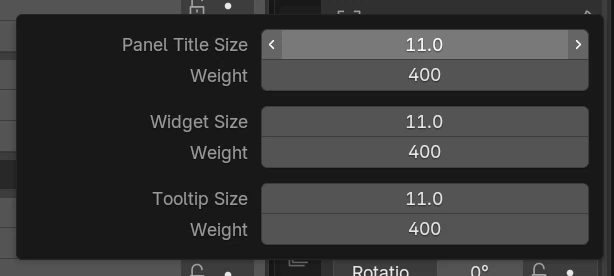
Font Style panel
Blender 5.4 Alpha has Panel Title Size, Widget Size and Tooltip Size in Interface › Text Rendering › Font Style.
Survives theme changes
In 5.4 Alpha the size stayed at 14 after switching to Blender Light and back to Blender Dark.
5.3 keeps it in Themes
In Blender 5.3 the size is part of the theme, so loading a theme preset sets it back.
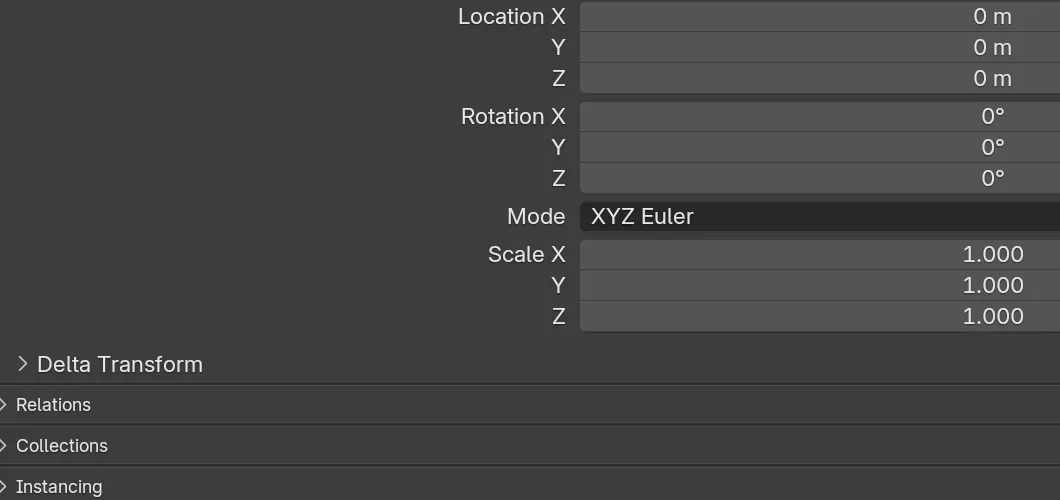
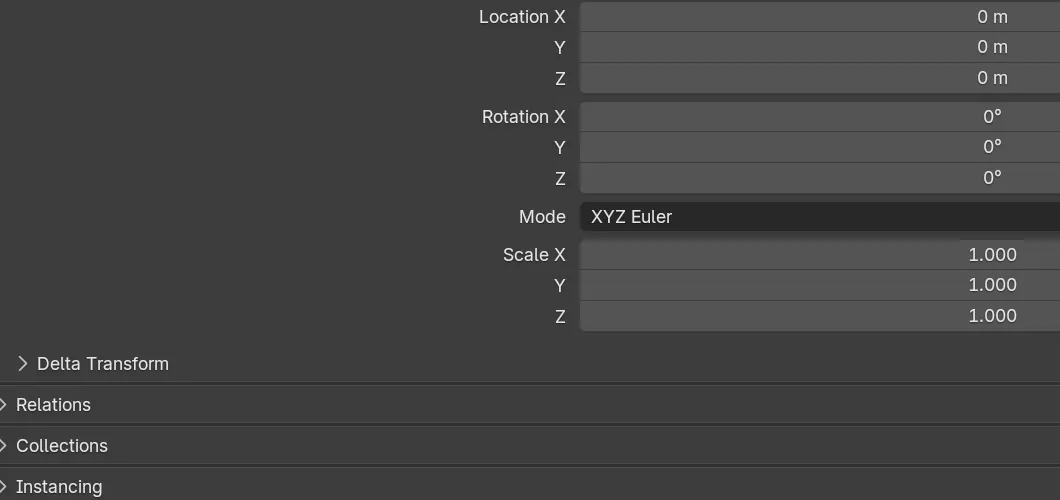
Before and after

AI Scene Builder is a Blender add-on. You type what you want, and it builds it in your scene: buildings, neon signs, wet pavement, fog and lights. Nothing in this picture was modeled by hand.
On a phone now? The add-on runs in Blender on a computer. Send yourself the link and open it there.
Step by step (Blender 5.4 Alpha)
- Open Edit › Preferences.
- Click Interface in the left column, then expand Text Rendering and its Font Style panel.Blender 5.3: In Blender 5.3, click Themes instead and expand User Interface › Text Style.
- Raise Widget Size (for example from 11 to 14). This is the size of the text on buttons, menus and fields.Blender 5.3: In Blender 5.3, change Points for the text style you want to make bigger.
- Change Panel Title Size and Tooltip Size too if you want panel headers and tooltips to match. Weight next to each size makes the letters thinner or bolder.
Other ways to do it
- Resolution Scale, in the Display panel of the Interface tab, makes the whole interface bigger, including icons, buttons and text.
- In Blender 5.3: Edit › Preferences › Themes › User Interface › Text Style › Points.
Blender 5.3 vs Blender 5.4 Alpha
| What | Blender 5.3 | Blender 5.4 Alpha |
|---|---|---|
| Where the font size is set | Themes › User Interface › Text Style (Points and Weight). | Interface › Text Rendering › Font Style (Panel Title Size, Widget Size, Tooltip Size and Weight). |
| Loading a theme preset | Resets the size: 14 went back to 11 after loading Blender Light and Blender Dark. | Keeps the size: 14 stayed 14 after loading Blender Light and Blender Dark. |
Common snags
The size goes back after changing the theme
In Blender 5.3 the text size is stored in the theme, so a theme preset overwrites it. Load the theme first, then set Points again, or set Widget Size in Blender 5.4 Alpha where themes do not touch it.
Everything got bigger, not just the text
Resolution Scale under Interface › Display scales the whole interface. To change only the text, use Widget Size in the Font Style panel instead.
Tooltips and panel headers stay small
Widget Size only changes button, menu and field text. In Blender 5.4 Alpha, raise Tooltip Size and Panel Title Size in the same Font Style panel as well.
An AI add-on for Blender
AI Scene Builder is a Blender add-on that builds and edits your scene from one typed request, such as “a small wooden table with two chairs”. Each request can be undone in one click.
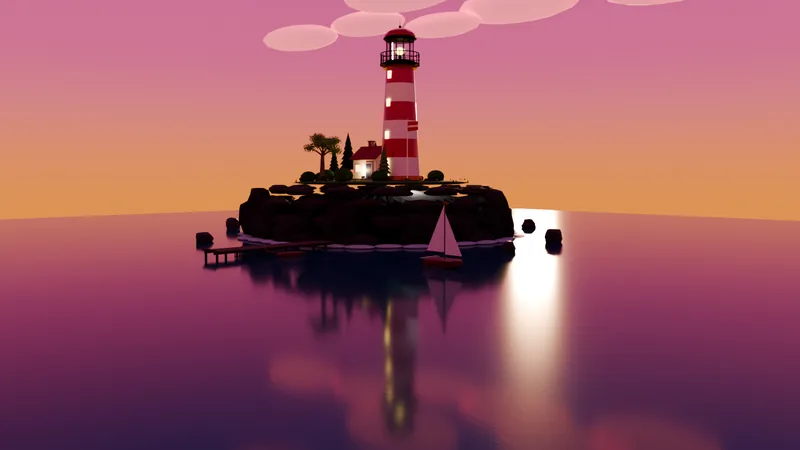 A lighthouse island at sunset built with the add-on from 10 typed requests. See every request →
Questions
How do I make the text bigger in Blender without making the icons bigger?
Change Widget Size in Edit › Preferences › Interface › Text Rendering › Font Style (Blender 5.4 Alpha), or Points under Themes › User Interface › Text Style (Blender 5.3). Resolution Scale makes everything bigger.
Why does my Blender font size reset when I change the theme?
In Blender 5.3 the size is part of the theme, so loading a theme preset replaces it. In Blender 5.4 Alpha the size lives in the Font Style panel and stays when you switch themes.
Can I change tooltip text size separately?
Yes. In Blender 5.4 Alpha, Tooltip Size in the Font Style panel sets it on its own, next to Panel Title Size and Widget Size.
What the pictures show
- Blender 5.4 Alpha: Widget Size went from 11 to 14, and the Font Style panel sits inside Text Rendering on the Interface tab.
- Blender 5.4 Alpha: after loading the Blender Light theme and then Blender Dark, Widget Size was still 14.
- Blender 5.3: the size is under Themes > User Interface > Text Style; after setting 14 and loading Blender Light and Blender Dark it was back at 11.