How to Move an Object to Another Object's Center in Blender
Select the object you want to move, then select the target object last so it is the active one. Open Object › Snap › Selection to Active in the 3D Viewport, and the first object jumps to the target's location. The target does not move.
- Mode
- Object Mode, 3D Viewport
- Menu
- Object › Snap › Selection to Active
- Shortcut
- Shift + S, then Selection to Active (pie menu)
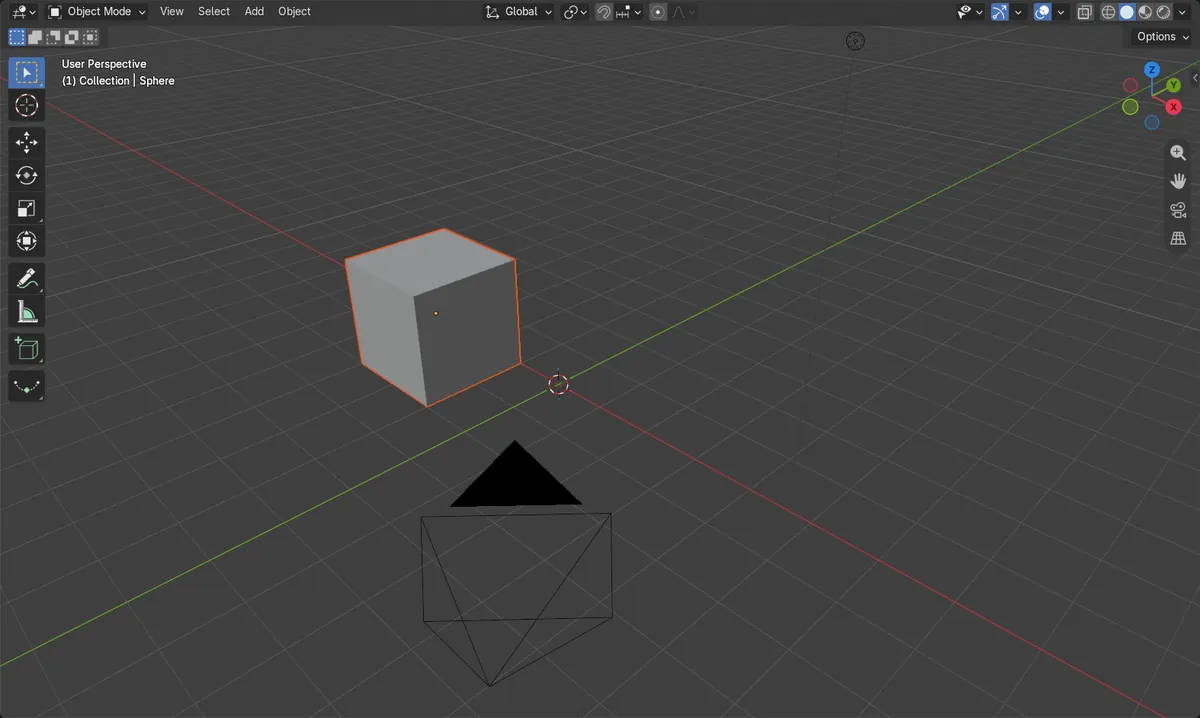
Active object last
Select the mover first, then the target. The target must be the active (last-selected) object.
Snap menu
Object › Snap › Selection to Active. Also in the right-click Object menu.
Pie menu
Press Shift + S over the viewport. Choose Selection to Active.
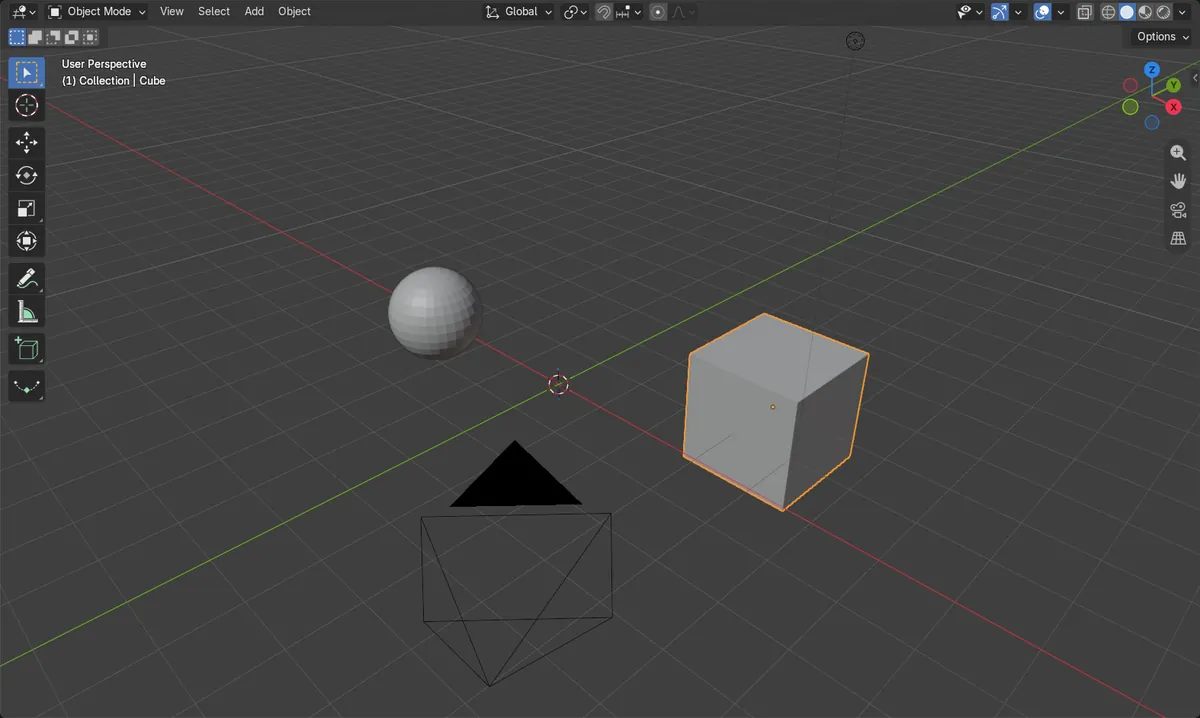
Before and after

AI Scene Builder is a Blender add-on. You type what you want, and it builds it in your scene: buildings, neon signs, wet pavement, fog and lights. Nothing in this picture was modeled by hand.
On a phone now? The add-on runs in Blender on a computer. Send yourself the link and open it there.
Step by step (Blender 5.x)
- Hover over the 3D Viewport and make sure you are in Object Mode.
- Click the object you want to move (for example the Cube).
- Shift + click the target object (for example the Sphere) so it becomes the active object, shown with the lighter outline.
- Choose Object › Snap › Selection to Active. Or press Shift + S and pick Selection to Active.
- The first object now sits at the target's location. Check it in the Object tab › Transform › Location.
Other ways to do it
- Shift + S opens the Snap pie menu, which contains Selection to Active
- Copy the target's values into the moved object's Location fields in Object tab › Transform
Common snags
Wrong object moves
If the target moved instead, it was selected first. Reselect, clicking the object to move first and the target last so the target is active.
Nothing happens or item is greyed
You may be in Edit Mode or have nothing selected. Press Tab to return to Object Mode and select both objects.
Menu not found
Shift + S only works with the mouse over the 3D Viewport. Move the pointer there or use the Object menu in the viewport header.
Or type one line in AI Scene Builder
AI Scene Builder is a Blender add-on that carries out the steps for you from one typed request. For this task, type a request like this one, using your own object names:
Move the Cube to the same location as the Sphere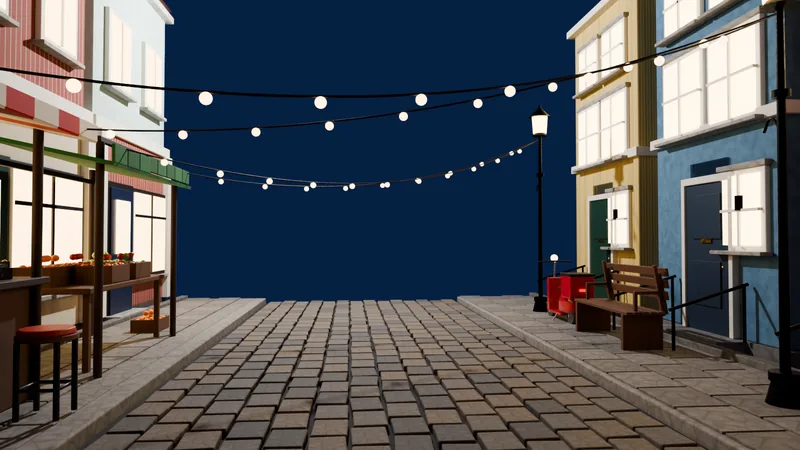 An evening market street built with the add-on from 11 typed requests. See every request →
Questions
How do I snap an object to another object's origin in Blender?
Select the object to move, then make the target active by selecting it last. Use Object › Snap › Selection to Active.
Does Selection to Active move the target object?
No. Only the other selected objects move to the active object's location.
Can I snap to the 3D cursor instead?
Yes. Object › Snap › Selection to Cursor moves the selection to the 3D cursor.
What the pictures show
- Before: Cube at (3, 2, 0) m and Sphere at (-2, -1, 1) m, about 5.92 m apart.
- After: Cube at (-2, -1, 1) m, exactly the Sphere's location, distance 0 m.
- The Sphere stayed at (-2, -1, 1) m.
- Same result in Blender 4.2 LTS and Blender 5.x.