How to Add an Image as the World Background (HDRI) in Blender
Open the World tab in the Properties editor, add an Environment Texture node to the world's node tree, load your image into it, and connect its Color output to the Background node's Color input. Then render with Render › Render Image (F12) to see the image as the background.
- Mode
- Properties editor (World tab) and a Shader/Node Editor showing the World; any mode
- Menu
- Render › Render Image
- Shortcut
- F12
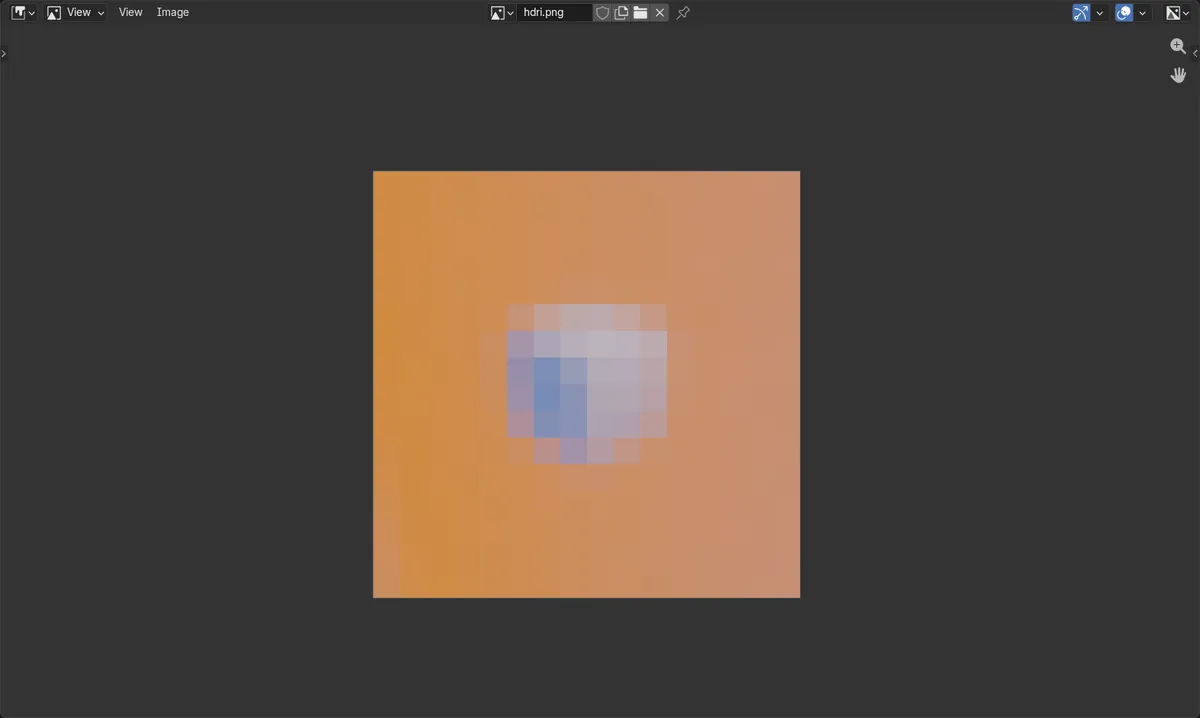
World tab
Properties editor › World tab holds the world and its Surface settings.
Link Color
Environment Texture Color goes into Background Color.
Render to check
Press F12 to render the image as background.
Before and after
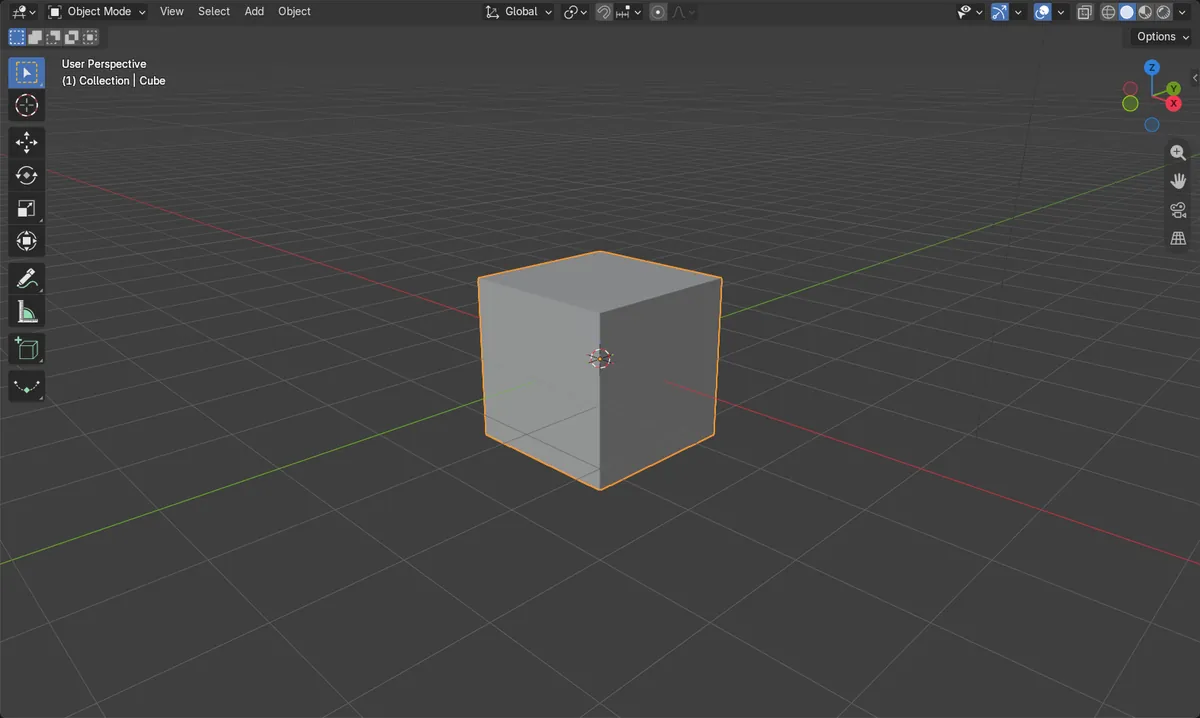

AI Scene Builder is a Blender add-on. You type what you want, and it builds it in your scene: buildings, neon signs, wet pavement, fog and lights. Nothing in this picture was modeled by hand.
On a phone now? The add-on runs in Blender on a computer. Send yourself the link and open it there.
Step by step (Blender 5.x)
- In the Properties editor, click the World tab. If no world exists, click New in the world data-block field at the top (it creates a new world).Blender 4.2 LTS: In Blender 4.2 LTS with EEVEE, the world's Surface panel also shows a Use Nodes button; make sure it is enabled.
- Make sure the world uses nodes, so the world node tree has a Background node connected to the output.
- Open a Node Editor set to the World shader type and add an Environment Texture node.
- On the Environment Texture node, click Open and choose your HDRI or image file.
- Drag from the Environment Texture node's Color output to the Background node's Color input.
- Choose Render › Render Image (or press F12). The image now appears as the world background.
Other ways to do it
- Render › Render Image runs the same render as F12.
- Properties editor › World tab › Surface panel shows the Background settings when using Cycles; in Blender 4.2 EEVEE it does too.
Blender 4.2 LTS vs Blender 5.x
| What | Blender 4.2 LTS | Blender 5.x |
|---|---|---|
| Use Nodes toggle in World › Surface (EEVEE) | EEVEE's world Surface panel draws a Use Nodes button. | No Use Nodes button appears in the checked world panels. |
Common snags
Background stays grey
The Environment Texture's Color is not linked to the Background Color input. Drag a link between them.
Background is empty in the render
Render › Film › Transparent is turned on, which hides the world in the render. Turn Transparent off.
No world to edit
The scene has no world, so the World tab is empty. Click New in the World tab's data-block field to create one.
An AI add-on for Blender
AI Scene Builder is a Blender add-on that builds and edits your scene from one typed request, such as “a small wooden table with two chairs”. Each request can be undone in one click.
 A lighthouse island at sunset built with the add-on from 10 typed requests. See every request →
Questions
Can I use a normal JPG or PNG instead of an HDR file?
Yes. The Environment Texture node accepts any image you open. HDR files give more realistic lighting.
How do I hide the HDRI in the final render but keep the lighting?
Turn on Render tab › Film › Transparent. It makes the world background transparent in the render.
What the pictures show
- The world's node count went from 2 to 3 after adding the Environment Texture node.
- Background Color changed from not linked to linked.
- After linking the Environment Texture, a rendered corner pixel measured red 0.80 and blue 0.37, so the image shows in the render.