How to Give a Flat Plane Thickness in Blender (Solidify)
Select the plane, open the Modifiers tab in the Properties editor, and choose Add Modifier › Generate › Solidify. Then set the Thickness value (for example 0.2 m) to give the flat plane real depth.
- Mode
- Object Mode, Properties editor (Modifiers tab)
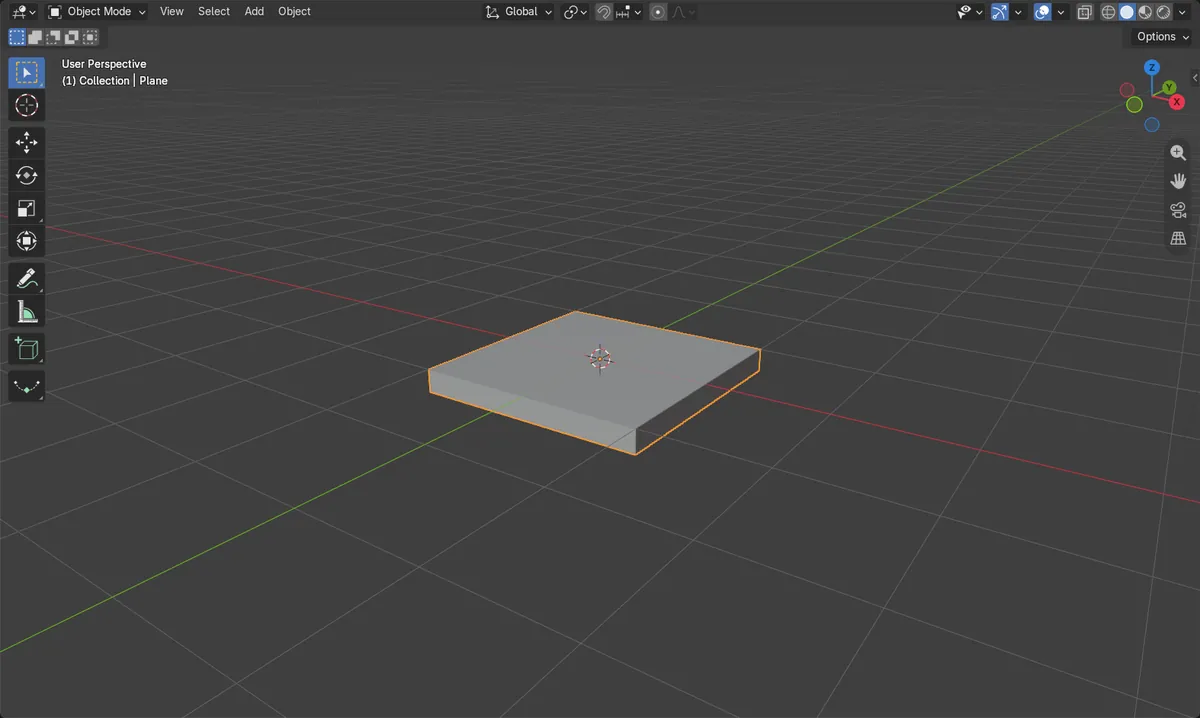
Set Thickness
Type a value such as 0.2 to give the plane depth.
Non-destructive
The base mesh stays unchanged until you apply the modifier.
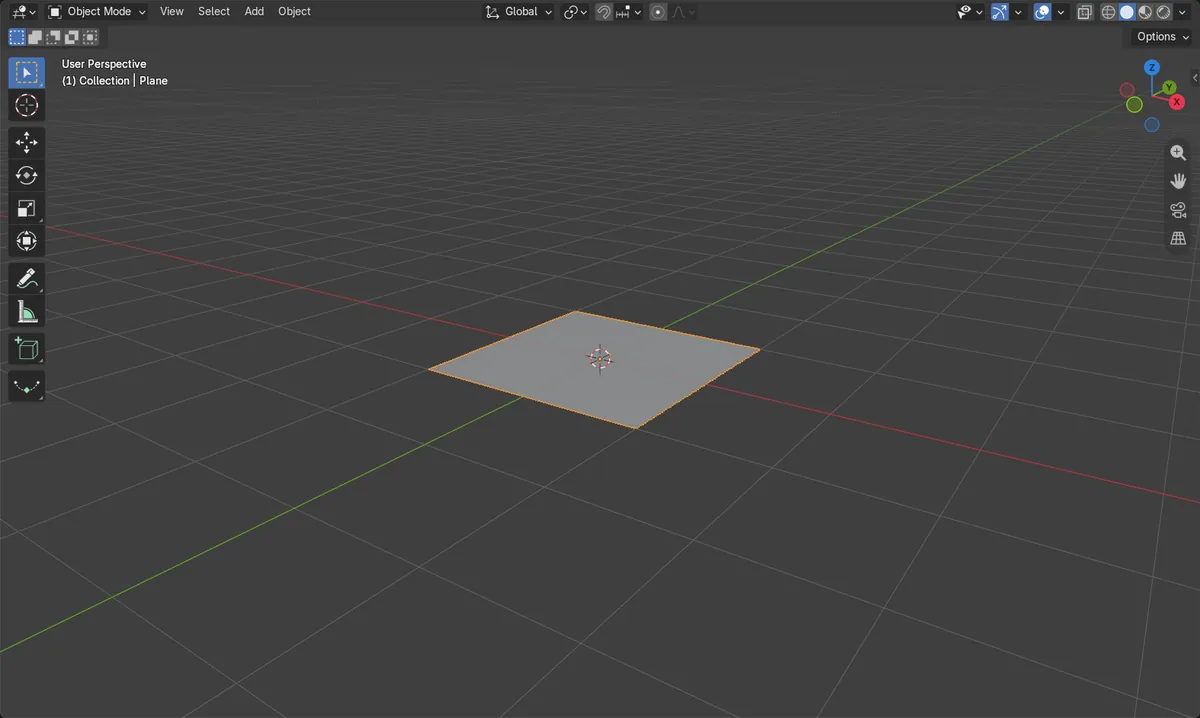
Before and after

AI Scene Builder is a Blender add-on. You type what you want, and it builds it in your scene: buildings, neon signs, wet pavement, fog and lights. Nothing in this picture was modeled by hand.
On a phone now? The add-on runs in Blender on a computer. Send yourself the link and open it there.
Step by step (Blender 5.x)
- Click the plane in the 3D Viewport so it is the active object.
- In the Properties editor, open the Modifiers tab (wrench icon).
- Click Add Modifier, open Generate, and choose Solidify.
- In the Solidify panel, set Thickness to the value you want, for example 0.2.
- To make the thickness permanent, run Apply Modifier on the Solidify modifier, or leave the modifier in place to keep editing it.
Common snags
Nothing happens
The Modifiers tab shows the active object only. Click the plane in the viewport first, then open the tab.
Wrong tab
Add Modifier is in the Modifiers tab, not the Object tab. Click the wrench icon in the Properties editor.
Thickness not in the mesh
The modifier only changes the evaluated result. The plane keeps its 4 vertices until you use Apply Modifier.
Or type one line in AI Scene Builder
AI Scene Builder is a Blender add-on that carries out the steps for you from one typed request. For this task, type a request like this one, using your own object names:
Give the selected plane a thickness of 0.2 m with a Solidify modifier An evening market street built with the add-on from 11 typed requests. See every request →
Questions
How do I keep the thickness permanently?
Run Apply Modifier on the Solidify modifier. The thickness is then written into the mesh and the modifier is removed.
What the pictures show
- Before: the plane had 4 vertices, 1 face and 0 m of height.
- After adding Solidify with Thickness 0.2: 8 vertices, 6 faces and 0.2 m of height.
- The original mesh still had 4 vertices, and 1 modifier was in the stack.