How to Render an Animation as a Video File in Blender
Open the Output tab in Properties, set File Format to FFmpeg Video, then choose Render › Render Animation (or press Ctrl + F12). Blender renders every frame in the frame range and writes a single video file to your Output Path.
- Mode
- Properties editor, Output tab (any mode)
- Menu
- Render › Render Animation
- Shortcut
- Ctrl + F12
FFmpeg Video format
Output tab › File Format must be FFmpeg Video, not an image format.
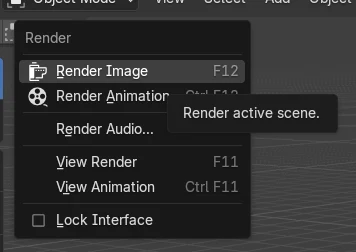
Render Animation
Top bar: Render › Render Animation.
Ctrl + F12
Starts the animation render from the keyboard.
Before and after

AI Scene Builder is a Blender add-on. You type what you want, and it builds it in your scene: buildings, neon signs, wet pavement, fog and lights. Nothing in this picture was modeled by hand.
On a phone now? The add-on runs in Blender on a computer. Send yourself the link and open it there.
Step by step (Blender 5.x)
- Open the Properties editor and click the Output tab.
- In the Frame Range panel, set Frame Start and the end frame to cover your animation.
- In the Output panel, set the Output Path to the folder and file name prefix where the video should be saved.
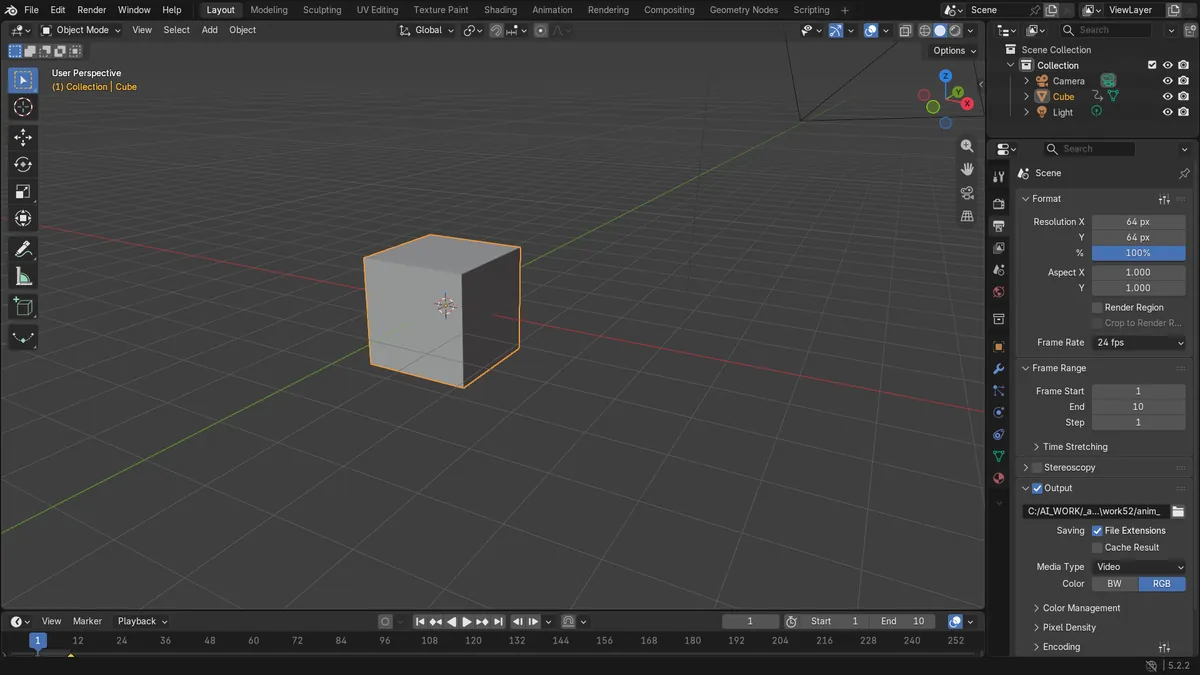
- In Blender 5.x, set Media Type to Video first. Then set File Format to FFmpeg Video. The Encoding panel appears.Blender 4.2 LTS: In Blender 4.2 LTS there is no Media Type setting; just set File Format to FFmpeg Video. The Encoding panel appears.
- In Encoding, set Container to MPEG-4, then under Video set Video Codec to H.264.
- Optionally adjust Output Quality in the Video panel (Medium Quality is the default).
- Choose Render › Render Animation, or press Ctrl + F12, and wait for the frames to finish.
Other ways to do it
- Keyboard: Ctrl + F12 renders the animation
- Render menu in the top bar › Render Animation
- F11 shows or hides the render window
Blender 4.2 LTS vs Blender 5.x
| What | Blender 4.2 LTS | Blender 5.x |
|---|---|---|
| Media Type setting | Not present; File Format alone selects video. | Image settings include Media Type (Image, Multi-Layer EXR, Video); choose Video, then File Format FFmpeg Video. |
| Output Quality options | Ends at Lowest Quality. | Adds a Custom Quality option. |
| Container and codec lists | Fewer codecs; no H.265 or ProRes. | Codec list adds H.265 / HEVC and ProRes. |
Common snags
Only still images appear
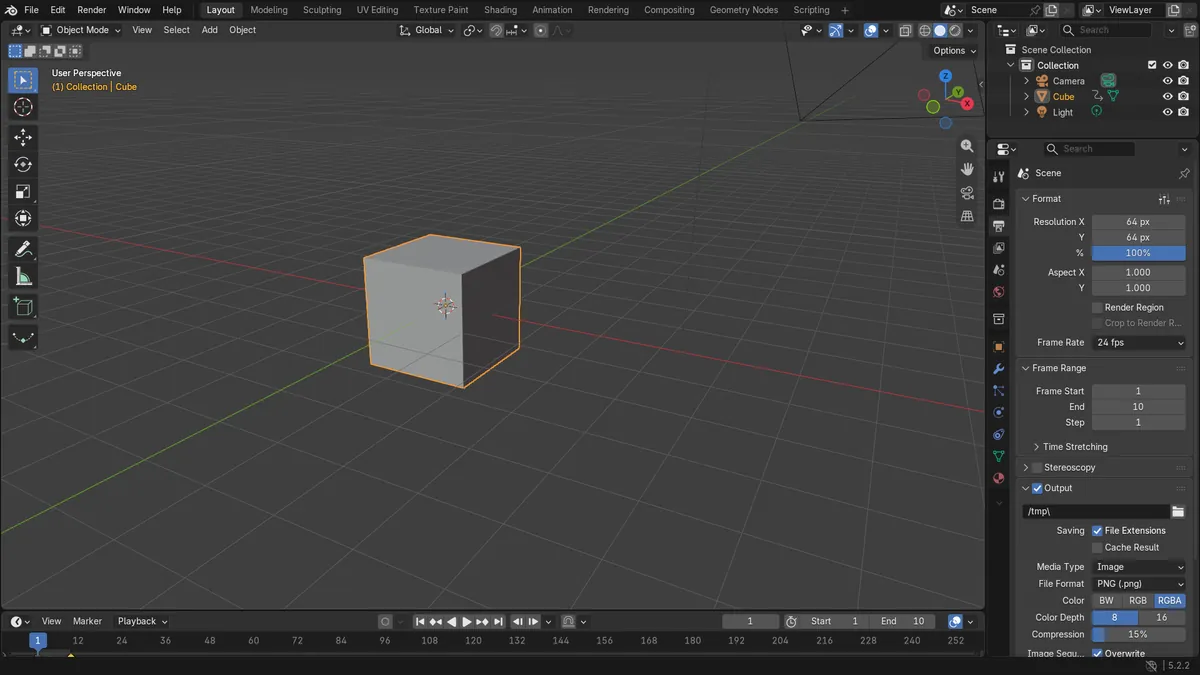
If File Format is still PNG or another image format, Blender writes one image per frame. Set File Format to FFmpeg Video in the Output tab.
No Encoding panel
The Encoding panel only shows when File Format is FFmpeg Video. Change the format and it appears.
Wrong number of frames
The video covers only the Frame Start to end range. Check the Frame Range panel before rendering.
Or type one line in AI Scene Builder
AI Scene Builder is a Blender add-on that carries out the steps for you from one typed request. For this task, type a request like this one, using your own object names:
Set up my render output as an H.264 MP4 video for frames 1 to 10 A lighthouse island at sunset built with the add-on from 10 typed requests. See every request →
Questions
What is the shortcut to render an animation in Blender?
Press Ctrl + F12 to render the animation using the current output settings.
Which format gives a single video file?
Set File Format to FFmpeg Video, then pick MPEG-4 as Container and H.264 as Video Codec.
Where do I set the video quality?
Output tab › Encoding › Video › Output Quality.
What the pictures show
- File Format changed from PNG to FFmpeg Video.
- Container changed from MPEG-1 to MPEG-4 and Video Codec from No Video to H.264.
- Frame range was 1 to 10 with an animated cube.
- Output Path was set to a file name prefix for the video.